
How to add halls and restaurant tables in Snad
To manage restaurant tables in Snad ERP, open POS, then Halls & tables, pick a Branch, and press Add a hall. Add tables from Shapes, edit each table's properties, then press Save to keep the plan.
In this guide7
Steps
Step 1: Open Halls & tables
In the sidebar, choose POS, then Halls & tables. The link shows only for a business whose sector is restaurants and cafés (POS setup).
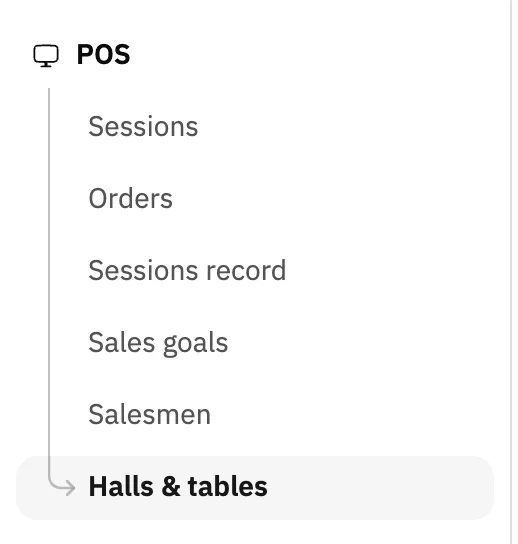
Image key - POS in the sidebar
- Halls & tables
Step 2: Pick the branch
From the Branch list (add a branch), pick the branch whose hall you are drawing. Each hall belongs to one branch, so the page shows only that branch's halls.

Image key - The Branch list
- The Add a hall button
Step 3: Add a hall
Press Add a hall. The hall is saved at once under a name such as “Hall 1”, and shows as a button above the plan with its table count. Details
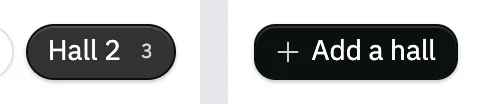
Image key - The hall button and its table count
Step 4: Set the hall details
Change the Hall name, set the Seat duration (minutes), and pick Cashiers who see it. Leave it empty and every cashier of the branch sees the hall. Details

Image key - Hall name
- Seat duration (minutes)
- Cashiers who see it
Step 5: Place tables on the plan
Under Shapes, press a shape, such as Square or Round. It lands in the first free spot with the next number. Drag any table on the plan to move it. Details
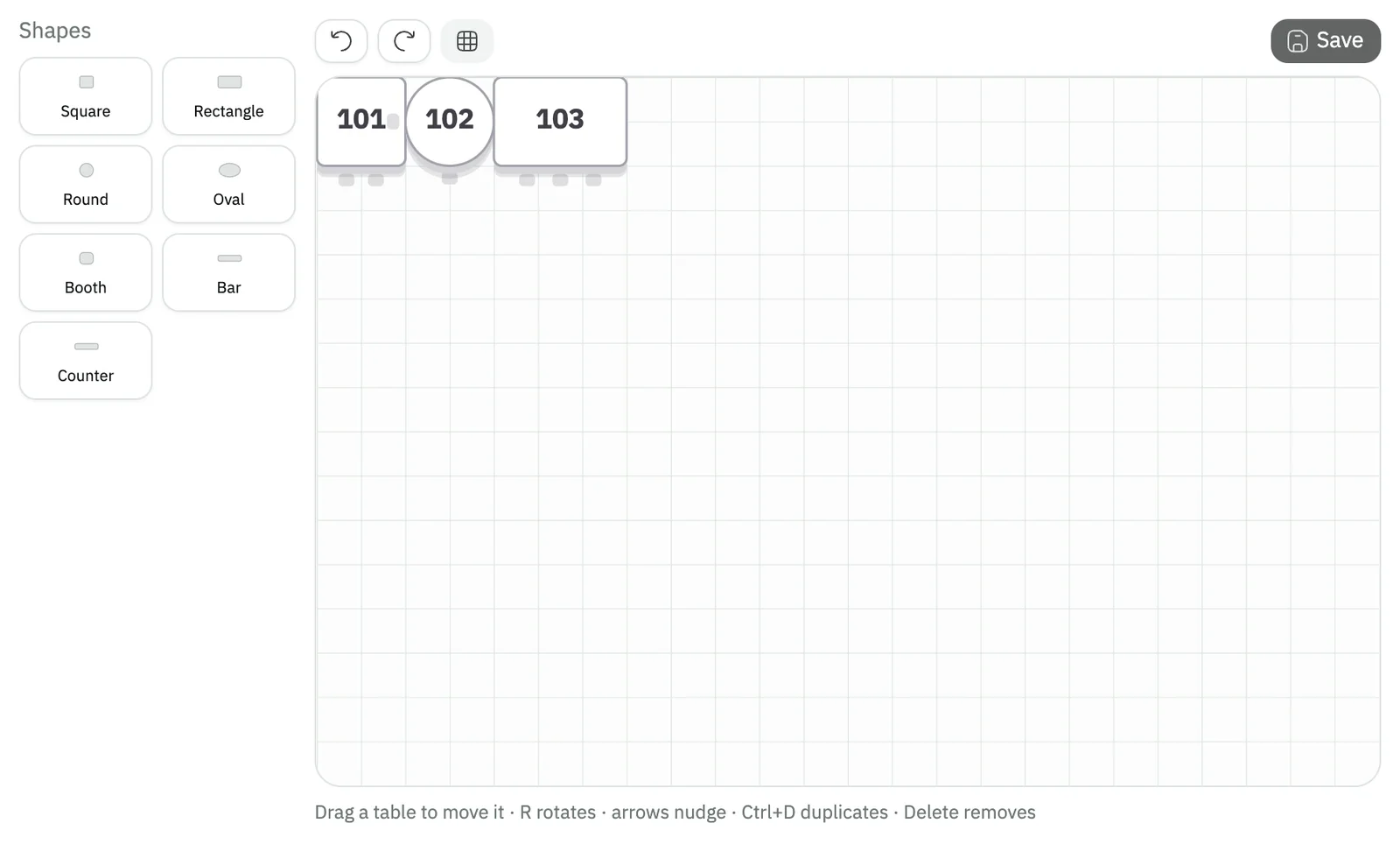
Image key - The Shapes palette
- The hall plan and its tables
Step 6: Edit a table's properties
Press a table to open Table properties, and edit the Table number, Table name, Seats and Shape. A table number is unique within the branch. Details
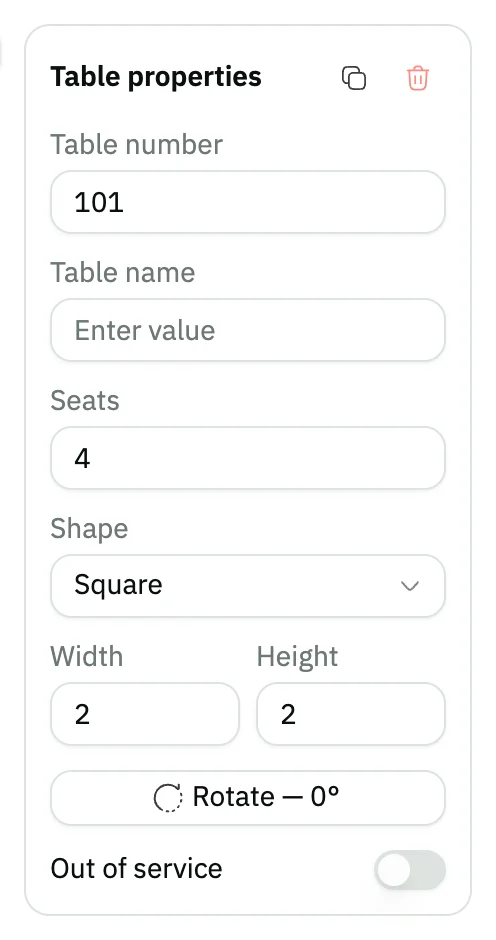
Image key - Table number
- Seats
- The Out of service switch
Step 7: Save the plan
When the Unsaved changes badge shows, press Save. Tables save only with this button, and it stays disabled until you change something.

Image key - The Unsaved changes badge
- The Save button
Messages that block saving
If saving fails, one of these messages shows next to the field. The table gives the cause and the fix.
| Message | Cause | Fix |
|---|---|---|
| «Duplicate table number — numbers must be unique within the branch» | Two tables on the plan carry the same number. | Change the Table number on one of them, then press Save. |
| «A table cannot sit on top of another» | You dropped a table onto another table. | Snad puts the table back. Drag it to an empty spot. |
| «Table 4 has served orders and cannot be deleted — mark it out of service instead» | You deleted a table that has served orders before. The number in the message is your table's. | Bring it back with Undo or add it again, and turn on Out of service instead of deleting. |
| «A table with an open order cannot be deleted» | The table has an order that is not paid yet. | Finish the order at the point of sale first, then delete the table. |
| «The plan changed on another device — reload, then save» | Another user edited the same hall's plan after you opened it. | Reload the page, redo your edits on the new copy, then save. |
| «A hall with open orders cannot be deleted» | The hall has open orders on its tables. | Finish the open orders, then press Delete hall. |
Advanced details
Each section here explains one point from the steps in depth. Every section has a fixed link you can share.
Seat duration and who sees the hall
Seat duration (minutes) is a seating timer, not a warning limit. When it runs out the table frees itself, and it accepts 5 to 600 minutes.
A table with an open unpaid order stays occupied and turns red until the cashier releases it. The table's rounds reach the kitchen in the kitchen display.
Cashiers who see it sets which cashiers see the hall (add a user). Left on All cashiers, every cashier of the branch sees it. Snad saves the name and the duration when you leave the field, so they don't need Save.
Shortcuts, undo and the grid
Select a table, then press R to rotate it, the arrow keys to nudge it one cell, Ctrl with D to duplicate it, and Delete to remove it. To undo, press Ctrl with Z.
Above the plan are the Undo, Redo and Show grid buttons. The shortcuts do not fire while you are typing in a properties field.
The properties panel also has a Duplicate button, a Rotate button that turns the table 90 degrees, and Width and Height fields for the table's size on the grid.
Retire a table without deleting it
A table that has served orders cannot be deleted. Turn on Out of service in its properties, then press Save. It stays on record and is no longer used.
A table marked out of service shows in a different colour on the plan, and you bring it back by switching the same switch off.
To delete for good, use the delete button in the properties panel, which suits a table that has not served any order yet.
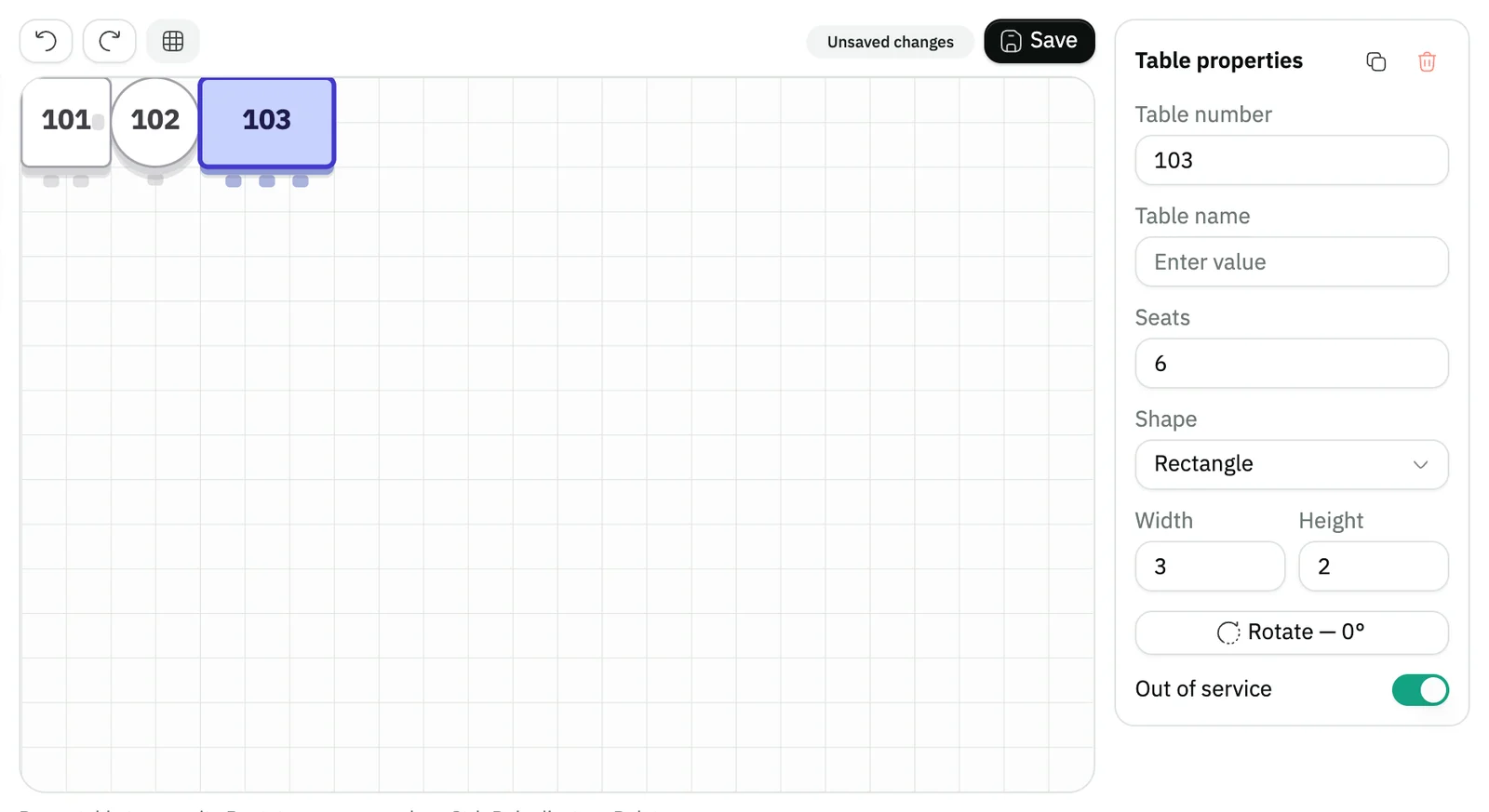
- The Out of service switch
Delete a hall
The Delete hall button below the plan deletes the open hall at once, with no confirmation window.
If the hall has open orders, Snad refuses with a message. Finish the orders first in selling at the point of sale.
Common questions
- Why don't I see the Halls & tables link?
- It shows only when the Restaurants & cafés sector is set in POS settings, and you hold the Floor designer permission.
- How do I add a new table to a hall?
- Pick the hall, press a shape under Shapes, then press Save. The table appears with the next number, which you edit in Table properties.
- Do I need to save after renaming a hall?
- No. The hall name, seat duration and who sees it save when you leave the field. Only the tables need the Save button.
- How do I take a table out for a while without deleting it?
- Open Table properties, turn on Out of service, then press Save. Switch it off to bring the table back.
- Can a hall belong to more than one branch?
- No. Each hall belongs to one branch, because the plan describes a real room. Pick the Branch first, then add its hall.
- What do I do after drawing the halls?
- The halls and their tables show to the cashier at the point of sale (selling at the point of sale), and you follow orders in the kitchen display and POS orders.