
How to create a discount coupon in Snad
To create a discount coupon in Snad ERP, open Products, then Discount codes, and press New code. Type the Discount code, choose Percentage or Fixed amount and its value, set the Limits, What it covers and Where it works, then press Save. The code shows in the list as Live.
In this guide9
Steps
Step 1: Open the discount codes
In the sidebar, choose Products, then Discount codes, and press New code above the list. Details
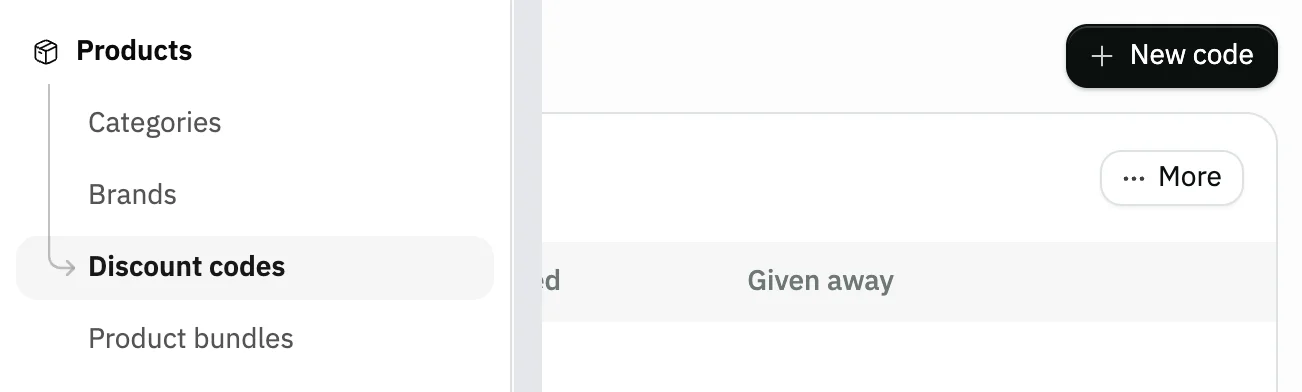
Image key - Discount codes in the sidebar
- The New code button
Step 2: Type the code and a description
Type the Discount code your customer will enter: letters, numbers and dashes. The Description is optional and for your team; the customer never sees it. Details

Image key - Discount code (required)
- Description (optional)
Step 3: Choose the discount type and value
Under Discount type, choose Percentage or Fixed amount, then enter the Percent off or Amount off. The form starts on a 10 percent discount. Details
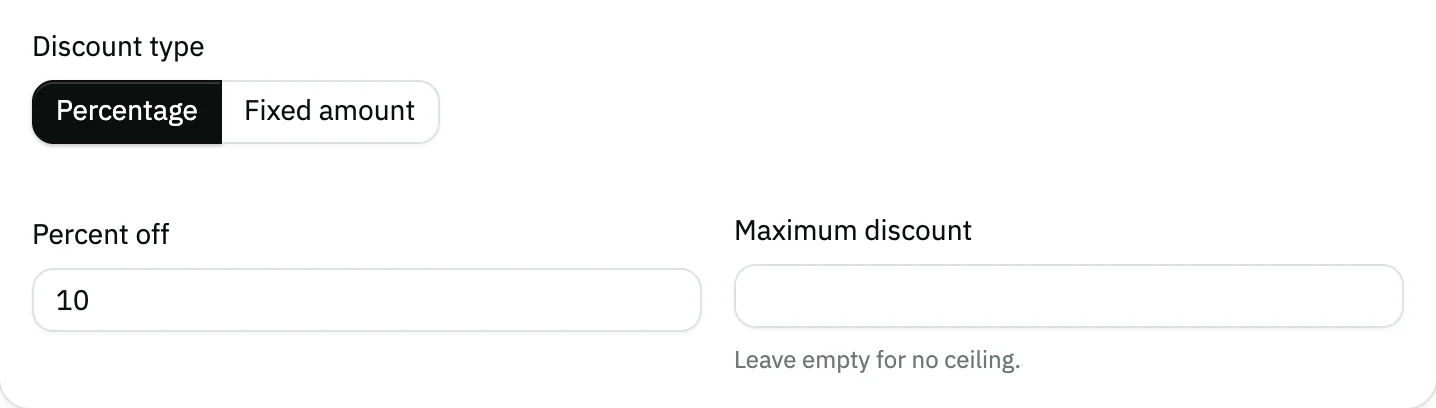
Image key - Discount type: Percentage or Fixed amount
- Percent off
- Maximum discount (percentage only)
Step 4: Set the code's limits
Every field under Limits is optional: Minimum invoice, Total uses, Uses per customer, and the Starts and Expires dates. Leave one empty for no limit. Details
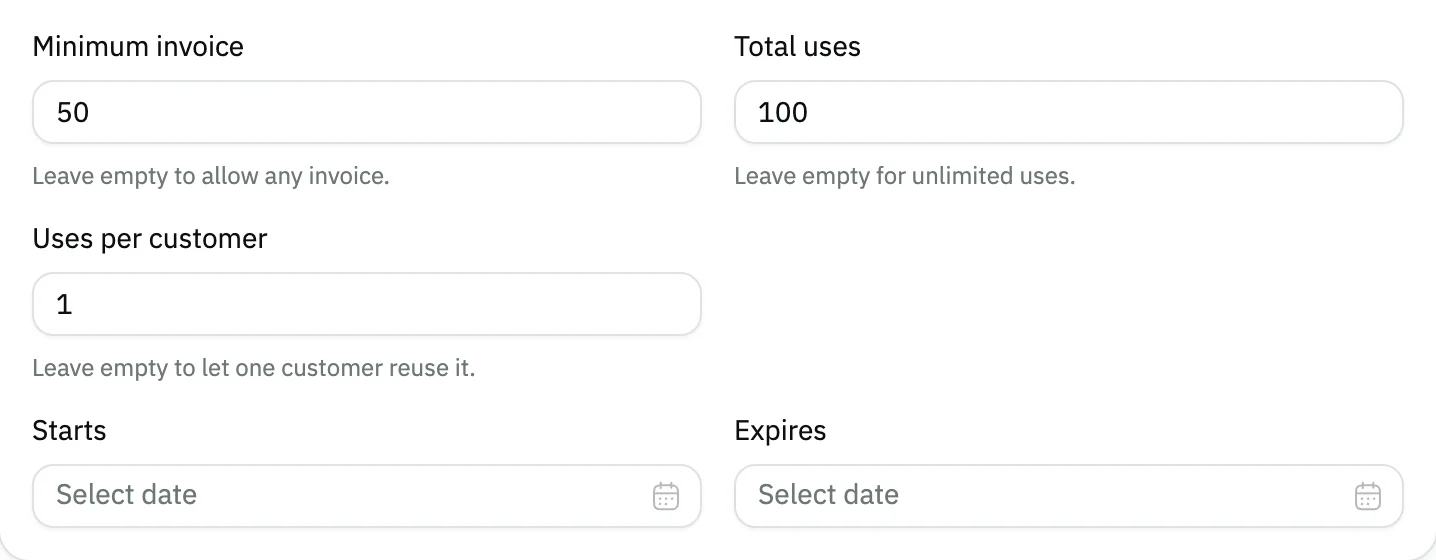
Image key - Minimum invoice
- Total uses
- Uses per customer
- The Starts date
- The Expires date
Step 5: Choose what the code covers
Under What it covers, pick Products, Categories or Brands, or leave them empty to cover the whole invoice. Anything under Never covers never gets the discount. Details
Step 6: Choose where the code works
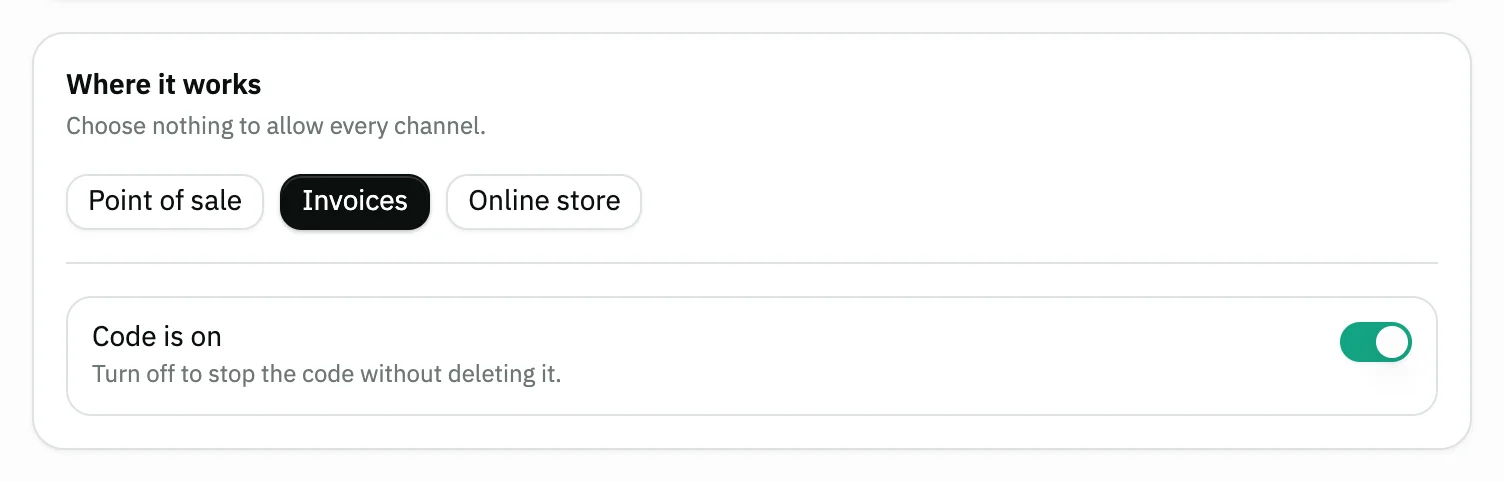
Under Where it works, press Invoices, Point of sale or Online store, and pick Branches if you want specific ones. Choose nothing to allow every channel and branch. Keep Code is on switched on. Details
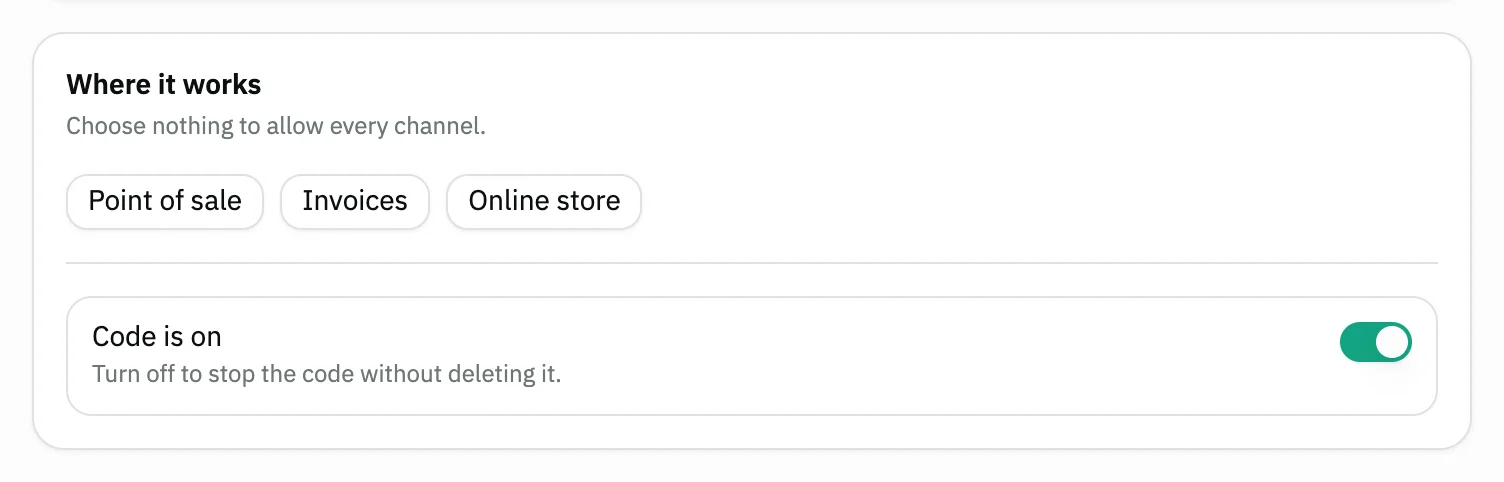
Image key - Code channels: Invoices, Point of sale, Online store
- The Code is on switch
Step 7: Save the code
Press Save at the top of the form. If you change your mind, press Back to return to the list without saving.
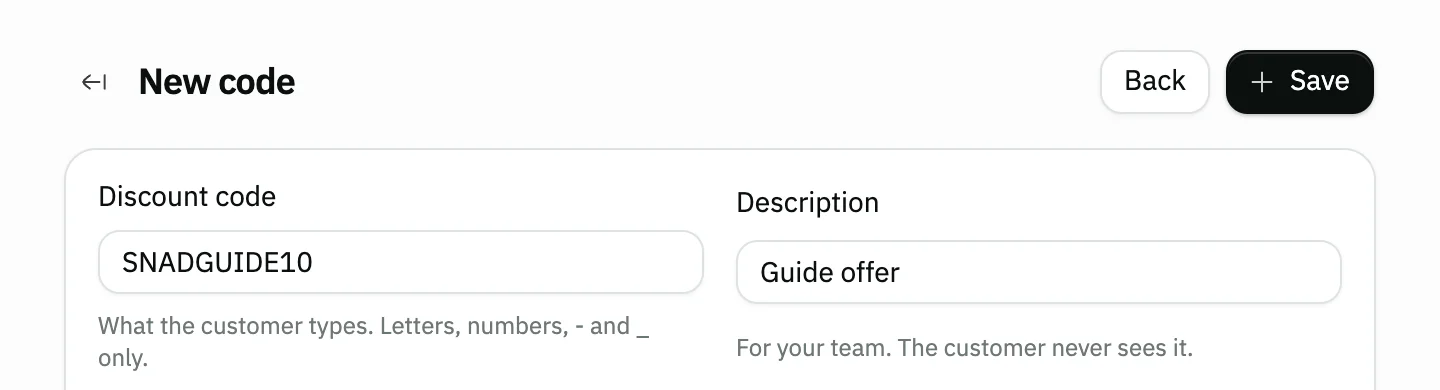
Image key - The Save button
- The Back button
Step 8: Check the code is listed
A Saved notice appears and you return to the list, where the code shows as Live with its Discount, Valid and Used columns. Details

Image key - The new code in the list
- Code status: Live
Step 9: Try the code on an invoice
On a sales invoice, add a product, type the code in Discount code and press Apply. The discount amount shows beside the code. Details
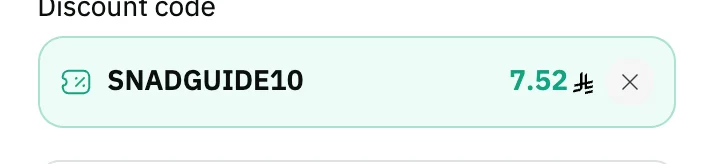
Image key - The applied code and its discount amount
Messages that block saving
If saving fails, one of these messages shows next to the field. The table gives the cause and the fix.
| Message | Cause | Fix |
|---|---|---|
| «No code by that name.» | The typed code matches no saved code. | Compare the spelling with the Discount code column in the discount codes list. |
| «This code is switched off.» | The code's status is Off. | Choose Resume from its row menu, or switch on Code is on in its form. |
| «This code has not started yet.» | The Starts date has not arrived. | Change the Starts date or wait for it. |
| «This code has expired.» | The Expires date has passed. | Move the Expires date later in the code's form. |
| «This code does not work here.» | The code's channels do not include where you use it. | Add the channel under Where it works, or clear all channels. |
| «This code does not work in this branch.» | The invoice's branch is not among the code's Branches. | Add the branch under Branches, or leave it empty so the code works in every branch. |
| «The invoice is below what this code asks for.» | The invoice total is below the Minimum invoice. | Add products to the invoice, or lower the Minimum invoice. |
| «This code has been used up.» | The code has reached its Total uses. | Raise Total uses or create a new code. |
| «This customer has used the code as many times as allowed.» | The customer has used up Uses per customer. | Raise Uses per customer or leave it empty. |
| «Nothing on this invoice is covered by the code.» | No product on the invoice falls under What it covers, or everything that matches is listed under Never covers. | Add a product the code covers, or change What it covers and Never covers. |
Advanced details
Each section here explains one point from the steps in depth. Every section has a fixed link you can share.
What the code field accepts
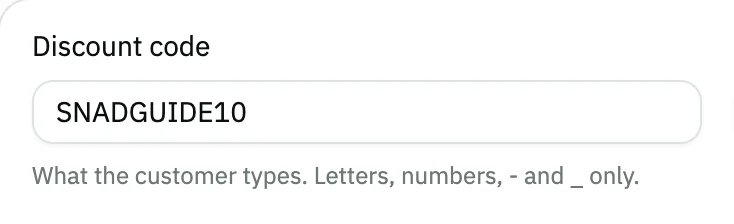
The Discount code is 3 to 32 characters: English letters, numbers, dashes (-) and underscores (_) only. Snad saves it in capital letters.
Customers type the code character by character, so choose a short, clear one such as SAVE10.
- Discount code
Percentage or fixed amount
Percentage takes a percent off the covered products, up to 100. Maximum discount puts a ceiling on the amount; leave it empty for no ceiling.
Fixed amount takes a set amount off, and the Maximum discount field disappears. The discount never exceeds the value of the covered products, so an invoice never goes negative.
If your organization's prices include tax, the amounts you type are tax-inclusive too: a Fixed amount of 10 lowers the invoice total by exactly 10, and Maximum discount and Minimum invoice are tax-inclusive figures as well. A Percentage is not affected.
For one price on several products, use a product bundle instead of a code. For a discount a customer earns with points or holds as prepaid value, see the loyalty program and gift cards.
What the code covers and never covers
If Products, Categories and Brands are all empty under What it covers, the discount applies to the whole invoice.
If you fill more than one, a line that matches any one of them gets the discount; it does not need to match all. Picking a main product, a category or a brand covers its variants too.
Choosing a main category in Categories covers its sub-categories, and a hint under What it covers says so: “Choosing a main category includes its sub-categories.” In the same way, excluding a main category under Never covers excludes its sub-categories too. The category list shows the sub-categories in tree order, and each one appears with its path. More in manage product categories.
Whatever you put under Never covers never gets the discount, even when the section above includes it: an exclusion wins.
The discount is worked out on the covered lines only, while Minimum invoice is still measured on the whole invoice. If nothing on the invoice is covered, Snad refuses the code with “Nothing on this invoice is covered by the code.”
How the limits work
Minimum invoice is measured on the whole invoice total, not only on the covered products.
Total uses counts across all customers, and Uses per customer counts for each customer separately. Leave both empty for unlimited use.
The Starts date must come before the Expires date. After expiry Snad refuses the code even if it is still on.
Code channels
Invoices are sales invoices, Point of sale is the point of sale screen, and Online store is for your store's orders.
If you pick one channel only, Snad refuses the code elsewhere with the message “This code does not work here.”
Below the channel buttons, the Branches picker: leave it empty and the code works in every branch. If you pick one or more, Snad refuses the code in any other branch with “This code does not work in this branch.”
- Code channels
Code statuses in the list
The status column reads the code as the till sees it now, not as it was saved:
- Live: works now.
- Not started: the Starts date has not arrived.
- Expired: the Expires date has passed.
- Used up: it reached its Total uses.
- Off: Code is on is off, or you paused it from the list.
Pausing, editing or deleting a code
On the code's row, open the Actions menu: Edit opens the form, Pause and Resume switch it on or off in one click, and Delete removes it.
A code already used on invoices is paused, not deleted, because removing it would rewrite what those invoices say. A code that was never used is removed for good.
Where the code is entered
On the sales invoice, a Discount code field with an Apply button shows in the summary section. The field stays disabled until the invoice has a product.
At the point of sale, you find it inside the window the Discount button opens.
After applying, press the remove mark beside the code to take it off the invoice. Snad recalculates the discount when the invoice is saved and refuses the save if the figure differs.
No New code button or section?
Discount codes shows for users allowed to view them, and New code for users allowed to create them. Both are separate from viewing products. Ask your account admin.
To learn how to grant permissions, see the roles and permissions guide.
Common questions
- How do I create a discount code in Snad?
- Open Products, then Discount codes, press New code, type the Discount code and its value, then press Save.
- Can I make a code work for one week only?
- Yes. Set the Starts and Expires dates under Limits. After the second date Snad refuses the code.
- How do I limit a code to one use per customer?
- Enter 1 in Uses per customer under Limits. Leave it empty to let a customer reuse the code.
- Should I delete an expired code?
- You don't have to: Snad refuses it on its own after Expires. And if it was used on invoices it won't be deleted, only paused.
- Can I limit a code to certain products or branches?
- Yes. Pick Products, Categories or Brands under What it covers, exclude what you want under Never covers, and pick Branches under Where it works.
- Does the code work at the point of sale?
- Yes, if you chose no channels or chose Point of sale. The cashier types it in the window the Discount button opens.