
How to view the trial balance in Snad
To view the trial balance in Snad ERP, open Reports, then Trial balance in the Accounting card. The cards on top show Total debit and Total credit and whether they are Balanced; the table shows each account at the start and end of the period. Change the period or branch, then export or print.
In this guide7
Steps
Step 1: Open the trial balance
In the sidebar choose Reports, then press Trial balance in the Accounting card. Details
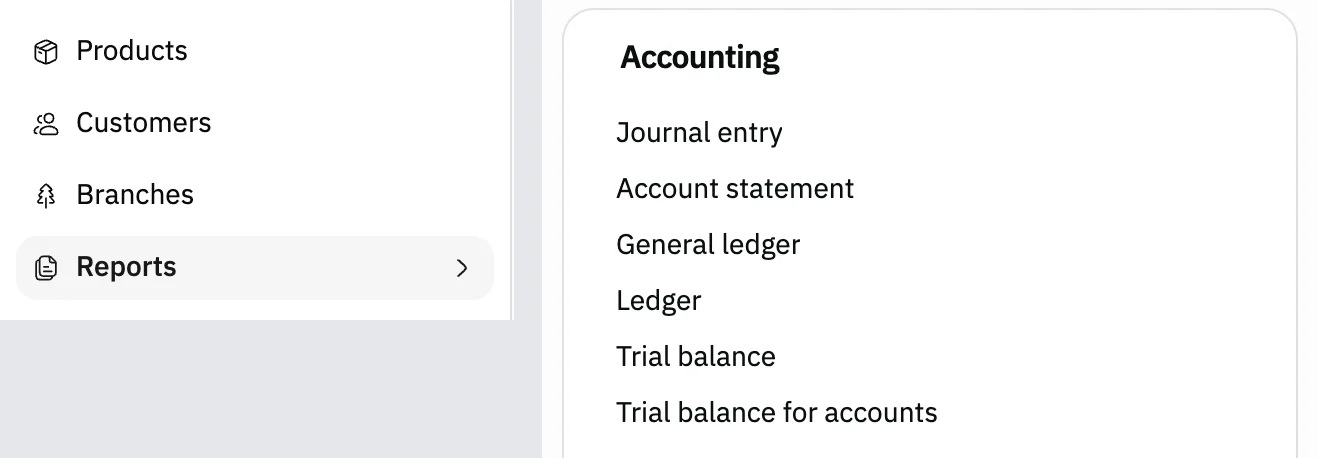
Image key - Reports in the sidebar
- Trial balance
Step 2: Check that it balances
The first two cards add up Total debit and Total credit at the end of the period. The third says Balanced when they match, or Out of balance with the difference when they don't. Details

Image key - Total debit
- Total credit
- The status: Balanced
Step 3: Read the table columns
Each parent account has three debit and credit pairs: the beginning of the period, then the operations, then the end of the period. The last row is the Total. Details
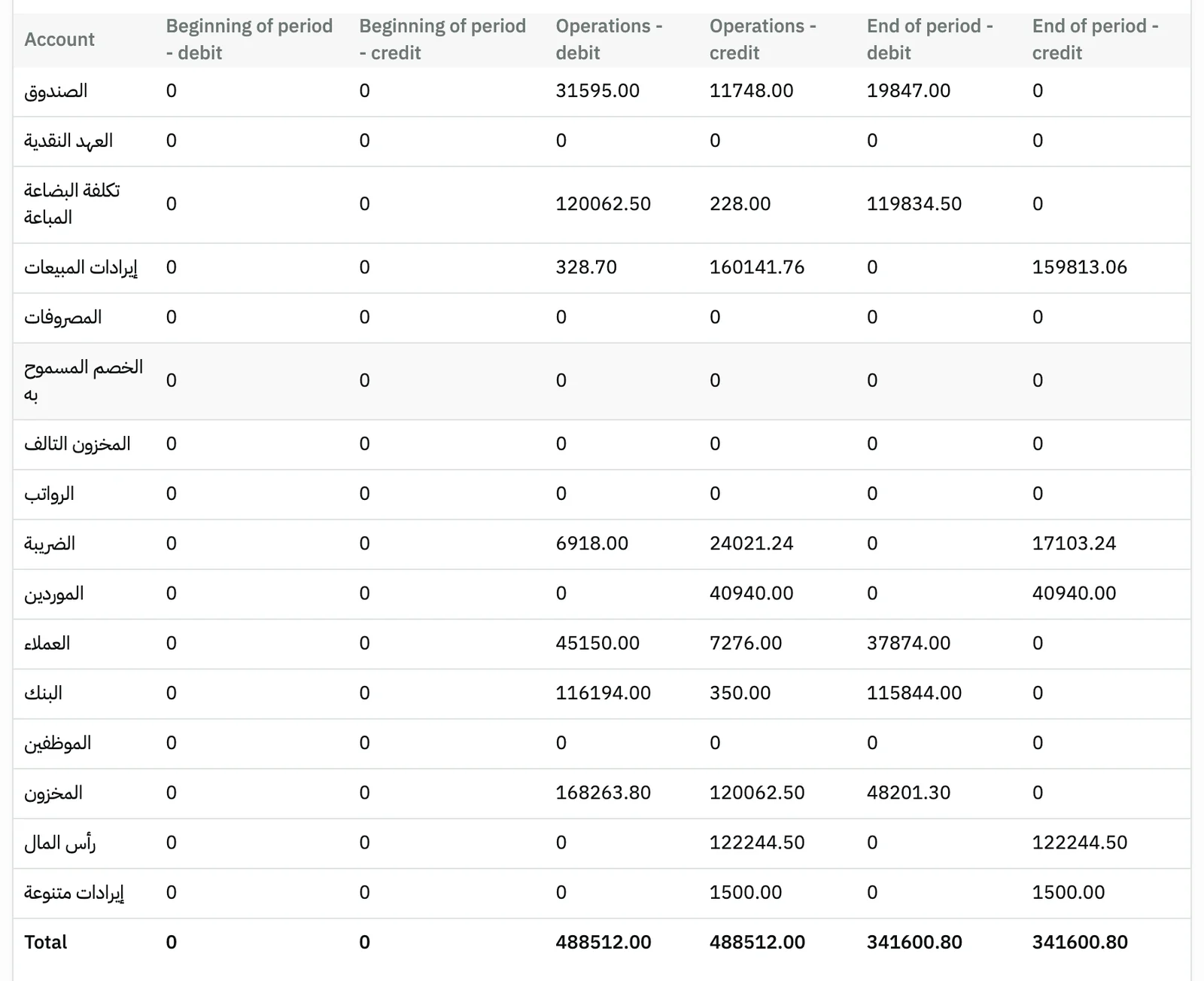
Image key - Start: Beginning of period - debit and Beginning of period - credit
- Movement: Operations - debit and Operations - credit
- End: End of period - debit and End of period - credit
- The Total row
Step 4: Change the period
The trial balance opens on your financial period. Press the date picker and choose This month, Last year or any range, and the table updates. Details
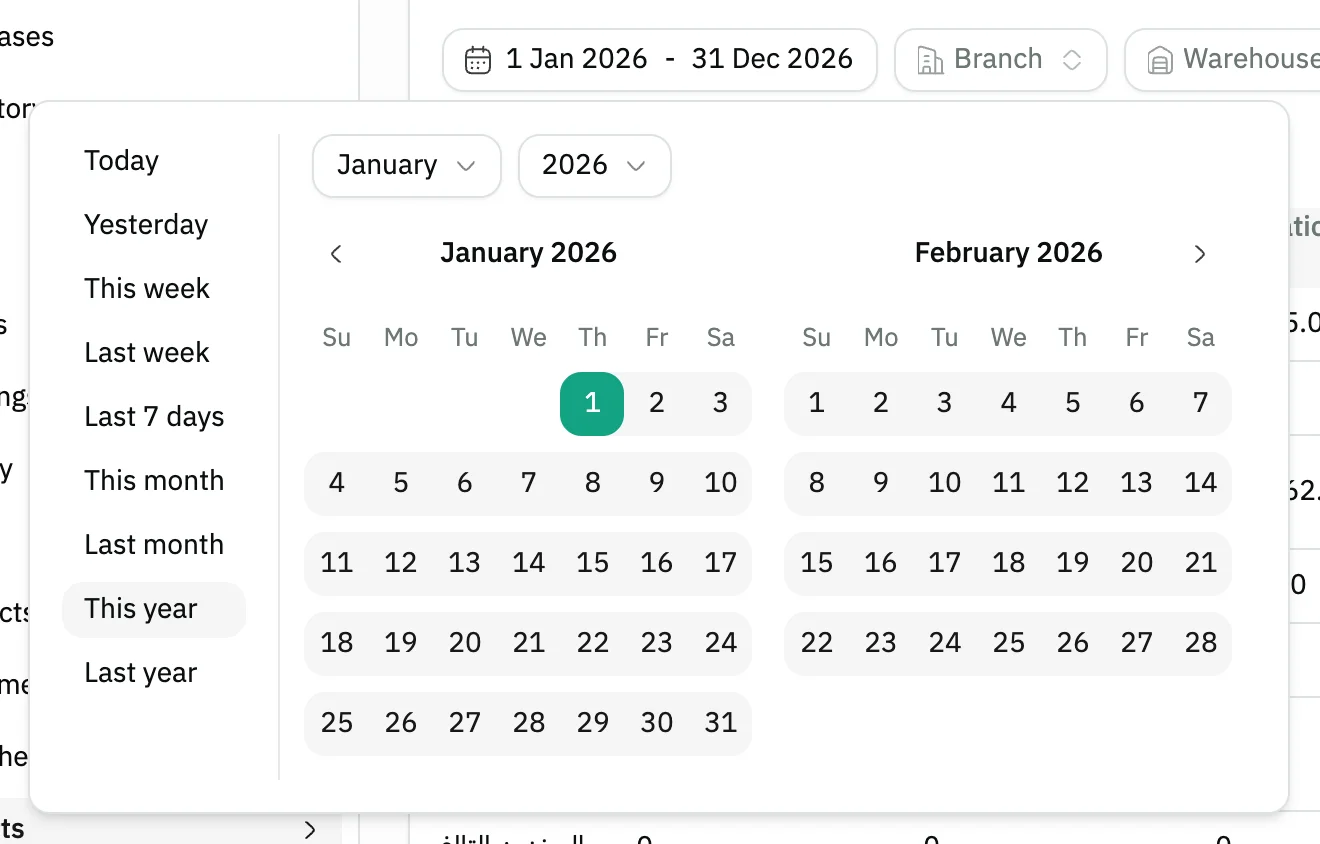
Image key - The period picker
- Ready-made periods: This month, Last year and others
Step 5: Pick a branch or warehouse
To see one branch, press Branch, tick it, then press Apply. Warehouse works the same way (branches and warehouses). Details
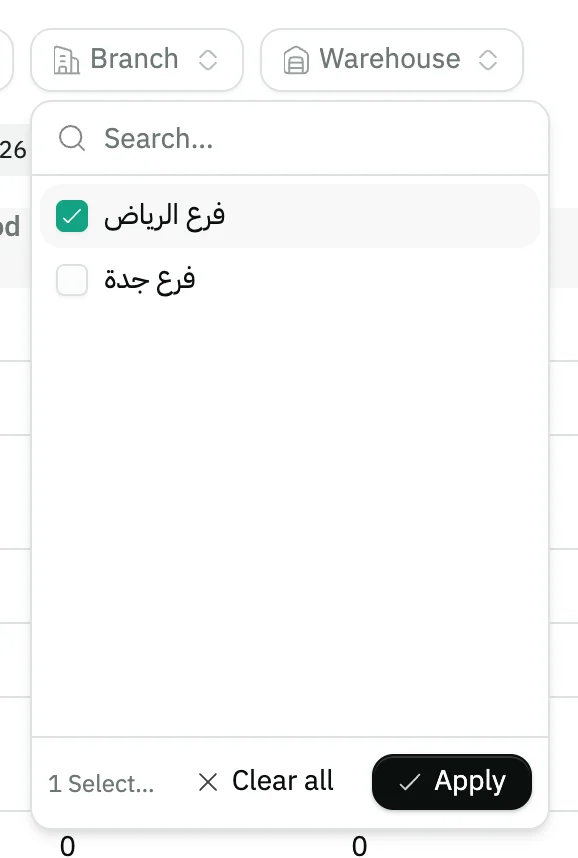
Image key - The Branch filter
- The ticked branch
- The Apply button
Step 6: Open an account's sub-accounts
Click any row and a window opens with the sub-accounts that had activity in the period, with Debit, Credit and Balance for each.
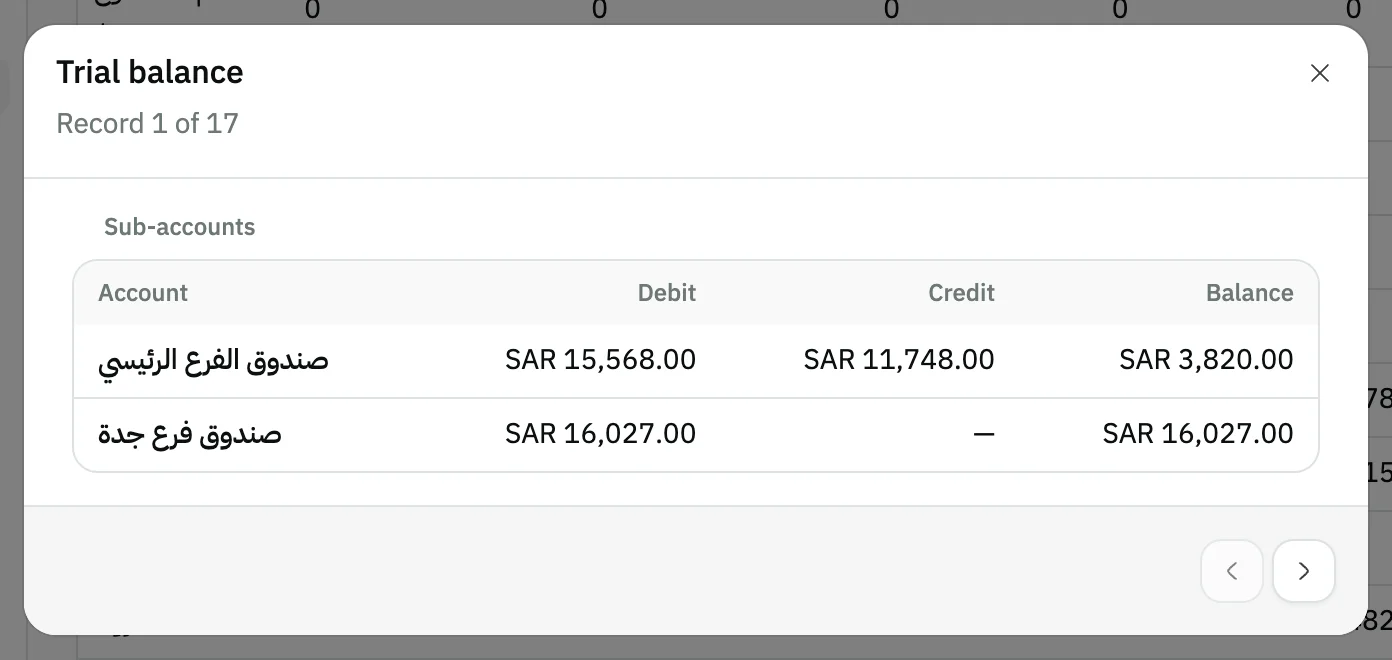
Image key - The sub-accounts and their figures
Step 7: Export or print it
Press More, then Export as Excel or CSV, or Print. The rows and period come out as you see them.
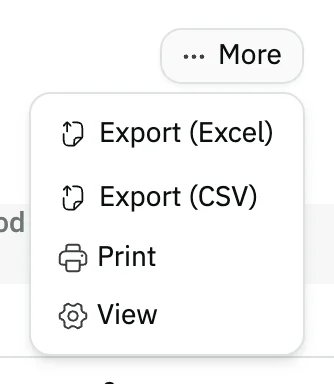
Image key - The More button
- Export Excel, with CSV below it
Messages that block saving
If saving fails, one of these messages shows next to the field. The table gives the cause and the fix.
| Message | Cause | Fix |
|---|
Advanced details
Each section here explains one point from the steps in depth. Every section has a fixed link you can share.
How each column is worked out
Each row is a parent account, and its figures add up its sub-accounts. An account with no parent shows under its own name.
The beginning of the period is the account's opening balance plus all its movements before the first day of the period. The operations are the debit and credit inside the period. The end of the period is the beginning plus the operations.
Each sub-account's balance goes into one column only: debit if it is positive, credit if it is negative. The columns of the sub-accounts are then added up under their parent.
The Total row adds up the six columns. If a balance looks odd, review the opening balances.
The card says out of balance
Out of balance means the sum of End of period - debit is not equal to the sum of End of period - credit, and the card shows the difference.
Review the opening balances and the journal entries you recorded by hand (journal entry), then open the large rows in the table to see their sub-accounts.
A branch or warehouse changes the sums
When you pick a Branch or Warehouse, only that branch's or warehouse's movements are added up. Operations not tied to it are left out.
The account's opening balance is not counted in this case, so the beginning of the period starts from the earlier attributed movements alone.
The default period
The trial balance opens on your organization's current financial period. You set it in the financial period.
The trial balance for accounts
The link below Trial balance in the Accounting card is Trial balance for accounts. It lists the sub-accounts themselves, row by row, and adds an Account filter. Click any row to see that account's transactions.
For what to read next: the income statement, the balance sheet and an account statement.
Can't see the Accounting card?
The Accounting card shows to users allowed to view accounting reports (roles and permissions).
If your user is tied to a branch or warehouse, you only see the figures of your own scope (data access).
Common questions
- How do I know the trial balance balances?
- Look at the third card at the top: Balanced means Total debit equals Total credit at the end of the period.
- Why does it say out of balance?
- Because the sum of End of period - debit differs from End of period - credit. Review the opening balances and manual entries, and open the large rows to find their accounts.
- How do I see the trial balance for one month?
- Press the date picker and choose This month or Last month, or pick any range on the calendar.
- How do I see a parent account's sub-accounts?
- Click the parent account's row in the table. A window opens with its sub-accounts that had activity in the period.
- How do I export the trial balance to Excel?
- Press More, then Export as Excel.