
How to create a purchase return in Snad
To create a purchase return in Snad ERP, open Purchases, then Return, and press Create return. Pick the invoice from the Invoice list, set the quantities going back, then choose the Payment method and press Save.
In this guide7
Steps
Step 1: Open the returns screen
In the sidebar, choose Purchases, then Return, and press Create return above the list. Details
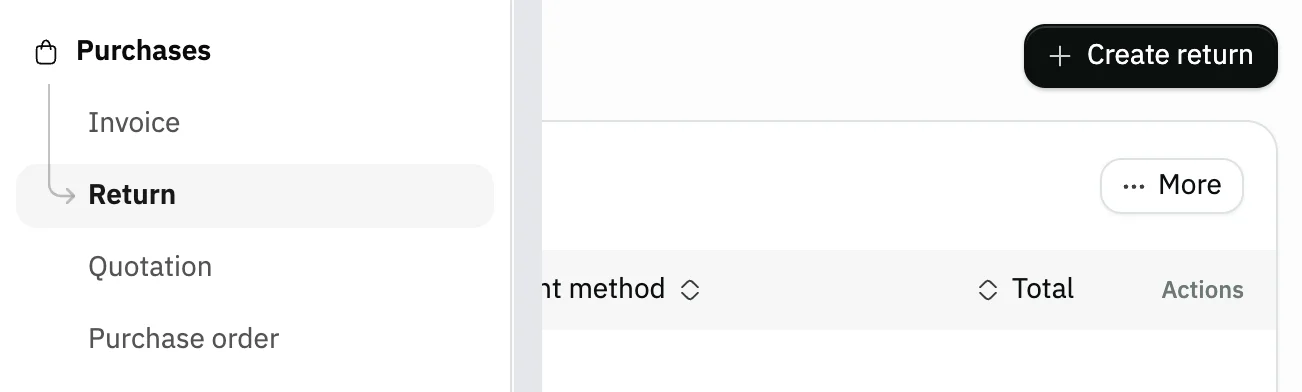
Image key - Return in the sidebar
- The Create return button
Step 2: Pick the purchase invoice
Press the Invoice list and choose the number of the invoice you are returning from. The supplier name shows beside each number. Details
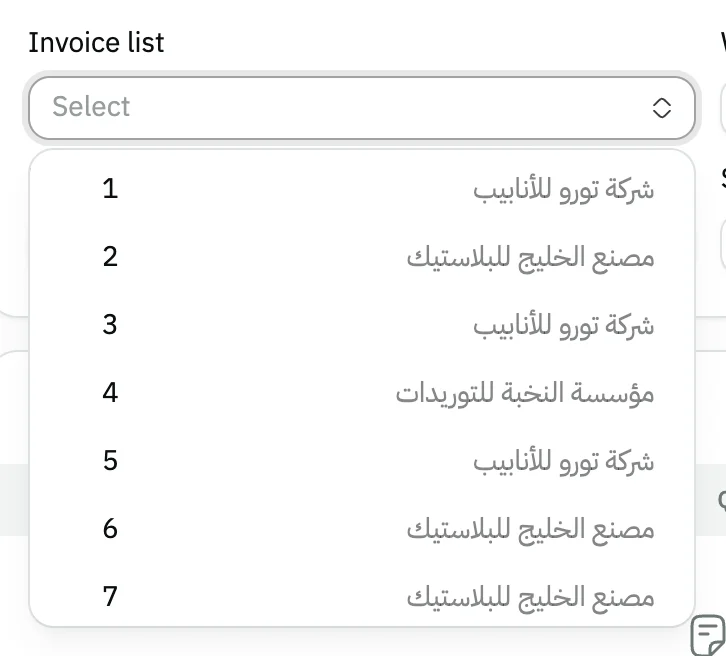
Image key - The Invoice list field
- An invoice number and its supplier
Step 3: Check the supplier and warehouse
Snad fills in the Supplier (the supplier) and Warehouse from the invoice, and both are read-only. The invoice's prices, discount and tax carry over to the return.
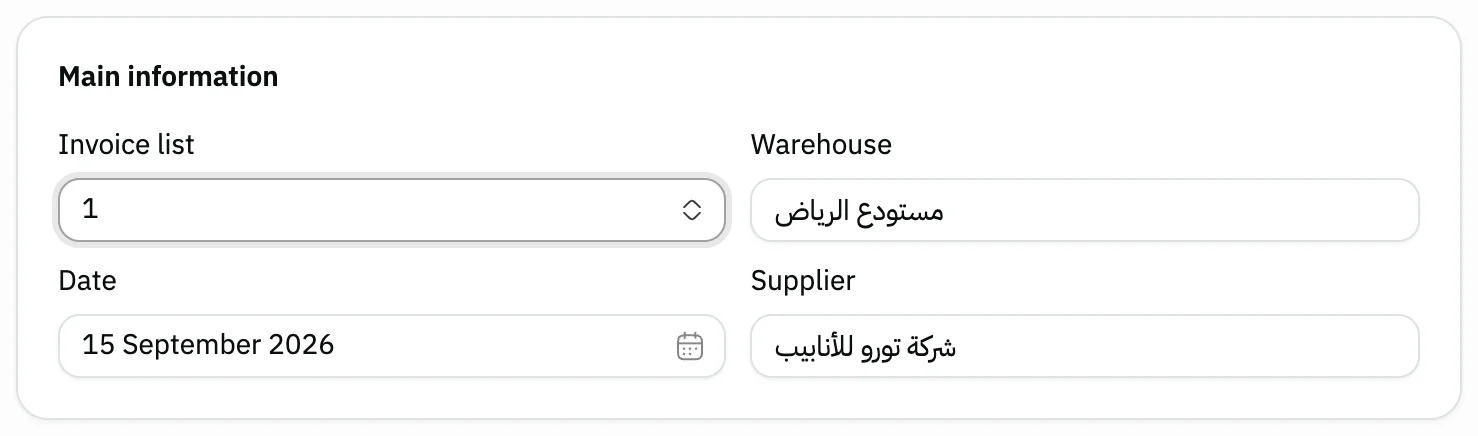
Image key - The chosen invoice number
- The invoice Supplier
- The invoice Warehouse
Step 4: Return every product
The Return all products switch starts on, so each line is filled with everything Available, and All quantity is ticked. Details
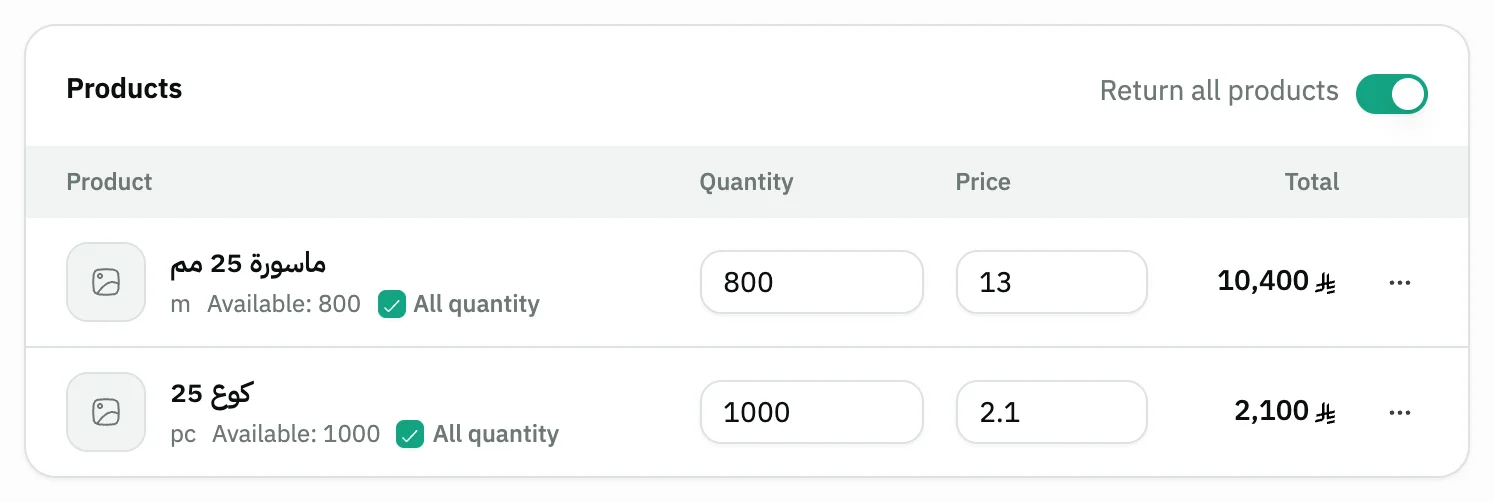
Image key - The Return all products switch
- The quantity Available to return
- The returned Quantity
- The line's All quantity box
Step 5: Or return part of it
To return only part, turn Return all products off so the quantities drop to zero, then type the returned Quantity on each line. It can't exceed what is Available.
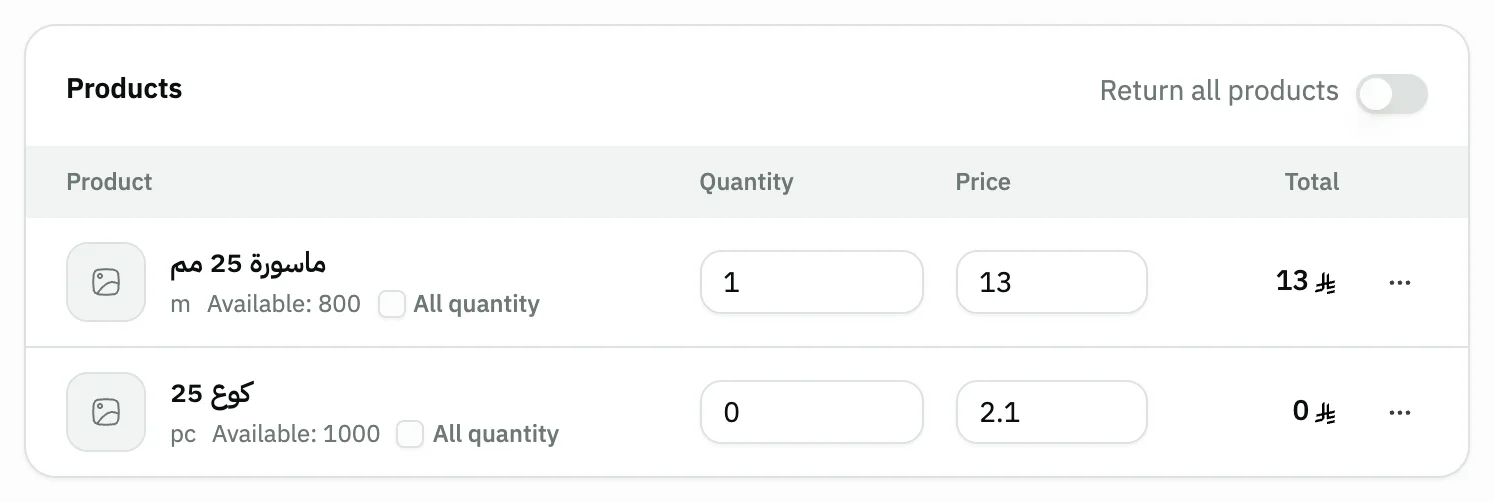
Image key - The Return all products switch, off
- The returned Quantity
Step 6: Choose the payment method
Under Payment method, choose Cash or On account, and check the Total in the Summary. Details
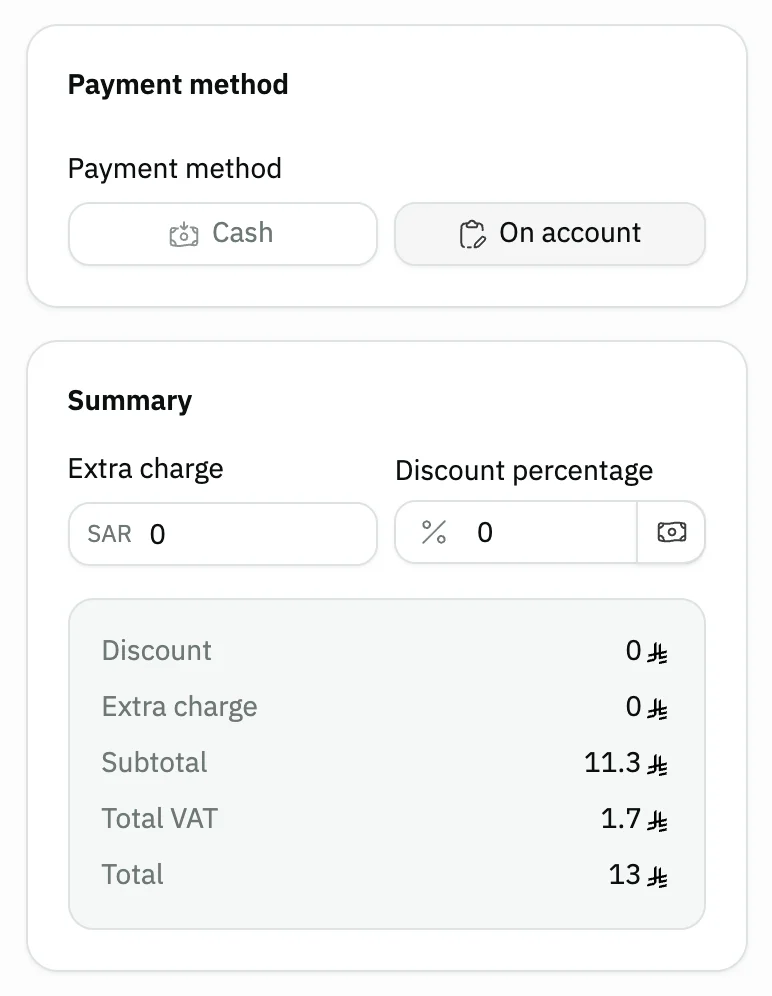
Image key - Payment methods
- Summary: tax and Total
Step 7: Save the return
Press Save, or Save & print to print it right away. The saved return page opens next. Details
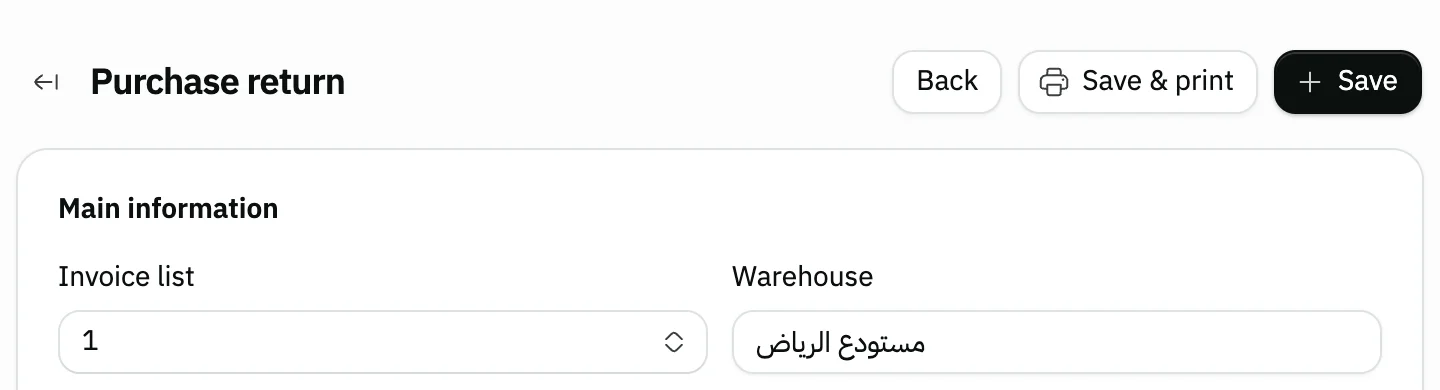
Image key - The Save button
- The Save & print button
Messages that block saving
If saving fails, one of these messages shows next to the field. The table gives the cause and the fix.
| Message | Cause | Fix |
|---|---|---|
| «This purchase invoice has been fully refunded» | Every item on the invoice has already been returned in earlier returns. | Pick another invoice from the Invoice list. |
Advanced details
Each section here explains one point from the steps in depth. Every section has a fixed link you can share.
More than one return on one invoice
You can return from one invoice in several rounds. Available shows what is still not returned after earlier returns, and the quantities start from it.
Once everything on an invoice has been returned, the message “This purchase invoice has been fully refunded” shows, and no new return is created from it.
Free units on a return
If the invoice still has free units that have not been returned, from a bonus or supplier gifts (how to record them), the lines show a Free quantity returned box, with Free remaining beside it when you create the return. An invoice with no free units shows neither. A service line takes no free quantity, so it shows a dash “—” instead of the box.
The free quantity is counted apart from what is Available, and it can't exceed Free remaining. Return all products and All quantity include the free units too.
Free units add no amount to the Total or to the return's entry, and a line can be entirely free. Saving takes both the paid and the free units out of stock.
A return does not restate the product's cost to its own price. The one exception is returning free units from an invoice that used Spread the cost, where the cost is spread again once they leave, provided the product's cost is still the one that invoice left. If the cost has changed since, from another purchase or an edit, it stays as it is.
What a return does to stock and accounts
Saving takes the returned products out of the invoice warehouse's stock, and posts an accounting entry that mirrors the purchase entry. That holds for goods lines. A service line takes nothing out of stock and changes no cost; its entry is reversed on the expense account it was posted to on the purchase invoice.
On account lowers what you owe the supplier. Cash records the refunded amount in the cash account. An On credit purchase invoice picks On account for you.
You follow the supplier's balance in the supplier statement, and pay what is left with a supplier payment.
After saving: print and delete
After saving, the return page opens, and you print it from there. A saved return can't be edited, since editing isn't offered on its page.
A user allowed to delete purchase returns can delete it from its page. To review your purchases see purchase reports.
A return sends goods back to the supplier; to document goods that reached you, use a goods receipt note.
No Create return button?
The button shows only to users allowed to create purchase returns. Ask your Snad account admin to grant it.
If the Date field is locked, the purchases setting that allows date changes is off. You find it in the general settings.
Common questions
- How do I return goods to a supplier in Snad?
- Open Purchases, then Return, and press Create return. Pick the invoice from the Invoice list, set the quantities, then press Save.
- Can I return only part of an invoice?
- Yes. Turn Return all products off and type the returned Quantity on each line, within what is Available. You can return the rest in a later return.
- Does a purchase return reduce stock?
- Yes. Saving takes the returned products out of the invoice warehouse's stock, and posts an entry that mirrors the purchase entry.
- What is the difference between Cash and On account on a return?
- On account lowers what you owe the supplier, and Cash records the refunded amount in the cash account. An on-credit invoice starts on On account.
- How do I return a bonus or gifts I got from a supplier?
- Pick the invoice as usual, and Free quantity returned shows if free units remain. Enter what you are returning, within Free remaining, or leave Return all products on. Details are in free units.
- Can I edit a return after saving it?
- No. The saved return page has no edit button, and a user allowed to delete returns can delete it.