
How to manage your subscription and plan in Snad
To manage your Snad subscription, open Settings then Plan & subscription. The status card shows where your plan stands, you review Plan & usage, Billing and Invoices, and press Change plan to change it after seeing the amount, or Cancel subscription to stop renewal.
In this guide6
Steps
Step 1: Open Plan & subscription
Press Settings at the bottom of the sidebar, and it turns into the settings menu. Then choose Plan & subscription. Details
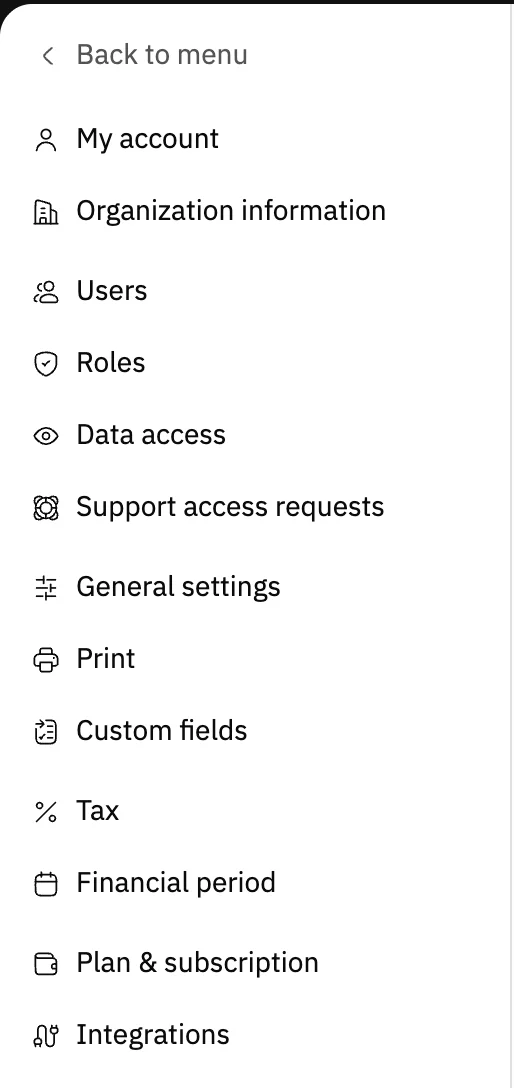
Image key - The Plan & subscription item
Step 2: Read the status card
At the top of the page a card says where your plan stands and the next step. If it has a button, that is what Snad asks of you. Details

Image key - The status card
Step 3: Review plan and usage
Under Plan & usage you see your plan name and status, and how many apps and users you used out of the limit. Beside the title are the Manage apps and Change plan buttons. Details
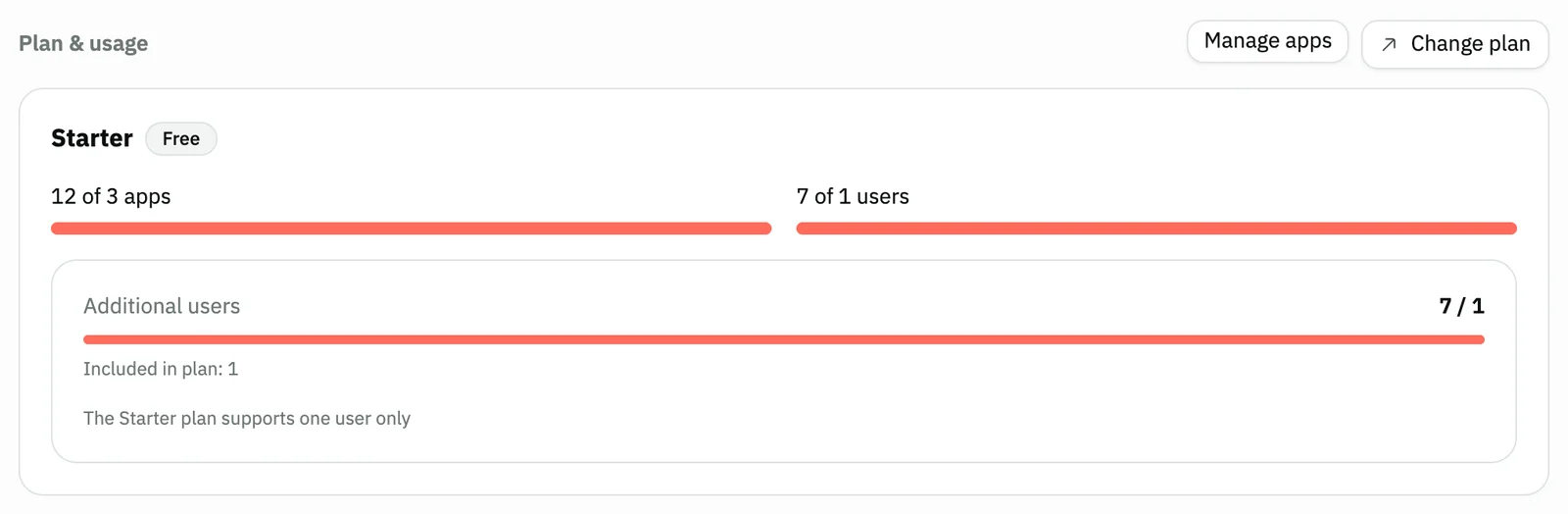
Image key - The Manage apps button
- The Change plan button
- The apps and users bars
Step 4: Change your plan
Press Change plan. Choose the Plan and Billing period, and the Summary shows before you confirm anything. Details
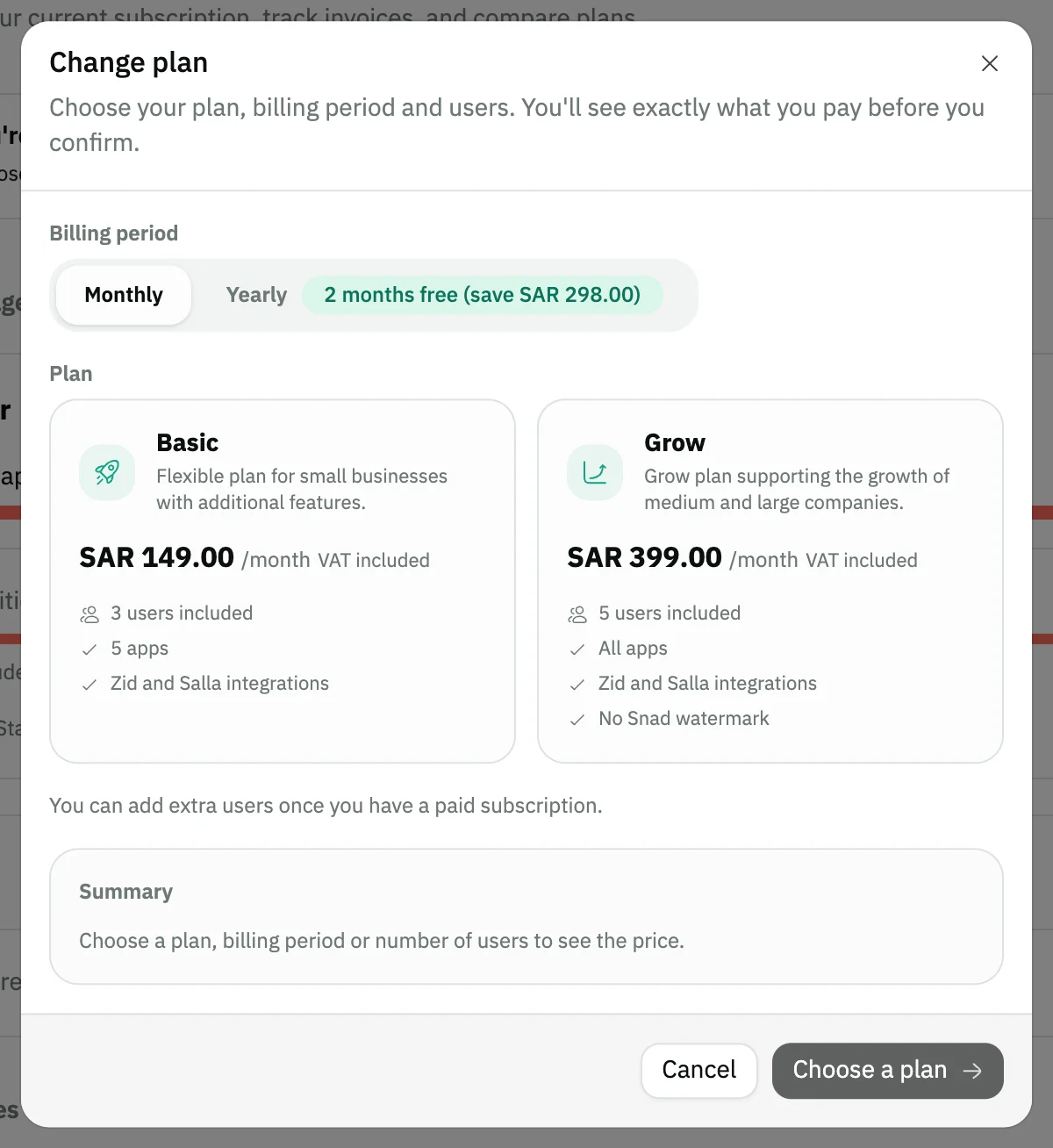
Image key - The Plan choice
- The Billing period choice
- The Summary
Step 5: Understand your billing
The Billing section shows your payment cycle, the next payment date and its amount. On the free plan you read there that there are no charges. Details

Image key - The billing line on the free plan
Step 6: Open your invoices
The Invoices section lists your subscription invoices after your first payment. Before that you read there that there are no invoices. Details
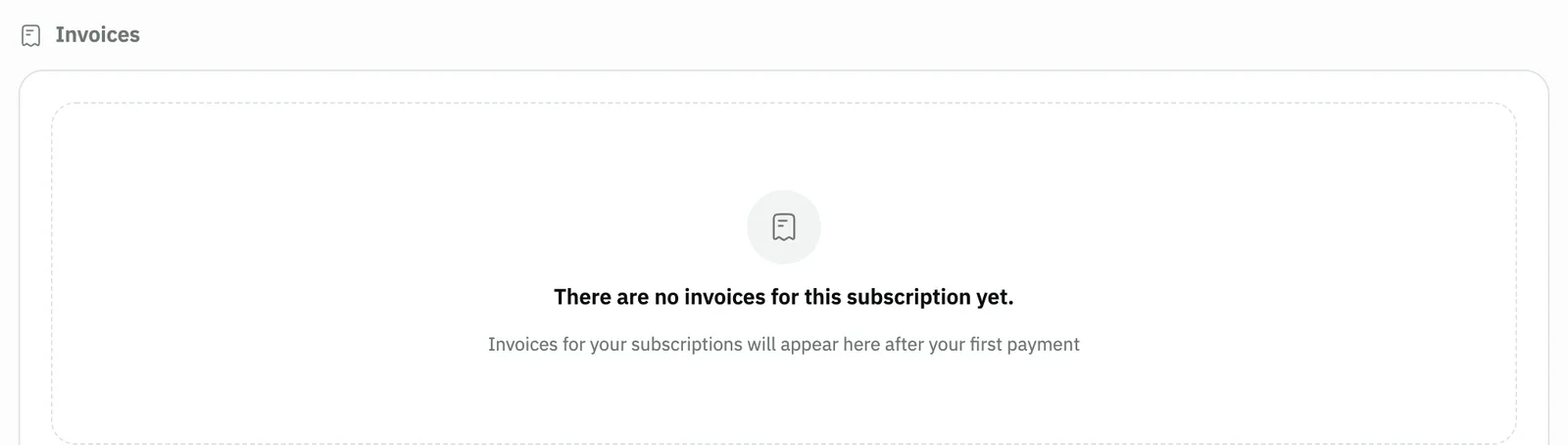
Image key - The no-invoices line
Messages that block saving
If saving fails, one of these messages shows next to the field. The table gives the cause and the fix.
| Message | Cause | Fix |
|---|---|---|
| «Changing apps needs the payments permission. Ask an admin.» | Your role doesn't have the permission to view Plan & subscription in settings. | Ask an admin to add it to your role in Roles and permissions. |
| «Keep at least one app on.» | You switched off every app in the Update apps window. | Keep one app on, then Save changes. |
| «We couldn't complete the cancellation. Please try again or contact support.» | The cancellation request did not complete with the payment provider. | Try again, and if it repeats contact support from the top of the page. |
Advanced details
Each section here explains one point from the steps in depth. Every section has a fixed link you can share.
A subscription managed through an app market
If your subscription was activated through the Zid or Salla app market, billing, renewal and cancellation happen in that market's dashboard. The Plan & subscription item then disappears from Settings, and the page still explains this to anyone who opens it.
What the card says in each state
The card changes with your subscription, and has at most one button:
- Free trial: shows the days left, and an Activate now button to keep your plan without interruption.
- Cancellation scheduled: you keep full access until a date shown on the card, and a Resume subscription button keeps you on your plan.
- Billing setup not finished: a Complete billing setup button shows.
- An overdue invoice: access stays full for a few days, then the account becomes read-only until you pay the invoice.
- Ended subscription: your data is kept, and you activate or choose a plan to continue.
- A complimentary plan from Snad: the card states the end date and has no button.
Managing apps and the plan limit
Manage apps opens the Update apps window: switch on what you need and off what you don't, then Save changes. A switched-off app is hidden, not deleted, and your data is kept.
If your usage passes your plan's limit, the bar fills and turns red, as the screenshot shows, without meaning an error.
What happens after you choose a plan
The Summary shows what you pay today and after, before you confirm. If the change is free you confirm it with Confirm change, and if it costs something you go to a secure payment page.
During the free trial, changing plan or period costs nothing until it ends, and Activate now and pay today starts your paid subscription immediately.
If you have a discount coupon, press Have a discount coupon?, type its name in Discount coupon, then Apply, and the discount shows in the Summary. A coupon works on a paid subscription, an upgrade and Add users, and its discount stays on every renewal.
If the new plan is smaller than your usage, you choose what to keep: Choose what to keep. And a change scheduled for later is removed with Undo this change in Billing.
The ZATCA link needs a paid plan, Basic or above.
Billing lines and a scheduled change
On a paid plan you read the Billing interval, the Next payment and the Amount with VAT. If your cancellation is scheduled, the line becomes Access ends on.
Invoice columns and opening an invoice
The table shows Invoice number, Date, Period, Amount, Payment method and Status. The button at the end of the row opens the invoice on the provider's page: Tax invoice for a paid one, and View invoice for the others.
Additional users
The Starter plan supports one user only. On paid plans you add users with Add users and reduce them with Reduce seats. A reduction applies from the next cycle, with no refund for the current one.
Your organization's own details are edited in Organization information, not on this page.
Cancelling the subscription
The Cancel subscription button shows at the bottom of the page for a paid active subscription or a trial with no cancellation scheduled. It asks for a reason first, then Continue, offers options to stay, then Cancel anyway or No, keep subscription.
On a paid plan your access continues to the end of the paid period and then renewal stops, and in a trial the subscription stops immediately.
The free plan has no such button, because it has no subscription to cancel.
Common questions
- How do I change my plan in Snad?
- Open Settings then Plan & subscription, press Change plan, choose the plan and period and review the Summary before you confirm.
- How do I cancel my subscription in Snad?
- From Plan & subscription press Cancel subscription at the bottom, choose the reason, then Continue then Cancel anyway. The button doesn't show on the free plan.
- Where do I find my subscription invoices?
- In the Invoices section of the Plan & subscription page. Invoices show there after your first payment.
- How many users does my plan include?
- You see it in Plan & usage under Users & seats, with what the plan includes. To add more press Add users on paid plans, then add your users.
- Why don't I see the Plan & subscription item?
- The item shows for admins and users whose role allows viewing Plan & subscription, and disappears if your business is billed through the Zid or Salla app market.