
How to add a custom payment method in Snad
To add a custom payment method in Snad ERP, open Sales, then Settings, and in the Custom payment methods card press Add a payment method. Name it, choose how the money reaches you, the account, the kind and where it shows, check the entries, then press Add the method.
In this guide8
Steps
Step 1: Open the custom payment methods card
Choose Sales, then Settings, and scroll to the Custom payment methods card. It holds the count of methods that are on, the Add a payment method button and a Quick add row. Details
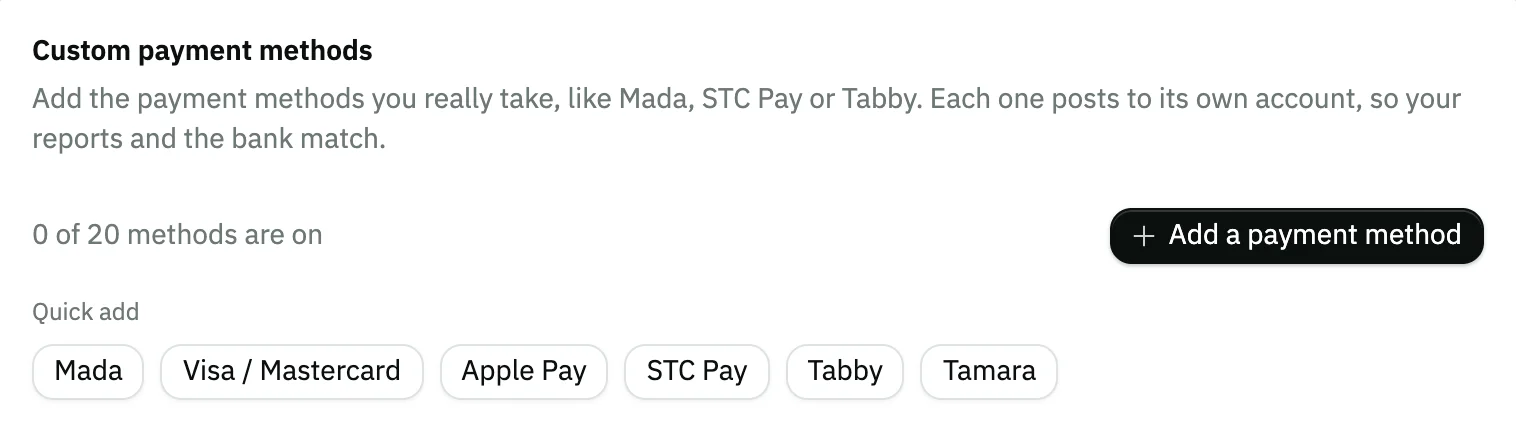
Image key - The count of methods that are on, out of 20
- The Add a payment method button
- The Quick add row
Step 2: Name the method
Under What is it called? pick a common method from Quick add to fill the name for you, or type Name in Arabic and Name in English. Details
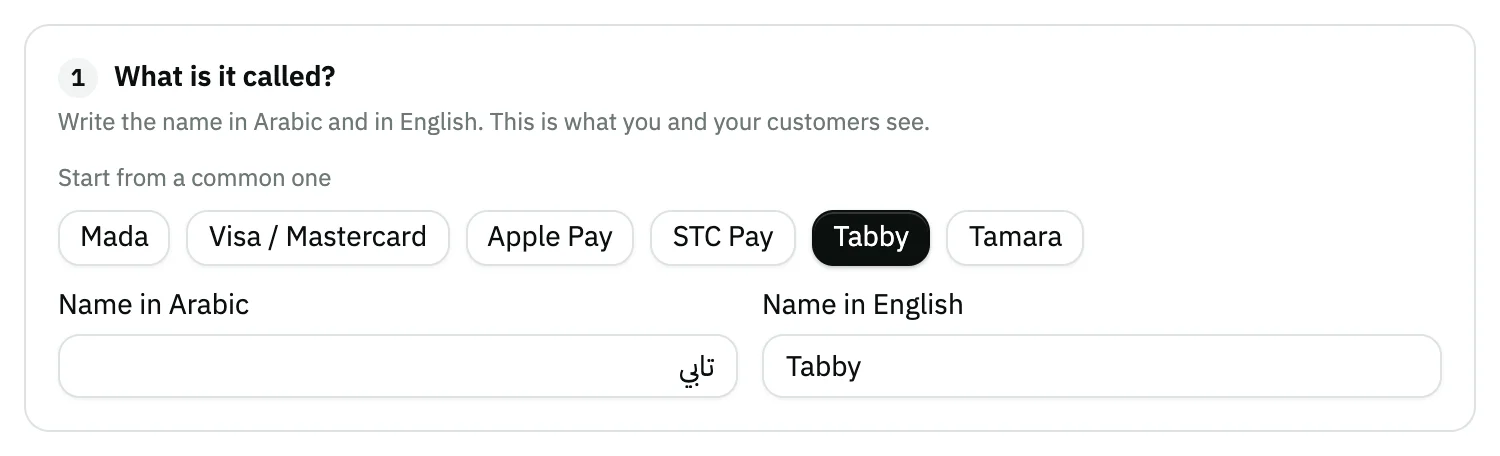
Image key - The Quick add row
- The Name in Arabic field
- The Name in English field
Step 3: Choose how the money reaches you
Under How does the money reach you? choose Reaches my bank if the money lands in your bank account, or Held by a provider if a provider receives it first. Details
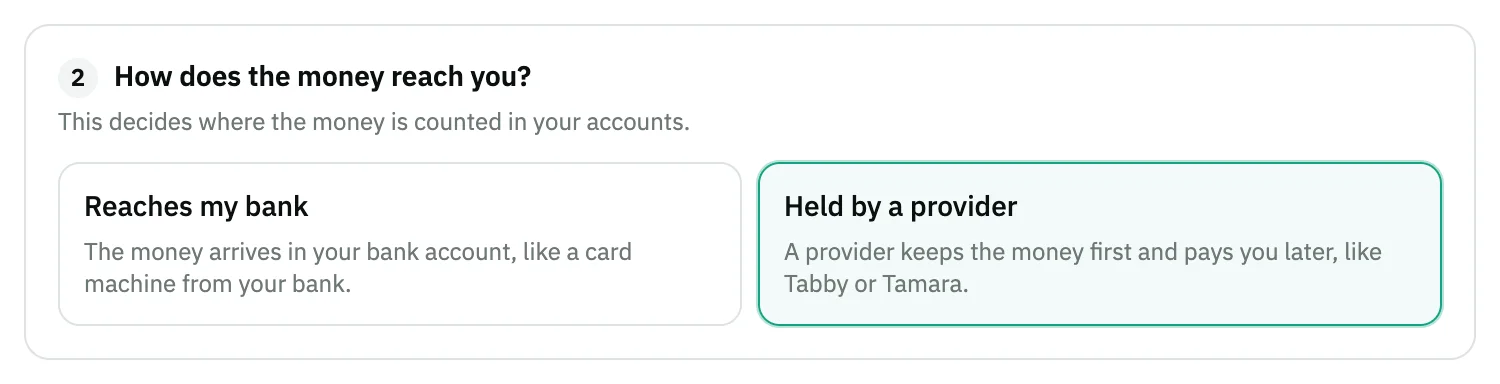
Image key - The Reaches my bank choice
- The Held by a provider choice
Step 4: Pick the account
Under Which account does it go to? Snad suggests an account in the right place. Keep A new account, or pick An account I already have to use one from your chart. Details
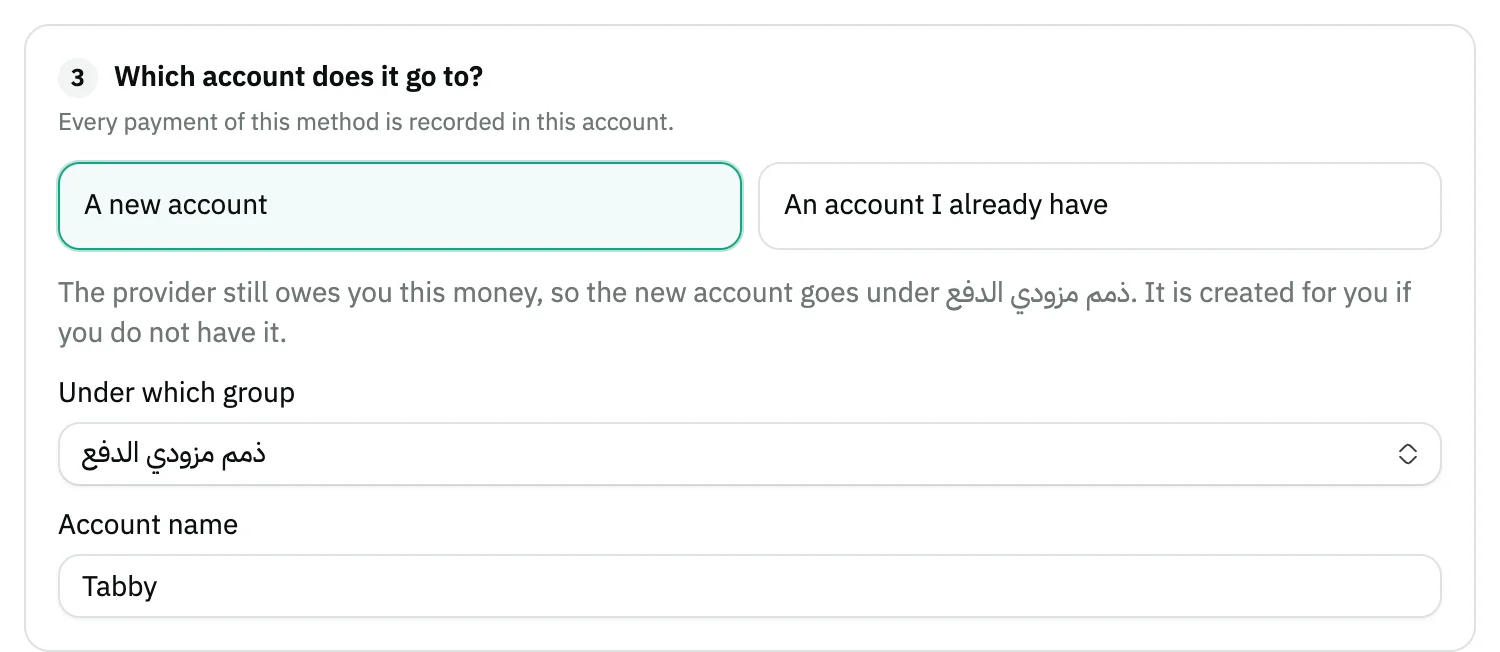
Image key - Two choices: A new account and An account I already have
- The Under which group field
- The Account name field
Step 5: Set the kind and where it shows
Under What kind is it, and where does it show? choose Card or Transfer, then tick the places: Sales invoices, Register, Bookings and Receipt vouchers. Details
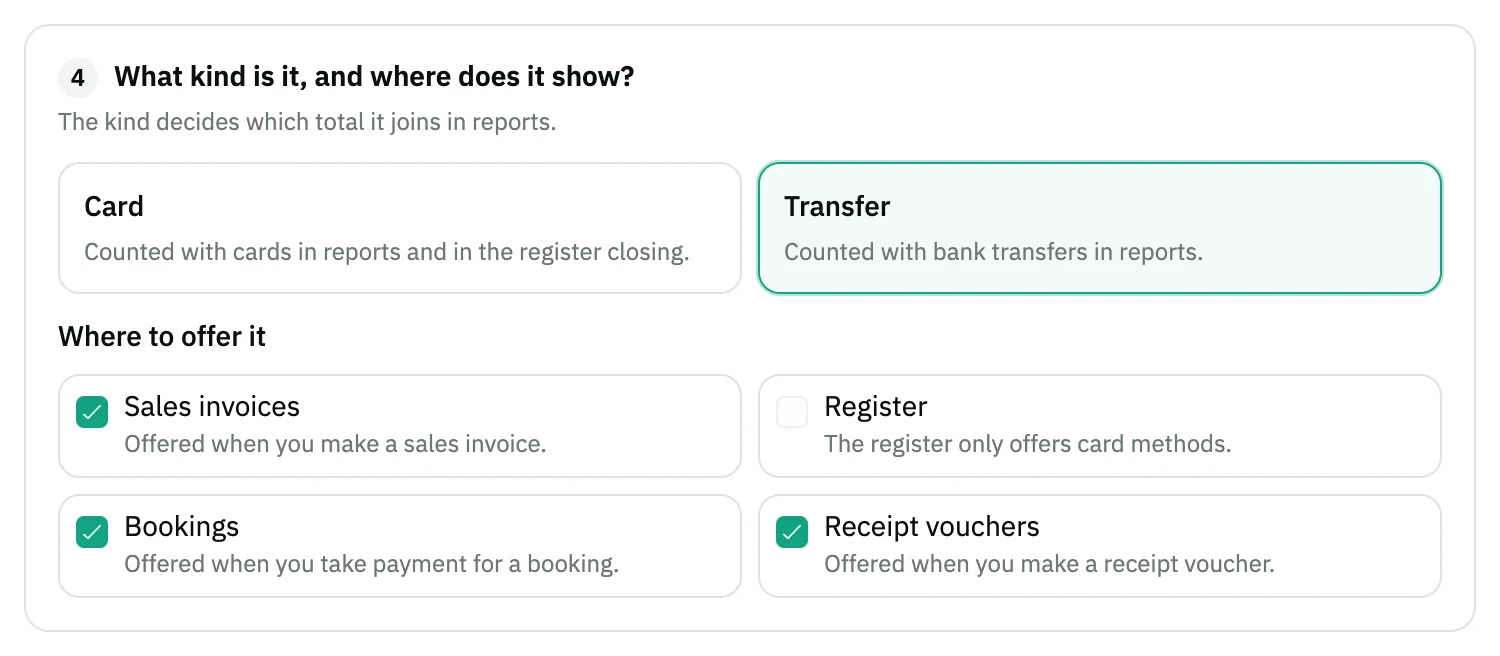
Image key - Two choices: Card and Transfer
- The four places under Where to offer it
Step 6: Add the fee, if any
Under Fees (optional) turn on Add a percentage, enter the Percentage, then choose in Who bears the fee? the customer or the shop. Details
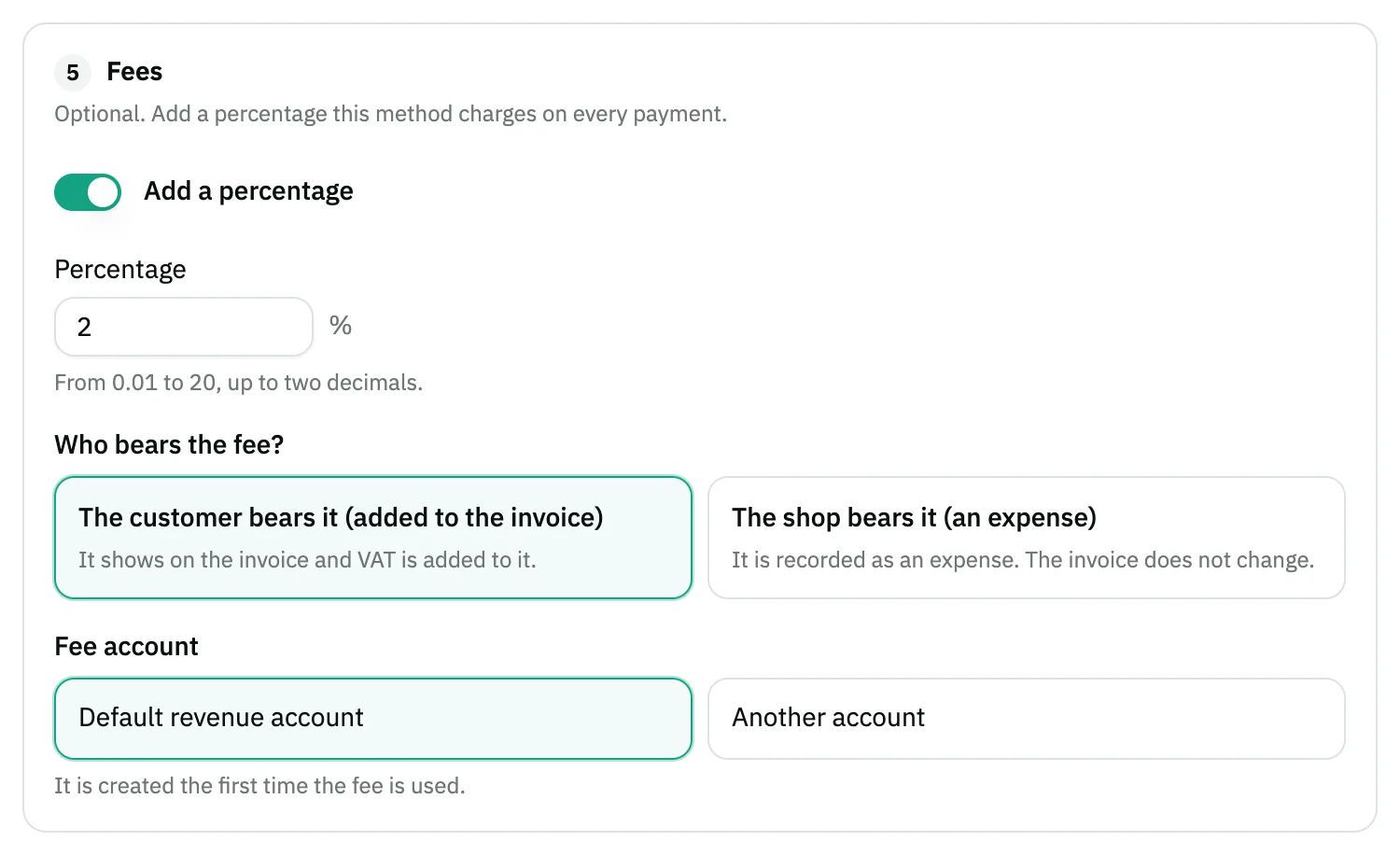
Image key - The Add a percentage switch
- The Percentage field
- Two choices under Who bears the fee?: the customer or the shop
- The Fee account
Step 7: Check, then add
Under Check before saving read what Snad found, and the Sample sale and Sample refund entries. Fix what is Must fix, then press Add the method. Details
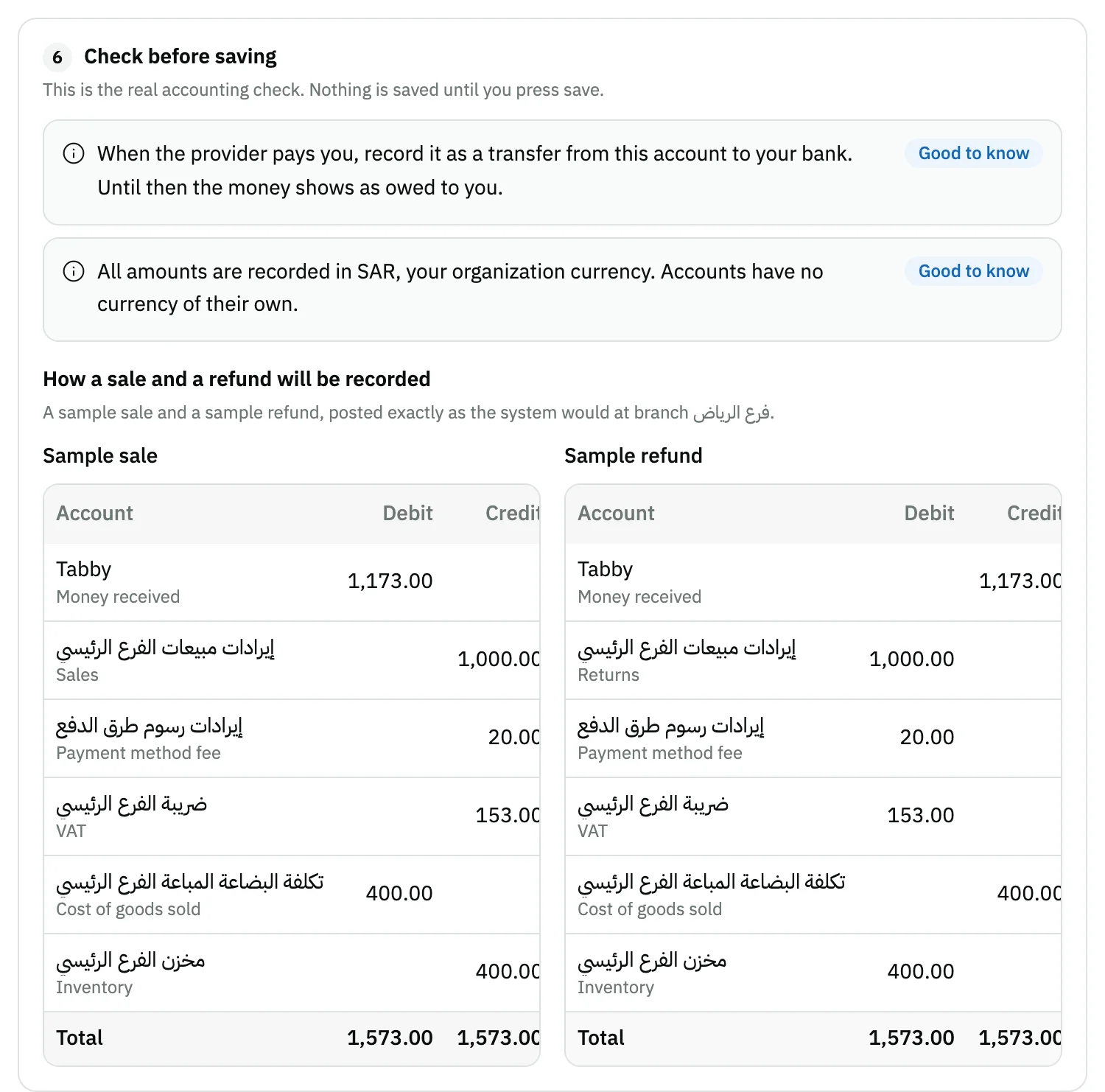
Image key - The check notes: Must fix, Warning and Good to know
- The Sample sale and Sample refund
Step 8: Switch it off or delete it when needed
In the list flip the method's switch from On to Off to hide it from forms. Deleting works only for a method that was never used. Details
Messages that block saving
If saving fails, one of these messages shows next to the field. The table gives the cause and the fix.
| Message | Cause | Fix |
|---|---|---|
| ««…» is a group account. Its sub-accounts already count in it, so totals would be doubled. Pick an account inside it.» | In An account I already have you picked a group instead of an account inside it. | Open the group and pick an account inside it, or keep A new account. |
| «A payment you receive is an asset. «…» is a … account, so your reports would show the wrong thing.» | The chosen account is not an asset account. It is, for example, an expense, revenue or liability account. | Pick an asset account, or keep A new account so it is created in the right group. |
| ««…» belongs to the customers, suppliers or employees accounts. A payment method must not post there.» | The chosen account sits under the customers, suppliers or employees accounts. | Pick another account, or let Snad create a new one for the method. |
| «The same account would be both sides of one sale: «…» is also the … account of branch …, so the sale would net to zero there.» | The chosen account is also the sales, tax or another role account of one of your branches. | Pick a different account that no branch uses for another role. |
| «Card money would enter the till account «…» of branch …, and the cashbox would not match the cash in the drawer.» | You chose a branch cashbox account for a method that is not cash. | Pick a bank account, or keep A new account. |
| «… payments are switched off in your sales settings. This method will stay hidden and be refused until you switch them on.» | The Card or Transfer switch is off under Payment methods in sales settings (set sales settings). | Switch the same kind on under Payment methods. |
| «A method with this name already exists.» | Another method already has this name. It may be switched off. | Change Name in English, or switch the existing method back on instead of creating another. |
| «Please tick that you read the warnings, then save again.» | The check shows a Warning you have not confirmed. | Tick the «Got it» box below the check, then press Add the method. |
| «You reached the limit: … methods on and … in total.» | You have 20 methods on, or 40 in total including the ones switched off. | Switch off a method you do not use, or delete one that was never used (limits). |
| «… this method, so it cannot be deleted. Switch it off instead.» | The method appears in at least one document. | Flip its switch to Off. |
Advanced details
Each section here explains one point from the steps in depth. Every section has a fixed link you can share.
Where to find custom methods and where they show
The card sits in Sales settings, under Payment methods. The command palette has an entry named Custom payment methods that opens it directly (keyboard shortcuts).
In Customizer, on the sales invoice form, the payment card sits in a dashed frame with a Payment methods chip. Click it to open the same list and the same wizard in the side panel (add custom fields).
An active method shows as an ordinary button with its name under Payment method, where you ticked it: the sales invoice, the register, the booking and the receipt voucher. It has no part in split payment or on purchase invoices.
To add from either settings page, use the Add a payment method button in the header of the Payment methods block in Sales settings and in POS settings, or the command palette entry Add a payment method. All three open the same wizard, and none shows for someone without the right to manage payment methods, or when support has switched the feature off.
A custom method is never the default method. The seven built-in methods never change, whether the feature is on or off.
Names and quick add
You and your customers see the names: the Arabic one in the Arabic interface and the English one in English. Leave one blank and the other is copied.
Quick add fills only the name, the kind and where it shows, and never the account. The examples depend on your market. In Saudi Arabia they are Mada, Visa / Mastercard, Apple Pay, STC Pay, Tabby and Tamara. A method you already added shows disabled, marked «(added)».
Reaches my bank or held by a provider
Reaches my bank: the money arrives in your bank account, like a card machine from your bank (Mada, Visa / Mastercard, Apple Pay). Each sale raises the method's account, which is among your bank accounts, so it counts as cash in cash flow and the balance sheet.
Held by a provider: the provider (such as Tabby, Tamara or STC Pay) receives the money first and pays you later. So its account is created under the group «ذمم مزودي الدفع» (payment providers receivable), which is created for you if you do not have it. The amount is owed to you, not cash, so it stays out of cash flow until it reaches you.
Example: a sale of 1,150 and the settlement later
A sale of 1,150 = 1,000 + 15% tax (150), paid by card through a payment provider that holds the money. The account names here are illustrative. The preview in Snad builds your real entries in the same shape on a 115.00 sample.
Reaches my bank (like Mada): the money is recorded in the «Mada» account under the bank, and nothing more is needed afterwards.
Held by a provider (like Tabby): the sale is recorded with these lines, and 1,150 becomes owed to you by the provider:
- Debit: the provider's account (under payment providers receivable) 1,150
- Credit: Sales 1,000
- Credit: VAT 150
- If the items have a cost: debit Cost of goods sold and credit Inventory by that amount
Settling the provider's payout
When you review, Snad shows this note: «When the provider pays you, record it as a transfer from this account to your bank. Until then the money shows as owed to you.»
If the provider pays the full 1,150, record a receipt voucher whose receiving account is the bank and whose paying account line is the provider's account, credited 1,150. The provider's account balance returns to zero.
If it deducts a fee, say 40, record a journal entry: debit the bank 1,110, debit the provider fee expense 40 and credit the provider's account 1,150. Both amounts are illustrative.
If a customer returns an item after the payout, a credit balance stays in the provider's account. That is normal: the provider deducts it from its next payment.
Choosing the account
With A new account Snad suggests the group from how the money reaches you: under the bank for Reaches my bank, under payment providers receivable for Held by a provider. Change it in Under which group and edit Account name. Without permission to create accounts, choose An account I already have.
The Under which group and An account I already have lists show the first 20 accounts as soon as you open them, and the rest load as you scroll. Search is optional and covers all the organization's accounts, with a loading indicator while it fetches. If loading fails, an error line appears with Retry beside it.
Accounts have no currency of their own: every amount is recorded in your organization currency. For an existing account you may see a Warning if it already holds other entries, which the account report will mix. Payment method reports still keep methods apart even if they share an account, because they read the document, not the account.
The kind decides where it is counted
Card is counted with cards in reports and in the register closing, and Transfer with bank transfers in reports. The register offers Card methods only (close a POS session).
You will find your methods listed apart, by name, in the sales by payment method report.
The fee: who bears it and where it shows
The fee is optional and belongs to a Card or Transfer method only. Split payment and the payment link never carry a fee. The percentage runs from 0.01 to 20, with up to two decimals.
The customer bears it (added to the invoice): Snad works the fee out on the invoice total after discounts and extra charges and before tax, then adds tax on the fee. In the invoice summary you see Total before fee, the fee row, then Total after fee. The fee also shows on the invoice details page, in print and on the public link.
An example at 2% with 15% tax on lines worth 1,000: the fee is 20.00, tax is 15% × 1,020 = 153.00, and the total is 1,173.00. The fee is recorded as revenue in the account «إيرادات رسوم طرق الدفع» (payment method fee revenue).
The shop bears it (an expense): the invoice does not change, and the customer sees nothing in print or on the public link. Staff see a muted line Fee borne by the store in the summary. On a 1,150 invoice at 2%, an expense of 23.00 is recorded in the account «رسوم طرق الدفع» (payment method fees), and the method's account receives 1,127.00.
Under Fee account keep Default revenue account or Default expense account, which Snad creates the first time the fee is used. Or choose Another account from the accounts that suit the kind.
On a refund the customer's fee comes back in proportion to the returned part, automatically, and the last credit note takes what is left (create a sales refund). The shop's fee is not reversed by a refund, because the provider keeps its fee. Deleting the invoice reverses everything. On a receipt voucher only the shop's fee is recorded.
A document keeps the percentage, who bears it and the amount from the day it was saved, so editing the percentage on the method never changes a saved document. If Snad support turns the feature off, no new fee is worked out and old documents keep their figures.
Check the payment rules in your country before passing the fee to the customer.
The accounting check before saving
Snad checks the account while you work in the wizard, not only when you press save, and builds a Sample sale and a Sample refund the way it records real documents at one of your branches. Nothing is saved until you press Add the method.
Three levels: Must fix blocks saving, a Warning needs your «Got it» tick, and Good to know is information. Some notes carry an Apply the suggestion button that changes the choice for you.
An account is refused or warned about when it is a group, is not an asset, belongs to customers, suppliers or employees, or is a branch's sales, tax or cashbox account. See the messages table below.
Wiring health: are your branches wired?
In Customizer, below the payment methods list, sits the Wiring health section. There Snad checks every branch's accounts for each method you use: cash, card, transfer and your custom methods. The list is read only and never blocks an invoice.
Each row names the branch, the method and what is missing, such as a branch with no bank account, whose card and transfer invoices are saved with no journal entry. It also counts that method's invoices of the last 90 days. Press Open the branch accounts and complete the branch's accounts (set accounting settings).
When every account is in place, the section shows All branches are wired.
Switching off and deleting
Switching off hides the method from forms and leaves old documents alone: it moves to the switched-off list, and you can bring it back with the same switch. It is the option for any method that was used.
Deleting is for a method no document has used, after a confirmation: Delete or Keep it. The account it pointed to stays in your chart of accounts. The delete button of a used method is disabled.
A used method cannot change its kind or how its money reaches you. You can still change the names and the account: new documents use the new account, while old documents and their refunds keep the account they were paid to. For another kind, add a new method.
Limits and the support switch
The limit is 20 methods that are on, and 40 in total including the ones switched off. At the limit you cannot add: switch a method off, or delete one that was never used.
Snad support may turn the feature off. The card then says «Custom payment methods are switched off», you cannot add or change a method, your custom methods disappear from payment forms, and the built-in methods work as they do.
Old documents keep the method's label as it was the day they were saved, so a printed document does not change if you rename the method, switch it off, or the feature is turned off.
Common questions
- How do I add Mada, Tabby or STC Pay to the sales invoice?
- In Sales settings, in the Custom payment methods card, pick the method from Quick add, finish the account, check the entries and press Add the method. It then shows under Payment method on the invoice.
- What is the difference between «Reaches my bank» and «Held by a provider»?
- With the first, the money lands in your bank account and counts as cash. With the second, the provider receives it first, so it stays owed to you in an account under payment providers receivable until it pays (settling the provider's payout).
- Can I delete a payment method I have used?
- No. Switch it off with its switch: it disappears from forms and its old documents stay as they are. Deleting is only for a method that was never used.
- Why does the register not show my method?
- The register offers Card methods only. Check that the kind is Card, that Register is ticked under Where to offer it, and that the Card switch is on in sales settings.
- Can I add a fee percentage to Mada or a card method?
- Yes, on a custom method of kind Card or Transfer. In the wizard turn on Add a percentage, enter the Percentage and choose whether the customer or the shop bears it (the fee).
- How many custom methods can I add?
- Up to 20 methods that are on, and 40 in total including the ones switched off.