
How to set up a loyalty program in Snad
To set up a loyalty program in Snad, open Loyalty, then Settings. Under Points rules enter Points per 1 spent and Value of one point, and under Cashback rules enter the Cashback percentage. Changes save on their own.
In this guide6
Steps
Step 1: Open the loyalty settings
In the sidebar, choose Loyalty, then Settings. The points rules and the cashback rules are in two cards, one after the other. Details
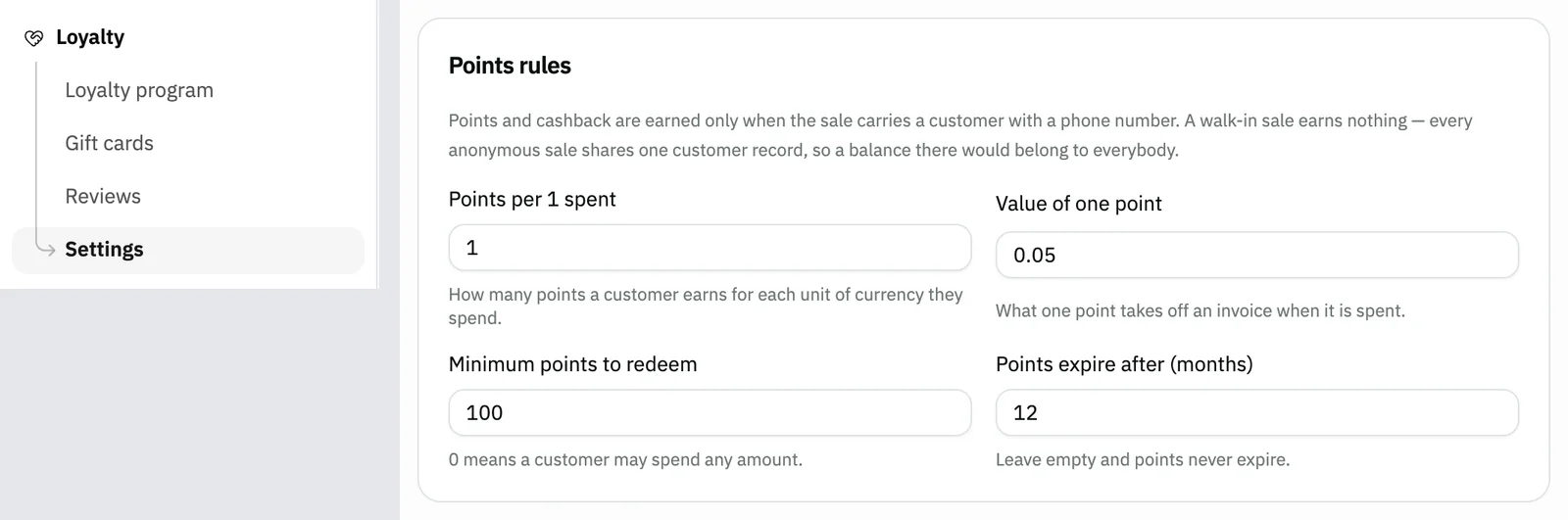
Image key - Settings in the sidebar
- The Points rules card
Step 2: Set the points rules
Under Points rules, enter how many points a customer earns in Points per 1 spent. Enter what each is worth when spent in Value of one point. Also set Minimum points to redeem and Points expire after (months). Details
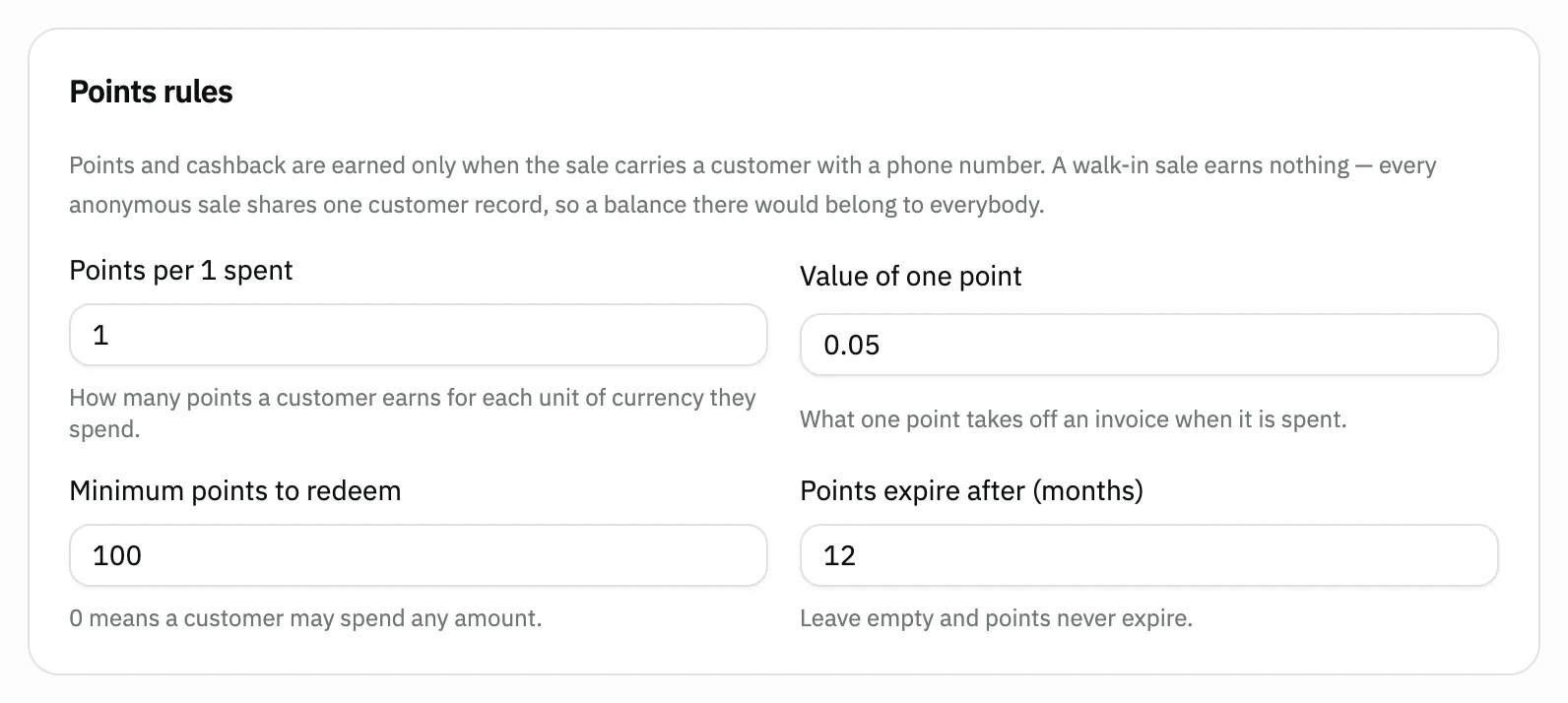
Image key - The Points per 1 spent field
- The Value of one point field
- The Minimum points to redeem field
- The Points expire after (months) field
Step 3: Set the cashback rules
Under Cashback rules, enter the share that returns to the customer as store credit in Cashback percentage. In Most of an invoice cashback can pay (%) set how much of an invoice it may cover. Details
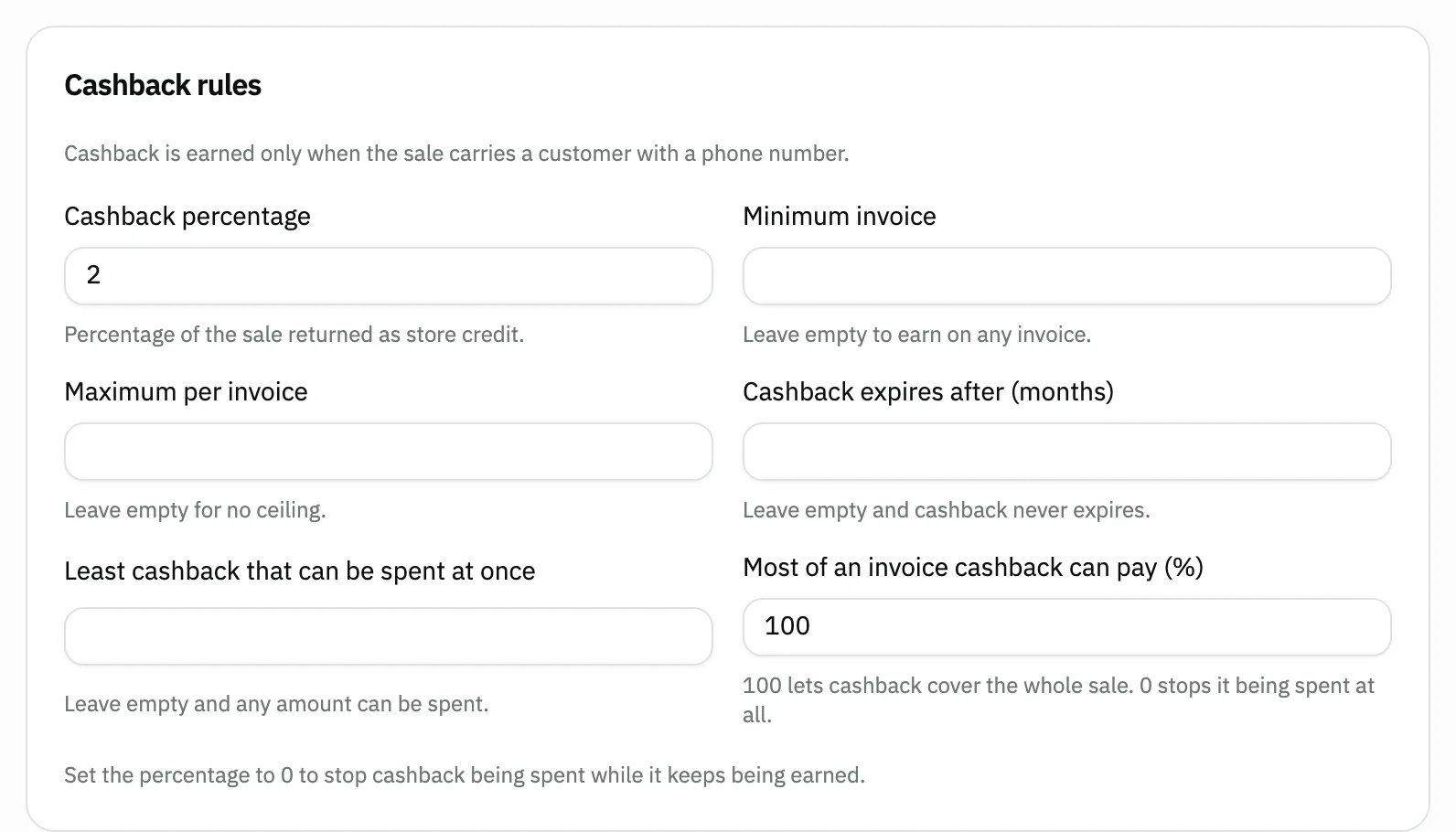
Image key - The Cashback percentage field
- The Most of an invoice cashback can pay (%) field
Step 4: Tell the customer about the balance
In the Tell the customer card, keep the switch on (it is on already) so the customer hears what they earned. Choose when in Send the "you earned" message, and set Warn before a balance expires. Details
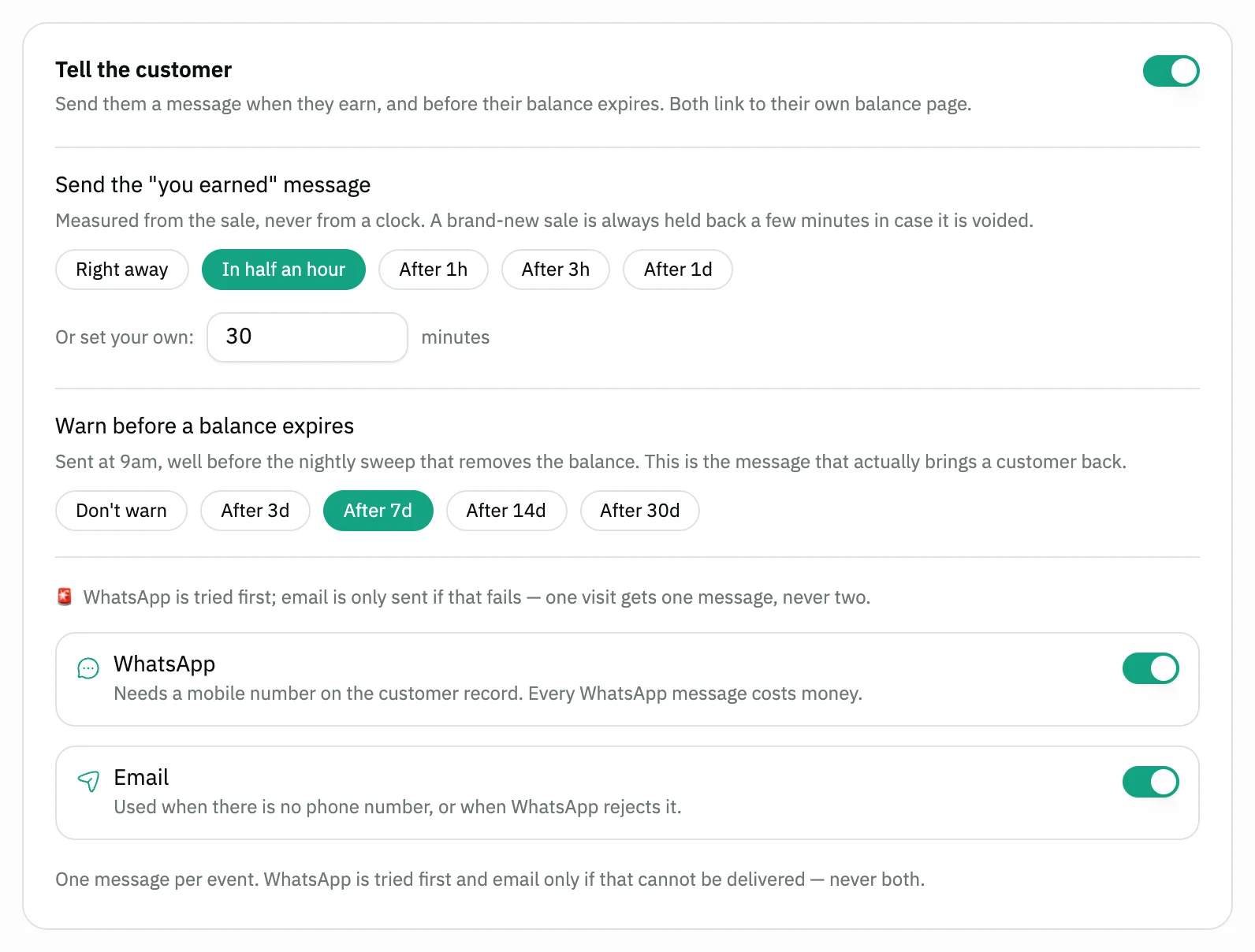
Image key - The Tell the customer switch
- The timings of Send the "you earned" message
- The Warn before a balance expires options
Step 5: Try the rules on an invoice
Open a new sales invoice, choose a customer who has a phone number and add a product. The invoice shows "Earns N points"; a walk-in customer earns nothing.
Step 6: Follow your customers' balances
Open Loyalty, then Loyalty program. The Points and Cashback tabs list who holds a balance now, with their phone number and balance. Details
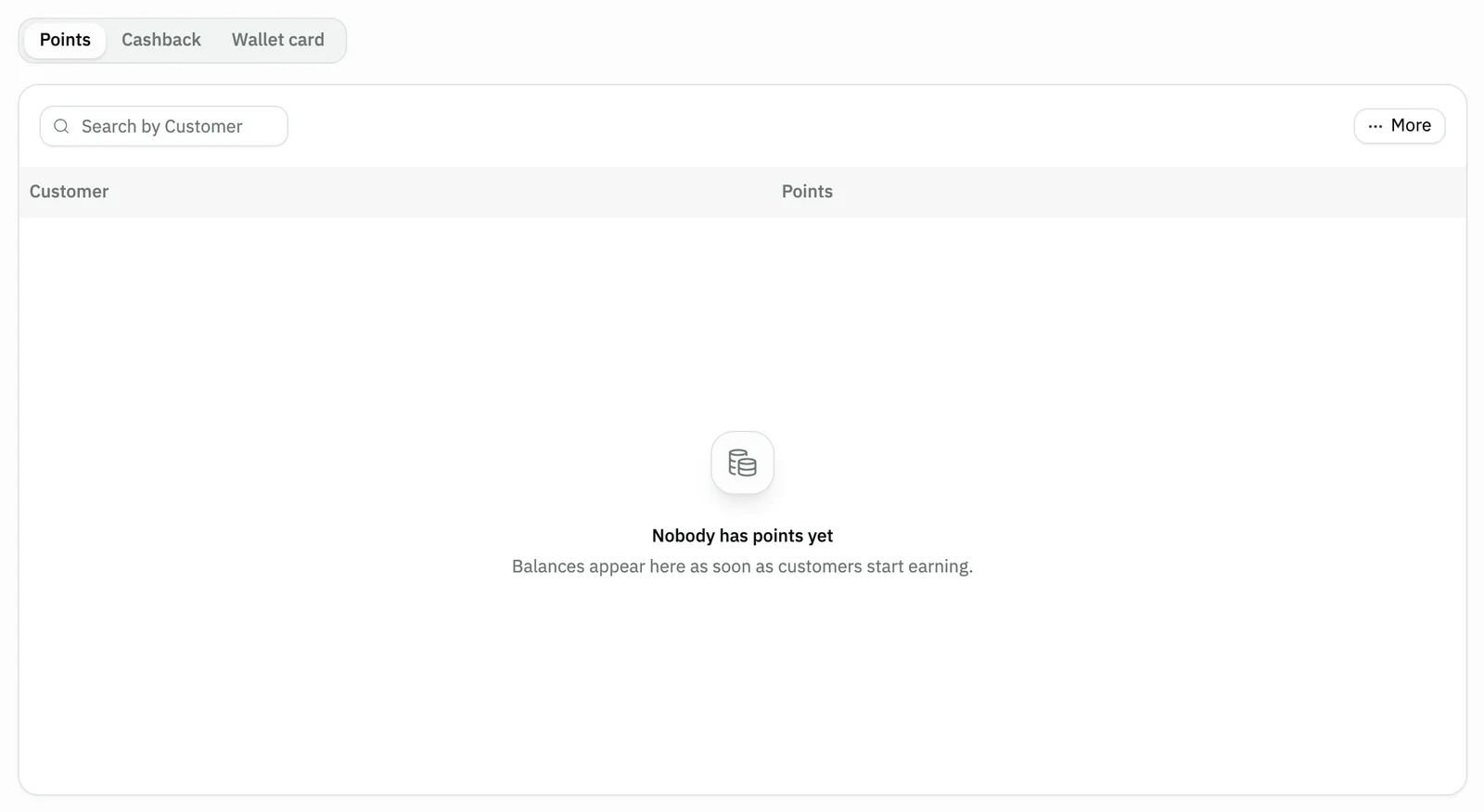
Image key - The Points and Cashback tabs
- The Points balance column
Messages that block saving
If saving fails, one of these messages shows next to the field. The table gives the cause and the fix.
| Message | Cause | Fix |
|---|---|---|
| «Check this field: (field name)» | A field holds a value outside the allowed range, such as a cashback percentage above 100 or decimals in a number of months. One wrong value stops the whole page from saving. | Correct the field the notice names, and Snad saves all the changes right after. |
| «Couldn't save» | The server refused the change or the connection dropped, so the old setting stays. | Check your connection, then edit any field again so Snad retries, and wait for All changes saved. |
| «A walk-in sale earns nothing. Pick a customer.» | The invoice has no customer, or the walk-in customer, which is one record shared by every anonymous sale. | Choose a saved customer who has a phone number on the invoice. |
Advanced details
Each section here explains one point from the steps in depth. Every section has a fixed link you can share.
Why is there no Save button?
This page saves itself: about a second after your last change it sends all the rules together. The top shows Changes save on their own, then All changes saved.
Because the rules go together, one wrong value stops the whole save. The notice names the field so you can fix it.
How are points and their value worked out?
Each 1 the customer spends earns points according to Points per 1 spent. When spent, each point is worth what you set in Value of one point.
For example: one point per 1 spent and a point value of 0.05. A customer who spends 1000 earns 1000 points, worth 50 off their next invoice.
If you leave Points expire after (months) empty, points never expire. If Minimum points to redeem is 0, a customer may spend any amount.
The other cashback limits
Minimum invoice and Maximum per invoice limit what is earned, and leaving them empty means no limit. Cashback expires after (months) sets how long it lasts.
Spending is governed by Least cashback that can be spent at once and Most of an invoice cashback can pay (%). Set the percentage to 0 to stop spending while earning continues.
How do the messages reach the customer?
One message is sent per event. Snad tries WhatsApp first and sends email only if that fails. Every WhatsApp message costs money.
The expiry warning is sent at 9am, before the nightly sweep that removes the balance. It only works if you set an expiry period for points or cashback.
The members table and its pages
Snad fetches one page at a time from the server of the customers who hold this balance, the largest balance first, starting at 10 rows. When there are more than 10 customers, a page bar appears below the table to move between pages or change the number of rows.
The search field above the table searches by name among all the customers who hold a balance, not only the page on screen. After you Adjust a balance the table refreshes by itself.
Adjust a customer's balance by hand
A row has an Adjust button that opens Adjust balance: you add or remove balance and can write a Reason (optional). It is recorded like every other movement.
A removal cannot take the balance below zero. A customer spends their balance on their invoice through gift cards and loyalty balance in the sales invoice.
Common questions
- How do I turn on loyalty points in Snad?
- Open Loyalty, then Settings, and enter Points per 1 spent and Value of one point. Points work as soon as the rate is above zero.
- Why is my customer not earning points?
- Most often the invoice has no customer, or a customer without a phone number. Points and cashback are earned only when the sale carries a customer with a phone number.
- Do I need to press Save after editing the rules?
- No. The settings page saves itself about a second after your last change. Wait for All changes saved.
- How do I stop cashback being spent without stopping it being earned?
- Set Most of an invoice cashback can pay (%) to 0. Customers keep earning it but cannot spend it.
- Do points expire?
- Only if you enter a period in Points expire after (months). Leave it empty and points never expire.