
How to track AI Mode usage and buy extra usage
Your AI Mode allowance shows at the foot of the AI Mode sidebar as Usage allowance, with its reset date. To buy more, press Ctrl + K and choose AI Mode · Extra usage, then Buy more, pick a pack and continue to payment. Usage is added only after payment is confirmed.
In this guide6
Steps
Step 1: Read the usage allowance
At the foot of the AI Mode sidebar, Usage allowance shows the share of it left for this period. Every user sees it.

Image key - The Usage allowance meter
Step 2: Open the extra usage page
On the home page or an AI Mode page press Ctrl + K, type usage, and choose AI Mode · Extra usage. The page opens where you follow what you bought. Details
Step 3: Read the available usage
Extra usage available shows what your organization has left and the nearest expiry date. If you bought nothing, it says no extra usage is available. Details

Image key - The Extra usage available section
- The Buy more button
Step 4: Review the purchases
The Purchases section shows each purchase with Purchased, Expiry date, Value, Remaining and Paid, and its status: Active, Expired or Refunded.
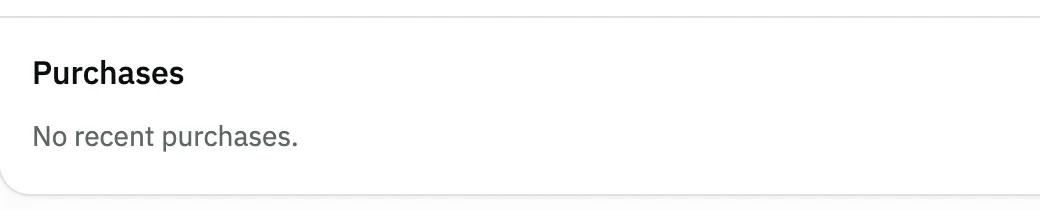
Image key - The Purchases section
Step 5: Follow the history
The History section lists every movement: purchase, refund, expiry and use. Press Show older to load earlier ones.
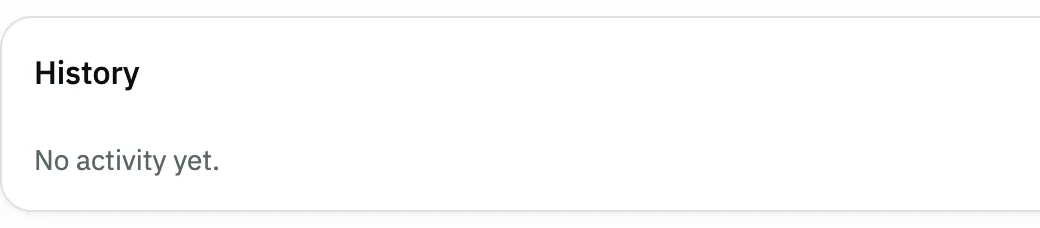
Image key - The History section
Step 6: Buy more when needed
Press Buy more, choose from Packs or Another amount, and check the amount due. Then Continue to payment; nothing is added before it is confirmed. Details
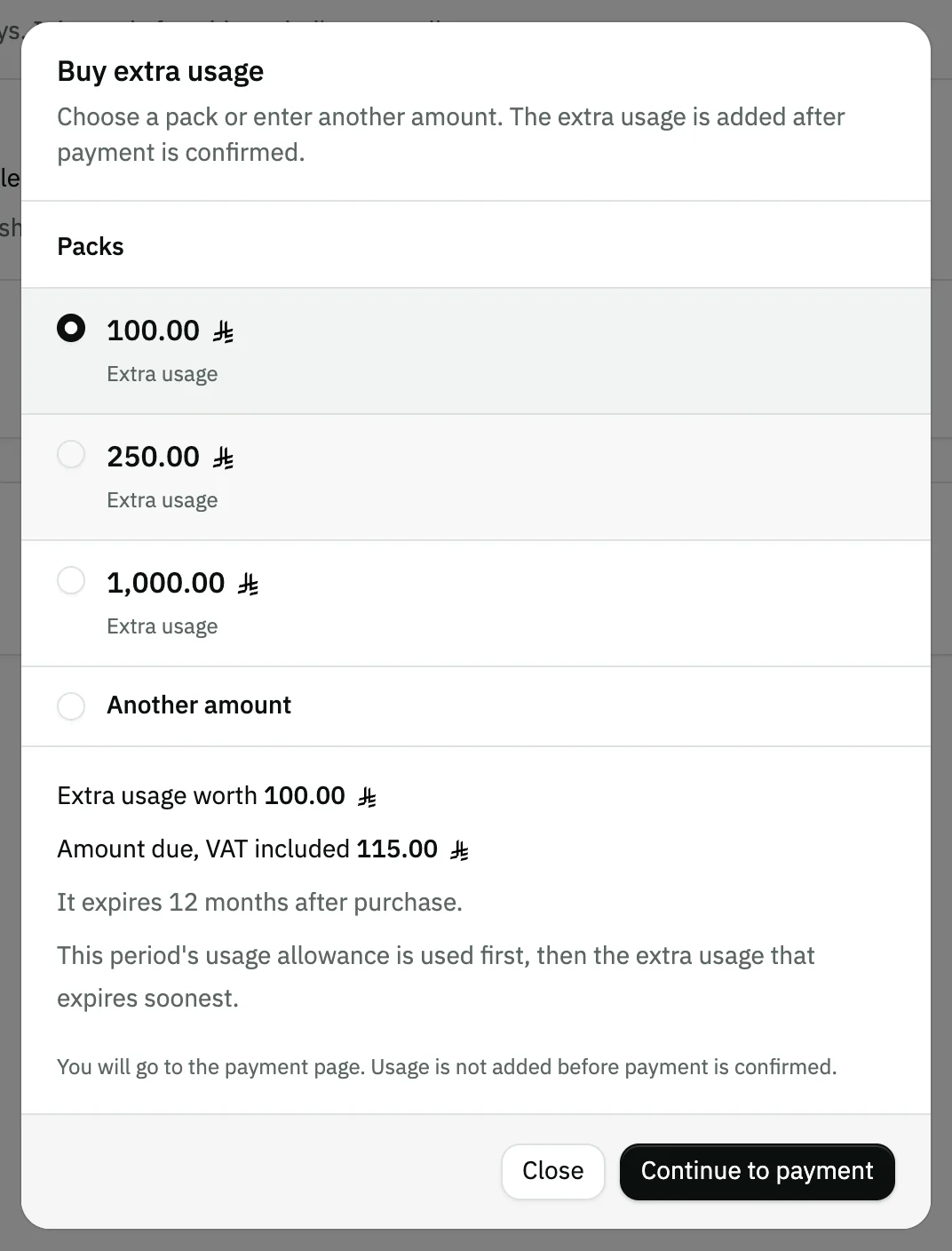
Image key - The Packs options
- The Another amount option
- The Continue to payment button
Messages that block saving
If saving fails, one of these messages shows next to the field. The table gives the cause and the fix.
| Message | Cause | Fix |
|---|---|---|
| «You don't have billing access. An admin in your organization can grant it.» | Your user is not the organization admin and has no payments permission. | Ask the admin to grant it in roles and permissions. |
| «Extra AI Mode usage can be bought on a paid plan.» | Your current plan is not a paid plan. | Subscribe to a paid plan in manage your subscription, then try again. |
| «Your organization's subscription isn't active, so purchases are off for now.» | The organization's subscription is not active. | Activate it on the subscription page, through the Open subscription page link in the same message. |
Advanced details
Each section here explains one point from the steps in depth. Every section has a fixed link you can share.
Who sees the page and who buys
The page and purchasing are for the organization admin and users with the payments permission. Others see a no-access message, while the Usage allowance meter is visible to everyone.
If buying is off, the dialog explains why instead of showing the continue button: the subscription isn't active, AI Mode is off for your organization, or the plan doesn't allow it.
Order of use and expiry
AI Mode uses this period's allowance first, then the extra usage that expires soonest. So buy before the allowance runs out.
Extra usage has a validity period shown in the dialog before payment, and the balance section shows the nearest expiry date. When the included allowance runs out AI Mode shows a notice, and if everything is used it takes no new messages until the period renews.
After payment: confirmation
Continue to payment takes you to the payment page. When you return, Payment confirmation pending shows until the confirmation arrives, then the usage is added and appears under Purchases.
If the confirmation is late, press Refresh status. Don't pay twice: usage is added only after confirmation.
Common questions
- How do I see how much AI Mode usage is left?
- Look at Usage allowance at the foot of the AI Mode sidebar: it shows the share left and the date the period resets. Every user sees it.
- What happens when the usage allowance runs out?
- AI Mode keeps answering while you have extra usage; otherwise it takes no new messages until the period renews. Buy more with Buy more.
- Is usage added before I pay?
- No. You go to the payment page, and extra usage is added only after payment is confirmed.
- Does extra usage expire?
- Yes. The dialog states the validity before you pay, the balance section shows the nearest expiry, and each purchase under Purchases has an Expiry date.
- Why can't I see the extra usage page?
- The page is for the organization admin and users with the payments permission, and shows when AI Mode is on. Ask your admin for access.