
How to set notification preferences in Snad
To set notifications in Snad, press the bell icon in the top bar, then the settings icon, and Notification preferences opens. Switch Delivery channels, categories and sounds on or off, and set Quiet hours and the Email digest. Every change saves the moment you make it, so there is no Save button.
In this guide6
Steps
Step 1: Open the preferences
Press the Notifications bell in the top bar, then the settings icon in the header of the list. The Notification preferences page opens. Details
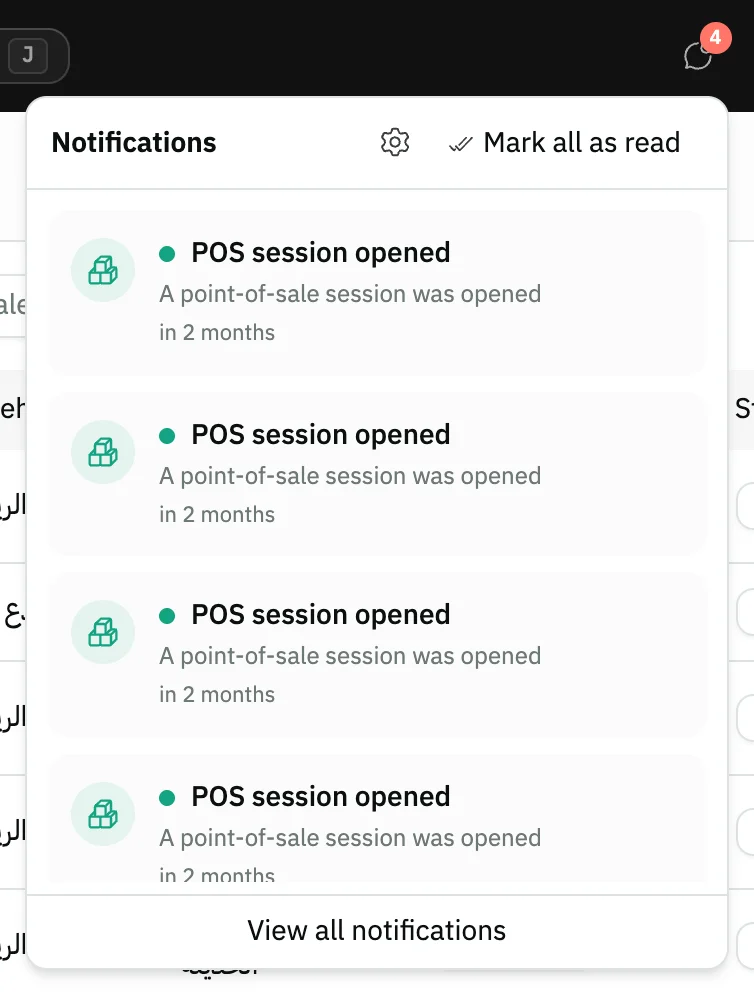
Image key - The Notifications bell
- The settings icon
Step 2: Choose the delivery channels
Under Delivery channels, switch In-app, Email and Mobile push on or off. Each switch saves the moment you press it, with the message “Preferences saved”. Details
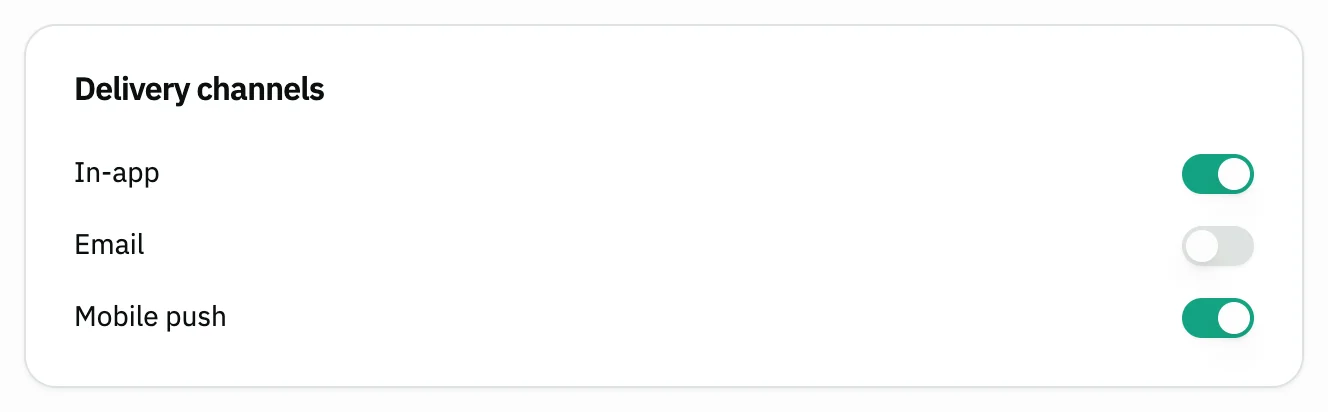
Image key - The In-app switch
- The Email switch
- The Mobile push switch
Step 3: Mute the categories you don't want
Under Muted categories, switch off each category you don't want. A switch that is on means the category reaches you. The alert rules themselves are in general settings.
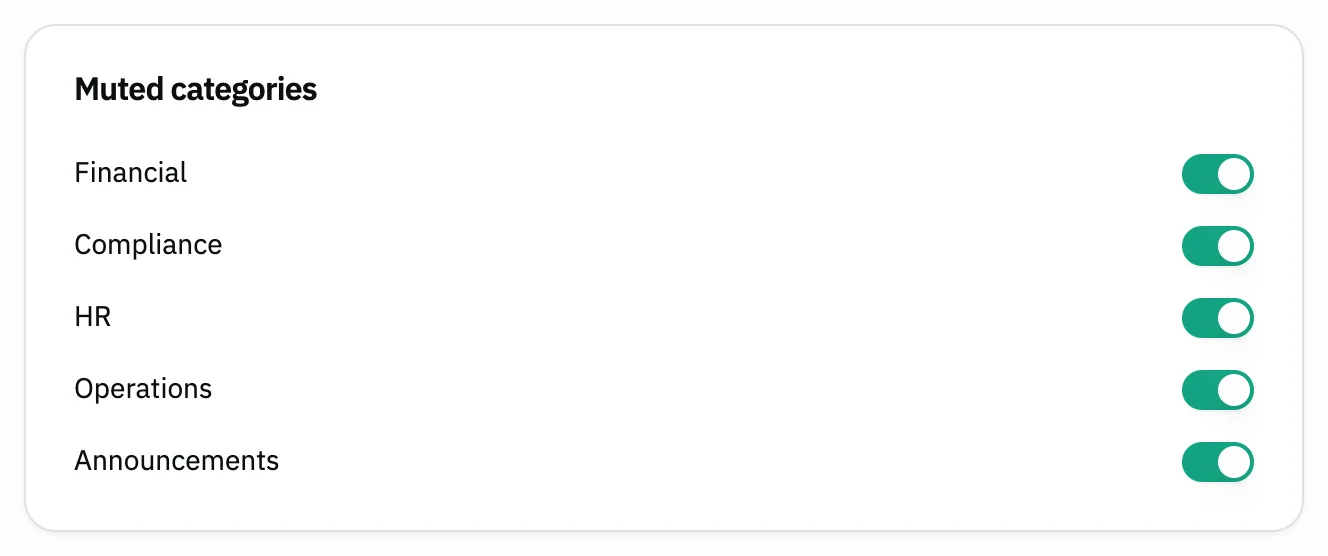
Image key - The Financial switch
- The Announcements switch
Step 4: Set the sounds
Under Notification sounds, switch on Play sounds and pick the volume: Quiet, Medium or Loud. Try each category's chime with Preview. Details
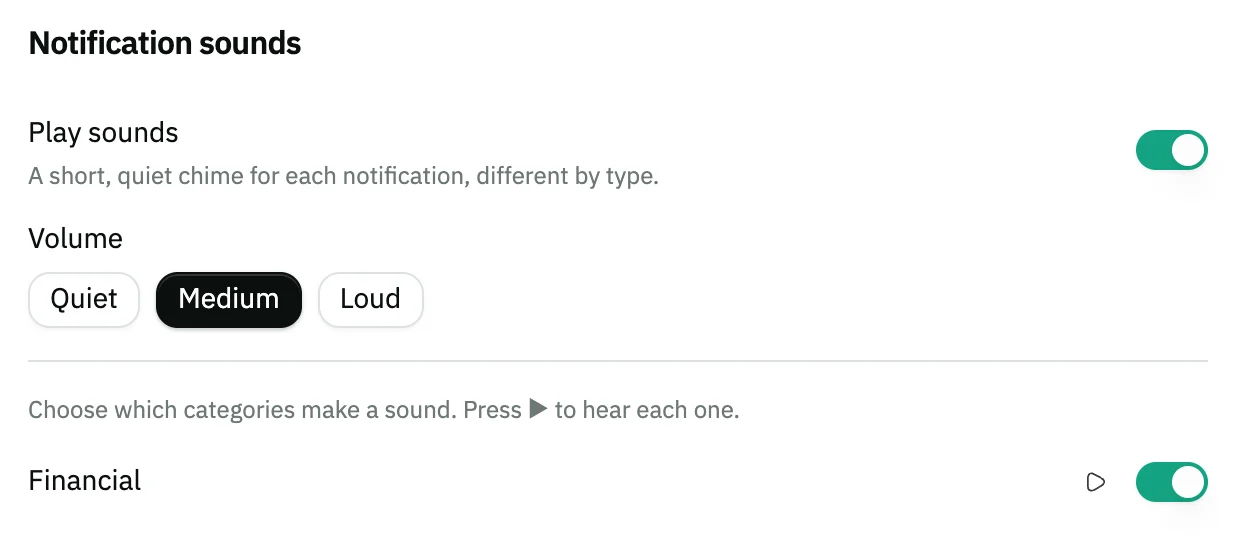
Image key - The Play sounds switch
- The Medium volume
- The Preview button
Step 5: Set quiet hours
Under Quiet hours, switch on Mute push & email during a time window, then enter the time From and the time To.
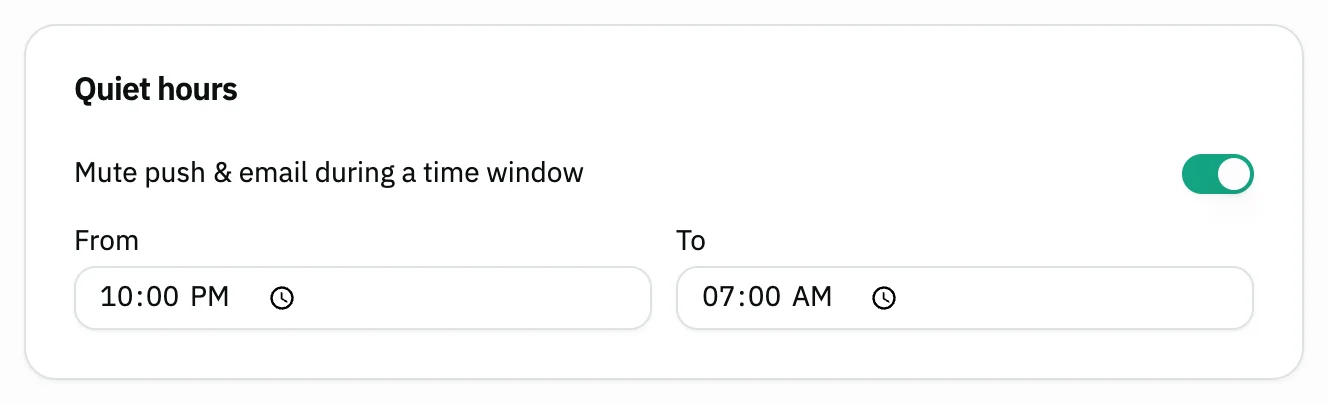
Image key - The Mute push & email during a time window switch
- The From time
- The To time
Step 6: Pick the email digest
Under Email digest, choose Daily, Weekly or Off. If you haven't changed it, it is on Daily.
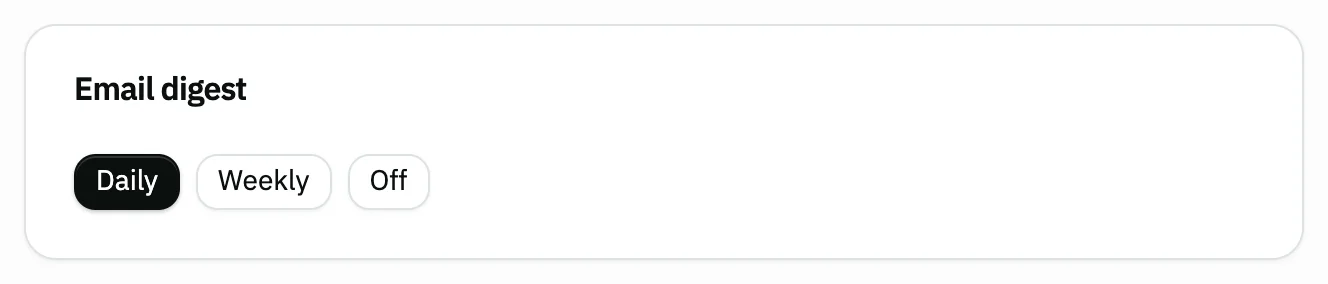
Image key - The Daily option
- The Off option
Messages that block saving
If saving fails, one of these messages shows next to the field. The table gives the cause and the fix.
| Message | Cause | Fix |
|---|---|---|
| «Couldn't save preferences» | The last change was not saved on the server. | Press the switch or option again, and check your internet connection. |
Advanced details
Each section here explains one point from the steps in depth. Every section has a fixed link you can share.
Default channel settings
If you have never opened this page, In-app and Mobile push are on, and Email is off.
To receive email, switch Email on. To stop only its digest, choose Off under Email digest.
A sound for each category
Below the volume there is a switch for each category. Switch one off to make its notifications silent while the others keep their sound.
If you switch off Play sounds, the volume and the category switches disappear.
Browser notifications
If your browser supports it, a Browser notifications card shows with an Enable button. After you press it, the browser asks for your permission.
The button turns into “Enabled” once you allow it, or into “Blocked in browser settings” if you refuse. Then you change the permission in the browser's own settings.
Other ways to open the page
Open the command palette with Ctrl + K and type “Notification sounds”. Or open the notifications page and press the Preferences icon at its top.
Learn the other shortcuts in keyboard shortcuts, and manage your own details in edit my account.
Beside the bell in the top bar is the “Your suggestion matters” icon for sending an idea; see the send a suggestion guide.
Common questions
- How do I turn off the notification sound in Snad?
- Open Notification preferences and switch off Play sounds under Notification sounds. To silence one category only, switch off its switch below the volume.
- How do I stop email notifications?
- Switch off Email under Delivery channels. If you get a periodic summary, choose Off under Email digest.
- Where is the Save button on the notification preferences?
- There isn't one. Each switch or option saves the moment you press it, and the message “Preferences saved” appears.
- Does my notification setup affect other users?
- No. Your preferences are personal and belong to your account only. Every user has their own page.
- How do I mute the financial notifications?
- Under Muted categories, switch off Financial. Do the same with the Announcements or Operations switch.