
How to set sales goals in Snad
To set a sales goal in Snad ERP, open Sales, then Sales goals, and press New goal. Enter a Title and the Goal, pick By, the Target and the Period, then press Save. The goal shows in the table with a progress bar.
In this guide6
Steps
Step 1: Open the goals page
In the sidebar, choose Sales, then Sales goals, and press New goal above the table.

Image key - The New goal button
- Tabs that show goals by type
Step 2: Enter the title and the goal
In Title, enter a name that tells what the goal is. In Goal, enter the value you want to reach, a number above zero.
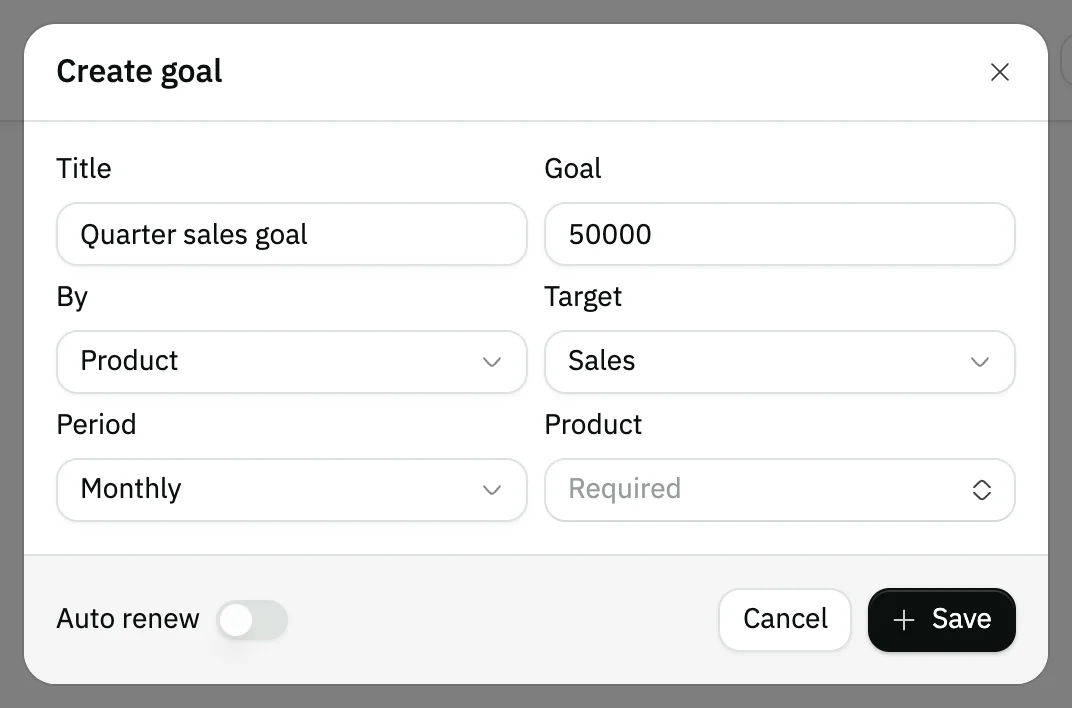
Image key - The goal Title
- The Goal value
Step 3: Pick what it covers and the target
In By, pick what the goal is measured on, such as a salesman, a branch or a product. Then pick the Target, and the item itself from the field that appears. Details
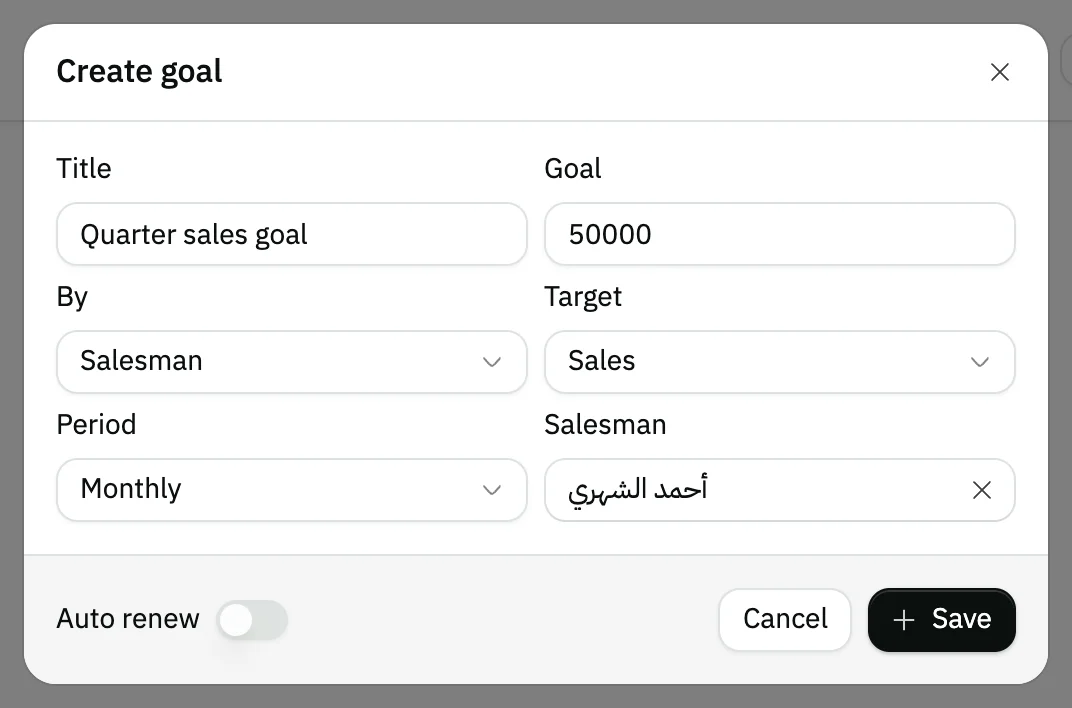
Image key - By: what the goal is measured on
- Target: sales, profit or quantities
- Choosing one Salesman
Step 4: Set the goal period
In Period, pick daily, weekly, monthly, quarterly or yearly. Or pick Customize to enter the Start date and End date. Details
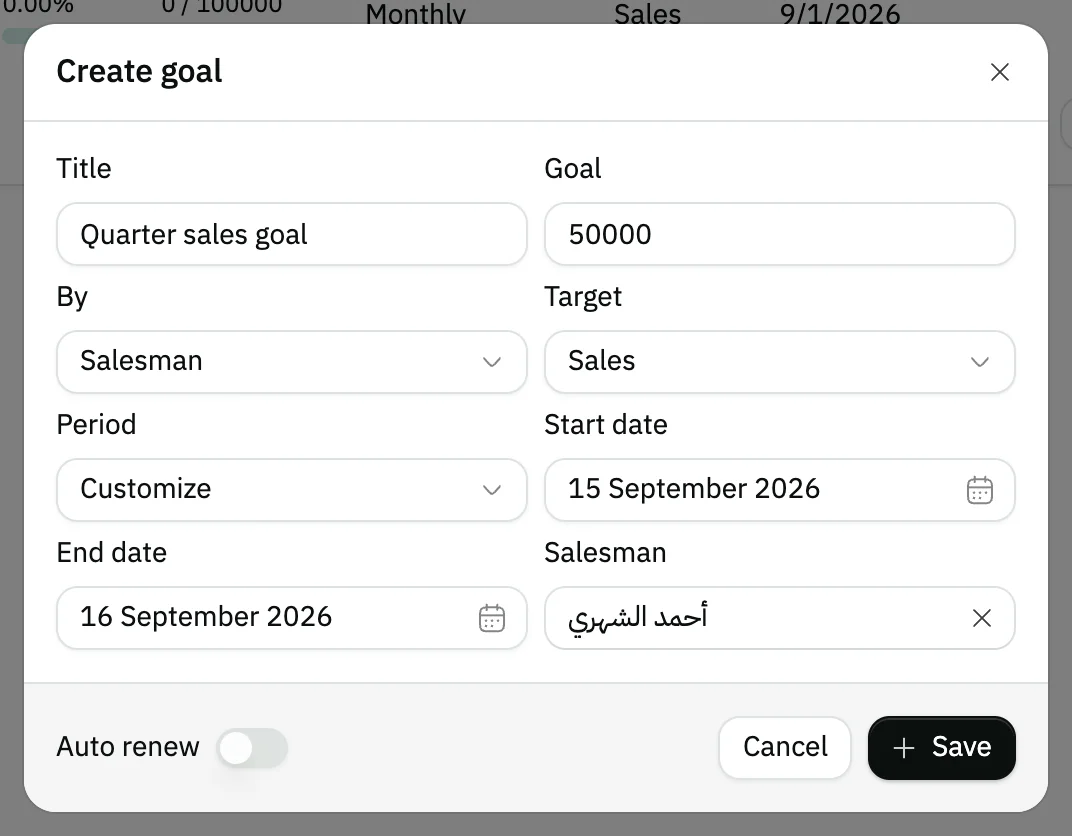
Image key - The Period field
- The Start date
- The End date
Step 5: Turn on renewal and save
Turn on Auto renew if you want the goal to repeat every period. Then press Save, and the goal is added to the table. Details

Image key - The Auto renew switch
- The Save button
Step 6: Follow the goal's progress
The Goal column shows the progress bar, the percentage and the value reached. The Status column shows In progress, Completed or Not completed. Details

Image key - The progress bar and percentage
- The Status badge
Messages that block saving
If saving fails, one of these messages shows next to the field. The table gives the cause and the fix.
| Message | Cause | Fix |
|---|---|---|
| «Goal must be greater than 0» | You left the Goal field at zero or entered a negative number. | Enter a number above zero in Goal, then press Save. |
| «Select salesman · Select product» | You picked a kind such as salesman or product in By but did not pick the item itself. | Pick the item from the field that appeared under By, or change By to General. |
| «Customer goals don't apply to this goal type» | You picked a new-customer Target together with a product, brand or category. | Pick sales, profit or quantities as the Target, or change By to General, Salesman or Branches. |
Advanced details
Each section here explains one point from the steps in depth. Every section has a fixed link you can share.
The kinds of goal and targets
By measures the goal on the whole company (General), or on one product, brand, category, salesman or branch. The page tabs list goals by the same kinds.
If you pick By and then Category, the category list shows the sub-categories in tree order, and each one appears with its path. A goal on a main category also counts the sales of its sub-categories. The categories are covered in manage product categories.
The Target is Sales, Profit or Quantities. New customer shows only with General, Salesman or Branches.
A product goal needs a product that is actually sold. A parent with variants, the base of a derived product and a component of a composite are refused, since they would always read 0%.
The period and dates
The default period is monthly. The goal starts today and ends after the period you pick. Pick Customize to set both dates yourself.
In a customized period, the Start date can't be before today or after the End date, and the End date can't be before the Start date.
Progress counts the invoices that are not canceled within the period, on your organization's time zone. You can compare the figure in sales reports.
How auto renew works
With Auto renew on, Snad creates a new goal with the same title, value, kind and target when the goal is completed or its period ends.
The new goal starts the day after the previous one ends and runs for the same length: a month for a monthly goal, the previous length for a customized one.
In the table, the repeat column shows a tick for a renewing goal and a cross for one that doesn't.
Goal status, editing and deleting
A goal becomes Completed when the value reached equals its goal, and users who can view goals get a notification. If its period ends first, it becomes Not completed. This updates when you open the table.
Click a goal's row to edit it, then press Save. The row menu has Update status and delete, for users who have those permissions.
Common questions
- How do I set a sales goal in Snad?
- Open Sales, then Sales goals, and press New goal. Enter the Title and Goal, pick By, Target and Period, then Save.
- Can I set a goal for one salesman?
- Yes. Pick Salesman in By, then choose him from the field that appears. If he isn't there yet, add him first with add a salesman.
- What is the difference between sales, profit and quantities?
- The Target sets what the goal measures: the value of sales, the profit or the number of units sold. All come from non-canceled invoices in the goal's period.
- Does a goal repeat by itself?
- Only if you turn on Auto renew. Snad then creates a new goal with the same details the day after the goal ends.
- Why don't I see the New goal button?
- The button shows only to users allowed to create goals. Ask your account admin to grant it in roles and permissions.