
How to set accounting settings in Snad
To set accounting settings in Snad, open Accounting, then Settings, and choose the Preparing accounts tab. Pick an account for each row and press Save. Then set each branch's accounts in Sales settings, and each warehouse's in Purchase settings.
In this guide6
Steps
Step 1: Open accounting settings
In the sidebar, choose Accounting, then Settings.
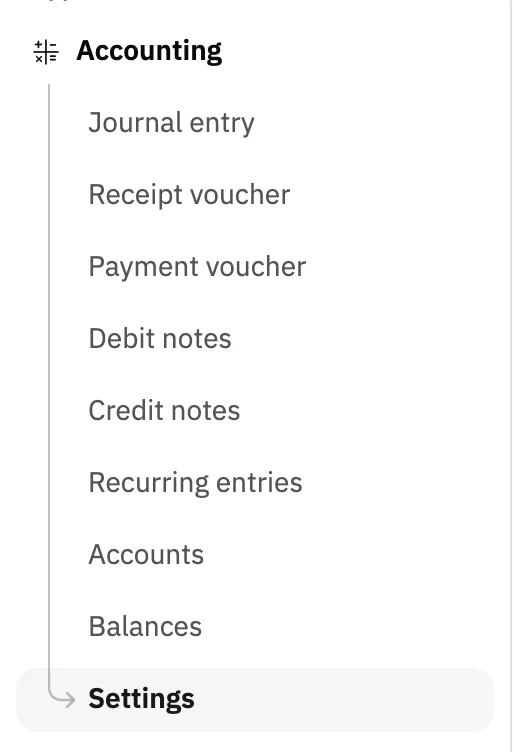
Image key - Settings in the sidebar
Step 2: Know the tabs
The screen has five tabs: Budget group name, Preparing accounts, Sales settings, Purchase settings and Payroll accounting. Details

Image key - The Budget group name tab
- The Preparing accounts tab
- The Sales settings tab
- The Purchase settings tab
- The Payroll accounting tab
Step 3: Pick the main accounts
Open Preparing accounts. In each of the six rows, click the field and pick an account: customers, suppliers, employees, warehouse, cash and bank. Details
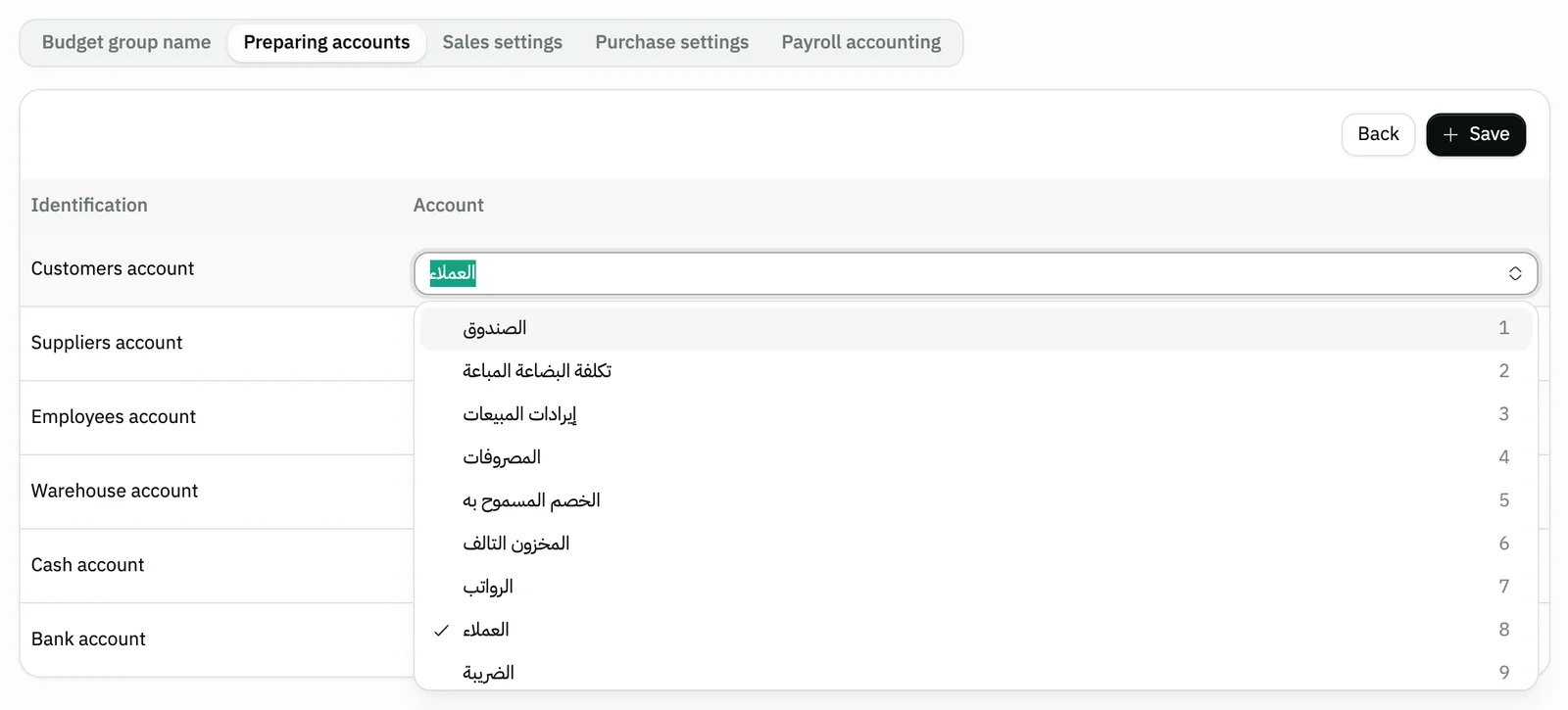
Image key - The Customers account row
- The Cash account row
- The account list
Step 4: Save the settings
Press Save above the table, and wait for the success message before you leave the tab.

Image key - The Save button
Step 5: Set each branch's accounts
Open Sales settings and choose a Branch (add a branch). Its saved accounts show in nine rows, so pick an account for each row and press Save. Details
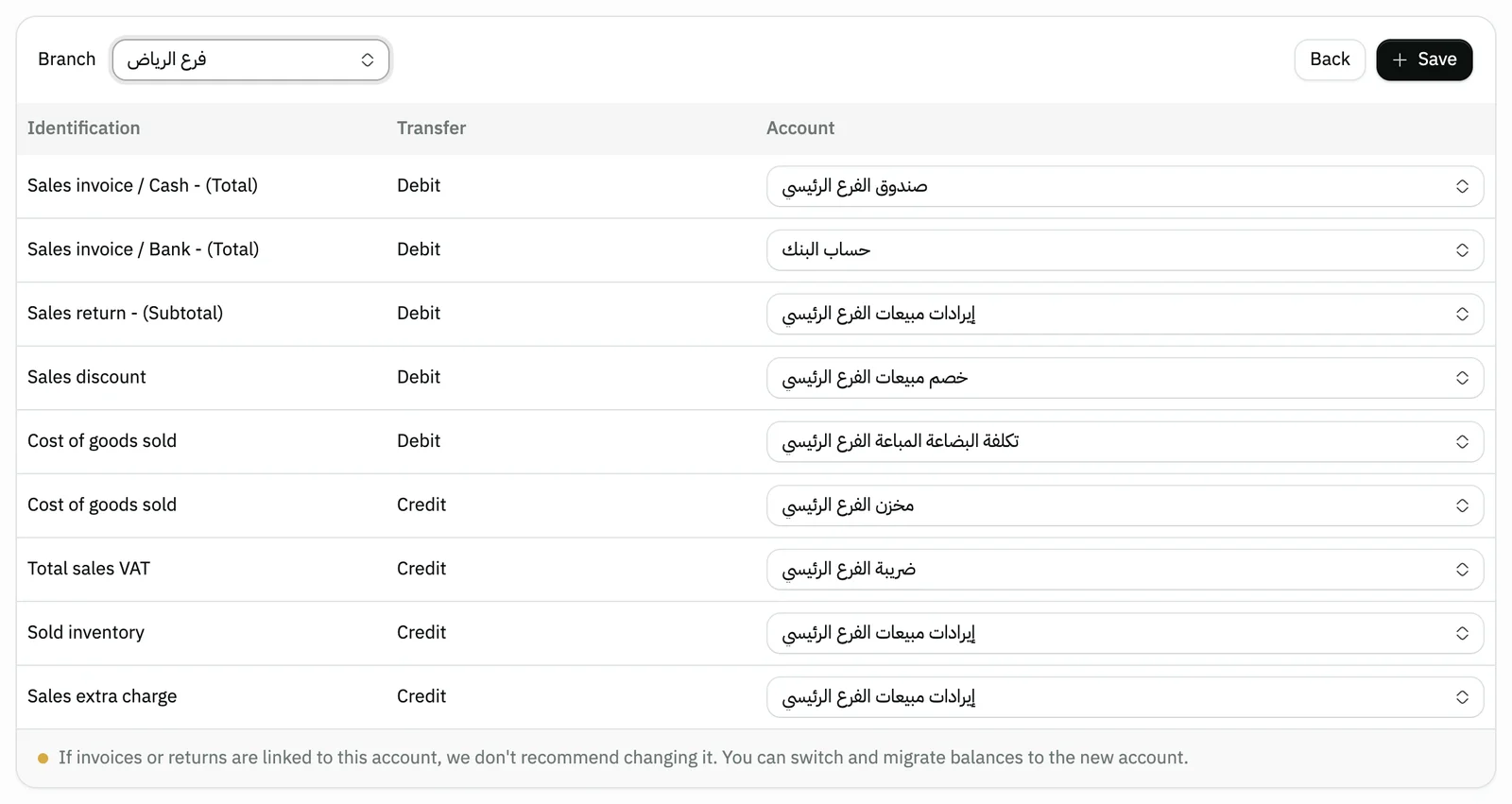
Image key - The Branch field
- The account rows
- The Save button
Step 6: Set each warehouse's accounts
Open Purchase settings and choose a Warehouse (add a warehouse). Pick an account for each of the eight rows, then press Save. Details
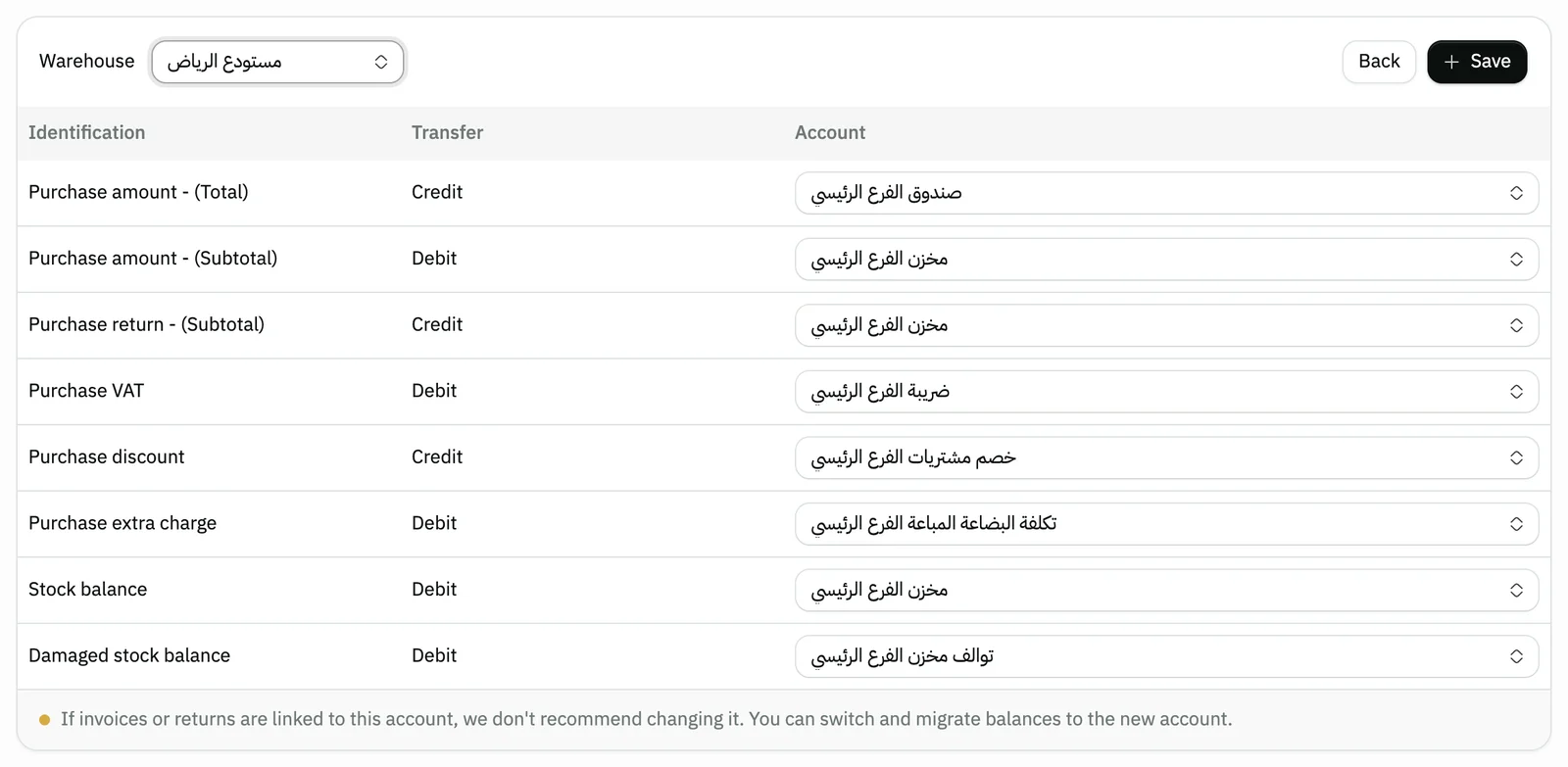
Image key - The Warehouse field
- The account rows
Messages that block saving
If saving fails, one of these messages shows next to the field. The table gives the cause and the fix.
| Message | Cause | Fix |
|---|
Advanced details
Each section here explains one point from the steps in depth. Every section has a fixed link you can share.
Some tabs are missing?
Each tab shows only to users who have its permission: budget groups, sales, purchases and account setup each have one. An account admin sees them all.
The Preparing accounts and Payroll accounting tabs appear together under one permission. Ask your account admin for what you lack (how to grant permissions).
The account lists
Every account list on this screen shows the first 20 accounts as soon as it opens, and the rest load as you scroll down. Search is optional and covers all the organization's accounts, with a loading indicator while it fetches. If loading fails, an error line appears with Retry beside it.
Changing an account already in use
When you change the Customers account, Suppliers account, Employees account or Warehouse account, its child accounts move from the old account to the new one on save.
In the sales and purchase tabs, once you pick a branch or warehouse, Snad warns you: if invoices or returns are linked to an account, changing it is not recommended, but you can switch and migrate balances to the new account.
The suggested accounting setup
If any of a branch's accounts is missing, a Suggested accounting setup button shows next to Save. It opens a window that proposes accounts for each role, so rename them or pick an existing one.
Then press Create and link to let Snad create the accounts and link them to the branch, or Later to leave it. In Purchase settings the button works the same way for each warehouse.
The Sales and Purchase tabs also show a number counting the branches and warehouses whose setup is incomplete, so you know where to work.
Budget groups and payroll accounts
In Budget group name you add a group with the “Add Budget group” button and set its balance-sheet section and cash-flow activity. Click any row to edit it.
In Payroll accounting you link four accounts. The salary expense and employees payable accounts are required, or a message says so when you press Save. The payroll guide covers running payroll itself.
Common questions
- Where do I find accounting settings in Snad?
- Open Accounting in the sidebar, then choose Settings. The screen shows to users who have permission to view it.
- Do I set each branch's accounts separately?
- Yes. In Sales settings you choose the branch and its accounts show, and your changes apply to it alone. Warehouses work the same way in Purchase settings.
- What happens to child accounts if I change the customers account?
- They move to the new account on save. The same applies to the suppliers, employees and warehouse accounts, but not to cash and bank.