
How to send invoices and quotations to customers by WhatsApp
To send documents to customers by WhatsApp in Snad, open sales settings and turn on Send invoices or Send quotations in Auto-send to customers. Or open the document, press Share, then Send via WhatsApp. The customer's Phone must be on file.
In this guide6
Steps
Step 1: Open sales settings
Choose Sales, then Settings in the sidebar. Point of sale has its own card in its settings (how to set point of sale settings). Details
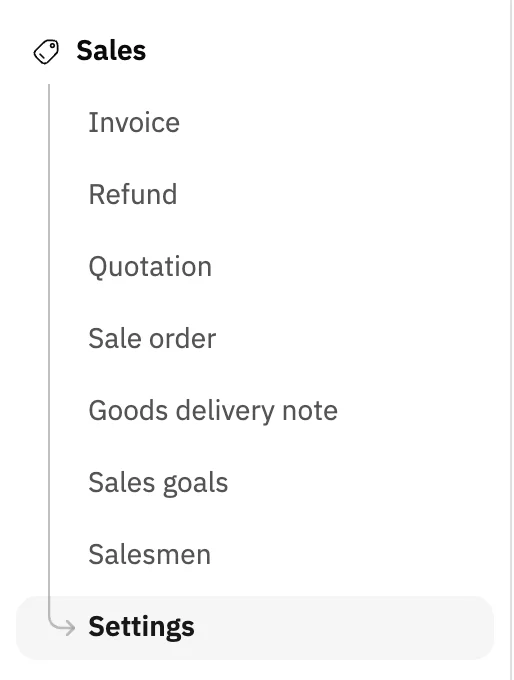
Image key - Settings in the sidebar
Step 2: Turn on automatic sending
In Auto-send to customers, turn on Send invoices, Send quotations and Send credit notes as you like. Each switch saves as soon as you flip it and Saved shows. Details
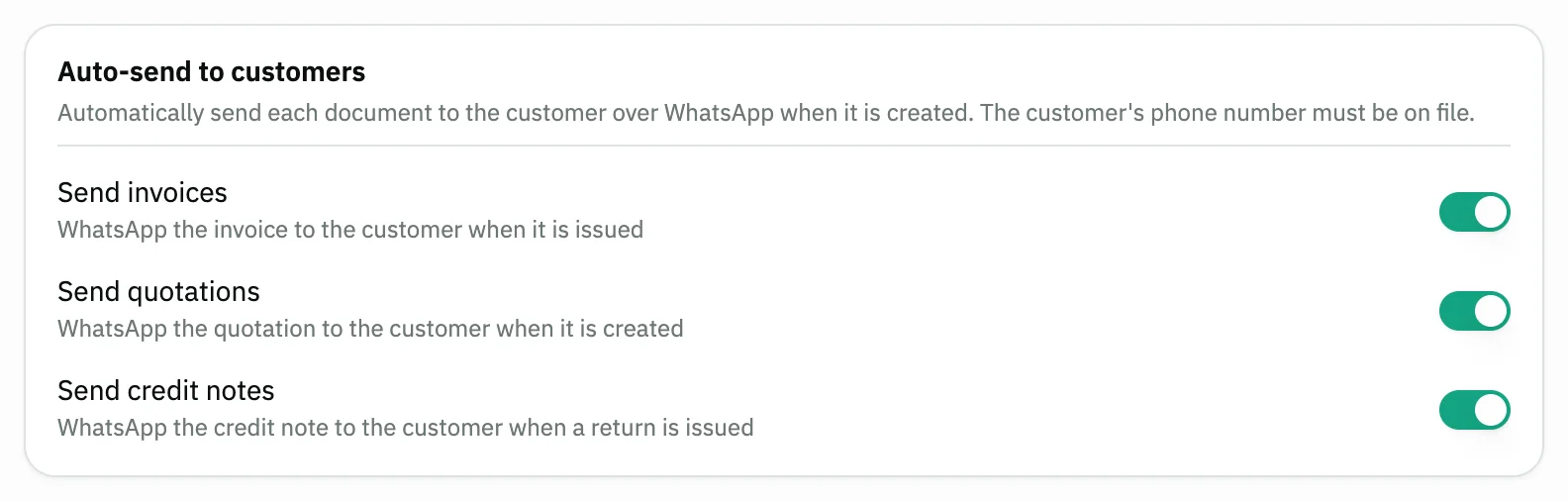
Image key - Send invoices
- Send quotations
- Send credit notes
Step 3: Check the customer's phone number
Open the customer page and check that the Phone field is filled. Without a number the document does not reach the customer (how to add a customer). Details
Step 4: Open the document and press Share
To send by hand, open a saved document, such as an invoice from Invoice, and press Share at the top of the page (create a sales invoice). Details

Image key - The Share button
Step 5: Press Send via WhatsApp
In the Share document window press Send via WhatsApp. The customer gets a message with the document link, and Sent over WhatsApp shows when it works. Details
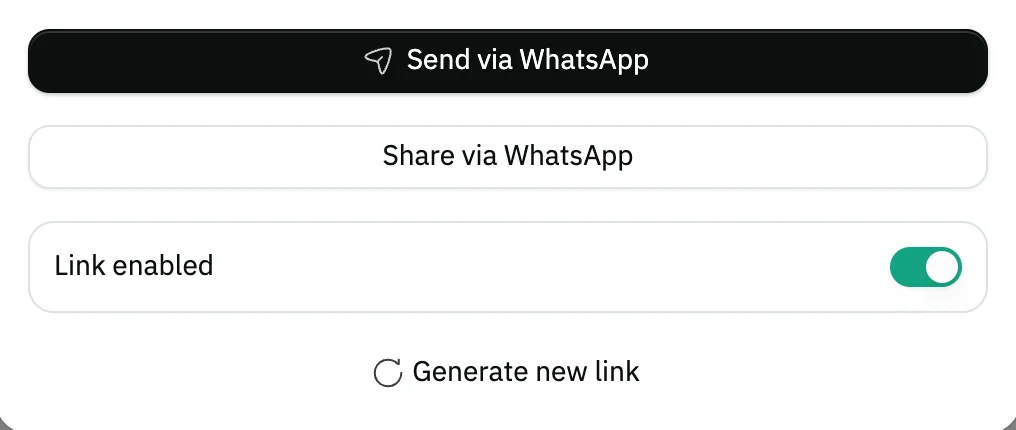
Image key - The Send via WhatsApp button
- The Link enabled switch
Step 6: Add the number if asked
If the customer has no number, the Add customer phone number window appears. Type the Phone and press Save and send, and the number is saved and the document is sent. Details
Messages that block saving
If saving fails, one of these messages shows next to the field. The table gives the cause and the fix.
| Message | Cause | Fix |
|---|---|---|
| «WhatsApp did not accept the message» | WhatsApp refused the message, and the number may not be on it. | Check the Phone on the customer page, or use Share via WhatsApp to open your own WhatsApp. |
| «Enable the public link first» | The document's public link is turned off. | Turn on the Link enabled switch in the share window and send again. |
Advanced details
Each section here explains one point from the steps in depth. Every section has a fixed link you can share.
When a document is sent automatically
The invoice is sent when it is issued, the quotation when it is created and the credit note when a return is issued, and the customer's phone number must be on file.
Anyone allowed to update sales settings can change the switches, and for everyone else they are read-only. Set sales settings explains the same switches.
Point of sale settings show only the invoice and credit note switches, because no quotation is raised from point of sale.
- Send invoices
Status of the last send
A line under the send button shows the last attempt: Sent over WhatsApp, Delivered over WhatsApp, Read on WhatsApp or Last WhatsApp send failed.
If a send fails, check the number on the customer page and press the button again.
Common questions
- How do I send an invoice to a customer on WhatsApp in Snad?
- Open the saved invoice, press Share, then Send via WhatsApp. The customer's Phone must be on file.
- Do I connect my business's own WhatsApp number?
- Snad settings have no screen for connecting a WhatsApp number. What you set is the Auto-send to customers switches and the Send via WhatsApp button on the document.
- Why did the invoice not reach the customer automatically?
- Check that Send invoices is on and the Phone is filled on the customer page, then open the invoice and read the status line under Send via WhatsApp.
- Will Snad send the invoice twice?
- Automatic sending does not repeat for the same document, but Send via WhatsApp sends again every time you press it.
- Do I send a quotation the same way?
- Yes, open the saved quotation and press Share, then Send via WhatsApp (create a sales quotation).