
How to add product photos in Snad
To add product photos in Snad ERP, open Products, press Update multiple products, then Update photos. Pick Without photos under Filter, press Replace photo on a product and upload its image, then press Save changes and Confirm.
In this guide6
Steps
Step 1: Open the photo page
Open Products in the sidebar, press Update multiple products above the table, then choose Update photos. Details
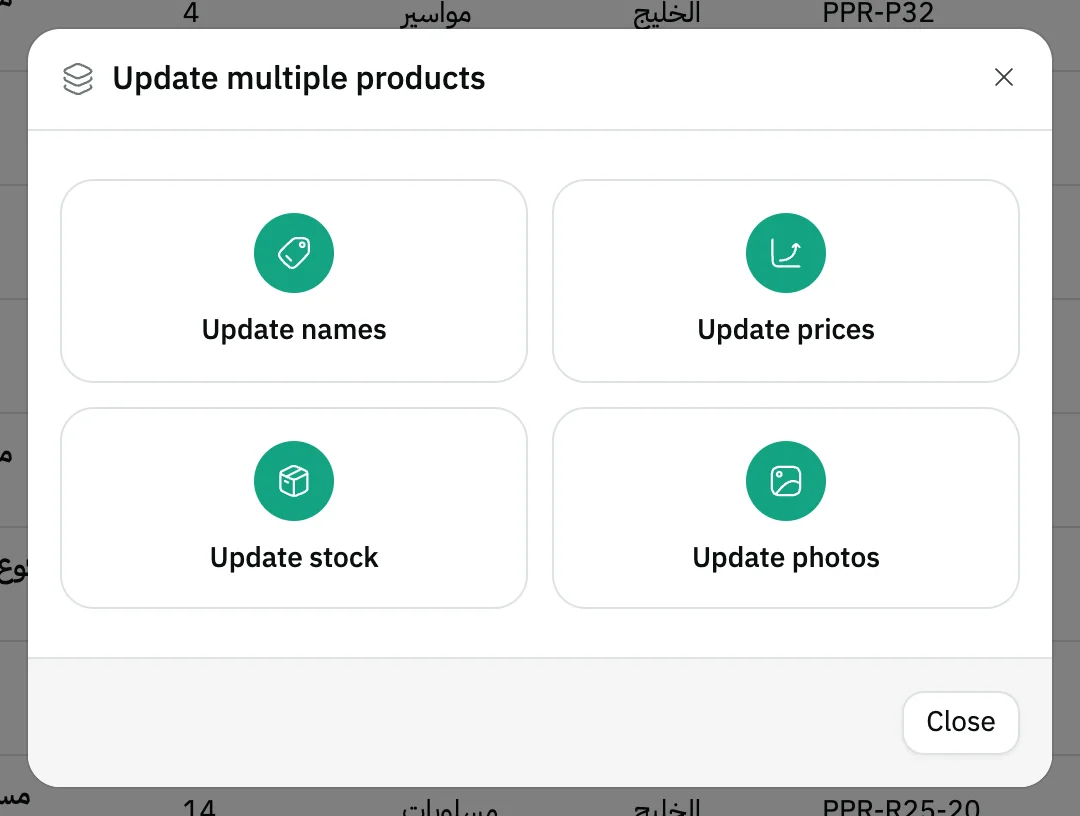
Image key - The Update multiple products window
- The Update photos option
Step 2: Find products without photos
Type a product name, number, SKU or barcode in the search box, or pick a Brand or a Category. Choose Without photos under Filter to see only products missing a photo. Details
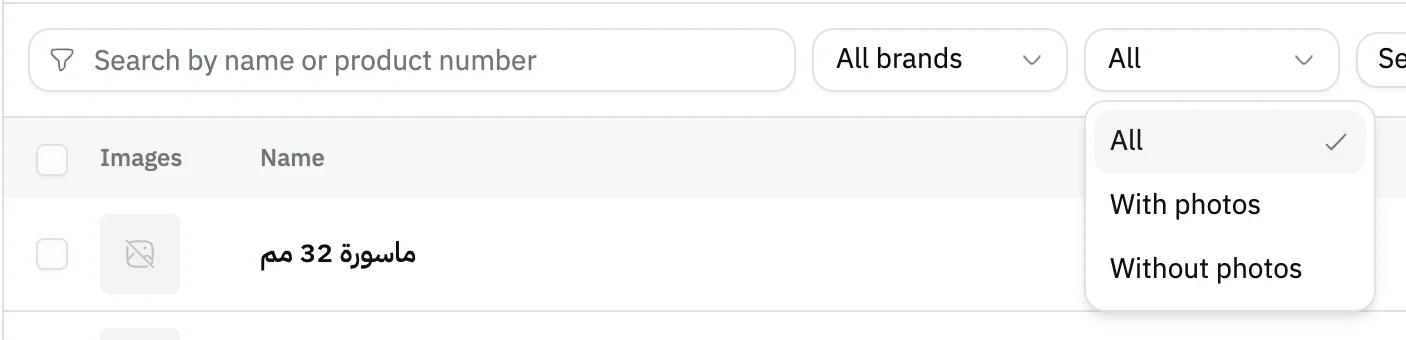
Image key - Search by name, number, SKU or barcode
- The Brand list
- The Filter list
Step 3: Add or change one product's photos
Press Replace photo on the product's row. The window shows its current photos; press Click or drag images here, add your images, then press Done. Details
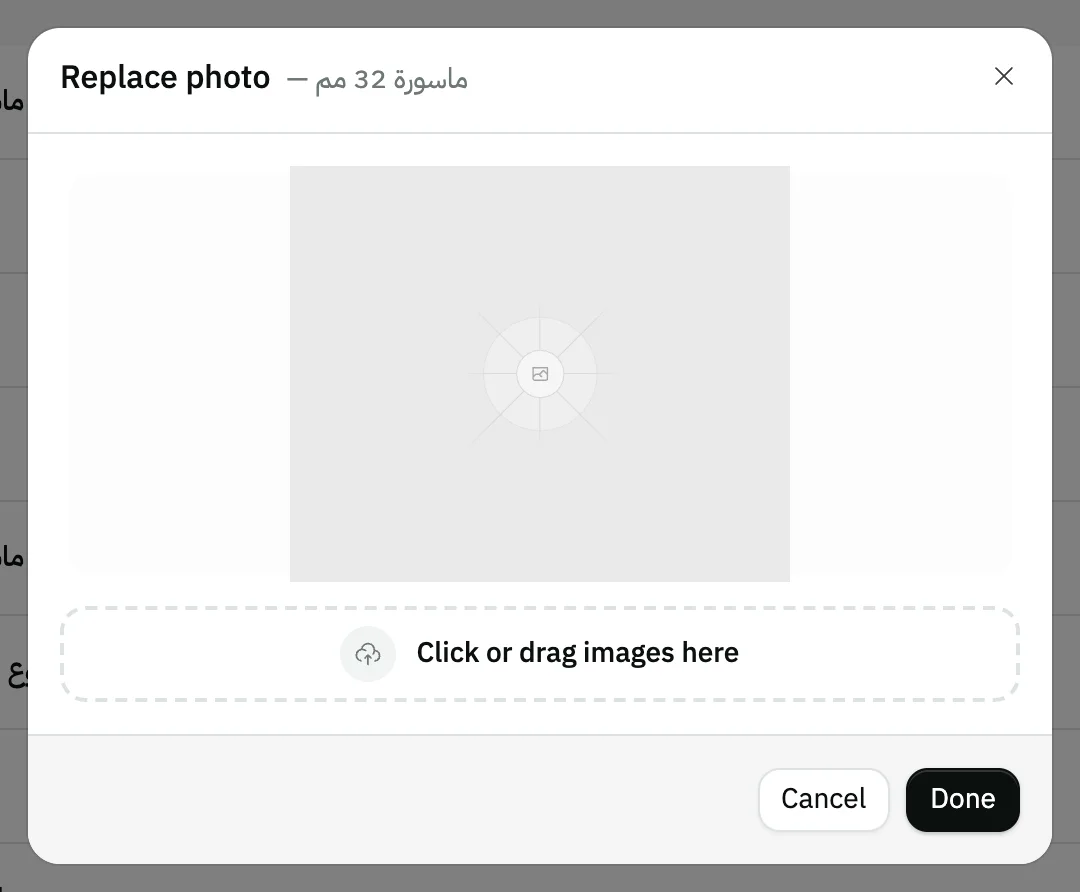
Image key - Click or drag images here
- The Done button
Step 4: Select several products
Tick the products, or press Select all. A bar shows how many are selected; press Upload photo for selected to give them all the same image. Details

Image key - The Select all button
- The Upload photo for selected button
- The Delete photos for selected button
Step 5: Review the pending changes
Nothing you do is saved straight away. Press Preview changes to see the Current photo beside the New photo, or Revert to cancel them all. Details
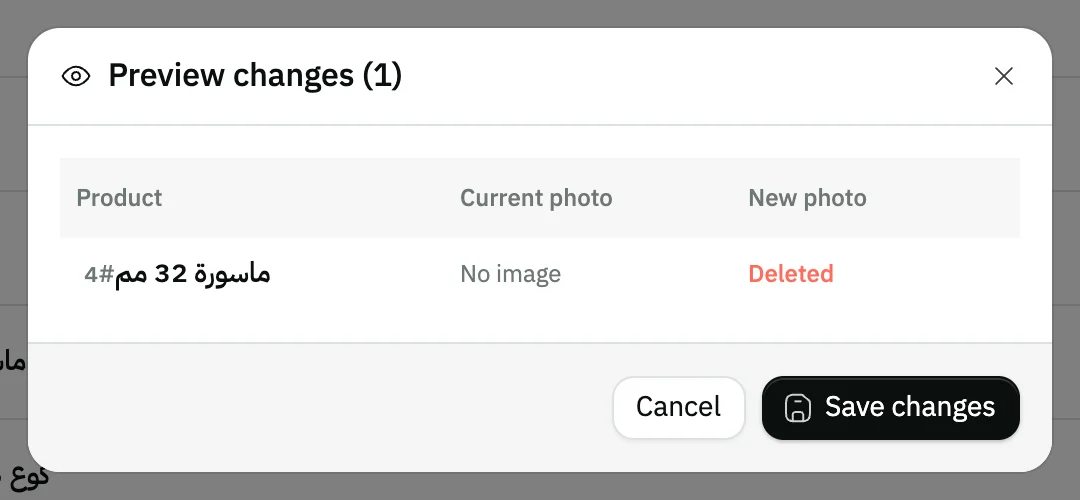
Image key - The Current photo column
- The New photo column
Step 6: Save the changes
Press Save changes at the top of the page, then Confirm in the warning window. A Photos updated successfully notice appears. Details
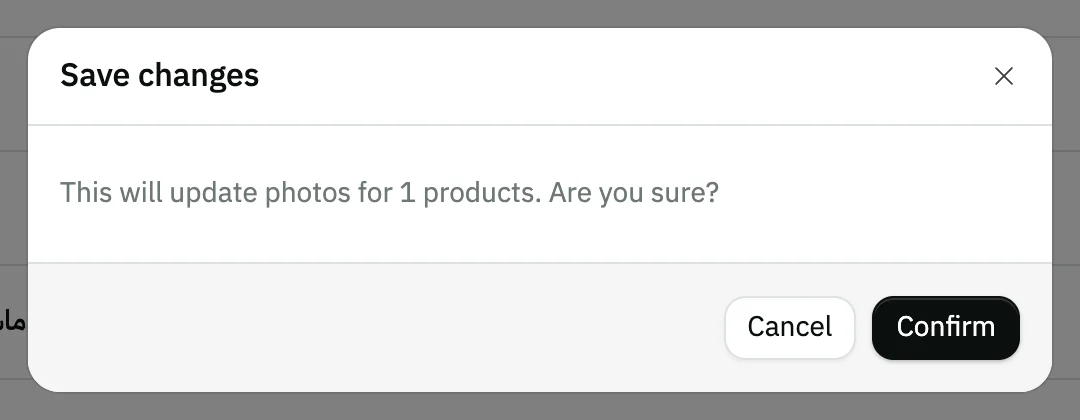
Image key - The Confirm button
- The Cancel button
Messages that block saving
If saving fails, one of these messages shows next to the field. The table gives the cause and the fix.
| Message | Cause | Fix |
|---|---|---|
| «Failed to upload file-name» | That file could not be uploaded, for example because it is over 10 MB or the connection dropped. | Shrink the image or try another file, then upload again. |
| «Failed to update photos» | The server did not accept the changes. They stay pending on the page. | Press Save changes again shortly, and do not close the page before then. |
Advanced details
Each section here explains one point from the steps in depth. Every section has a fixed link you can share.
Table view and grid view
The page opens in table view: a thumbnail, the name, product number and brand. Switch to grid with its button at the end of the bar to see each product as a photo card.
On a card, the add button (an icon) adds an image to the product's photos without removing the old ones, and the delete button (an icon) clears its photos.
At the top of the page, a counter shows how many products have photos, and a badge shows how many are Without photos.
What the upload accepts
Accepted formats are JPG, PNG, GIF and WebP, up to 10 MB per file. You can pick several images at once.
Snad shrinks an image automatically before uploading it if it is wider than 1920 pixels, so you don't need to resize it yourself.
The Replace photo window shows the product's current photos, and what you upload is added to them. To remove an old photo, press the close mark on it inside the window.
If a product has several photos, the first one shows the count of the others, such as +2.
You can also add photos from the Media card while you add a product; for many products, import them first (import products).
Bulk upload and delete
Upload photo for selected adds the image you upload to every selected product, then asks you to Confirm the count. A product that already has that exact image does not get it twice.
Delete photos for selected clears the photos of the selected products, after you Confirm. The product itself stays; only its photos are affected.
On an account with many products, Snad loads the list in batches: a line “Loaded N of M products” and a Stop loading button show, and Retry shows if the load fails. The Select all button stays disabled until the load finishes, and hovering it shows “Available after all products have loaded”; ticking products one by one works at any time.
Changing the search, brand, category or filter clears the selection.
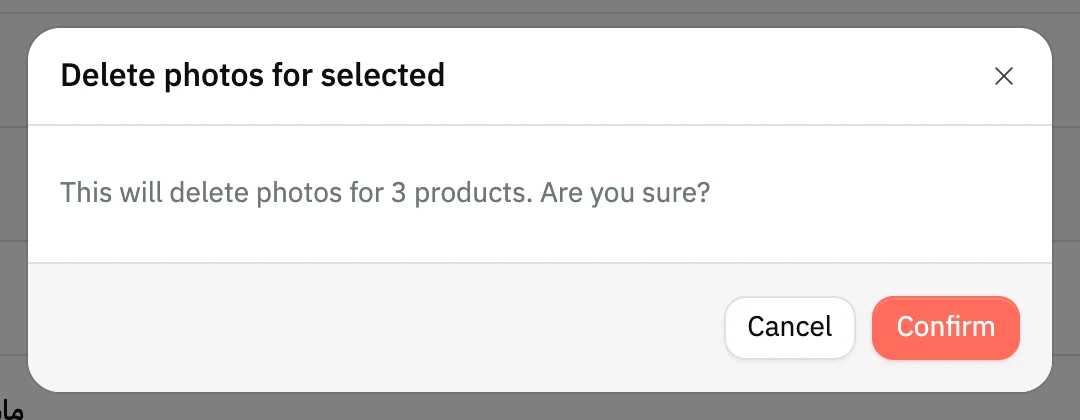
- The Confirm button
Pending changes before saving
Every upload or delete is recorded on the page only; the product gets a coloured edge and a badge counts the pending changes. Nothing changes on your products before Save changes.
If you close or reload the page before saving, the pending changes are lost.
In the preview, a product whose photos were cleared shows Deleted in the New photo column.
What saving does
Save changes updates the photos of all pending products in one request, and the warning window tells you how many before you Confirm.
After success the pending list empties, the selection clears, and the new photos show on the products.
No Update photos option?
The page opens only for users allowed to edit products; anyone else sees an access-denied message. Ask your account admin (roles and permissions).
You find Update multiple products above the products table. It also has Update names, Update prices and Update stock; for prices see updating prices.
Common questions
- How do I add a photo to a product in Snad?
- Open Update photos from Update multiple products on Products, press Replace photo on the product, upload the image, then Save changes.
- Can I upload photos for many products at once?
- Yes. Select the products and press Upload photo for selected; they all get the same image. For different images, upload one product at a time.
- Are photos saved as soon as I upload them?
- No. They stay pending on the page until you press Save changes and then Confirm. Revert cancels them all.
- How do I remove a product's photo?
- Press the delete icon on the product's row, or select products and press Delete photos for selected, then Save changes. The product stays and its photos are cleared.
- What image size is allowed?
- Up to 10 MB per file, as JPG, PNG, GIF or WebP. Snad shrinks anything wider than 1920 pixels.