
How to manage financial periods in Snad
To manage financial periods in Snad, press Settings in the sidebar, then Financial period. Press Start new financial period, set the Start date and End date, then Save. The previous active period closes and the new one becomes Active.
In this guide7
Steps
Step 1: Open financial periods
Press Settings at the bottom of the sidebar and it turns into the settings menu. Then choose Financial period. Details
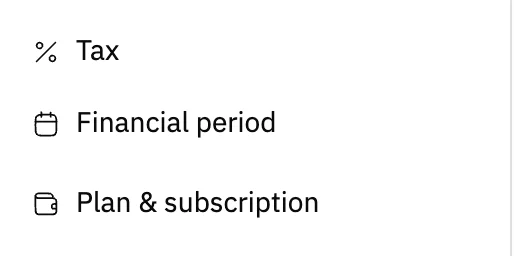
Image key - Financial period in the settings menu
Step 2: Review the periods
The table lists each period with its Start date, End date, Closing date and Status: Active or Closed. Details

Image key - The Start new financial period button
- The table columns
- Active: the current open period
Step 3: Start a new period
Press Start new financial period. A window opens with Start date and End date, set to 1 January and 31 December of the current year. Details
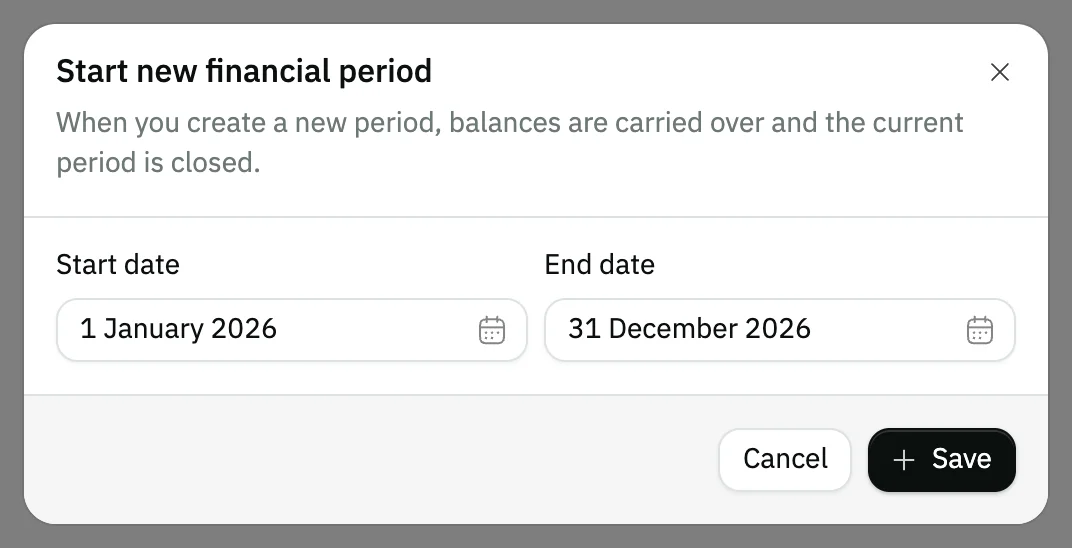
Image key - The note: the current period closes and balances carry over
- Start date
- End date
Step 4: Pick the two dates
Click each field and pick the day in the calendar. The calendar won't take a start after the end, or an end before the start.
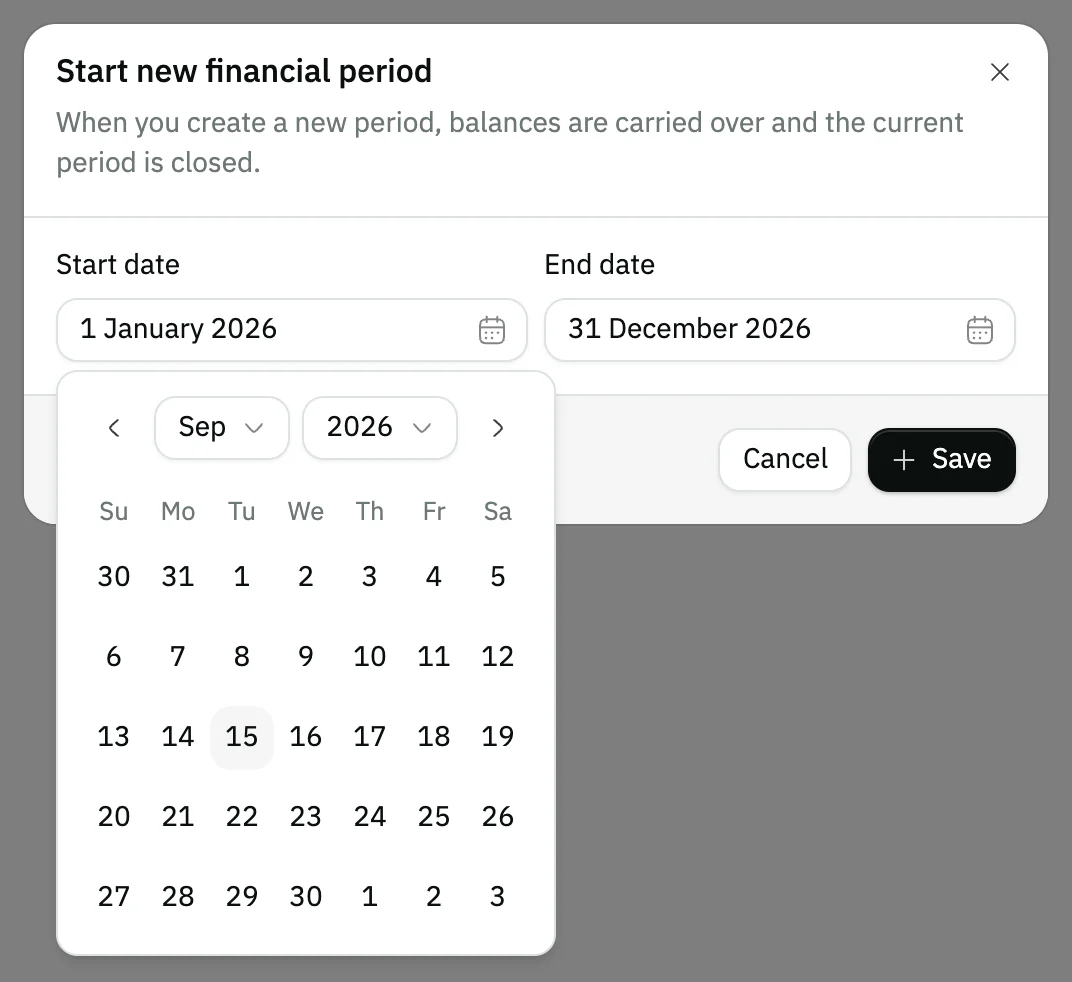
Image key - Start date
- The calendar for picking the day
Step 5: Save the period
Press Save. The new period shows as Active, and the previous one becomes Closed with today as its closing date. Details
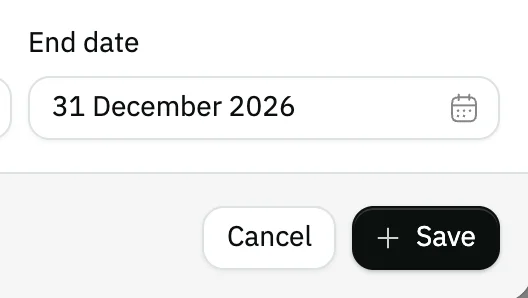
Image key - End date
- The Save button
Step 6: Open the active period's menu
On the Active period's row, press the menu button, then Update. Rows that are Closed have no menu. Details

Image key - The row menu button
- Update
Step 7: Edit the period's dates
In the Update financial period window, change the Start date or End date, then press Save. The period stays Active. Details
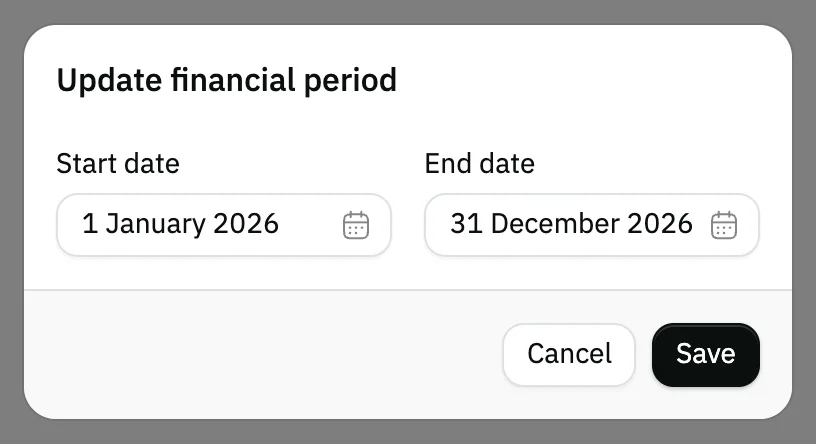
Image key - Start date
- End date
- The Save button
Messages that block saving
If saving fails, one of these messages shows next to the field. The table gives the cause and the fix.
| Message | Cause | Fix |
|---|
Advanced details
Each section here explains one point from the steps in depth. Every section has a fixed link you can share.
What happens when you start a new period
The window itself says: “When you create a new period, balances are carried over and the current period is closed.”
Every active period is closed and gets a closing date, and the new one starts active. Your accounts and their balances stay as they are, and Snad records each account's balance at the start of the new period.
Users with accounting or settings permission get a “Financial period closed” notification.
You review the period's results in the income statement and the balance sheet.
The reminder at the top of the screen
Users with settings permission see a strip at the top of the screen when the active period has ended or has seven days or fewer left: “The financial period is about to expire, create a new financial period or update the current period”.
That is the moment to start a new period or extend the current one.
Extend the period instead of opening a new one
To lengthen the same financial year, change the End date in Update financial period. The period doesn't close and no balance changes.
Starting a new period is the choice when the financial year has actually ended.
Closed periods
A Closed period stays in the table for reference only: no menu on its row, no edit window, and no button to reopen it on this screen.
A recurring entry whose posting date falls outside the open period is deferred rather than posted (how recurring entries work).
No Financial period item?
The page needs the general settings permission. Without it you see an access-denied message, so ask your account admin to grant it.
Common questions
- How do I start a new financial year in Snad?
- From Settings, choose Financial period, then Start new financial period. Set the Start date and End date, and press Save.
- Do I lose my balances when I start a new period?
- No. The window says balances are carried over and the current period is closed, and your accounts keep their balances.
- Can I change a period's dates after creating it?
- Yes, for the Active period only: choose Update from its row menu. Closed periods can't be edited.
- Can two periods be active at once?
- Not from this screen. Starting a new period closes the earlier active one, so only one period stays Active.
- Why does a financial period reminder show at the top?
- Because the active period has ended or has seven days or fewer left. Start a new period or change the current one's end date.