
How to manage employee requests in Snad
To manage employee requests in Snad, open HR, then Requests, press Create request and choose the request type. Write the Title, pick the Employee and the description, then Save. Review it with View details and press Approve or Reject.
In this guide5
Steps
Step 1: Open the requests screen
In the sidebar, choose HR, then Requests. The Create request button is at the top of the screen. Details
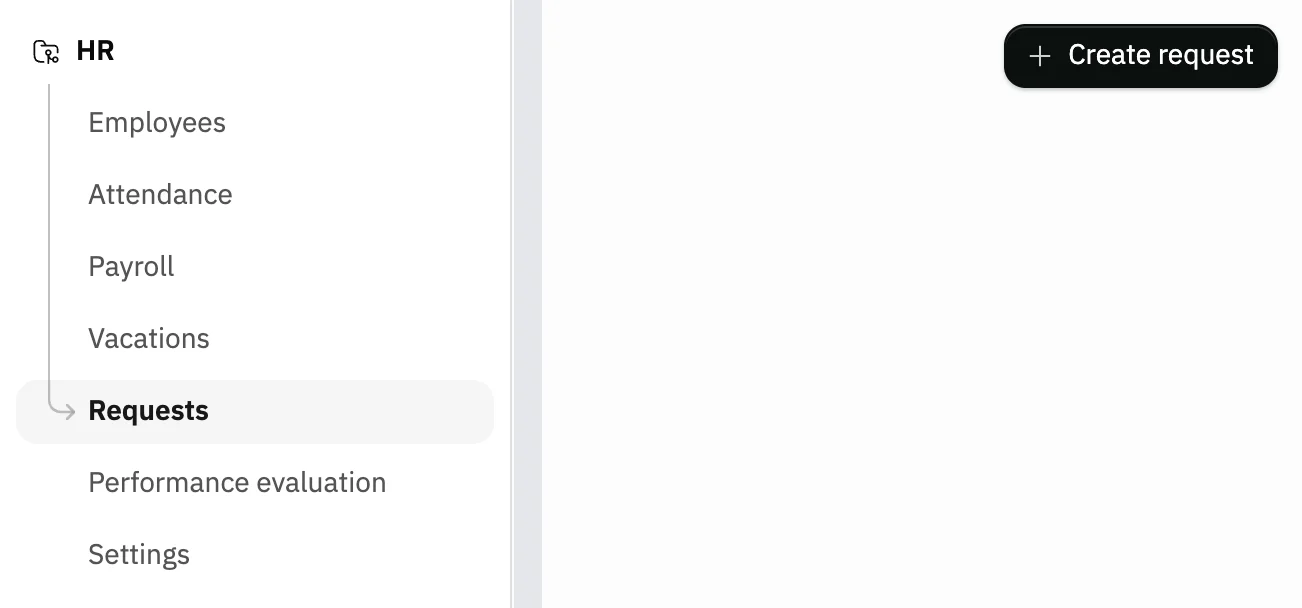
Image key - Requests in the sidebar
- The Create request button
Step 2: Choose the request type
Press Create request and the Select request type menu opens. Choose the right type, such as Advance payment or Document/certificate. Details
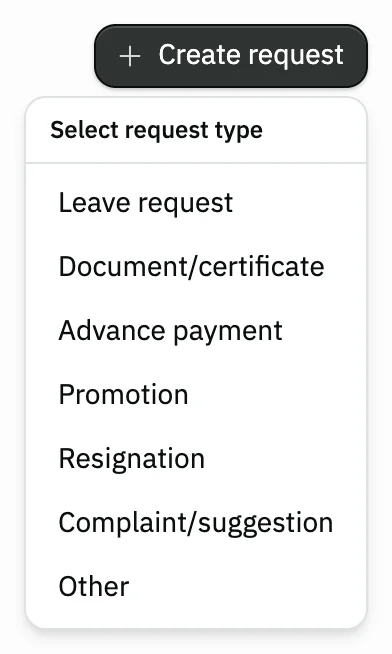
Image key - The Select request type menu
- Advance payment
Step 3: Fill in the request
Write the Title and pick the Employee, then write the request description, which is required. For an advance, enter the Amount and Duration. Details
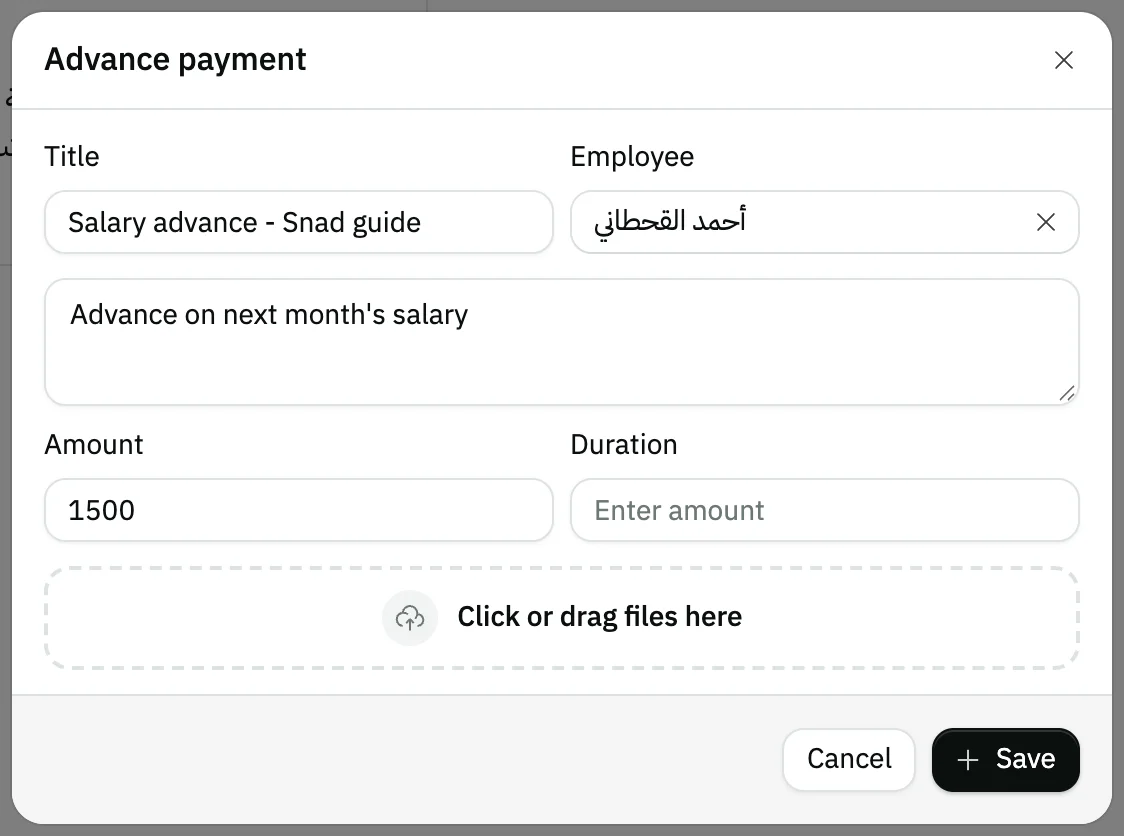
Image key - Title
- The Employee field
- Amount
Step 4: Save the request
Attach any files you need, then press Save. The request shows as a card in the list with the status Pending.
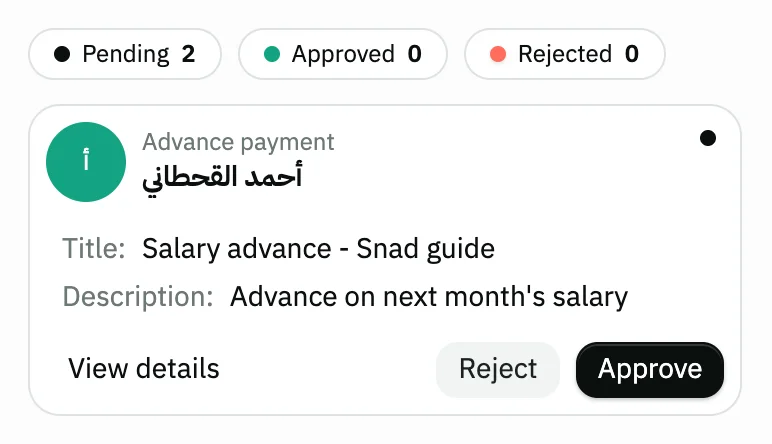
Image key - The request card
- The Pending counter
Step 5: Approve or reject it
Press View details to review the request, then Approve or Reject. The same two buttons are on the card. Details
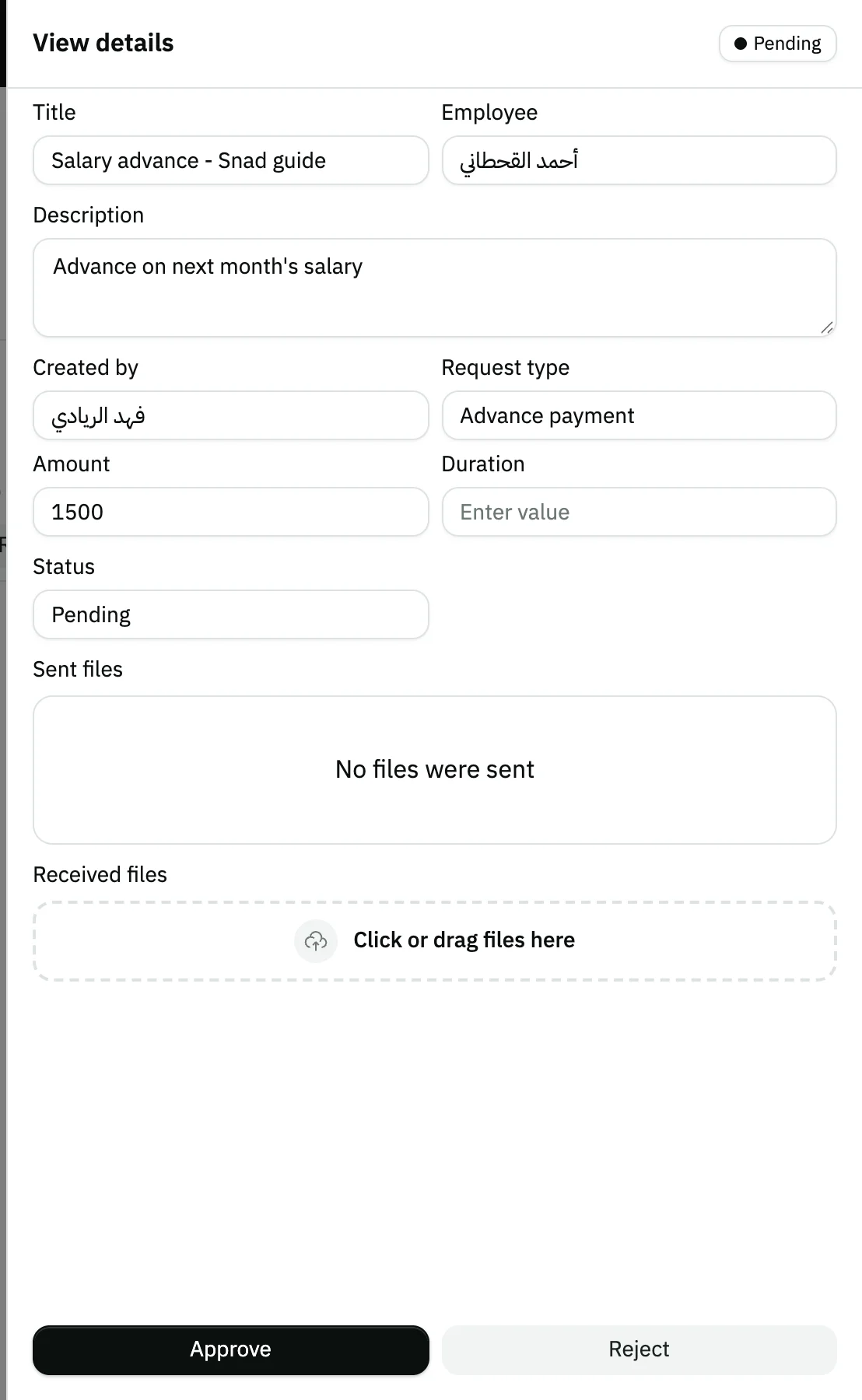
Image key - The Approve button
- The Reject button
Messages that block saving
If saving fails, one of these messages shows next to the field. The table gives the cause and the fix.
| Message | Cause | Fix |
|---|---|---|
| «Employee is required (shown in English)» | No employee is picked. | Pick the employee in the Employee field. |
| «Reason is required (shown in English)» | The description box is empty. | Write the request description, then save. |
| «You don't have permission for this action» | Your user is not linked to an employee and lacks both view and edit permission on requests, so it cannot pick one. | Ask your account admin for the permission (roles and permissions). |
Advanced details
Each section here explains one point from the steps in depth. Every section has a fixed link you can share.
Request types and their fields
Every type asks for the Title, the Employee and a description. Some add fields: Leave request adds Leave type (Late check-in or Early checkout) and Duration, from a list in 15-minute steps up to 05:00.
Advance payment adds Amount and Duration. Document/certificate, Promotion, Resignation, Complaint/suggestion and Other add no fields.
The Title needs at least 3 characters and at most 120.
What Snad does on approval
Approving changes the status to Approved and records who approved; rejecting changes it to Rejected. That is all either does.
So approving an advance does not pay it out or enter the payroll, and approving a leave request does not change the attendance record. Do those yourself.
A Snad notification reaches everyone who can view requests when a new request is logged; none is sent on approve or reject.
Approve and Reject show only on Pending requests, and only to users who can edit requests.
Search, filter and who sees what
Type part of a name in the search box, or narrow the list with Status and Request type.
Below the filters are three counters: Pending, Approved and Rejected. Press one to show only those requests. Pending requests are listed first.
Users who can both view and edit requests see all of them, and a data access rule can limit that to certain employees. Anyone else sees only their own requests, and the Employee field is locked to their name (employee account).
If the Create request button is missing, your user lacks permission to create requests (roles and permissions).
Send a file back to the employee
The request details have two file areas: Sent files, which the employee attached, and Received files, which you upload in reply, such as a certificate they asked for.
A file you add under Received files is saved right away, without Approve or Save.
Common questions
- How do I log an advance request for an employee in Snad?
- Open HR, then Requests, press Create request and choose Advance payment. Write the Title, pick the Employee, enter the Amount, then Save.
- Is the advance paid out when I approve it?
- No. Approving only records the decision on the request; it does not pay anything or enter the payroll.
- What is the difference between requests and vacations?
- Vacations have their own screen and balances, and approval subtracts the days from the balance (record an employee vacation). Requests only record the decision.
- Can I edit a request after saving it?
- The screen has no edit button. You can Approve, Reject or add Received files; if the data is wrong, log a new request.
- How do I give an employee a certificate they asked for?
- Open their request with View details, add the certificate under Received files, then press Approve.