
How to add a bookable service in Snad
To add a bookable service in Snad, open Bookings, then Services, press New product, and choose Service in Product type. Enter the Name and Price, then in the Booking card turn on Bookable, enter the Duration (minutes) and pick who delivers it, then press Save.
In this guide8
Steps
Step 1: Open the services list
In the sidebar, choose Bookings, then Services; it opens the Products list filtered to services (Product type: Service). Press New product above it. A bookable service is a product of the Service type (how to create a service). Details
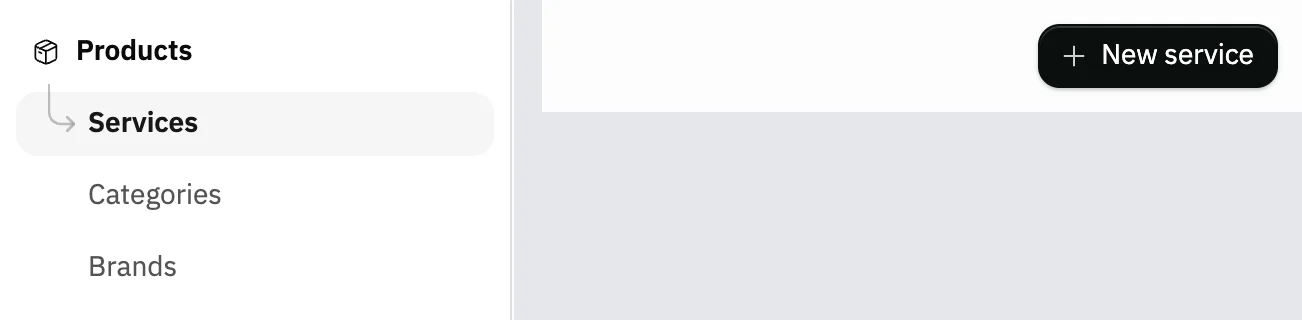
Image key - Products in the sidebar
- The New product button
Step 2: Name the service
In the form, open Product type and choose Service. Then in Product information, enter the Name.
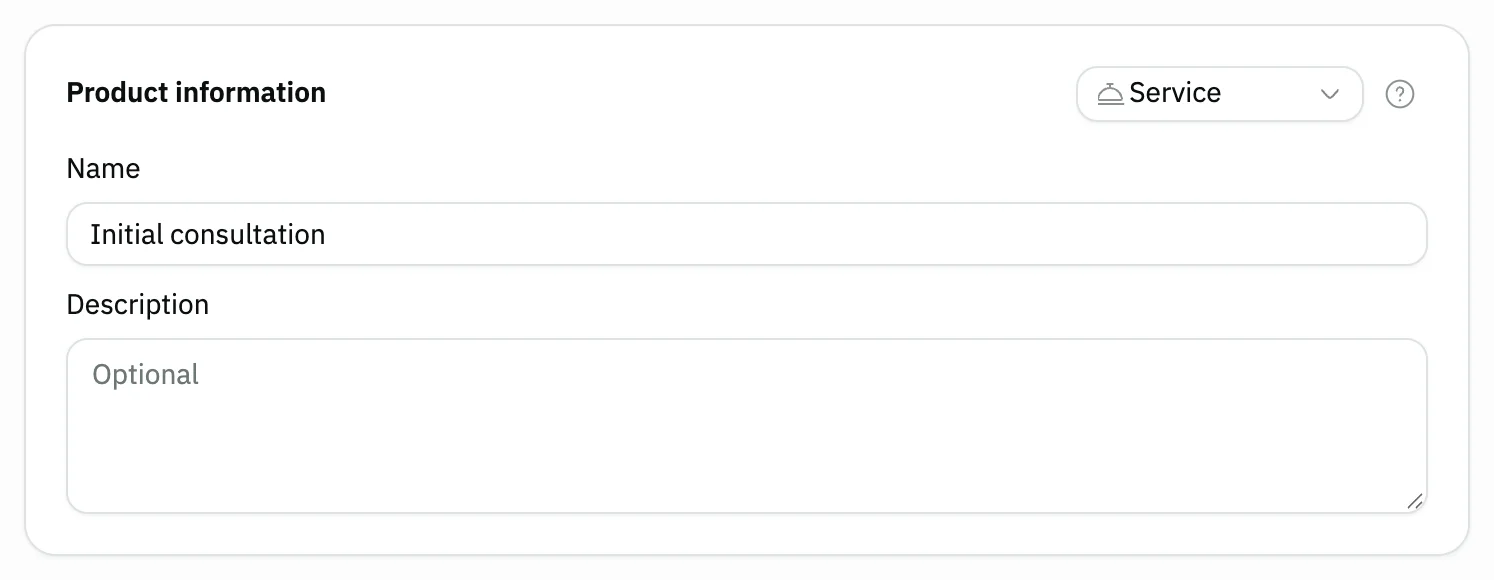
Image key - Name
Step 3: Set the price
In Pricing, enter the Price, and choose the Service unit if it isn't “Service”. For cost and profit see how to create a service. Details
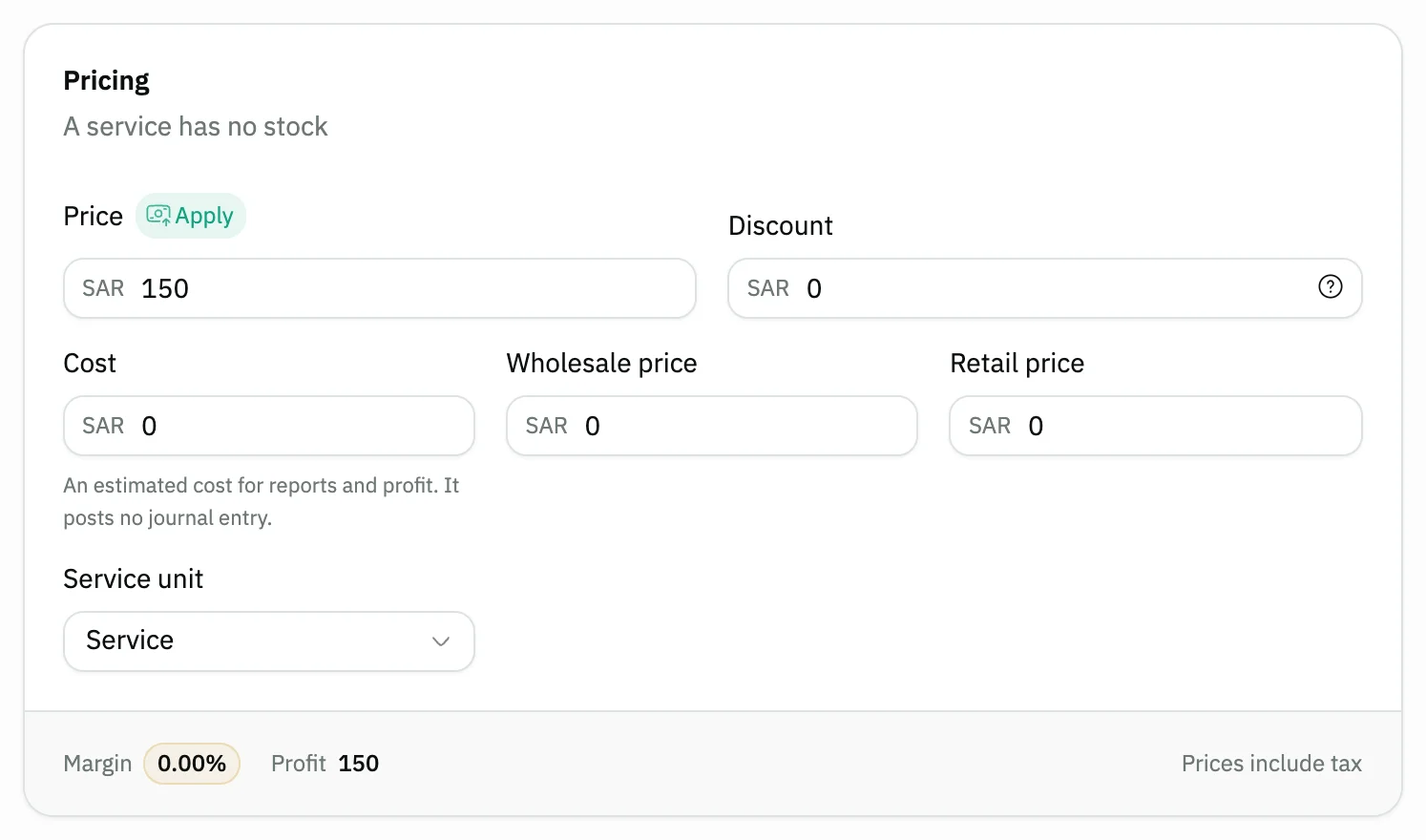
Image key - Price
- Service unit
Step 4: Turn on booking and set the duration
In the Booking card turn on Bookable, and the booking fields appear. Enter the Duration (minutes), which starts at 60, and the Capacity. You can pick a Tax group, and if you leave it empty the organization's default rate is used, and a Color to tell the service apart.
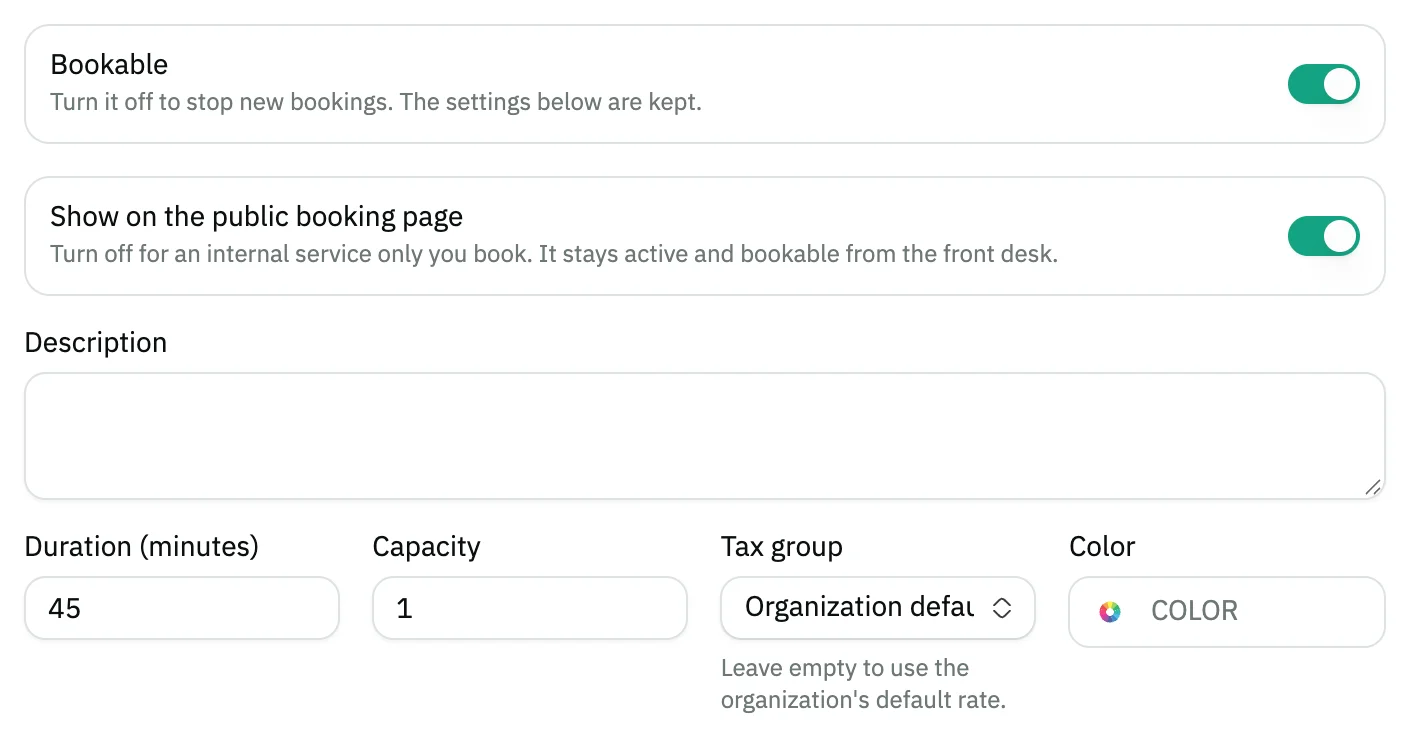
Image key - The Bookable switch
- Duration (minutes)
- Capacity
Step 5: Set prep time and limits
Under Availability & limits, enter the prep time before and after each appointment and the most bookings per day. Zero or empty means no daily limit.
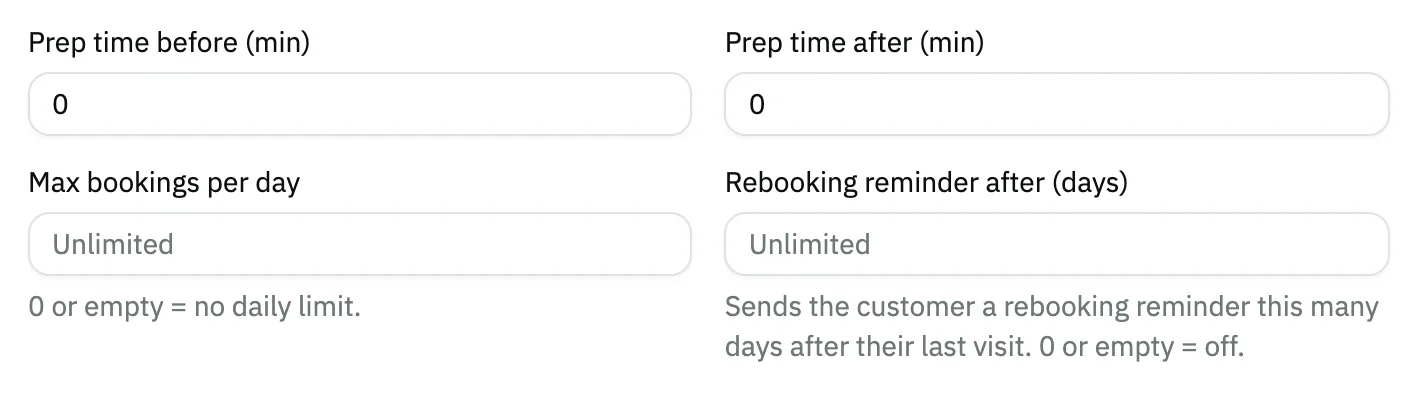
Image key - Prep time before (min)
- Prep time after (min)
- Max bookings per day
Step 6: Choose who delivers it
In Providers, inside the Booking card, press Select next to each provider who delivers it, or Select all. This step is required while booking is on: without it no bookable times ever appear. Details
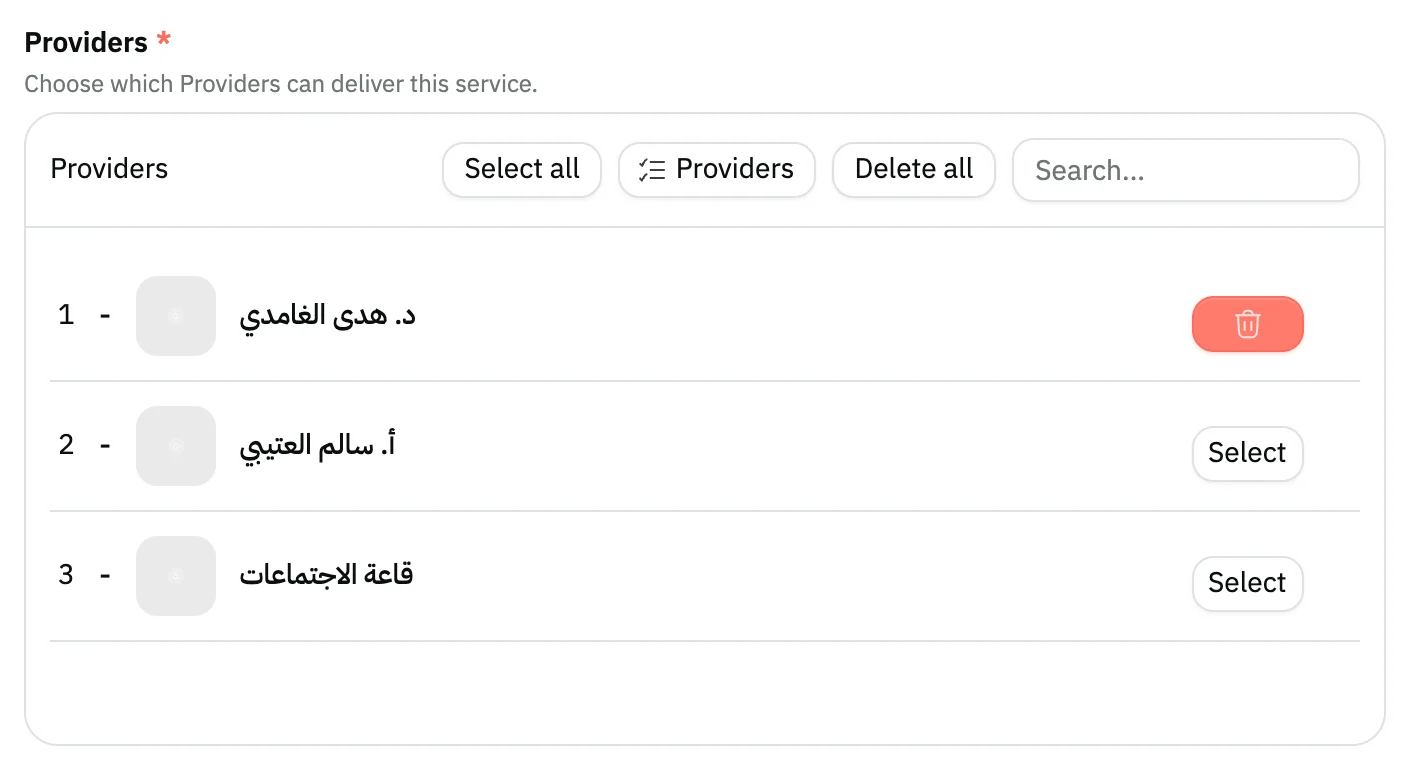
Image key - The Providers section
Step 7: Decide who sees the service
Keep Status on Active in Product organization so it stays open for booking. Turn off Show on the public booking page for an internal service that only you book from the front desk. Details

Image key - Show on the public booking page
Step 8: Save the service
Press Save. The service is saved, then its booking settings in a separate request, and you'll find it in the services-filtered list under Products, ready to book from the front desk. Details

Image key - The Save button
Messages that block saving
If saving fails, one of these messages shows next to the field. The table gives the cause and the fix.
| Message | Cause | Fix |
|---|---|---|
| «Select at least one Provider. Without one, no bookable times will ever appear on the booking page.» | You turned on Bookable and haven't pressed Select next to anyone in Providers. | Select at least one provider, then save. If none exists, add one in booking resources. |
| «An inactive service cannot be bookable. Activate the service first.» | Status in Product organization is not Active, so the Bookable switch stays off. | Set Status to Active, then turn on Bookable and save. |
| «This service cannot be booked from here. A service with options, or one of its options, is not bookable.» | The service has options turned on, and the Booking card doesn't show for a service with options. | Make bookings on a simple service without options, and create a separate service for each form that is booked (how to create a service). |
| «The service was created, but its booking settings were not saved. Check them here and save again.» | The service itself was saved, but the Booking settings go in a separate request that did not finish. | Check the Booking card, then press Save again. |
Advanced details
Each section here explains one point from the steps in depth. Every section has a fixed link you can share.
If your organization still sees the old page
Bookings, then Services, opens the products list filtered to services only when your organization has no old booking services left and your user can view products. If some remain, or your user reaches services through the Bookings permission alone, the old page keeps opening in its place, with its own form that shows the same fields (name, price, duration and providers). A service you create from Products, then New product, with the type Service, follows the steps above.
Price and tax
The price is entered in Pricing like any product. The Tax group in the Booking card can stay empty to use the organization's default rate, or you pick another rate for this service.
Tax rates are covered in set up tax.
More than one provider for a service
One service can be delivered by several providers. When you create a booking, pick one provider or “Any Provider” to see everyone's free times.
A service and the public booking page
Under the switch Snad says: turn it off for an internal service only you book. It stays active and bookable from the front desk.
Turning off Bookable stops new bookings and the settings are kept. An inactive service can't be booked. The public booking page and its options are in set booking settings.
Group classes at fixed times
In Group classes, inside the Booking card, add fixed start times for each day with Add a time. The service is then offered only at those times instead of the rolling slot grid.
Once the first time is added, the Seats per class field appears. For an ordinary one-to-one service, leave the days empty.
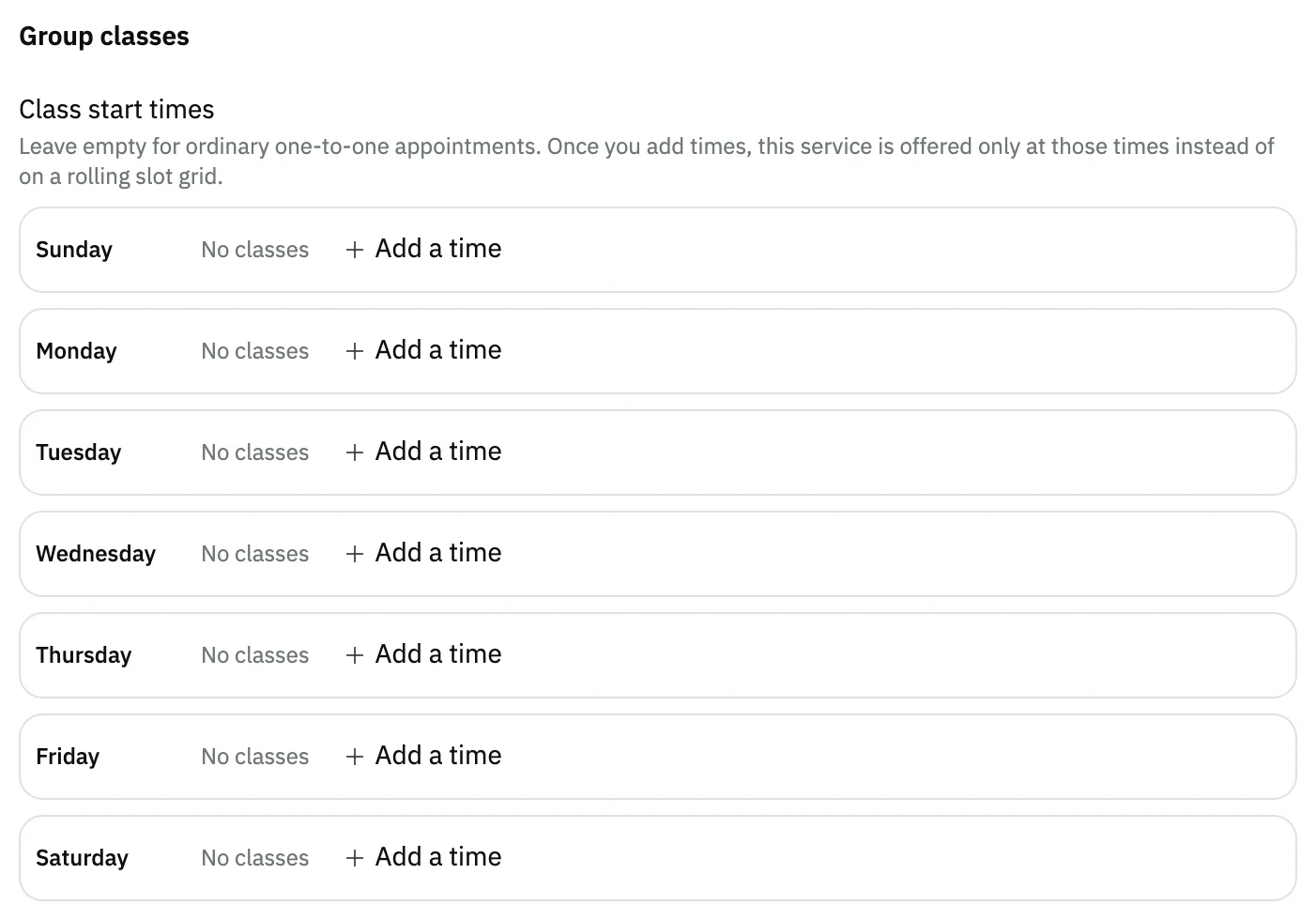
- The Group classes section
- The Add a time button
Edit or delete a service
Open the service from the Products list filtered to services, change what you need in the same form, then press Save. Editing the booking settings follows the Bookings permission: a user who can only view reads the card without changing it.
Delete shows only to users who hold the delete-products permission.
Reminding customers to rebook
The Rebooking reminder after (days) field under Availability & limits sends the customer a rebooking reminder that many days after their last visit. Zero or empty means off.
Common questions
- How do I add a service in the bookings software?
- Open Bookings, then Services, press New product and choose Service in Product type. Enter the name and price, turn on Bookable and enter the duration, select who delivers it, then press Save.
- Why won't Snad save the booking settings?
- Most likely nobody is selected in Providers. Snad needs at least one provider while booking is on, or the service would never show a bookable time. Add a provider and come back.
- How do I hide a service from the public booking page?
- Open the service, turn off Show on the public booking page and save. The service stays bookable from the front desk.
- How do I set up a group class?
- In Group classes, add the start times for each day with Add a time, then enter the Seats per class.
- Can I rename Service to fit my business?
- The screens show “Service” and “Provider” under the names your organization uses, so yours may read differently. The names follow the business template applied in booking settings.