
How to create a purchase quotation in Snad
To create a purchase quotation in Snad ERP, open Purchases, then Quotation, and press Create quotation. Pick the Warehouse and Supplier, add products with Add product, and set the Quantity and Price. Press Save, and the saved quotation page opens.
In this guide7
Steps
Step 1: Open the quotations screen
In the sidebar, choose Purchases, then Quotation, and press Create quotation above the list. Details
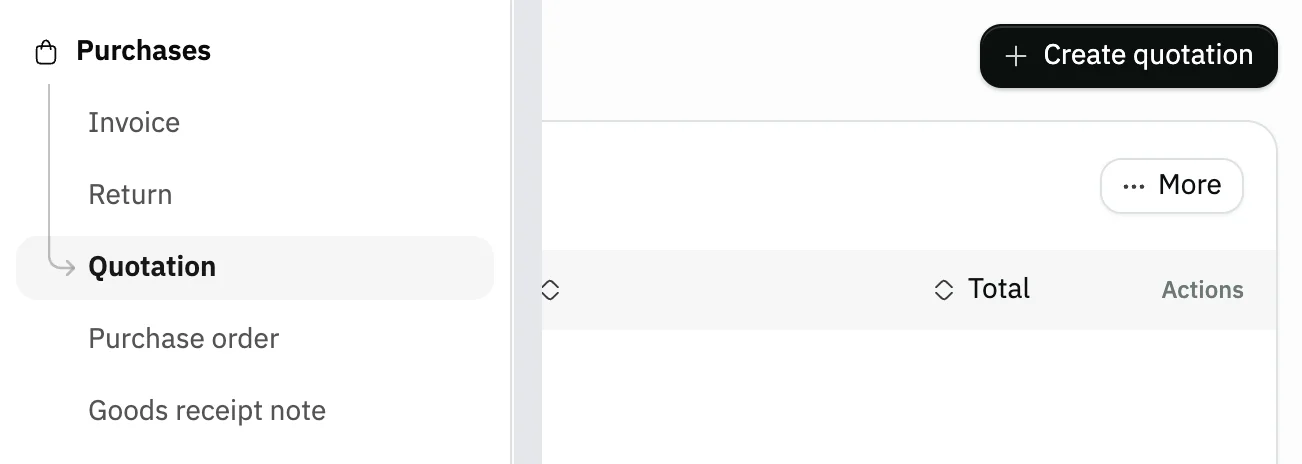
Image key - Quotation in the sidebar
- The Create quotation button
Step 2: Pick the warehouse, check the date
Pick the quotation Warehouse, and lines are priced at the product cost there. Check the Date, which starts on today. With a single warehouse, the field is hidden. Details
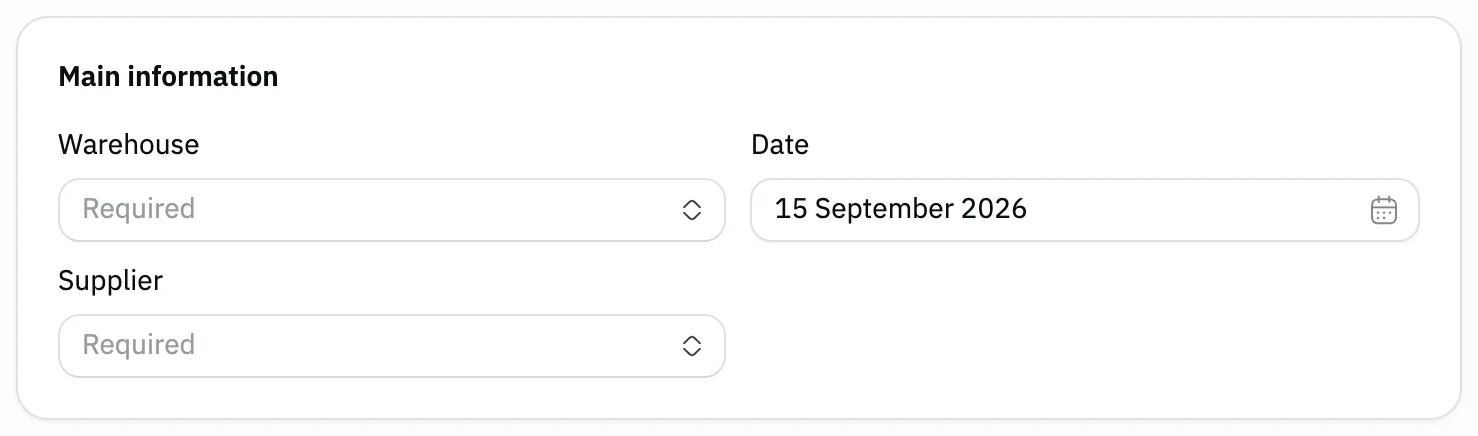
Image key - Warehouse (required)
- The quotation Date
- Supplier (required), picked in the next step
Step 3: Pick the supplier
Click the Supplier field, type part of the name, and pick it from the list. Not there? Press Add at the top of the list and create the supplier without leaving the quotation. Details
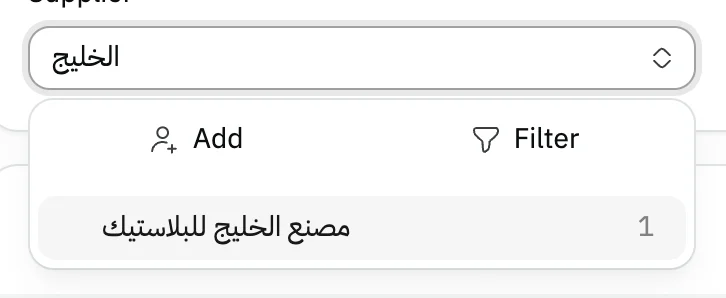
Image key - Search by supplier name
- The matching supplier
- Add for a new supplier
Step 4: Add the products
Press Add product, search by name, number or barcode, tick the products you need, then press Apply.
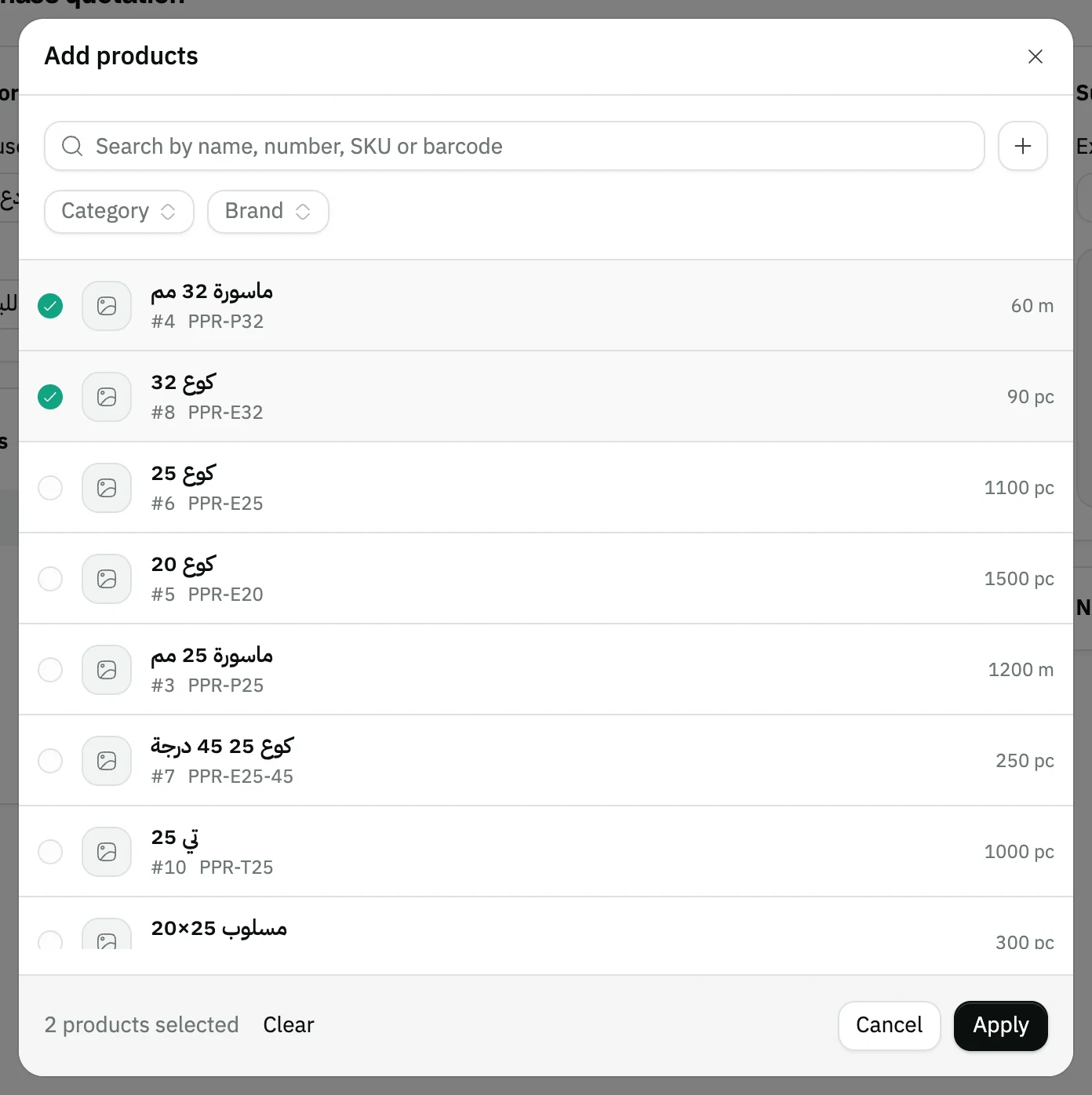
Image key - Search by name, number, SKU or barcode
- A ticked product
- The Apply button
Step 5: Enter quantity and supplier price
On each line, enter the Quantity and change the Price to the supplier's price. The price starts at the product cost. For comparison, the Last buy price column shows the last price you paid for the product on a purchase invoice, or «—» if you have not bought it yet. Details
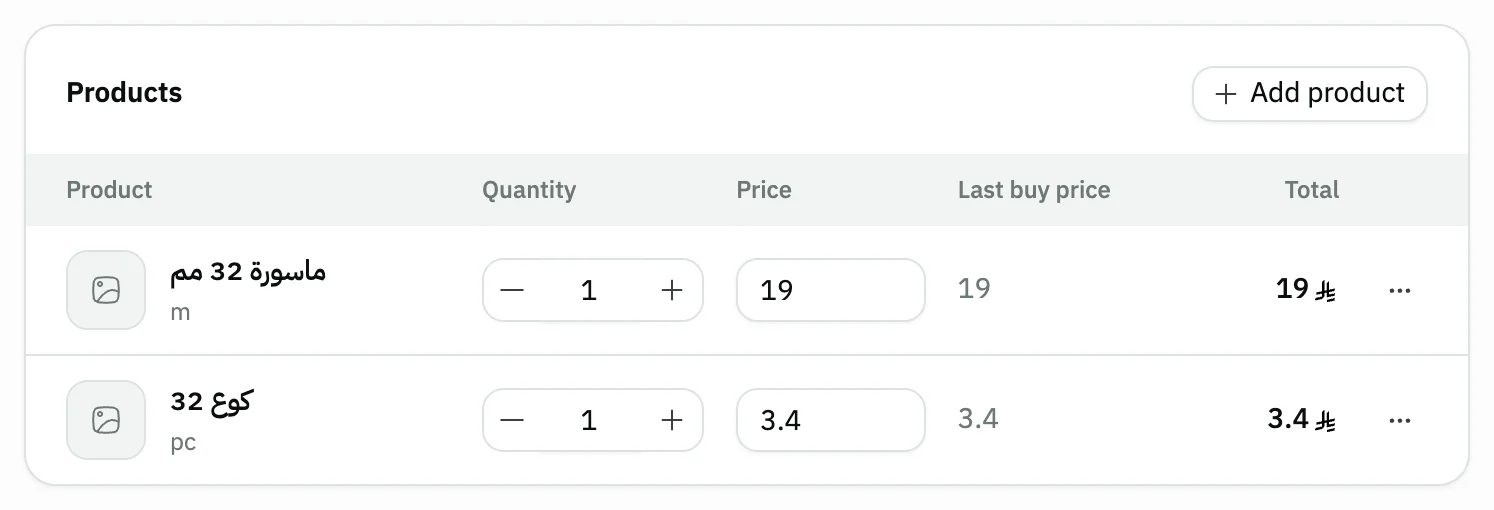
Image key - Quantity
- Price
- The Last buy price column
- Line menu: product information, notes, remove
Step 6: Check the summary
Check the quotation Summary: the Subtotal, Total VAT and Total. It also holds the discount and extra charge fields, if you need them. Details
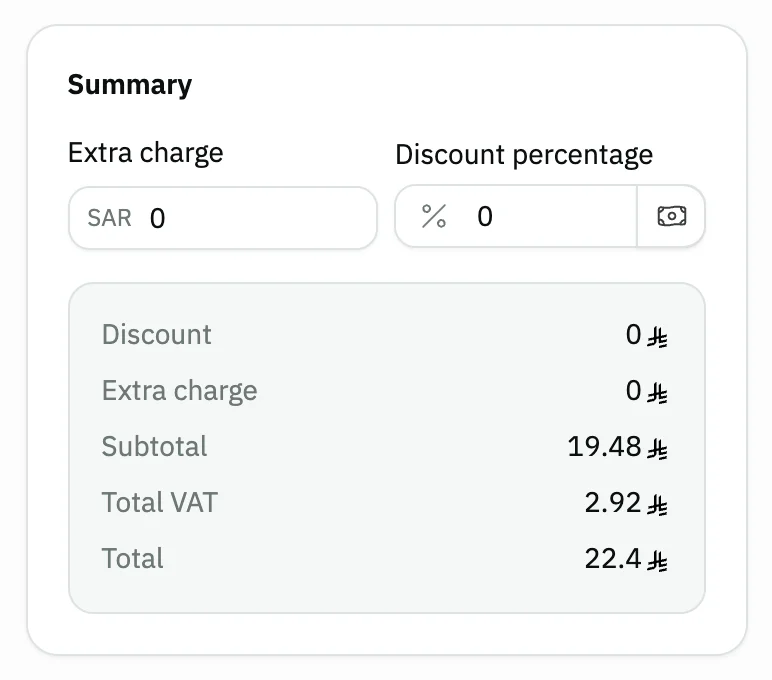
Image key - Discount percentage
- Extra charge
- Totals: Subtotal and Total
Step 7: Save the quotation
Press Save, or Save & print to print it right away. The saved quotation page opens next. Details
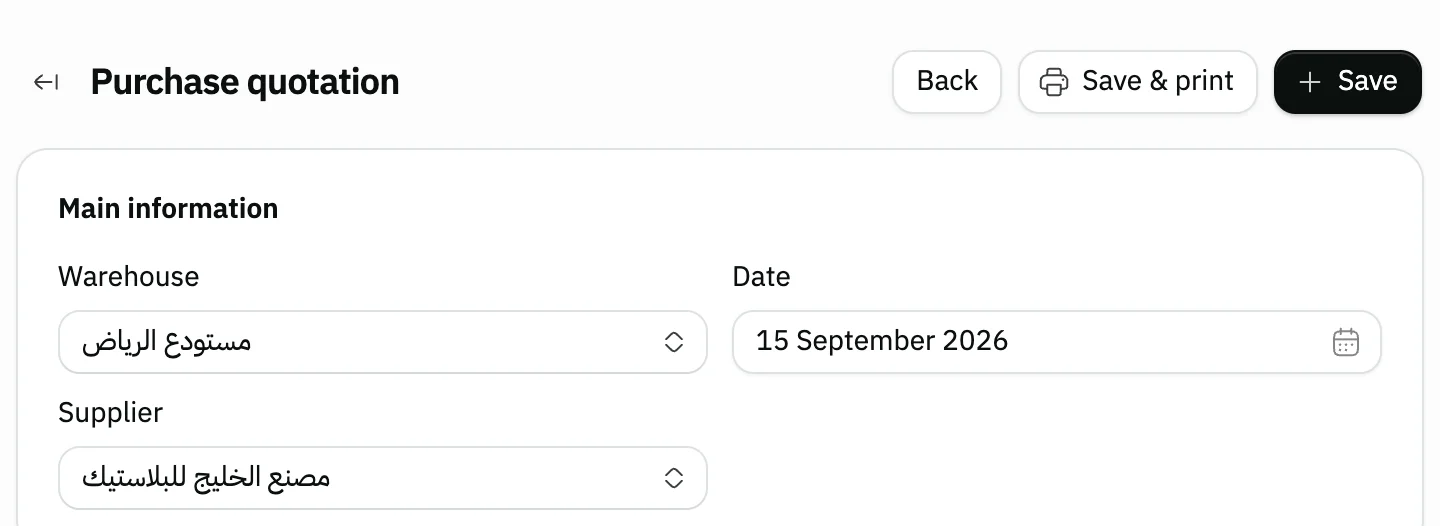
Image key - The Save button
- The Save & print button
Messages that block saving
If saving fails, one of these messages shows next to the field. The table gives the cause and the fix.
| Message | Cause | Fix |
|---|---|---|
| «Pick a product first» | The quotation has no products. | Add at least one product with Add product. |
| «Enter a quantity · Enter a price» | A line has no quantity, neither paid nor free, or a line with a paid quantity has no price. | Fill the missing value on the flagged line. |
| «A line with only free units must have a price of 0» | A line has a Quantity of zero and a Free quantity above zero, but its price is above zero. | Type 0 in Price for this line, or enter the paid Quantity to make it a bonus line. |
Advanced details
Each section here explains one point from the steps in depth. Every section has a fixed link you can share.
Create a supplier from the supplier field
You don't need to leave the quotation to add a new supplier. Open the Supplier field, press Add at the top of the list, then save the form that opens.
The new supplier is selected on the quotation right away, and you carry on where you stopped. The Add button shows only to users allowed to create suppliers. For the full supplier record, use the suppliers page.
Discounts and extra charges
The discount here applies to the whole quotation, not to one line. The field starts as Discount percentage, and it can't go above 100.
Press the button next to the field to switch it to Discount amount, and type the discount as an amount. An amount above the products' total is cut to the maximum, with a warning.
Extra charge adds an amount to the total, such as freight. Tax is calculated on the total after the discount and the charge.
Bonus: free units on the quotation
If the supplier offers free units with a product, press Add bonus above the lines to show a Free quantity box on each line. Quantity is what you pay for, with the free units on top. The button stays pressed while any line holds free units. A service line takes no free quantity, so its line shows a dash “—” instead of the Free quantity box.
For another product offered entirely free, add it, set Quantity to zero, Free quantity to the offered amount and Price to 0. If you leave it a price, the message “A line with only free units must have a price of 0” shows.
Once any line has free units, a Cost method card appears: Spread the cost (the default) lowers the unit cost so the stock value equals what was paid, and Do not include in cost leaves the cost as it is. Users allowed to see costs get a preview on the line, such as “Cost: 10 ← 8”, for display only.
If the same product appears on a paid line and a free-only line, its cost preview is worked out together: what is paid divided by all its units, paid and free.
A quotation is a document only, so stock does not move for its free units. When you copy it into a purchase order or a purchase invoice, the free quantity and cost method come with it.
Reference, notes and attachments
The Notes and attachments section is folded until it holds something. Open it to write the quotation Reference, such as the supplier's own quote number, and Notes.
You can attach up to 10 files, such as the supplier's own quote.
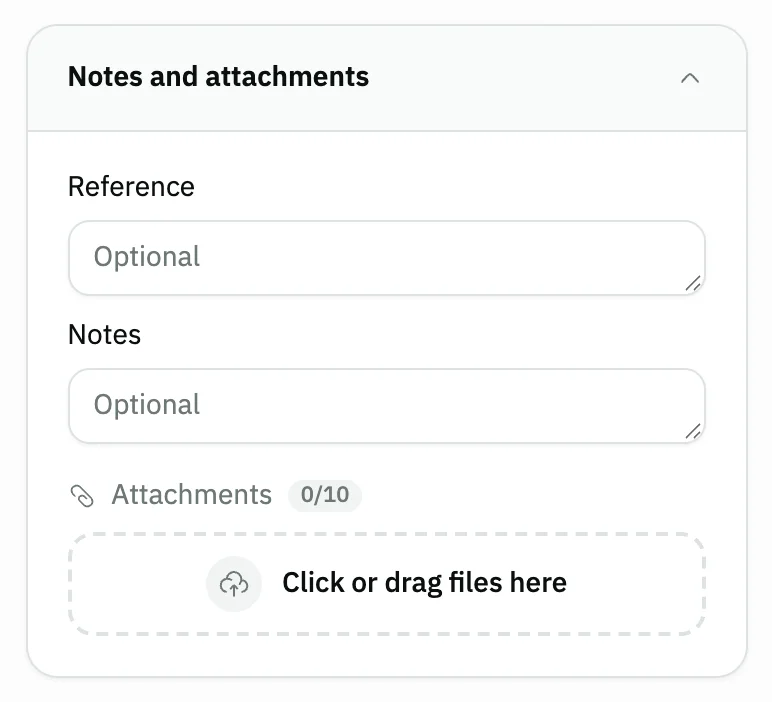
- Reference
- Notes
After saving: the purchase order and invoice
A quotation is a document only: it doesn't change stock or post an accounting entry. Stock and the entry come from the purchase invoice.
On the saved quotation page, the Convert to purchase order button takes you to a new purchase order from the quotation, while the quotation is unused and you can create purchase orders.
On the purchase invoice form, pick From quotation, then the quotation from the Quotation list.
No Create button or Warehouse field?
The Create quotation button shows only to users allowed to create purchase quotations. Ask your Snad account admin to grant it.
The Warehouse field is hidden when your organization has a single warehouse, and it is filled in for you.
If the Date field is locked, the purchases setting that allows date changes is off. You find it in the general settings.
Common questions
- How do I make a supplier quotation in Snad?
- Open Purchases, then Quotation, and press Create quotation. Pick the warehouse and supplier, add the products at the supplier's prices, then press Save.
- Does a quotation change stock?
- No. A quotation is a document only, and it posts no accounting entry. The effect on stock and accounts starts with the purchase invoice.
- How do I turn a quotation into a purchase order?
- Open the saved quotation and press Convert to purchase order. The button shows while the quotation is unused and you can create purchase orders.
- Can I create a purchase invoice from a quotation?
- Yes. On the purchase invoice form, pick From quotation, then choose the quotation from the Quotation list.
- How do I record a bonus the supplier offered on the quotation?
- Press Add bonus above the lines, enter the amount in Free quantity, then pick the Cost method. Details are in bonus.
- Why won't Snad let me save the quotation?
- Usually a required field is missing: no Warehouse or Supplier, no products, or a line without quantity or price. Fill the gap, then save.