
How to add a customer in Snad
To add a customer in Snad ERP, open Customers and press New customer. Type the Name, the only required field, add the phone, address, tax details and financial terms if needed, then press Save. The saved customer page opens.
In this guide5
Steps
Step 1: Open the customers screen
In the sidebar, choose Customers, then press New customer above the customer list. Details

Image key - Customers in the sidebar
- The New customer button
Step 2: Enter the main details
Type the Name with at least 3 characters, and add the Phone and Email. Correspondence language starts on Organization's language; change it if you like. Details
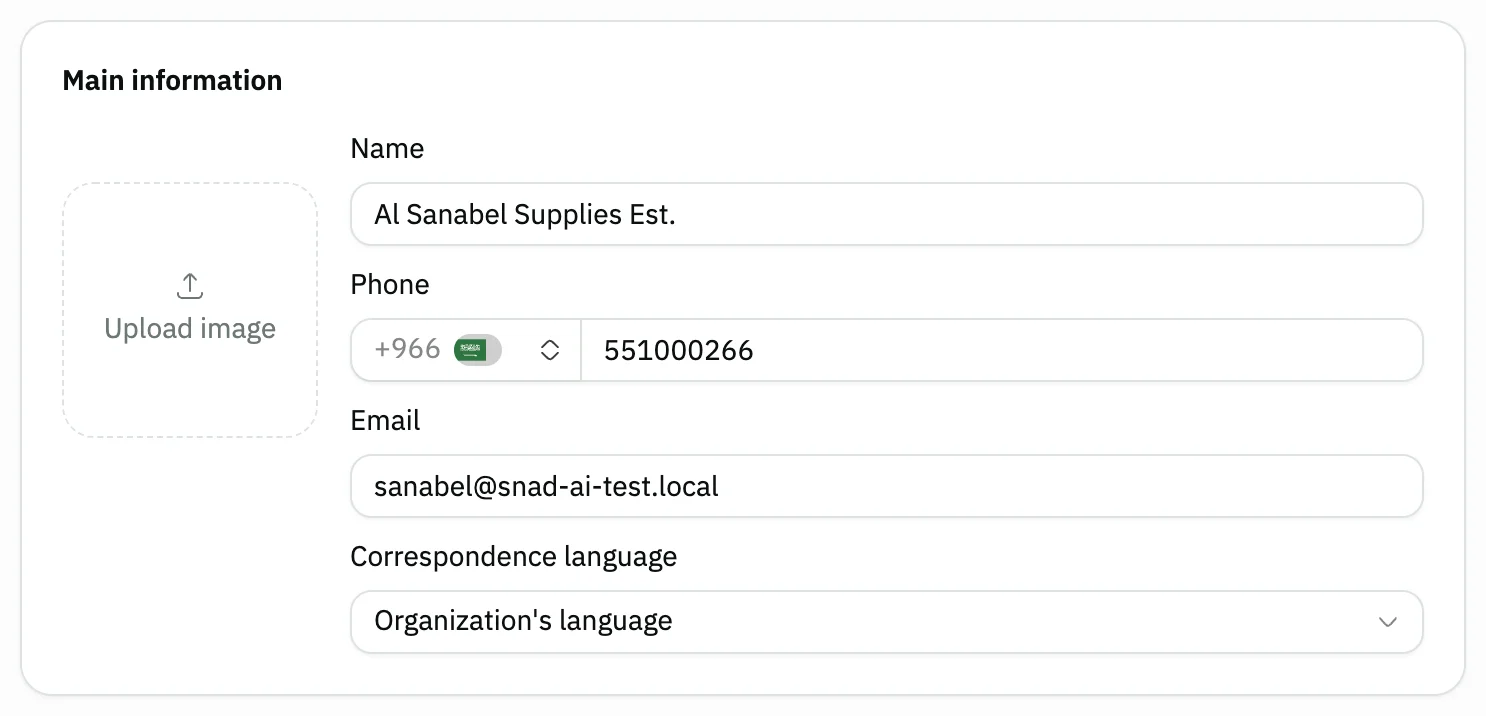
Image key - Name (required)
- Phone
- Correspondence language
Step 3: Add the customer's address
In the Address card, pick the Country and City, and type the Address. If the National address card shows, fill it when you sell to a business.
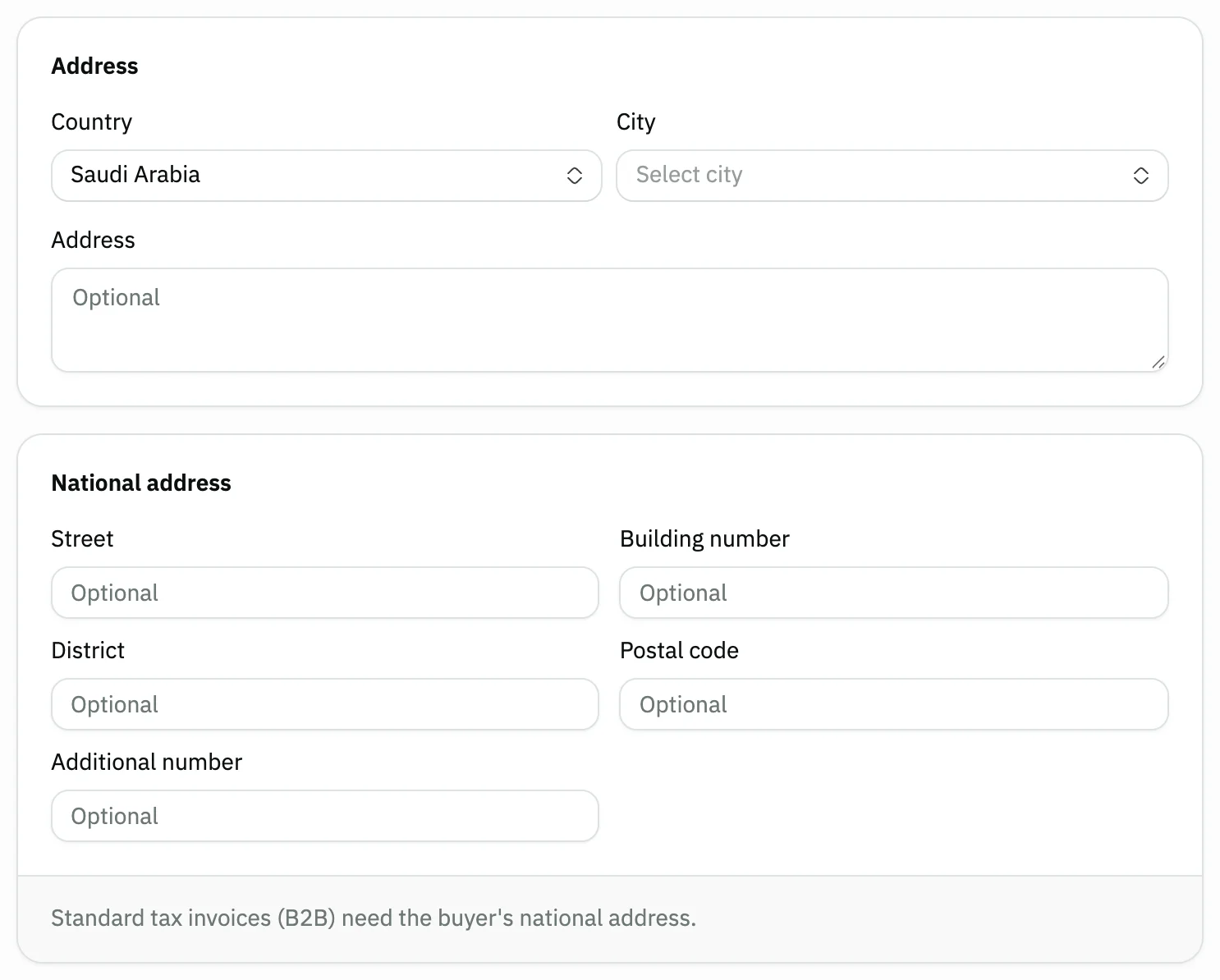
Image key - Country
- City
- Address
- The National address card
Step 4: Enter tax and financial terms
In Commercial & tax details, type the Commercial record and Tax ID. In Financial terms, set the Special discount, Credit limit and Payment terms (days). Details
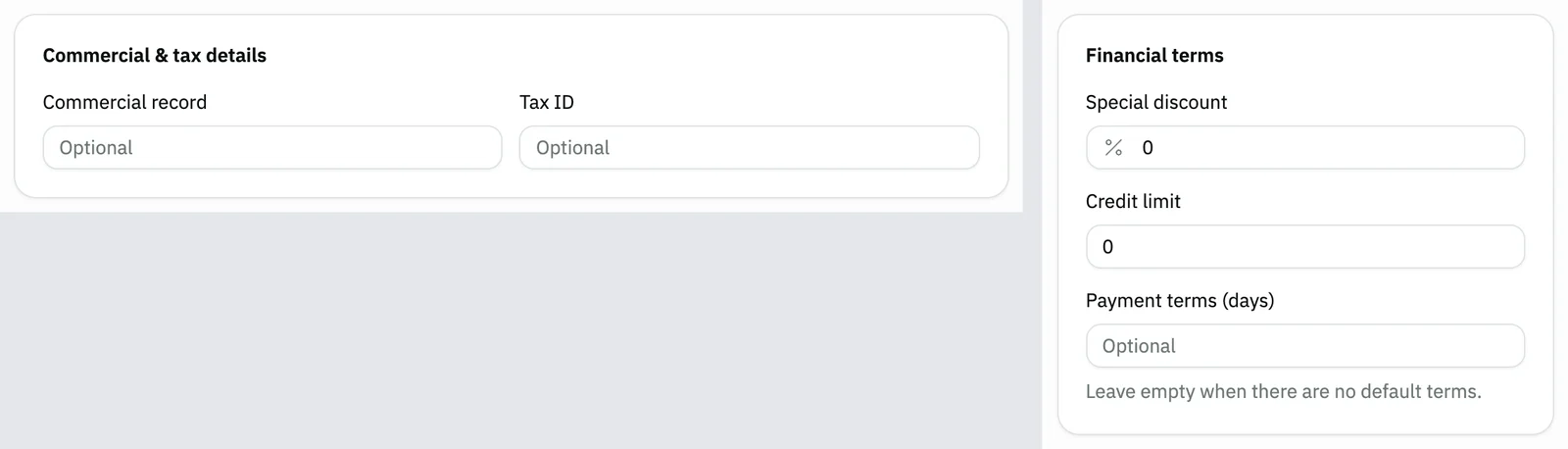
Image key - Commercial record
- Tax ID
- Special discount
- Credit limit
- Payment terms (days)
Step 5: Save the customer
Press Save at the top of the form. The saved customer page opens next, with its tabs (statement). Details
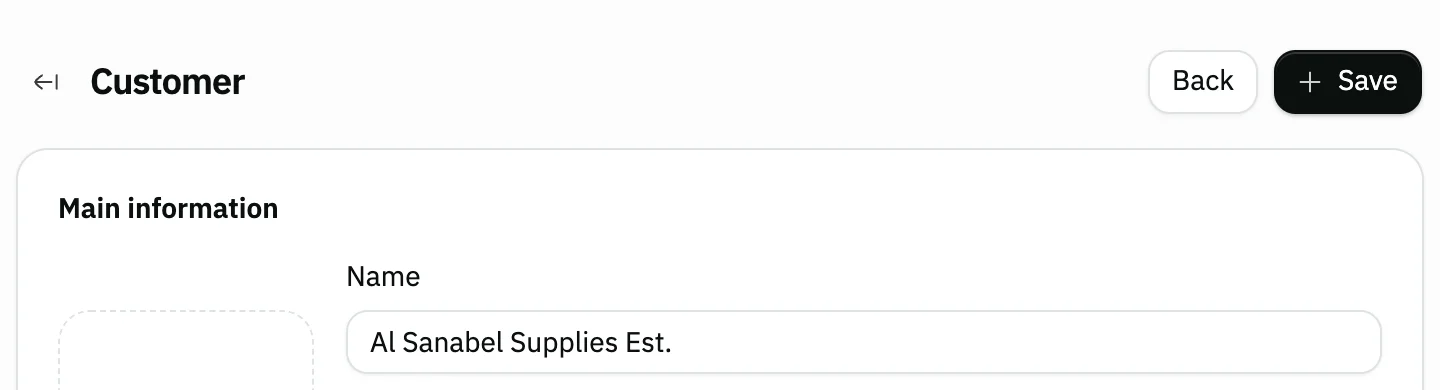
Image key - The Save button
Messages that block saving
If saving fails, one of these messages shows next to the field. The table gives the cause and the fix.
| Message | Cause | Fix |
|---|---|---|
| «يجب أن يحتوي النص على 3 حرف على الأقل» | The Name is shorter than 3 characters. Snad shows this message in Arabic in every interface language. | Type a name of 3 characters or more. |
| «البريد الإلكتروني غير صالح» | The Email holds an incomplete or wrongly formed address. Snad shows this message in Arabic in every interface language. | Correct the address, or clear the field, which is optional. |
Advanced details
Each section here explains one point from the steps in depth. Every section has a fixed link you can share.
Import many customers from Excel
Got a ready list of customers? On the customer list, press More, then Import. The Import data window opens.
Press Download Excel template, fill it in, then upload it as an xlsx file. In the template only the name is marked required; the rest is optional: email, phone, country, city, state, address, commercial record and tax ID.
For a single customer, or for full data such as tags, attachments and financial terms, use the form the steps above describe.
You can also upload the file in an AI Mode chat (import files with AI Mode).
Duplicate phone alert, tags and attachments
If you type a phone another customer already has, a note appears under the field: “Another customer already has this phone:”, with that customer's name linked. The note doesn't stop you from saving.
The phone is needed to send documents on WhatsApp and to earn loyalty points. You pick the same customer when you create a booking.
At the bottom of the form, the Tags card labels the customer with words you choose, and the Attachments card keeps the customer's files: up to 10 files, each up to 10 MB.
Custom fields and their types
If your business added custom fields for customers, they show in the Custom fields card of the form (how to add custom fields).
A customer field can be Multiple choice, Date and time, Time, Amount, Percentage or Rating. Date and time shows in your business's time zone, and Amount in your business's currency with no conversion.
It can also be Linked record, where you pick a customer, supplier, branch, warehouse or user from your own business; Location (map), where you mark a place on a map; or File or Image, where you upload one file up to 10 MB. These types are for your team only and never show on public pages, and a File or an Image is never printed.
A value is saved in the shape its type defines: a rating from 1 to 5, a percentage from 0 to 100, and an amount with at most two decimals. Snad rejects a value in any other shape.
Special discount and payment terms on invoices
When you pick the customer on a sales invoice, Snad fills the invoice Discount with the customer's Special discount, if it isn't zero.
On a new invoice paid On credit, Snad proposes the Due date as the invoice date plus Payment terms (days), and never overwrites a date you picked.
Leave the payment terms empty when there are no default terms.
You follow overdue amounts in customer debt aging.
After saving: tabs and quick actions
The customer page opens on the Details tab, next to Transactions, Statement, Products and Notes. The Statement tab shows to users allowed to see balances. For the balance and movements, see the customer statement.
The Quick actions menu starts a document for this customer: New invoice, Quotation, Sale order or Receipt voucher. It also has Send statement. Each item shows to users allowed to use it. To change the customer's data, press Update customer.
The steps for these documents are in create a sales invoice and create a quotation.
So are create a sale order and create a receipt voucher.
Snad creates an account for the customer in the chart of accounts, under the customers account, and shows it under Linked account (chart of accounts).
Only the admin can delete. If the customer has records, Snad refuses and gives the reason, and offers Archive instead to users allowed to edit.

- The Quick actions menu
- The Update customer button
- The page tabs
Common questions
- How do I add a new customer in Snad?
- Open Customers and press New customer. Type the Name, add whatever other details you like, then press Save.
- Which field is required to add a customer?
- Only the Name, with at least 3 characters. The phone, email, address and tax details are all optional.
- Can I add a customer while writing an invoice?
- Yes, from inside the invoice's Customer field with the Add button. See the pick-the-customer step.
- How do I import my customers from an Excel file?
- On the customer list, press More, then Import, download the template with Download Excel template, fill it in and upload it.
- Why don't I see the New customer button?
- The button shows only to users allowed to create customers. Ask your Snad account admin to grant it (roles and permissions).