
How to record attendance and checkout in Snad
To record attendance in Snad ERP, open HR, then Attendance, and open your row for today. Press Check-in when work starts and Checkout when it ends. A manager can correct any record with the Update button.
In this guide7
Steps
Step 1: Open the attendance screen
In the sidebar, choose HR, then Attendance. Details
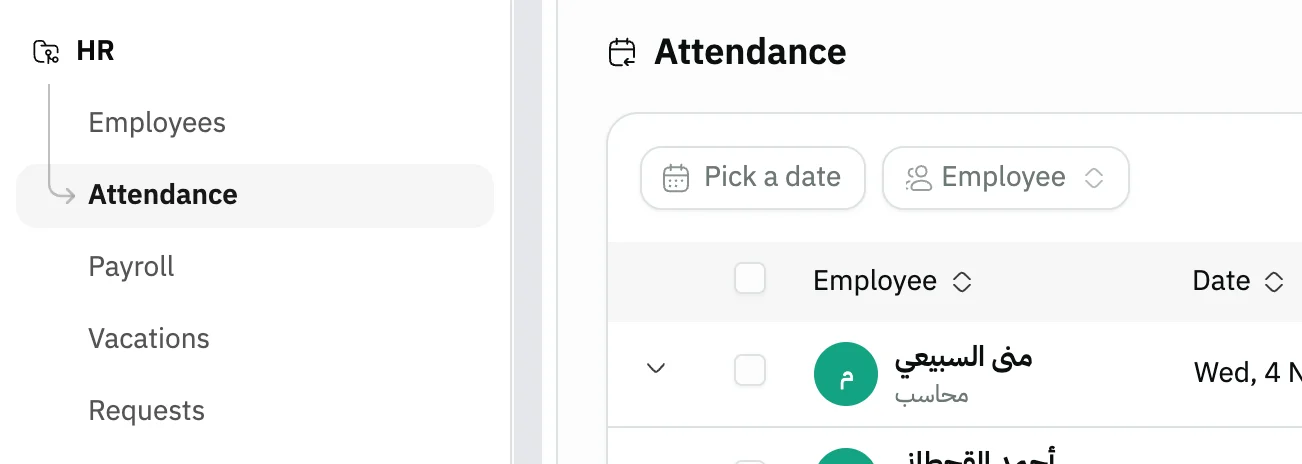
Image key - Attendance in the sidebar
Step 2: Pick the day and the employee
Every employee has one row per day. Pick the day with Pick a date, narrow the table with Employee, and read the Status column. Details
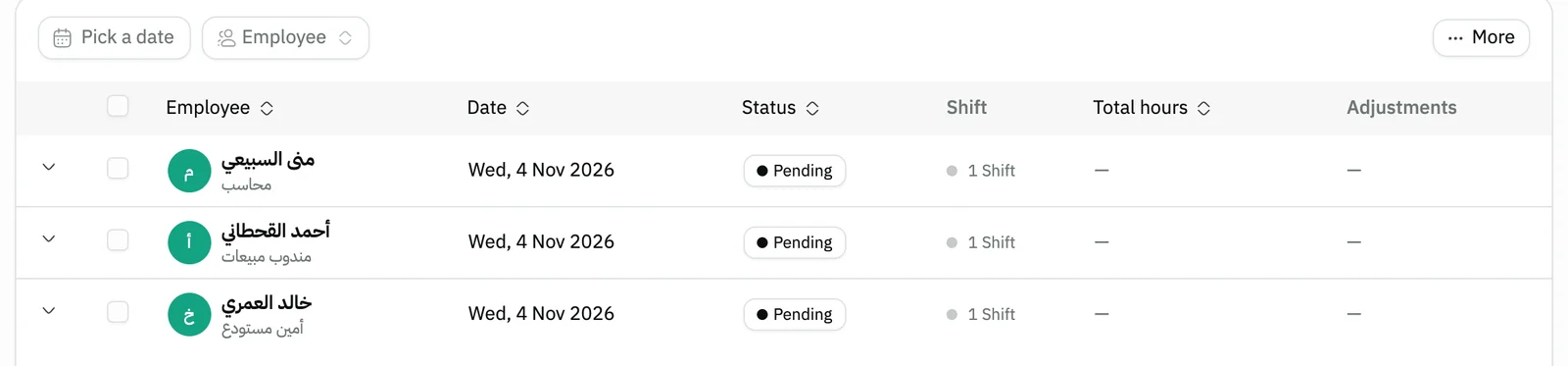
Image key - The Pick a date button
- The Employee button
- Status (Pending until check-in is recorded)
Step 3: Open the employee's row
Press the row's arrow to show a card per shift: the First shift and its times, Check-in and Checkout, and Work duration. Details
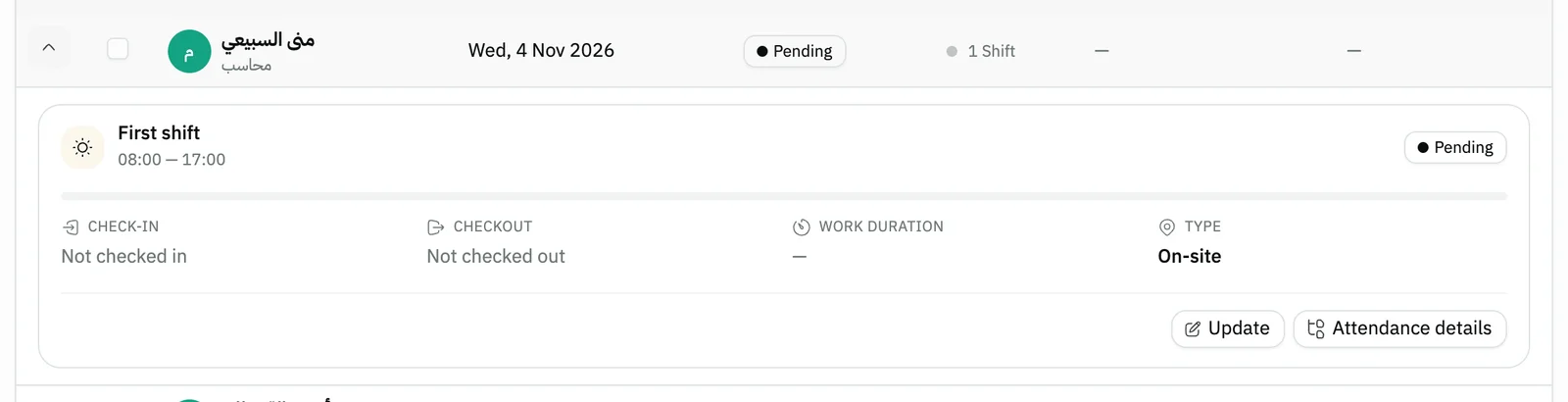
Image key - The First shift card
- Check-in and Checkout (not recorded yet)
- The Update button, for a manager
Step 4: Check yourself in
On your own row's shift card, press Check-in. The button shows from one hour before the shift starts until it ends, and the card says Not checked in until you press it. Details
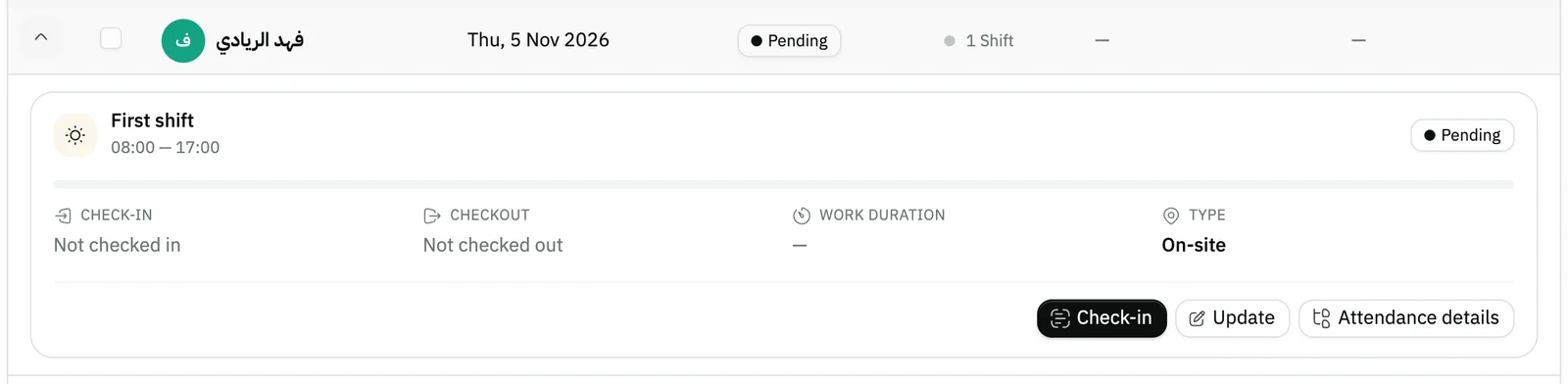
Image key - The Check-in button
- Not checked in before the press
Step 5: Complete the verification if asked
If your work schedule asks for it, you go through Location verification then Continue, and Picture verification then Save and continue. Details
Step 6: Check yourself out
After check-in the status becomes Present and the Checkout button shows on the same card. Leaving before the shift ends is recorded as Early checkout, and after it as Overtime.
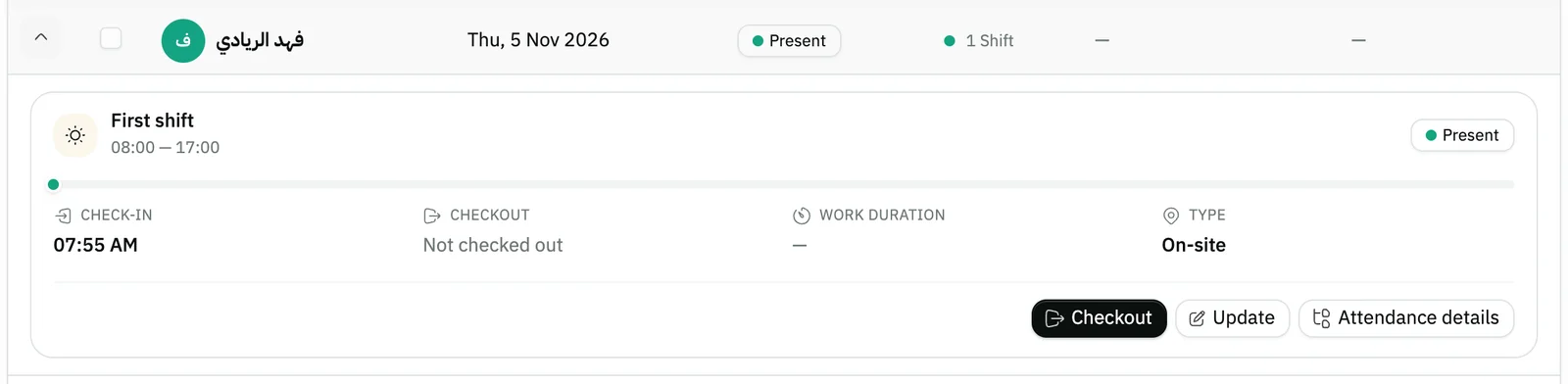
Image key - Check-in with the recorded time
- Present after check-in
- The Checkout button
Step 7: Correct a record when needed
Whoever may edit attendance presses Update on the card to open Update attendance record. Change the fields and press Save.
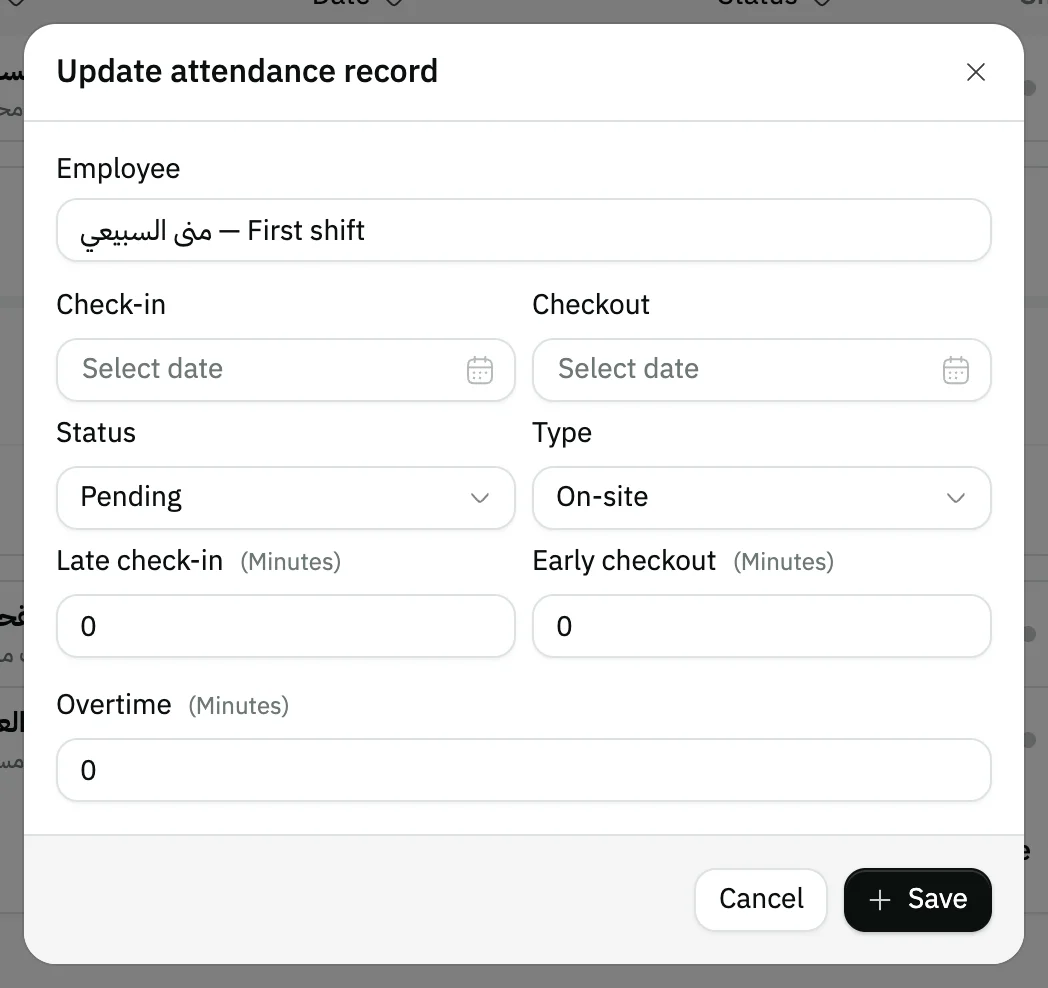
Image key - Check-in and Checkout
- Status
- The Save button
Messages that block saving
If saving fails, one of these messages shows next to the field. The table gives the cause and the fix.
| Message | Cause | Fix |
|---|---|---|
| «You are outside the allowed work location range» | Your work schedule asks for Location verification and you are outside the work location range. | Move closer to the work location and try again. |
| «Shift has already ended» | You tried to check in after the shift ended. | Ask your account manager to record it with the Update button. |
| «You have already checked in for this shift» | Your check-in is already recorded for this shift. | Press Checkout when you finish, instead of checking in again. |
| «Picture verification is required for this work schedule» | Your work schedule asks for Picture verification and no photo was attached. | Complete the Picture verification step, then press Save and continue. |
Advanced details
Each section here explains one point from the steps in depth. Every section has a fixed link you can share.
The day's statuses and when they change
A new row starts as Pending. Once check-in is recorded it becomes Present, or Late check-in if it passed the grace period.
Checking out before the shift ends makes it Early checkout, or Late in & early out when both happen.
If it stays Pending past the limit, Snad turns it into Absent on its own, checking every five minutes. On vacation shows for someone with approved leave (record an employee vacation).
The late limit and the absent limit
You set both in HR settings: Record late after and Record absent after, in minutes, and each saves as soon as you choose it.
Checking in after the late limit has passed from the shift start is recorded as late, and the late minutes count from after that limit.
Location and picture verification
The work schedule decides whether Location verification and Picture verification are required. If neither is, check-in is recorded with the button press alone.
In location verification, Continue stays disabled until you are inside the work location range set on the work schedule. A photo is required before saving.
You set the location, the range and the verification in HR settings.
Attendance details
The Attendance details button on the card opens a window with four tabs: Overview, Analytics, Check in data and Check out data.
In the two data tabs you find the check-in and checkout location and photo when the work schedule asks for them. For totals over a whole period, open the attendance report.
Who sees whose records?
The account admin, and anyone with both the view and edit attendance permissions, sees every employee's records. Everyone else sees only their own, as long as they are linked to an employee.
The Update button shows to anyone with the edit attendance permission (roles and permissions). Check-in and Checkout show only on the linked employee's own record (use the employee account).
Common questions
- How do I check in on Snad?
- Open HR, then Attendance, open your row for today, and press Check-in. The button shows only if your user is linked to an employee.
- Why is there no Check-in button?
- For one of these reasons: the row isn't yours, it isn't today's, your check-in is already recorded, it is more than an hour before the shift or after it ended, or you are On vacation.
- Why was an employee marked absent without recording anything?
- Because the record stayed Pending past the absent limit, so Snad turned it into Absent. You set the limit in HR settings.
- Can I edit a wrong attendance record?
- Yes, if you have the edit attendance permission: press Update on the shift card, change it and press Save. On vacation records can't be edited here.