
How to view HR reports in Snad
To view HR reports in Snad ERP, open Reports, then press the report you want in the HR card: Attendance report, Payroll report, Vacation report or Contracts. Set the period and employee if you need to, then read the table and print or export it.
In this guide7
Steps
Step 1: Open the HR card
In the sidebar, choose Reports. The HR card holds four reports, including the Attendance report. Press the one you want.
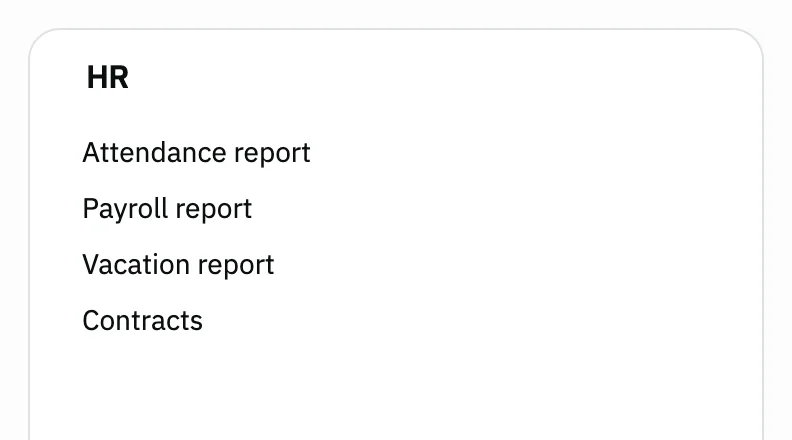
Image key - The HR card
- The Attendance report link
Step 2: Read the attendance report
The table shows one row per employee: days, Present, absent, late and early checkout, and ends with Total working hours. Details

Image key - The Present column
- The Total working hours column
Step 3: Set the period and employee
Press Pick a date to set the period, or Employee to choose one or more employees. The table refreshes after each choice. Details
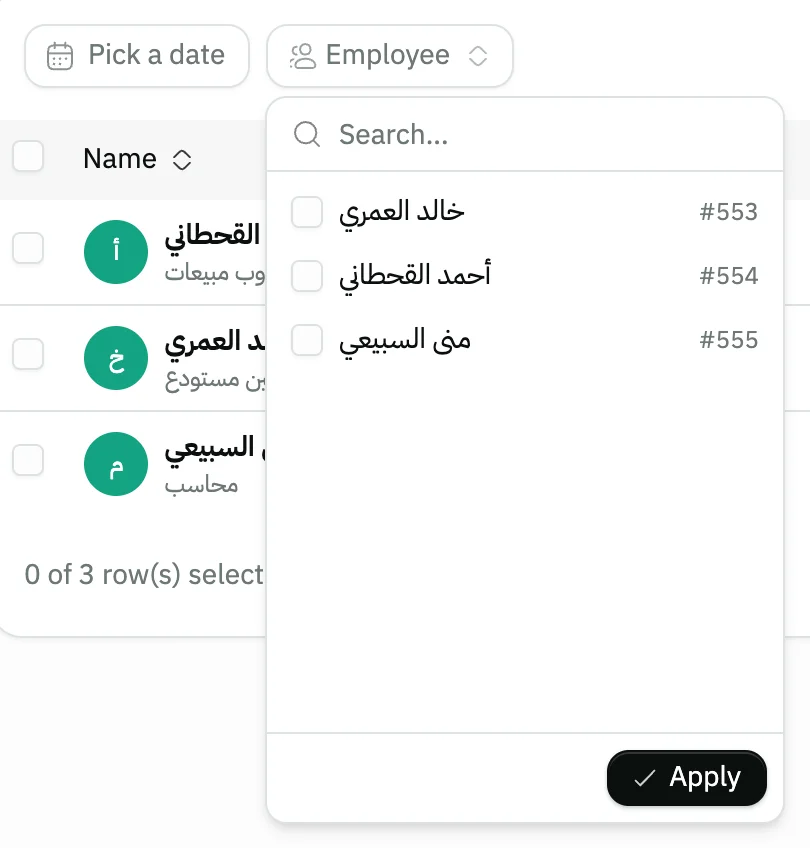
Image key - The Pick a date button
- The Employee button
- The employee list
Step 4: Open the vacation report
In the Vacation report you see the Total days for each employee, then a column per leave type such as Annual and Sick leave. Details

Image key - The Total days column
- The Annual column
Step 5: Review the contracts
The Contracts report lists every active contract: the Contract number, its length, the Contract end date, the salary and allowances. Details
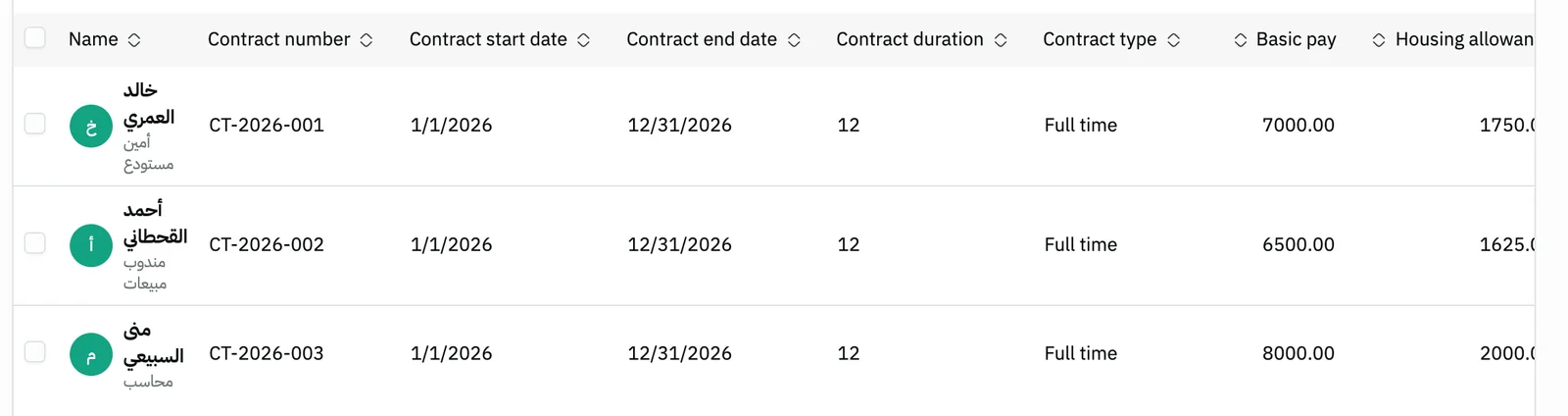
Image key - The Contract number column
- The Contract end date column
Step 6: Read the payroll report
The Payroll report has a row for each completed payroll run with amount columns such as Total salaries. Totals for those amounts sit at the bottom of the table. Details
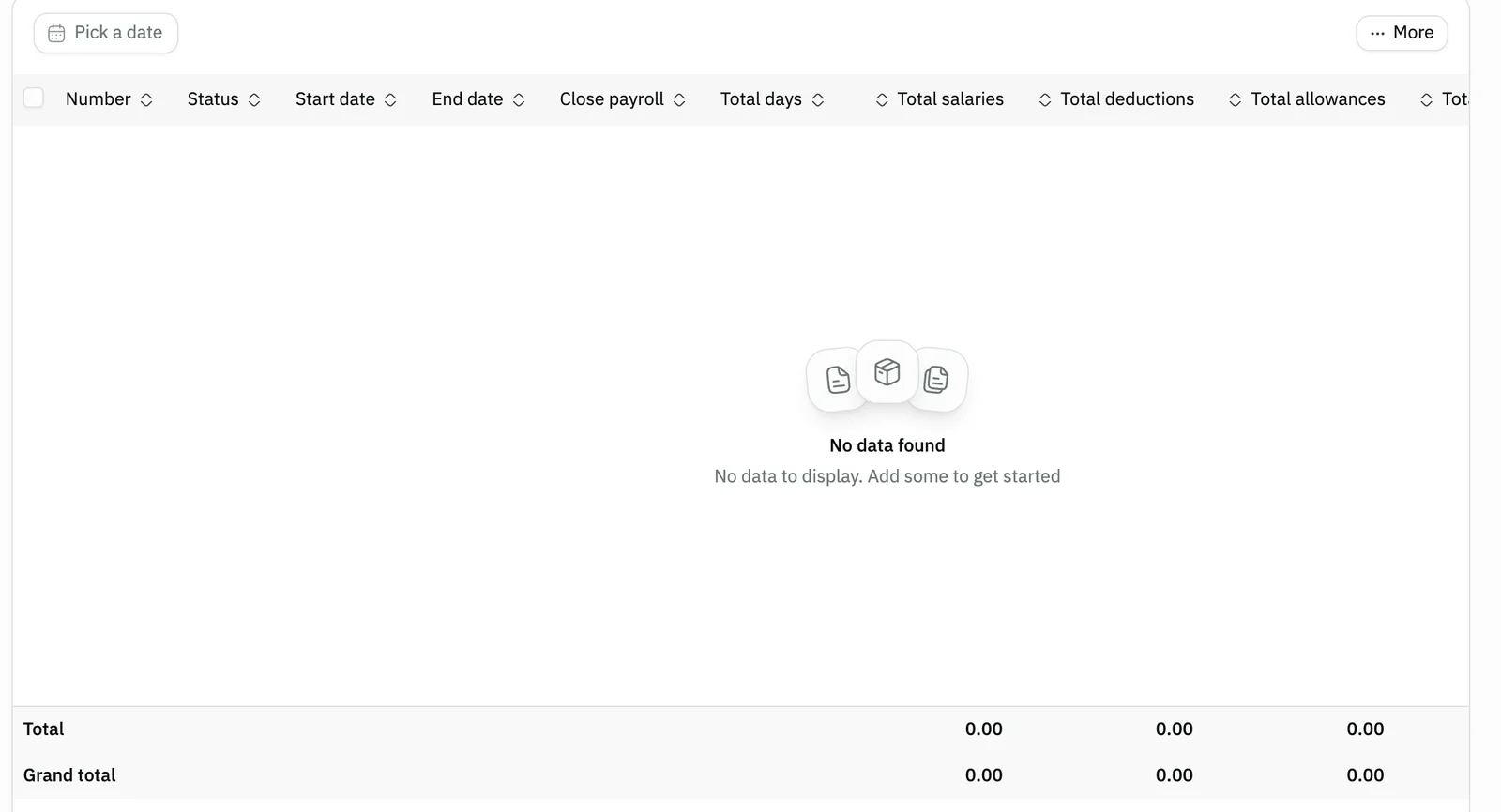
Image key - The Pick a date button
- The Total salaries column
- The totals row
Step 7: Print or export the report
Press More. It holds Export as Excel or CSV, Print, and View to show or hide columns.
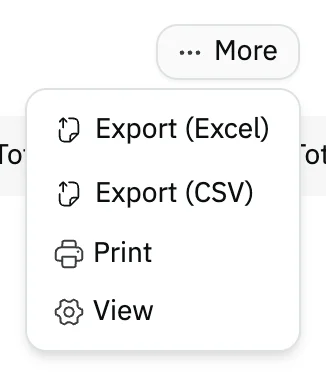
Image key - The More button
- The export, print and view options
Messages that block saving
If saving fails, one of these messages shows next to the field. The table gives the cause and the fix.
| Message | Cause | Fix |
|---|
Advanced details
Each section here explains one point from the steps in depth. Every section has a fixed link you can share.
How the attendance figures are counted
The figures come from the attendance records saved for the employee in the period. Late check-in and Early checkout are counted separately, and a record with both counts in both columns.
On vacation days are counted in their own column and are left out of Total days. Working hours are added up from check-in and check-out times, allowing for overnight shifts.
To record attendance itself, see record attendance; for the late and absence grace times, see HR settings.
The default period and who shows
If you set no period, the attendance, payroll and vacation reports cover all records with no time limit.
What you see is limited to the employees your data access allows. Editing the link does not widen it (data access).
The Contracts report has no period, and its only filter is Employee.
What the vacation report counts
It counts approved vacations only, by their start date: a vacation that starts inside the period counts in full even if it runs past it.
Total days adds up the days of the vacations, while the type columns (Annual, Sick leave, Unpaid leave, Hajj leave, Maternity leave, Paternity leave) count the number of requests of each type, not their days.
To request and approve a vacation, see vacation request and HR requests.
Which contracts show
Only active contracts show, so an ended or suspended contract is missing. Each contract has one row with its basic pay, allowances and Contract type.
Add the employee and contract from add an employee, or import employees in one go with import employees.
Which payroll runs are included
The report shows completed payroll runs only, by the date they were created. A draft run does not show and is not in the totals.
The totals at the bottom cover every run that matches the period, not just the page on screen. Net salaries is the last column, so scroll the table sideways to see it.
To create and close a run, see run payroll.
Common questions
- Where are the employee reports in Snad?
- Open Reports, then the HR card. It holds the Attendance report, Payroll report, Vacation report and Contracts.
- Why is my payroll report empty?
- The report shows completed payroll runs only, so it stays empty until you close your first run. A draft run does not show. See run payroll.
- How do I see the attendance of one employee?
- Open the Attendance report, press Employee and choose them, then set the period with the Pick a date button.
- Does an ended contract show in the contracts report?
- No. The report lists active contracts only, so use the Contract end date column to see when the contracts in front of you expire.
- How do I download the attendance report to Excel?
- Open the report, press More, then choose Export (Excel). Beside it, Export (CSV) gives you a CSV file.