
How to set up booking settings in Snad
To set up booking settings in Snad, open Bookings, then Settings. Choose your sector preset, then open each section and set scheduling, no-shows, reminders, invoicing and the public page. There is no Save button, because changes save automatically.
In this guide8
Steps
Step 1: Open booking settings
In the sidebar, choose Bookings, then Settings. One page opens with the sector preset at the top and six sections below it. Details
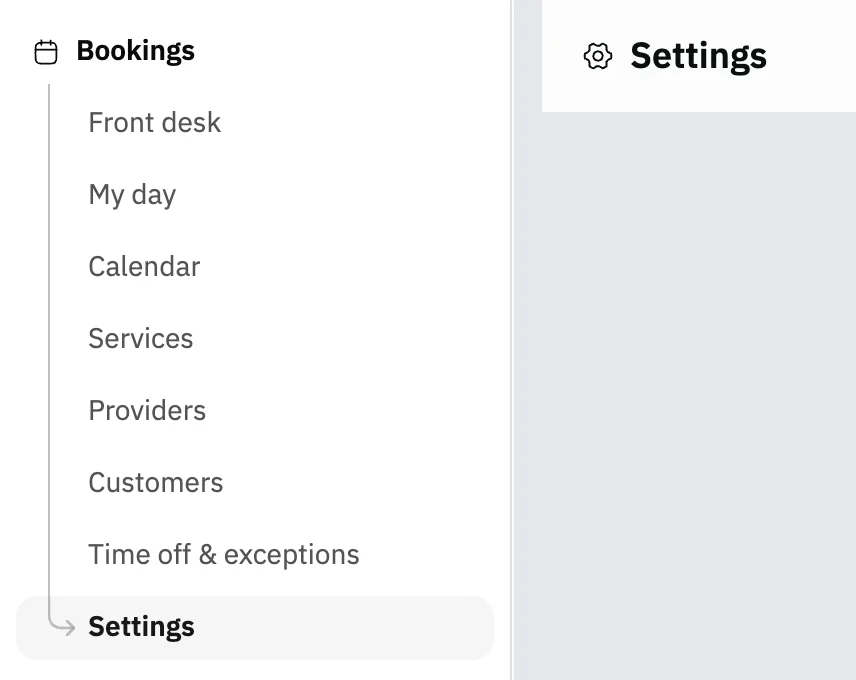
Image key - Settings in the sidebar
- The page title
Step 2: Choose your sector preset
Under Presets, pick your business category, then its preset. The window shows the changes first, and Apply preset applies them. Details
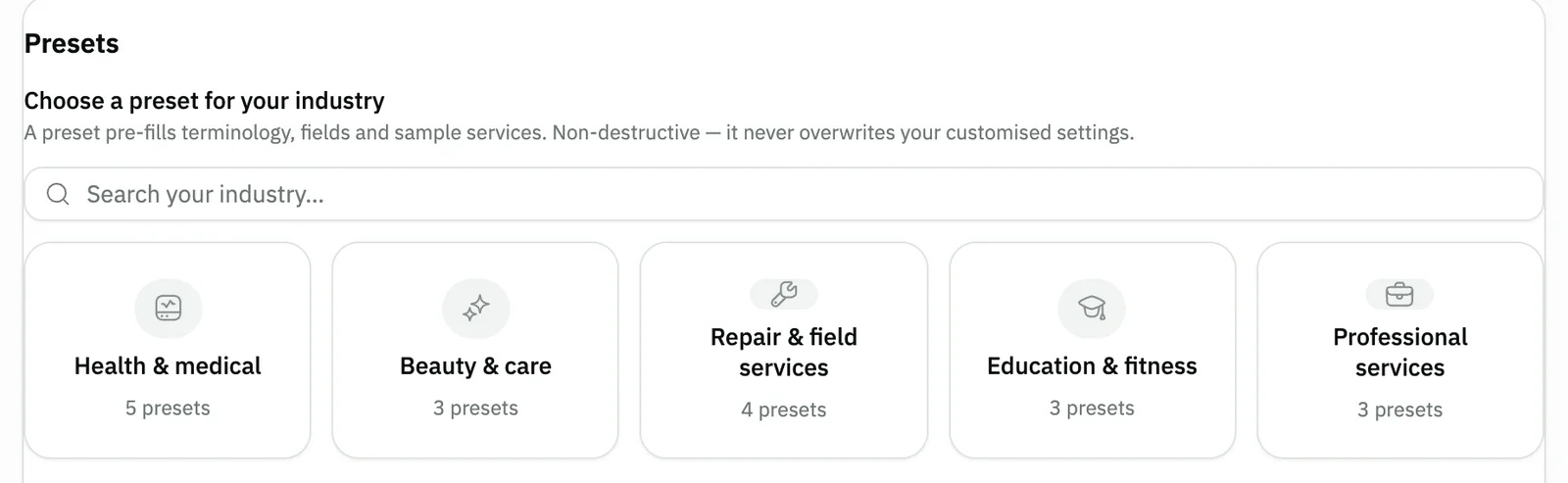
Image key - Presets
- The five preset categories
Step 3: Open the sections and watch autosave
Press a section title to open it. Above them, Changes are saved automatically turns into All changes saved after each edit. Details
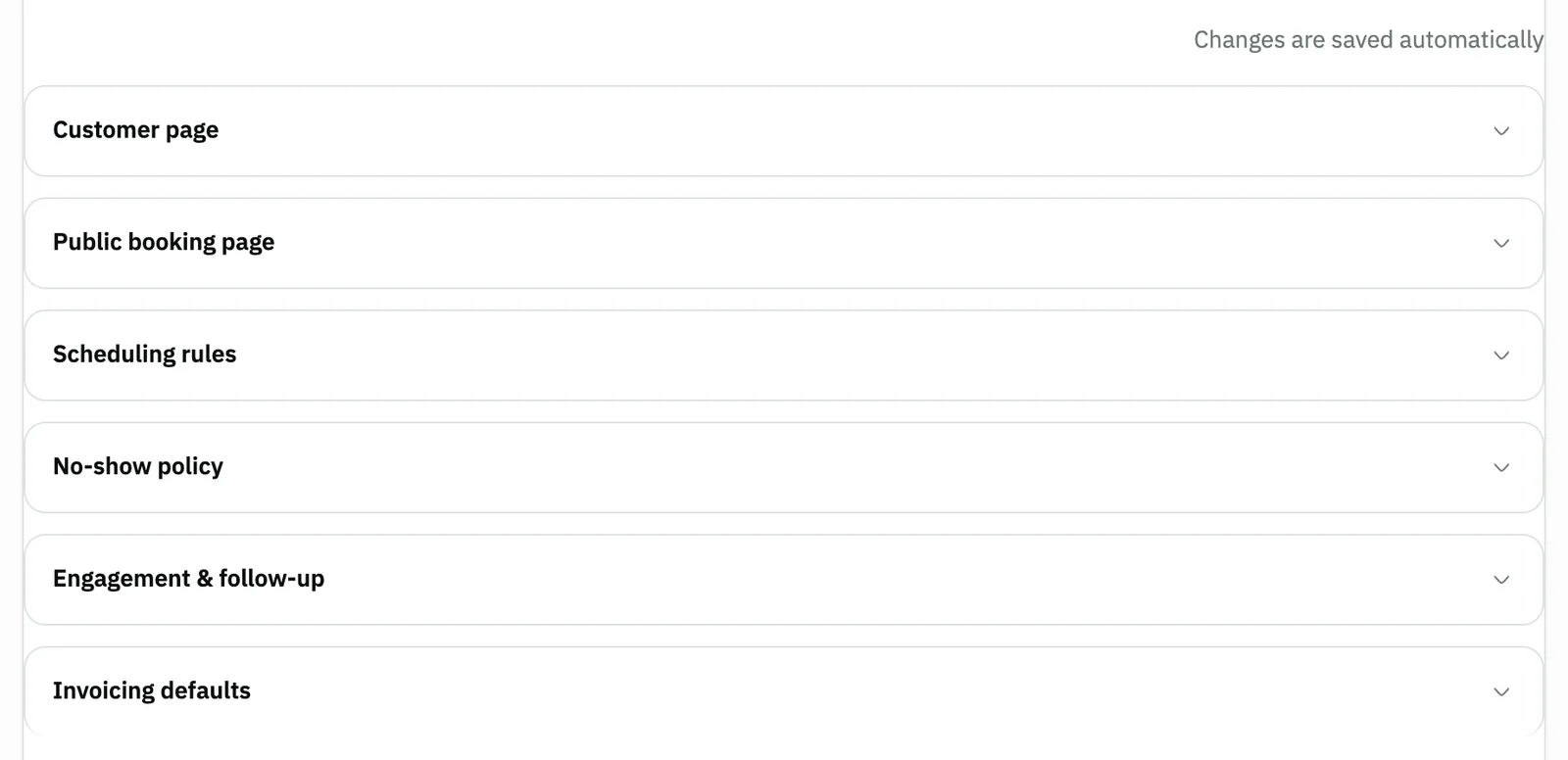
Image key - The Changes are saved automatically line
- The six sections
Step 4: Set the scheduling rules
Open Scheduling rules. Set Time between slots (min), Minimum notice before start (min), How far ahead customers can book (days) and the cancellation window. Details
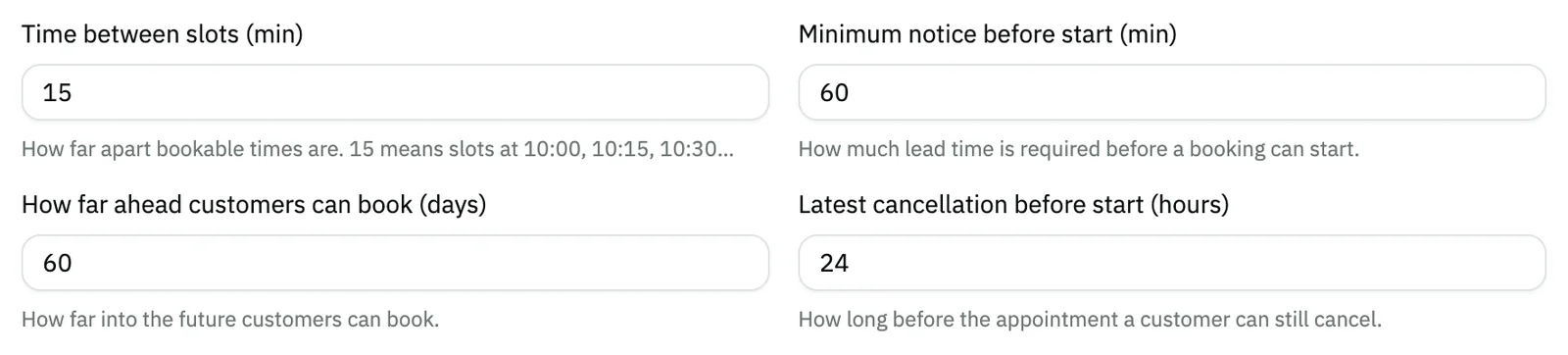
Image key - Time between slots (min)
- How far ahead customers can book (days)
- Latest cancellation before start (hours)
Step 5: Define the no-show policy
Open No-show policy and enter No-show limit (0 = off). Above 0, Action when exceeded appears; No-show charge is always there. Details
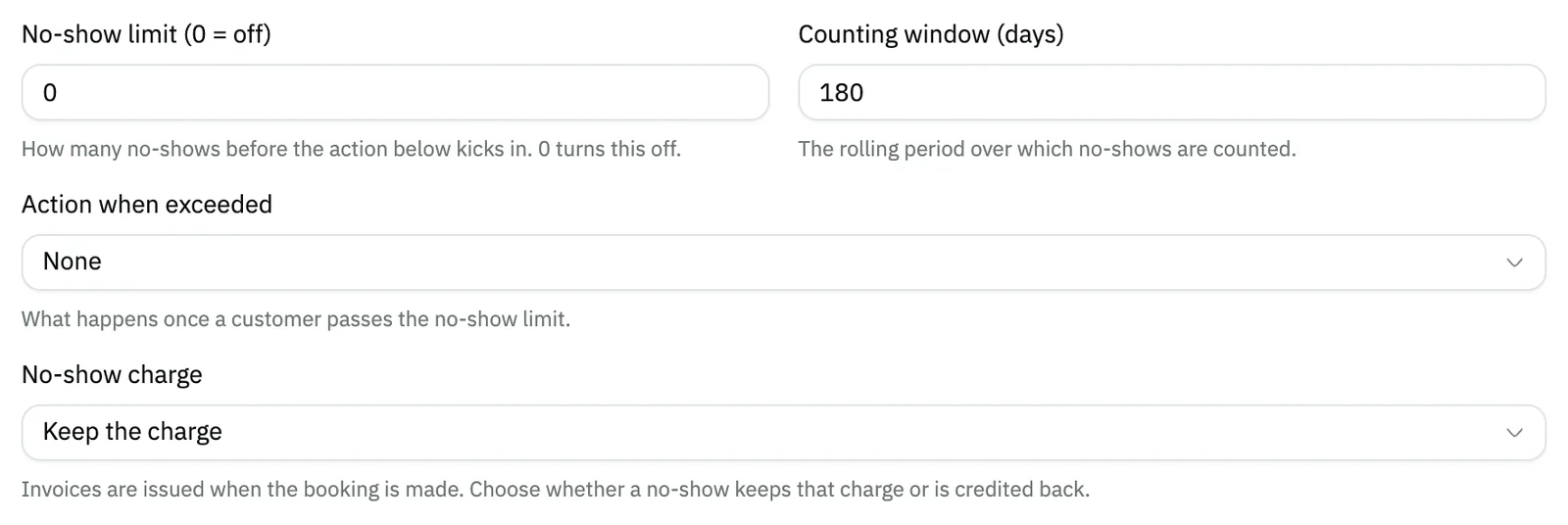
Image key - No-show limit (0 = off)
- Action when exceeded
- No-show charge
Step 6: Turn on reminders and review requests
Open Engagement & follow-up. It holds Waitlist, Email reminders and Ask for a review after the appointment, each with its own switch. Details
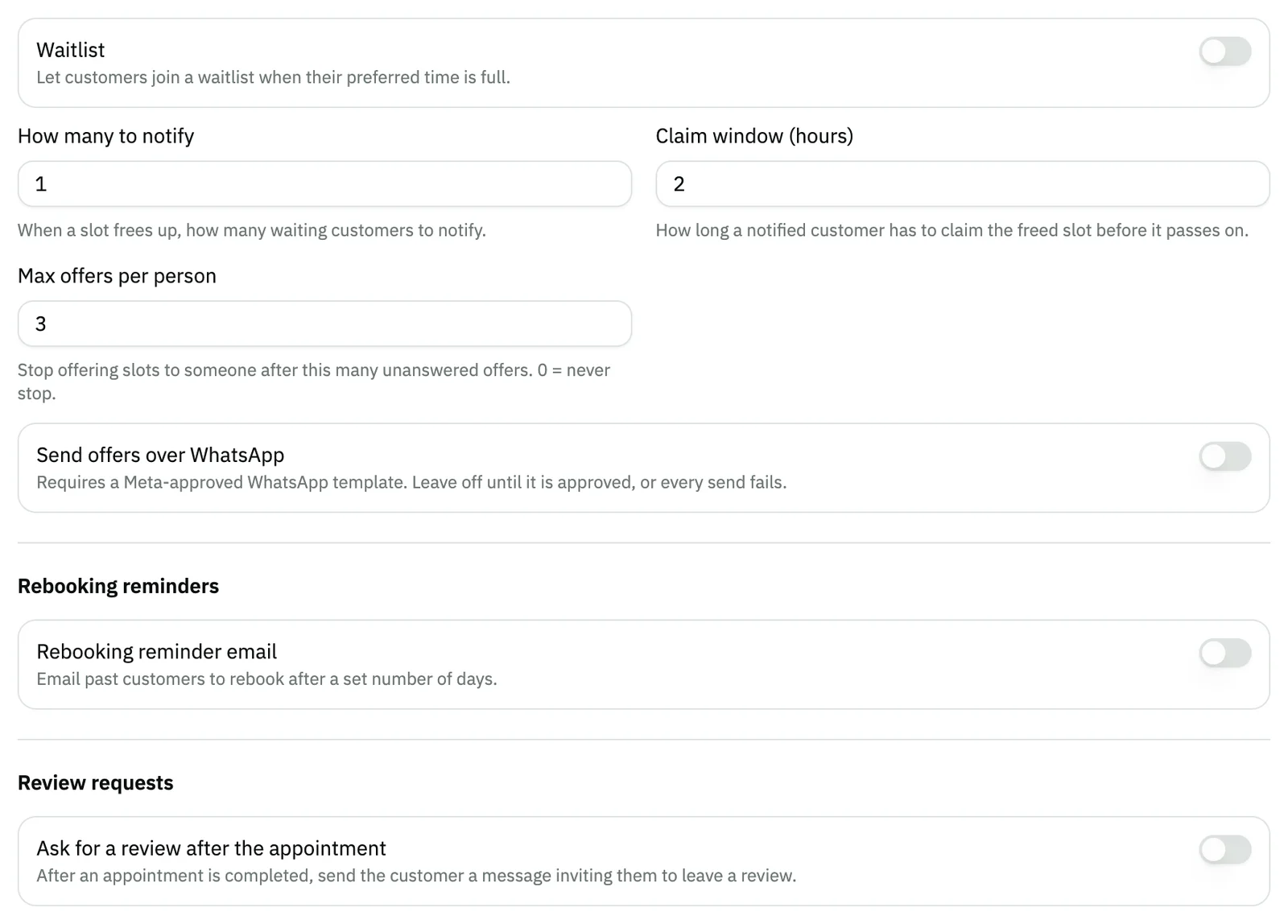
Image key - Waitlist
- Ask for a review after the appointment
Step 7: Set the booking invoice defaults
Open Invoicing defaults. Choose a Warehouse, a Salesman, a Branch and a Payment method. Each booking's invoice is created with them the moment it is made. Details

Image key - Warehouse
- Salesman
- Branch
- Payment method
Step 8: Turn on the public booking page
Open Public booking page. Switch on Public booking page, enter Your public booking link, and decide whether to turn on Review bookings before confirming. Details
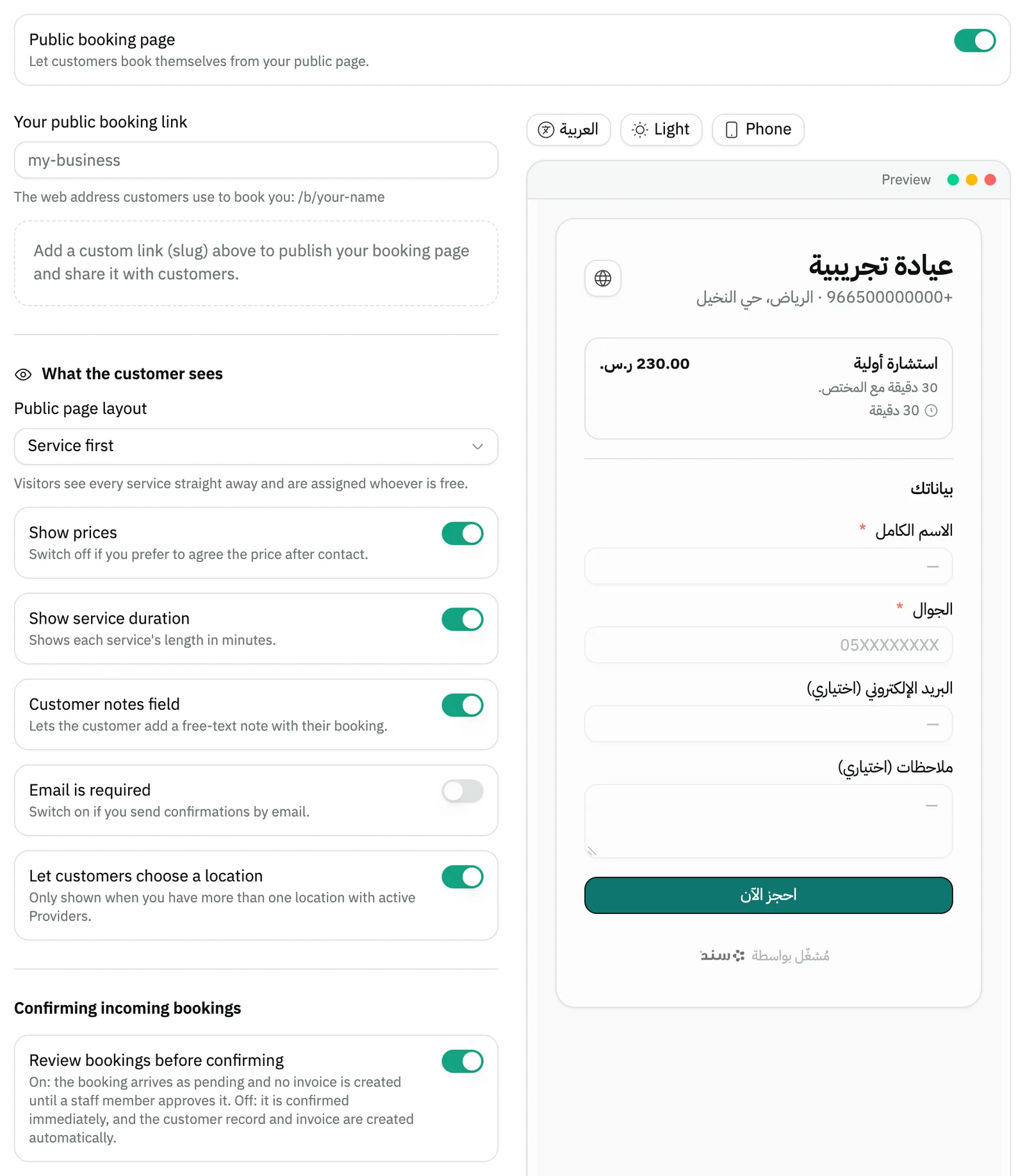
Image key - The Public booking page switch
- Your public booking link
- Review bookings before confirming
Messages that block saving
If saving fails, one of these messages shows next to the field. The table gives the cause and the fix.
| Message | Cause | Fix |
|---|---|---|
| «This link is already used by another business. Please choose a different one.» | Another business already uses the same address in Your public booking link. | Change it until “This link is available” shows under the field. The link takes lowercase English letters, digits and hyphens. |
| «Couldn't save your changes» | A field holds an invalid value. The whole page saves together, so one wrong value stops every other setting from saving. | Read the message that names the field, then correct its value. Everything then saves automatically. |
| «“{field}” is not valid — fix it to save your changes.» | The value in the named field is not accepted, such as a number outside its allowed range. | Change the value of the field named in the message, and the change saves by itself. |
Advanced details
Each section here explains one point from the steps in depth. Every section has a fixed link you can share.
Can't see the page, or can't edit?
If you lack permission to view booking settings, a permission page shows instead of the settings.
With view permission alone the fields show disabled and the autosave line is hidden. Ask your account admin for the update permission (roles and permissions).
If you see “This app is not included in your plan”, Bookings is outside your plan (manage your subscription).
What a preset does
A preset fills in terminology, fields and sample services for your sector, and never overwrites your customised settings.
Before applying, the window shows how many fields, services and settings will change, and warns you if it will replace your current terms.
The terms rename booking, customer, service and provider across the bookings screens, including the front desk.
The sample services are added to your bookable services, so review them after applying.
How autosave works
A moment after your last edit the whole page is saved at once, and All changes saved appears. If you leave the section first, your edit is saved too.
The save covers the whole form. An invalid value in any section blocks saving the others until you fix it, and a message names the field.
If Snad finds an old, unrecognised value in an option, it resets it to the default and tells you, so your other settings can save.
Scheduling rules in detail
These fields decide the times customers see when they book on their own:
- Time between slots (min): 15 means slots at 10:00, 10:15, 10:30.
- Minimum notice before start (min): the lead time required before a booking can start.
- Latest cancellation before start (hours): how long before the appointment a customer can still cancel.
- Late-cancellation fee (%): the share you keep when a cancellation lands inside the window. 0 means a full refund.
- Auto-release unconfirmed bookings: frees the slot if a booking is not confirmed in time.
No-shows and the money
Counting window (days) is the rolling period in which no-shows are counted. Only a customer you already know, matched by phone number, is counted. The window and the action appear only when No-show limit (0 = off) is above 0.
When a customer passes the limit, Snad applies Action when exceeded. The list has None, Require approval and Block online booking.
Block online booking refuses this customer's booking from the public page only. It does not cover front desk bookings.
Waitlist and reminders
Waitlist lets a customer join when their preferred time is full. When a slot frees up, the number of people you set in How many to notify are told, each with a Claim window (hours).
The waitlist numbers and the WhatsApp switch below show only after you turn the Waitlist switch on.
Send offers over WhatsApp needs a Meta-approved WhatsApp template. Leave it off until the template is approved, or every send fails.
Email reminders reveals two sub-switches: 24-hour reminder and 2-hour reminder. The WhatsApp notifications switch is the same one as in the WhatsApp notification settings (messaging channels).
Ask for a review after the appointment sends the customer a message once their appointment is completed. The message points to the Review link you enter, such as a Google review link; that field shows only once the switch is on. To collect reviews with a Snad form, see manage customer reviews.
Invoicing when a booking is made
An invoice is created automatically when each booking is made. Set the four defaults so it issues correctly (add a warehouse, add a salesman, add a branch).
The Payment method choices are Cash, Card, Bank transfer and On credit.
The invoice is issued at booking time. No-show charge decides whether a no-show keeps the amount (Keep the charge) or credits it back (Refund in full).
The public page and the customer page
The link looks like /b/your-name, and Snad checks it is available as you type. Only English letters, digits and hyphens are accepted. Services appear according to their public page switch, and a provider appears with their public profile.
Show prices hides the price from customers when switched off, so you agree on it after contact.
With Review bookings before confirming on, a booking arrives as awaiting confirmation. Its invoice is not created until a staff member approves it at the front desk. Off, it is confirmed immediately.
The Customer page section is separate: Enable the customer page is the page customers reach from WhatsApp and email to manage their appointment. It sets what they see, including Allow rescheduling and Allow cancelling, within the cancellation window only.
Common questions
- Do I need a Save button in booking settings?
- No. Changes save automatically after your last edit, and All changes saved appears. If Couldn't save your changes shows, correct the field the message names.
- How do I change my public booking link?
- Open Public booking page and edit Your public booking link. Snad checks that it is available, and it saves a moment later.
- How do I stop a frequent no-show customer from booking?
- In No-show policy set the No-show limit (0 = off), then choose Block online booking under Action when exceeded. A customer is counted when you already know them by phone number.
- Does a sector preset change my data?
- It never overwrites your customised settings, but it can replace terminology and add fields and sample services. The window shows these before Apply preset.