
How to connect Snad to ZATCA (Fatoora)
To connect Snad to ZATCA: open Settings, then Integrations, and press Connect now on the Fatoora (ZATCA) card. Check the Before you start list, enter an OTP from the Fatoora portal, then press Save. After that you follow your documents on the tracking dashboard.
In this guide7
Steps
Step 1: Open Integrations
Press Settings at the bottom of the sidebar, then choose Integrations in the settings menu.
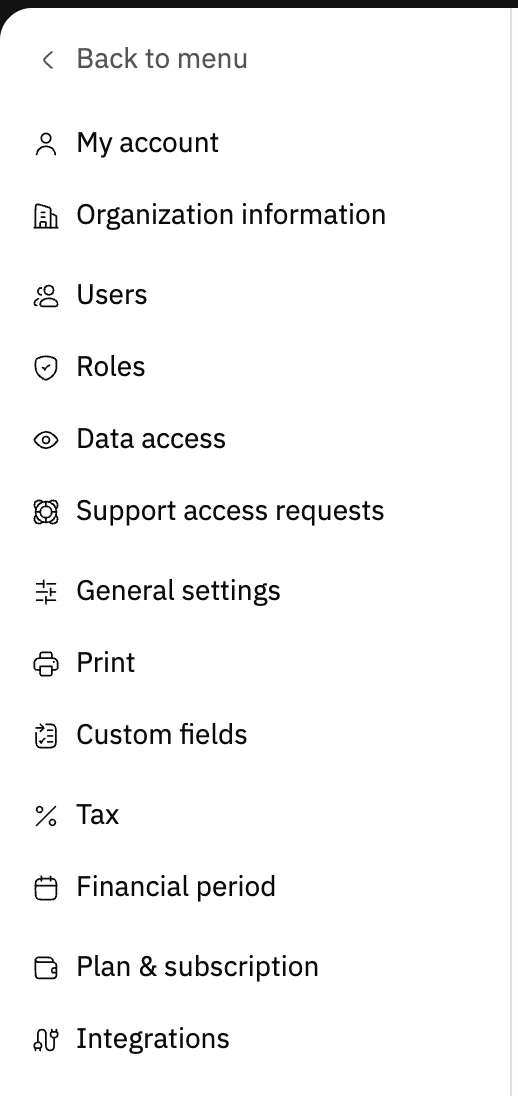
Image key - Integrations
Step 2: Press Connect on the Fatoora card
The first card on the page is Fatoora (ZATCA). Press Connect now on it to open the activation page. If you're on the Free plan, an upgrade message shows instead, so press Upgrade plan, finish the upgrade, then come back. Details

Image key - Fatoora (ZATCA)
- Connect now
Step 3: Review the readiness list
The activation page opens with a Before you start list of three conditions: currency is SAR, country is Saudi Arabia, and a 15-digit VAT number that starts and ends with 3. A missing condition shows in red. If it's the currency or the country, press the “Fix in settings” link (organization information); if it's the VAT number, type it in its field lower on the page. Details
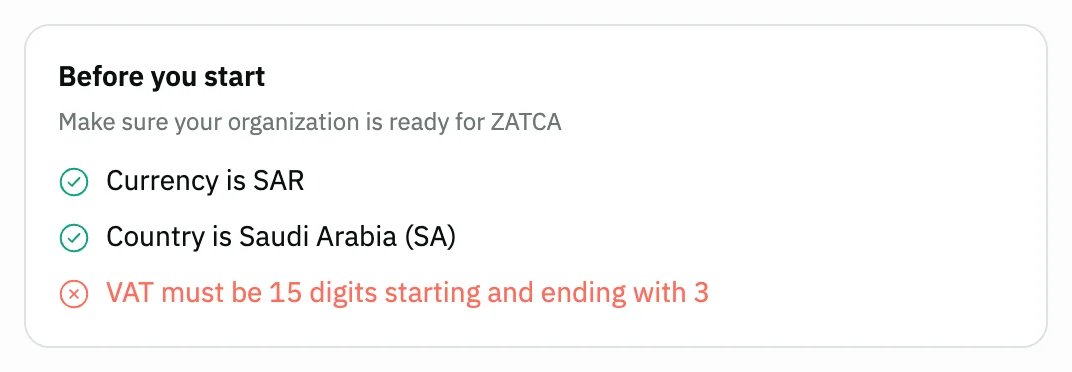
Image key - Before you start
Step 4: Enter the OTP and organization details
Press How to get the OTP code to watch the explanation, then enter the code you got from the Fatoora portal in the OTP field. Check Organization name, VAT and Address, write the Industry business category, then press Save. Details
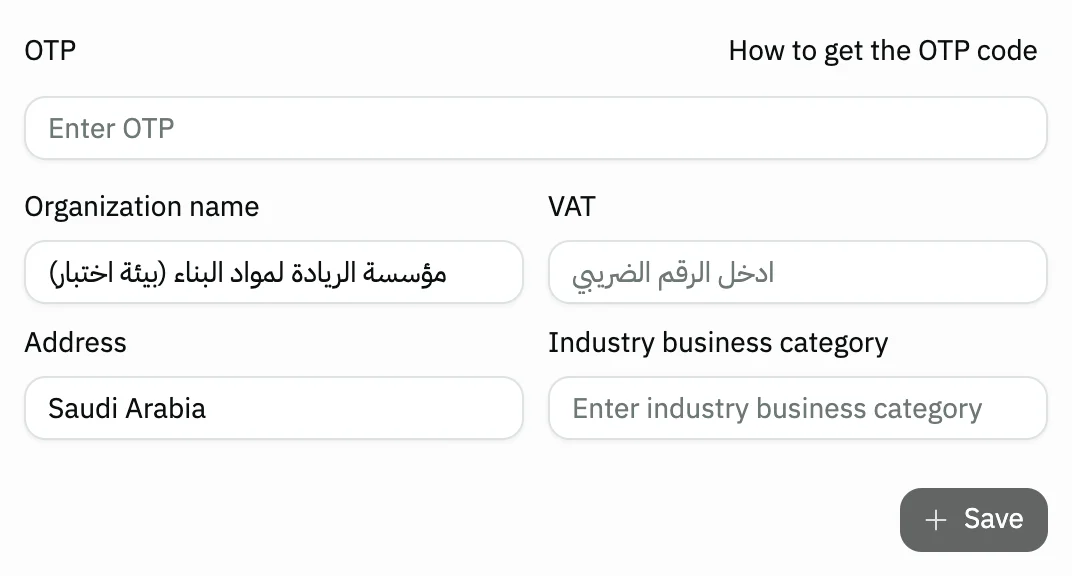
Image key - How to get the OTP code
- VAT
- Save
Step 5: Finish activation
When the link succeeds, the message “ZATCA integration activated” shows with a card holding the organization name, the VAT number and the Certificate expiry date. Press Go to ZATCA dashboard. Details
Step 6: Follow invoices and refunds
The dashboard shows six cards: Sent invoices, Unsent invoices, Failed invoices, Sent refunds, Unsent refunds and Permanent failures. Below them, the Sales invoices and Refunds tables show each document's status. Press Refresh to load the latest statuses. Details
Step 7: Send what wasn't sent and fix what failed
On a row that wasn't sent, press Send, or select several rows and press the send button in the table header. When it finishes, the Submission complete window shows how many succeeded and failed with the reason, and offers Retry failed only. For details, press View details on the row. Details
Messages that block saving
If saving fails, one of these messages shows next to the field. The table gives the cause and the fix.
| Message | Cause | Fix |
|---|---|---|
| «Currency must be SAR» | The organization's currency isn't the Saudi riyal, so the link is refused. | Set the organization currency to the Saudi riyal in organization information, then try again. |
| «Country must be Saudi Arabia» | The organization's country isn't Saudi Arabia. | Set the organization country to Saudi Arabia in organization information, then try again. |
| «Invalid VAT number» | The VAT number isn't 15 digits starting and ending with 3. | Correct the VAT number in organization information or in the VAT field, then try again. |
| «Certificate expired» | The link's certificate has expired, so no new documents can be sent. | Press Renew certificate and enter a fresh OTP from the Fatoora portal. |
Advanced details
Each section here explains one point from the steps in depth. Every section has a fixed link you can share.
Can't find the link, or the page is locked?
The ZATCA link is available on every paid plan, from Basic up. The Free plan shows the upgrade message instead of the activation page.
If you're on a paid plan and the page doesn't open, you lack the permission: ask your account admin to give it to you; see roles and permissions.
Why does the list require Saudi Arabia and the riyal?
ZATCA e-invoicing is for Saudi businesses, so the link accepts only an organization whose country is Saudi Arabia and whose currency is the riyal.
Tax rates have a screen of their own; see how to set up tax.
Where do the form values come from?
The program fills Organization name and VAT from your company information, puts the country name in Address, and leaves Industry business category empty for you to write.
The Save button stays disabled until the VAT number is 15 digits starting and ending with 3, and a message with the required format shows under the field.
If ZATCA rejects the request, a red alert shows the reason and how to fix it, and you can open Technical details to see the message as it came.
What happens after activation?
The Fatoora card on Integrations changes to “Connected to Fatoora — invoices are submitted automatically”, and its button becomes View reports, which opens the tracking dashboard.
You don't have to send each invoice yourself: a document waiting to be sent shows the In queue status with “Will be sent to ZATCA automatically”. Create your invoices as usual from how to create a sales invoice.
To print the invoice your way, use print templates, and add the QR code to it in the template editor.
What the document statuses mean
Submitted means ZATCA received the document. In queue means it will be sent automatically. Failed means an attempt failed and the attempts haven't reached their maximum yet.
Permanently failed means the attempts passed the maximum and the document needs your attention: open View details to see the Attempt history, the error reasons and the QR code, fix the cause, then send again.
Renewing the certificate
14 days before the certificate expires, a banner at the top of the dashboard shows the expiry date, and once it expires the banner turns red and sending stops.
Press Renew certificate, and in the Renew ZATCA certificate window enter a fresh OTP from the Fatoora portal, then press Renew. The message “Certificate renewed successfully” shows and the banner goes away.
Common questions
- Do I need an OTP every time?
- No. You enter the code when you first activate, and then only when you renew the certificate. After activation, documents are sent automatically.
- Does the ZATCA link work on the Free plan?
- No. The page shows an upgrade message, and the link is available from the Basic plan. The subscription guide shows how to upgrade.
- Why is the Save button disabled on the activation page?
- Because the VAT number isn't valid. It must be 15 digits starting and ending with 3. Correct it in the VAT field or in organization information.
- What do I do if an invoice fails to send?
- Open View details on its row to read the reason, fix it, then press Send or Retry failed only in the submission result window.
- How do I know the link's certificate is about to expire?
- A banner shows at the top of the tracking dashboard 14 days before it expires. Press Renew certificate in it and enter a fresh OTP.