
How to view a supplier statement in Snad
To view a supplier statement in Snad ERP, open Reports, then Supplier statement, and pick a Supplier. The Balance aging and the supplier's entries show, between the Opening balance and the Closing balance. Change the period from the date button, then press Print, Export to Excel or Send statement.
In this guide6
Steps
Step 1: Open the supplier statement
In the sidebar, choose Reports, then open Supplier statement from the Purchases section. Details
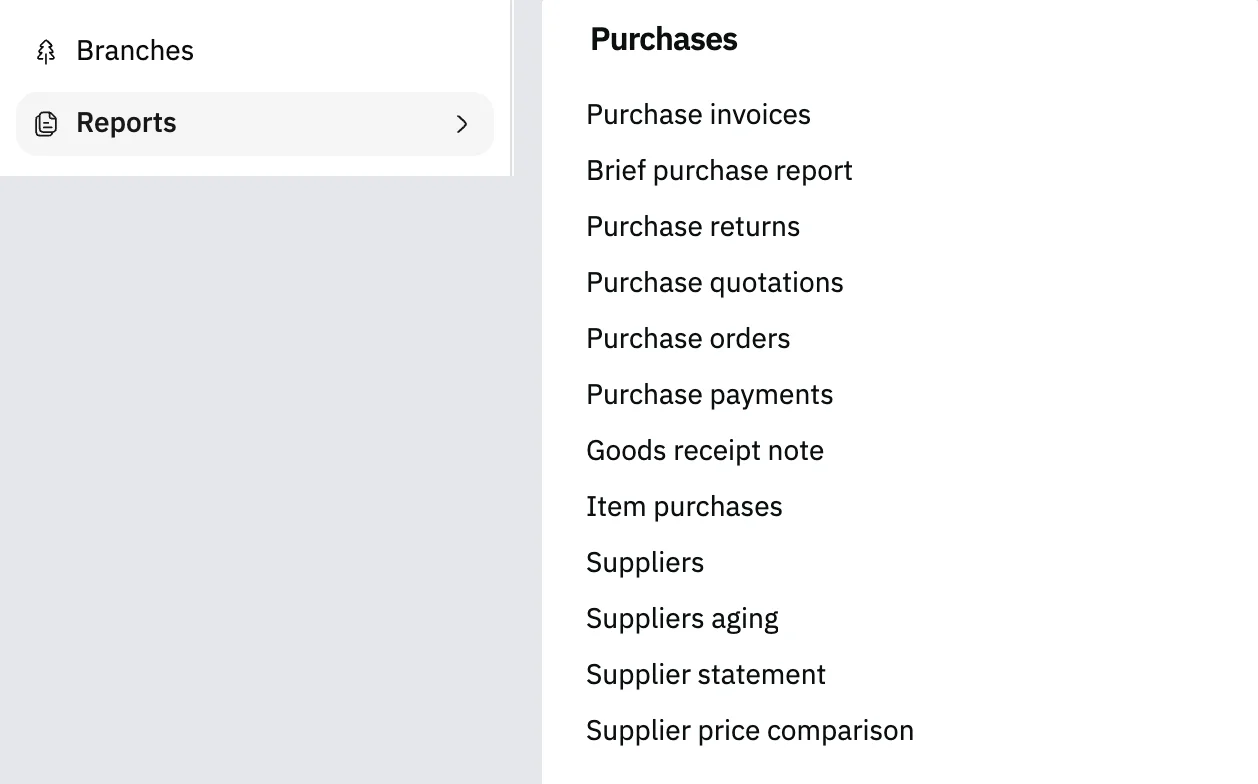
Image key - Reports in the sidebar
- Supplier statement in the Purchases section
Step 2: Pick the supplier
Click Supplier, type part of the name or number, and pick it from the list. The statement shows as soon as you pick.
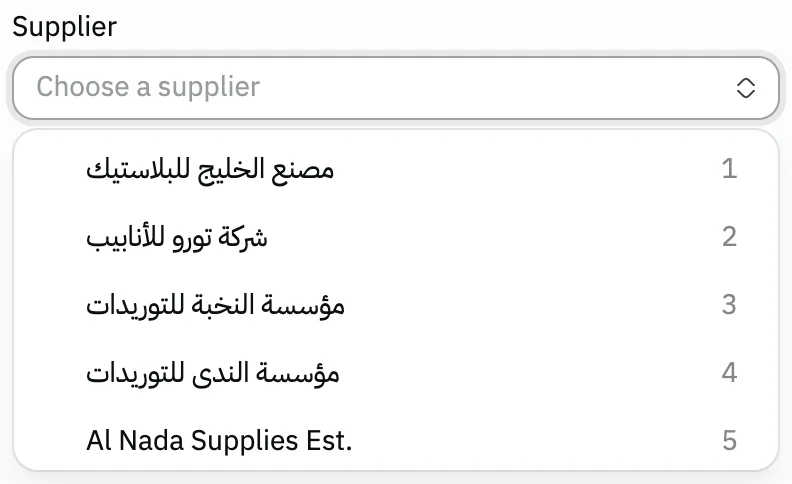
Image key - The Supplier field
- A supplier from the list
Step 3: Read the balance aging
Under Balance aging you see the open balance split by age, including Overdue and Credit with the supplier. Details

Image key - The first age bucket, with the others beside it
- Overdue
- Credit with the supplier
Step 4: Read the account entries
The Supplier account statement lists the entries in the Date, Document, Reference, Debit, Credit and Balance columns, between the Opening balance and the Closing balance. Details
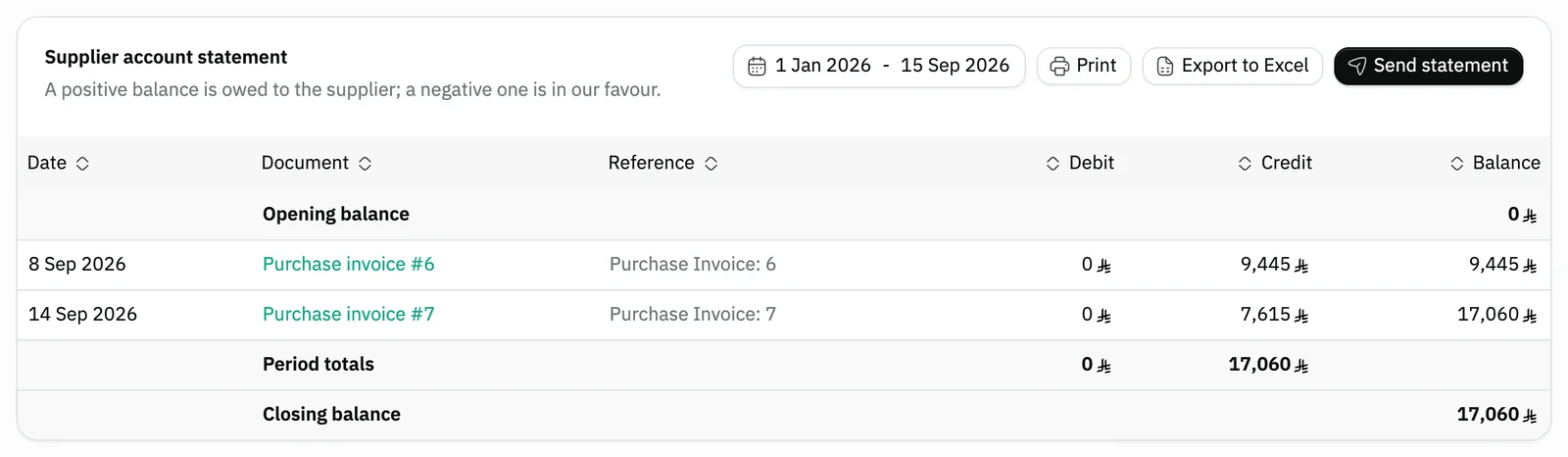
Image key - The statement columns
- Opening balance
- Closing balance
Step 5: Change the period
The statement opens on This year. Press the date button above the statement, and pick a ready range or set your own.
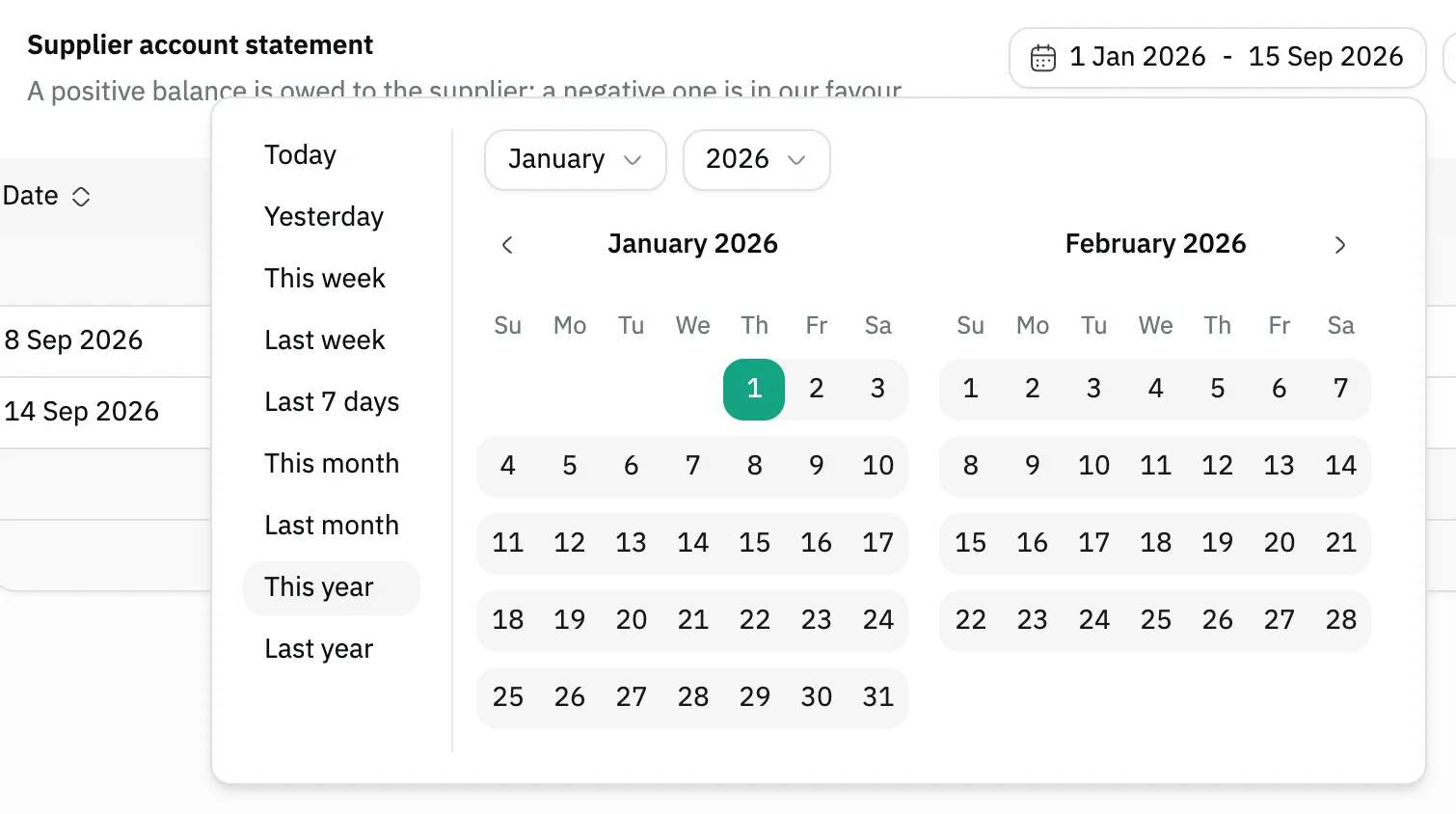
Image key - The period button
- This year
Step 6: Print or send the statement
Above the statement, press Print or Export to Excel, or Send statement to send the supplier a link to the statement. Details

Image key - The period button
- The Print button
- The Export to Excel button
- The Send statement button
Messages that block saving
If saving fails, one of these messages shows next to the field. The table gives the cause and the fix.
| Message | Cause | Fix |
|---|
Advanced details
Each section here explains one point from the steps in depth. Every section has a fixed link you can share.
How to read the balance
A line under the statement title explains the sign: “A positive balance is owed to the supplier; a negative one is in our favour.”
After the period's entries comes a Period totals row with the Debit total and the Credit total. For any other account, see view an account statement.
The document name in its column opens the document itself, such as a purchase invoice, a purchase return or a supplier payment, whenever it has a page in the program.
How the aging is worked out
The aging is worked out from the supplier's ledger: every payment settles the oldest amount due first, and what stays open is split by its age.
Under the title you find the payment terms recorded for the supplier, and the date of the oldest amount still due.
To compare all suppliers, open the purchase reports, which include the suppliers aging.
Sending the statement to the supplier
Send statement opens a window with the supplier's statement link. That link shows the statement to anyone who has it.
Copy the link, or send it from the window by WhatsApp or email. Create a new link stops every link sent before it.
Other ways to open the statement
From the supplier's page, open the Statement tab, which holds the same statement with its aging and buttons.
From the suppliers aging report, click a supplier's row and its statement opens with the supplier already picked.
The command palette, Ctrl + K, reaches the report: type “Supplier statement” from any screen.
No Supplier statement link?
The report shows only to users allowed to view accounting reports, because its figures come from the account ledger. Ask your Snad account admin to grant it.
Common questions
- How do I see how much I owe a supplier in Snad?
- Open Reports, then Supplier statement, and pick a Supplier. The Closing balance is the balance at the end of the period, and a positive one is owed to the supplier.
- Why does the statement show only this year's entries?
- The statement opens on This year. Press the date button above the statement to pick another period.
- Can I print or export the supplier statement?
- Yes. Press Print to print it, or Export to Excel to download the statement as a spreadsheet.
- How do I send the statement to the supplier?
- Press Send statement, then copy the link or send it by WhatsApp or email from the window.
- What does a negative balance on the statement mean?
- A negative balance is in our favour: you paid more than you owed the supplier. Your credit with the supplier shows on the Balance aging card.