
How to view customer aging in Snad
To view customer aging in Snad ERP, open Reports, then Customers aging in the Sales card. For each customer read the 0–30, 31–60, 61–90 and 90+ bands, then Total and Overdue. To dig into one customer, click the row to open the statement.
In this guide5
Steps
Step 1: Open the customers aging report
In the sidebar choose Reports, then press Customers aging in the Sales card. Or type its name in Search reports....
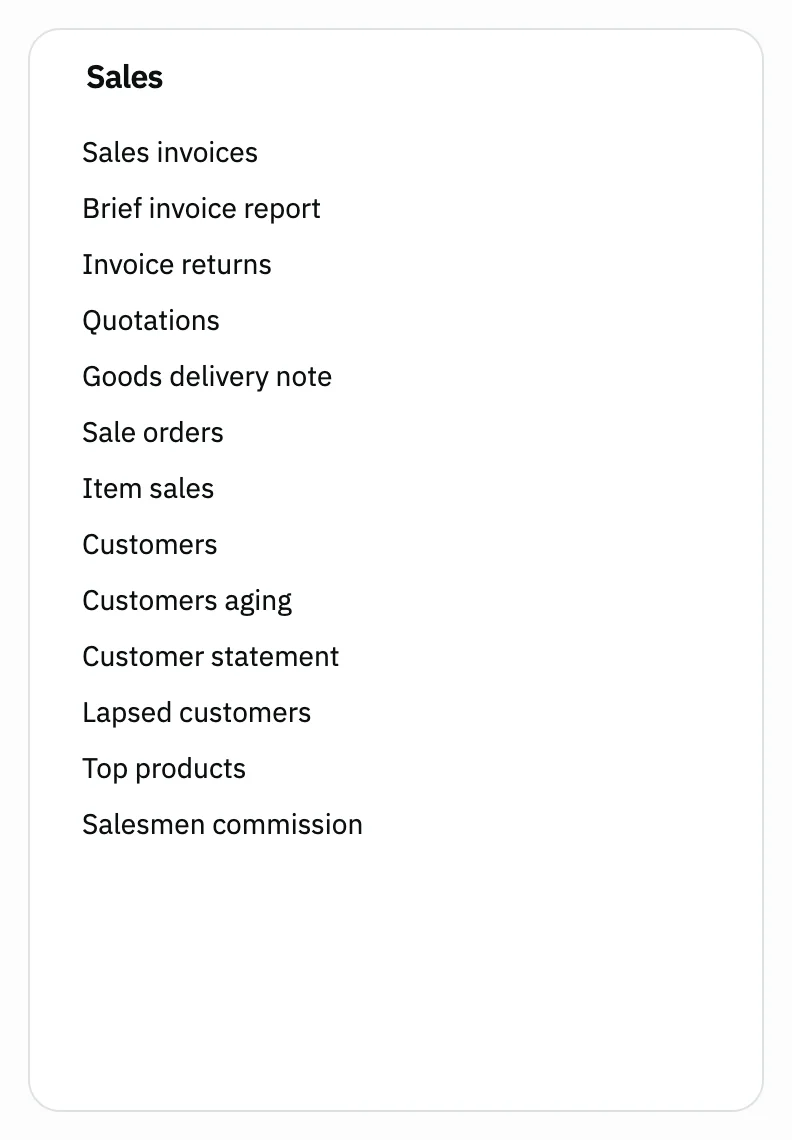
Image key - The Sales card
- Customers aging
Step 2: Read each customer's age bands
Each row is a customer. 0–30, 31–60, 61–90 and 90+ split what the customer owes by the days since each amount was dated. Grand total covers all customers.
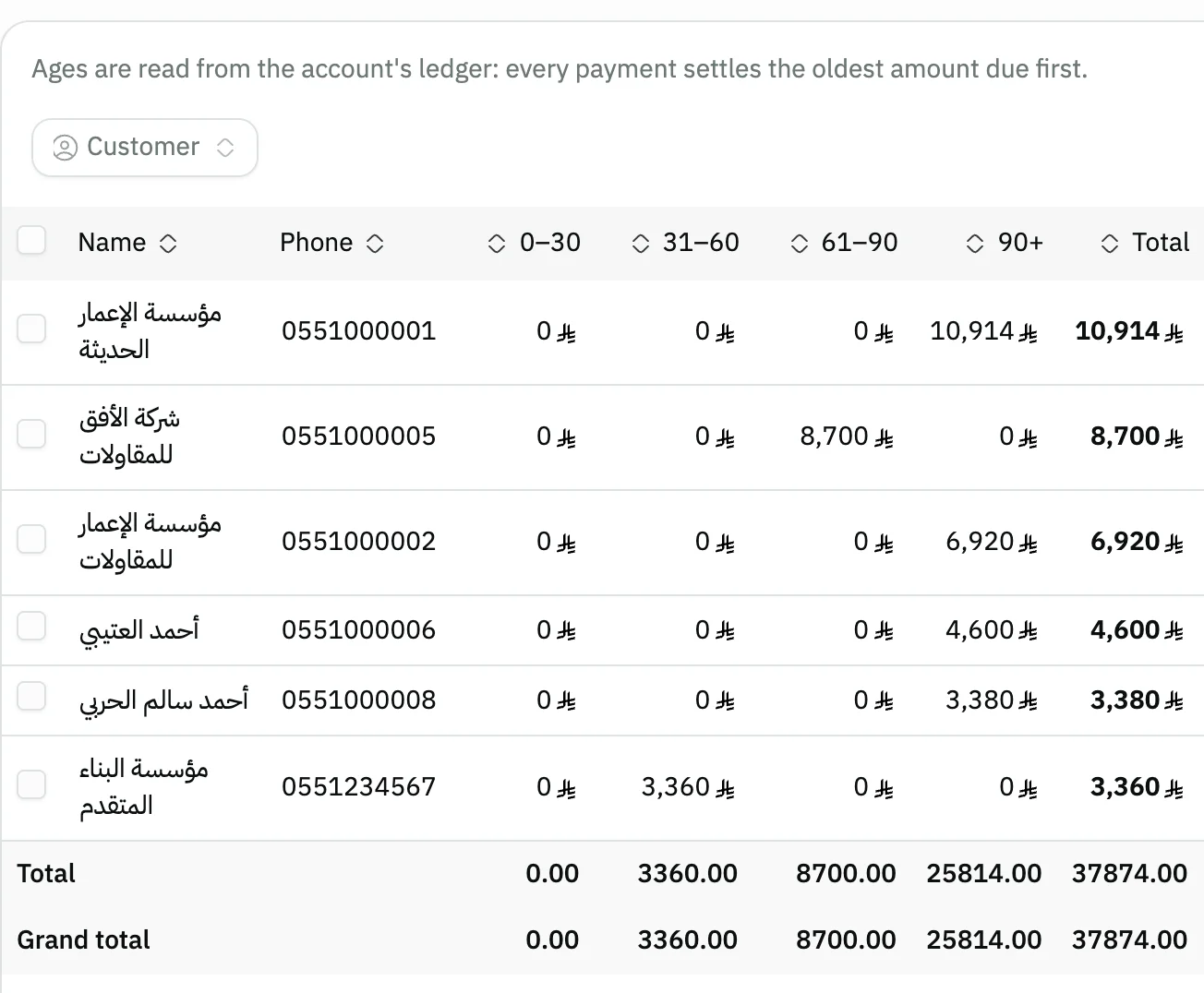
Image key - Name
- The first band, 0–30
- The last band, 90+
- Grand total
Step 3: See who is late paying
Total is the sum of the bands, and Overdue is what passed the Payment terms (30 days if you did not set them). Credit balance is a payment above what is due, and Oldest due is the date of the oldest open amount. Details
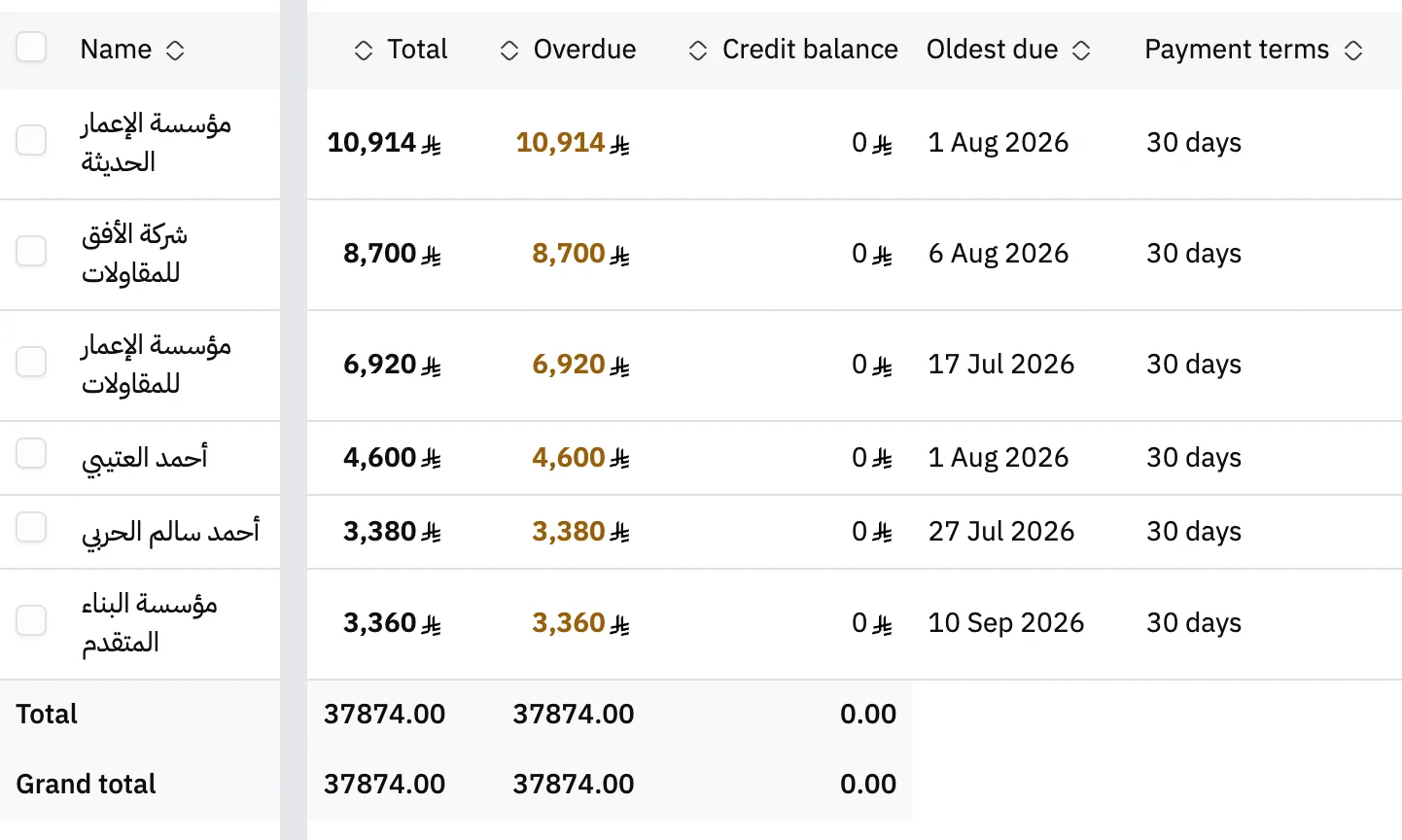
Image key - Overdue
- Credit balance
- Oldest due
- Payment terms
Step 4: Find one customer
Press Customer, type the name in Search, tick it, then press Apply. Only the customers you ticked stay in the report.
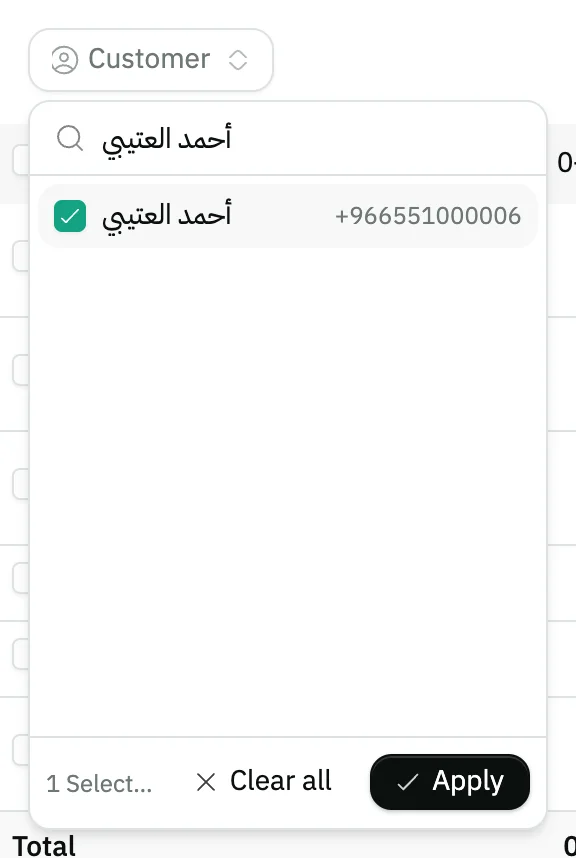
Image key - Search by customer name
- A ticked customer
- The Apply button
Step 5: Open the customer's statement
Click anywhere on the customer's row and the Customer statement opens straight away. If you have permission to open the customers page, the name is a link to that page.

Image key - The customer name, a link to the customer's page
- Click the row to open the statement
Messages that block saving
If saving fails, one of these messages shows next to the field. The table gives the cause and the fix.
| Message | Cause | Fix |
|---|
Advanced details
Each section here explains one point from the steps in depth. Every section has a fixed link you can share.
How payment terms and overdue are worked out
The Payment terms come from the customer's data (Payment terms (days)), and if none is recorded the terms are 30 days (add a customer).
Ages come from the customer's ledger, not from the invoices: every payment settles the oldest amount due first, whether or not you linked it to an invoice (receipt voucher).
Common questions
- Who appears in the customers aging report?
- Customers with an open amount due or a Credit balance. A customer who has paid everything and has no credit does not appear in the report.
- What is the difference between Total and Overdue?
- Total is everything the customer owes now. Overdue is the part older than the Payment terms recorded for that customer.
- Can I pick a date for the report?
- No. The report shows the ages up to today and has no period filter. To go back to the entries of a given period, open the customer statement.
- Can I export the aging to Excel?
- Yes. Press More, then Export or Print, as in the other reports (view sales reports).