
How to set up printing in Snad
To set up printing in Snad ERP, open Settings, then Print, and press New template. Enter a Name, choose the Document types and a starting design, then press Create. From the template card's menu, choose Set active so Snad uses it when printing those documents.
In this guide5
Steps
Step 1: Open print templates
Press Settings at the bottom of the sidebar and the sidebar turns into the settings menu. Then choose Print. Details
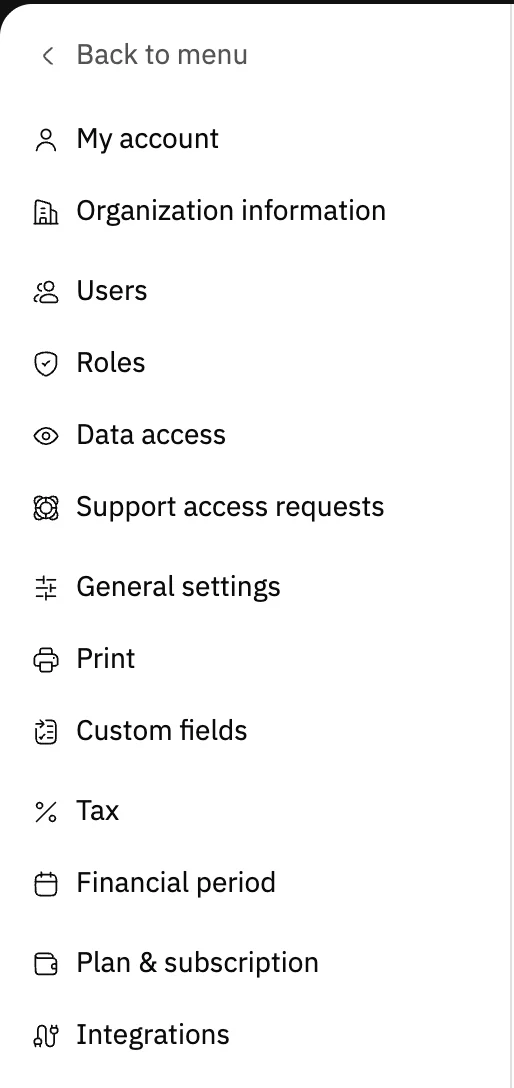
Image key Step 2: Know the screen
Each template has a card with a preview, its name and its document types. Pick a type from All types to filter the cards. Below them are the Invoice drafts section (details) and then the Default designs section. Details
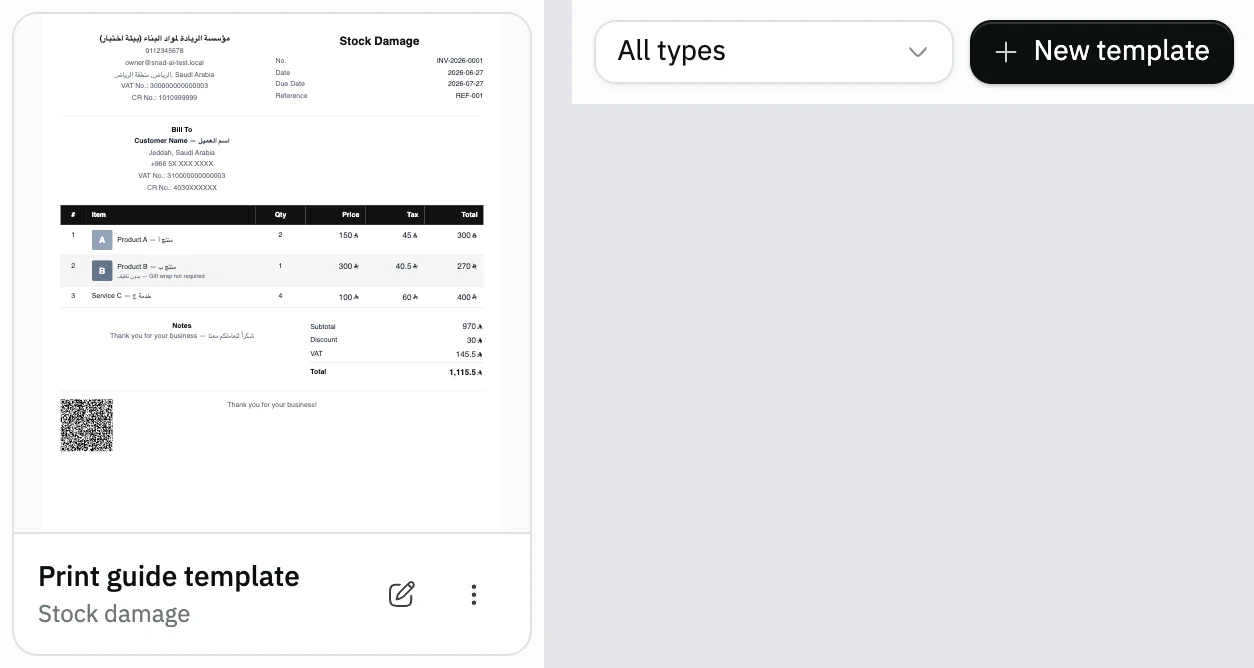
Image key - The All types list that filters templates
- The New template button
- A template card: preview, name and types
Step 3: Create a new template
Press New template, enter a Name, choose the Document types, then pick a starting design under Start from. Press Create and the template editor opens. Details
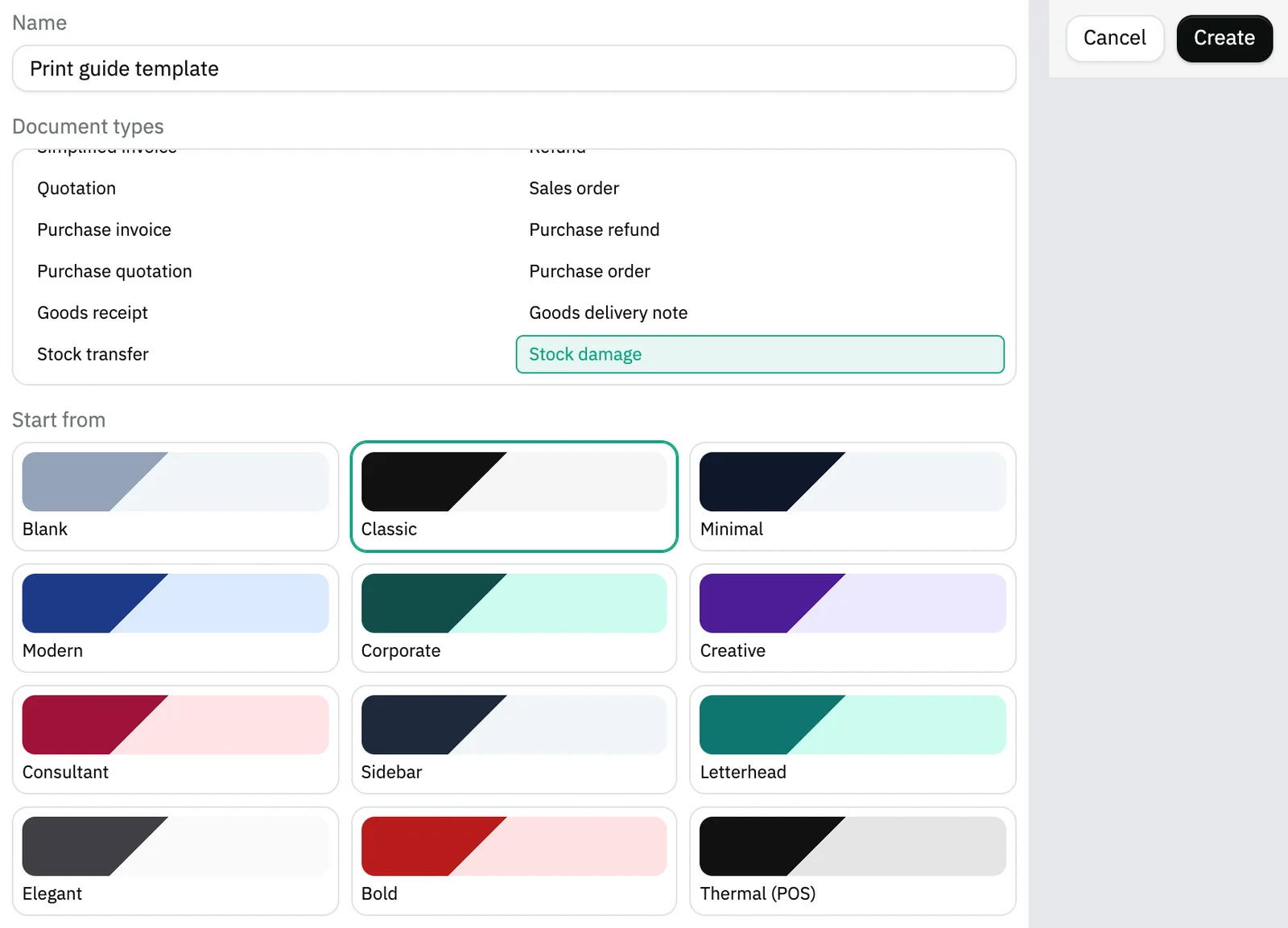
Image key - Name
- Document types
- The starting designs under Start from
- The Create button
Step 4: Make the template active
Press the options menu ⋮ on the template card and choose Set active. From then on Snad uses the template to print every document type chosen for it. Details
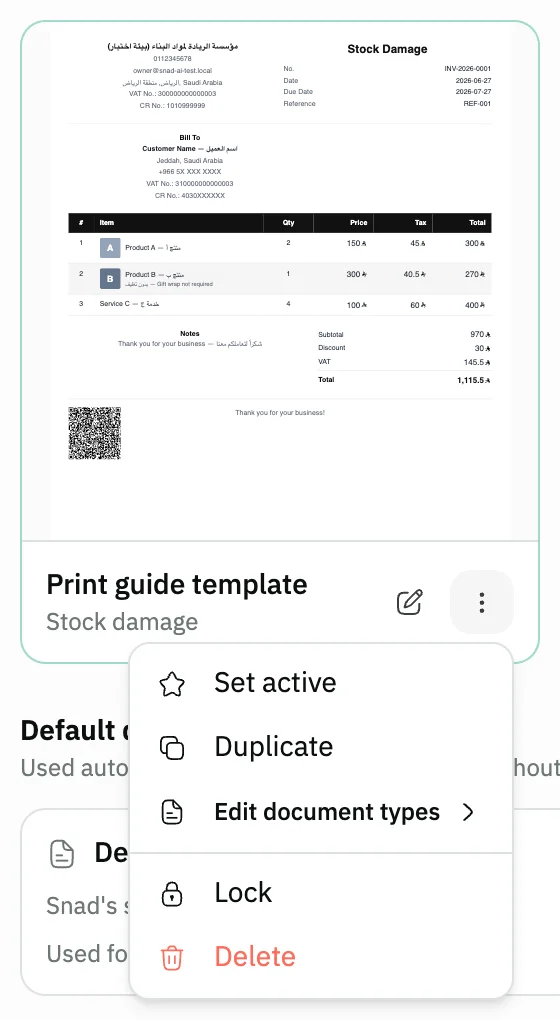
Image key - Set active
- The template options menu
Step 5: Check the default designs
The Active badge shows on the template. In Default document, Used for lists the documents that stay on the default design. To go back, press Revert to default. Details
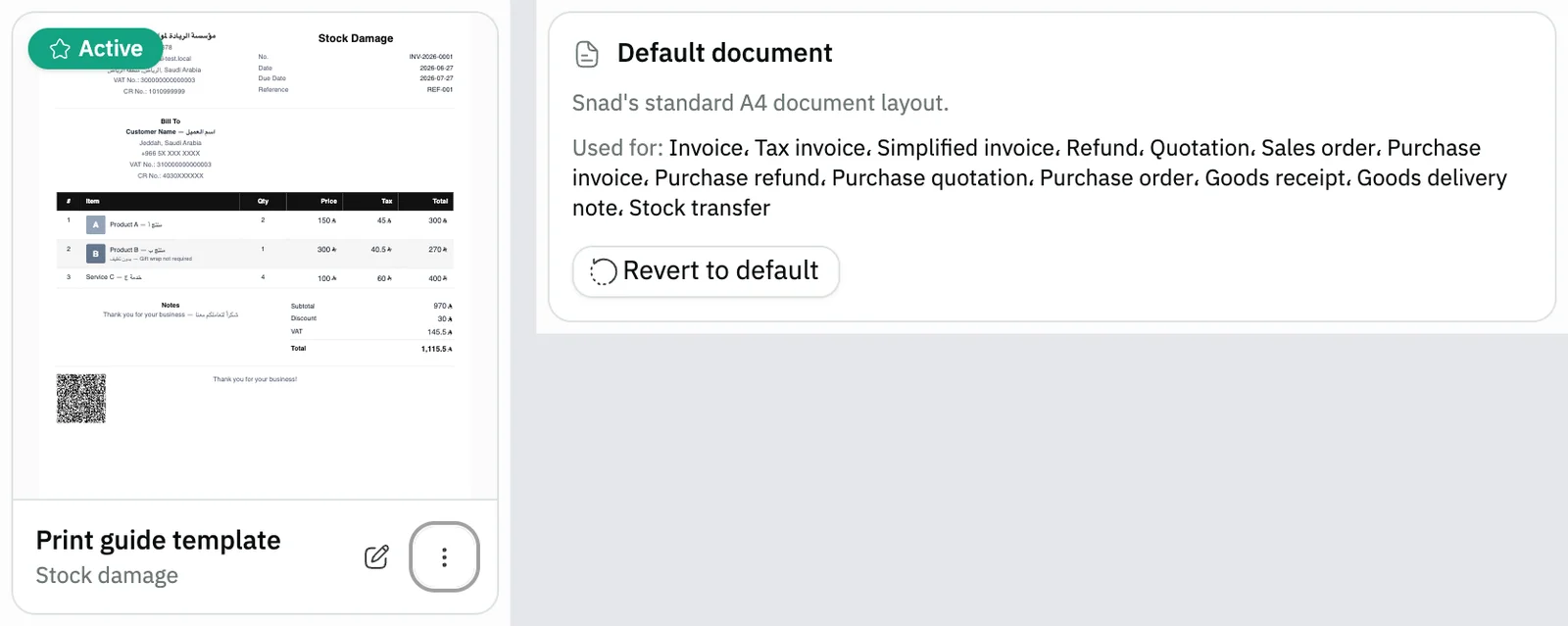
Image key - The Active badge
- Used for: documents on the default design
- The Revert to default button
Messages that block saving
If saving fails, one of these messages shows next to the field. The table gives the cause and the fix.
| Message | Cause | Fix |
|---|---|---|
| «Please enter a name» | You pressed Create with an empty name. | Type a template name in Name. |
| «A template with this name already exists» | Another template in your organization has this name, so the Create button is disabled. | Change the name to one you haven't used. |
| «Pick at least one document type» | No document type is selected for the template. | Select at least one type under Document types, or keep the last type ticked in Edit document types. |
Advanced details
Each section here explains one point from the steps in depth. Every section has a fixed link you can share.
Which type do I pick for my invoice?
A sales invoice prints as Tax invoice when it is a tax invoice, and as Simplified invoice when it is simplified. Select both types in the template if you want one look for both.
Each document type has at most one active template in the same scope. Activating a new template for a type takes that type away from the previously active one.
The Branches field in the template window is optional. Leave it on All branches for a general template, or pick one or more branches. Change it later from Edit branches on the card menu.
A branch template wins over the general one for that branch's documents, and other branches print with the general template. Purchase and stock documents have no branch, so they print with the general template.
A type with no active template prints with the default design. See how to create a sales invoice before you print it.
The point-of-sale thermal receipt
Choose Thermal (POS) under Start from to create a point-of-sale receipt template. It applies to receipts only and does not affect A4 documents.
Receipts with no active template use the Default receipt. The point-of-sale settings themselves are in set up the point of sale.
Duplicate, lock and delete a template
From the card menu: Duplicate makes an inactive copy named “template name (copy)”, and Edit document types changes the types by ticking or unticking them.
Lock stops the template from being edited or deleted and disables editing its types, and Unlock brings that back. Delete removes the template at once, without asking, and its types return to the default design.
Going back to the default design
Revert to default shows in Default document when you have an active template for A4 documents, and in Default receipt when you have one for receipts.
Pressing it deactivates your templates for that kind of printing and deletes none of them. The default designs themselves can't be edited.
Printing invoice drafts
In the Invoice drafts section, the Draft print options button controls what shows on the sheet and the receipt of a draft. A draft prints as a non-tax document: no invoice number and no tax QR code. Every change is saved at once, with no Save button.
In the window, pick the Document title: Invoice draft, Proforma invoice or Quotation, and turn Watermark with the document title on or off. Under dates, set Print date, and Valid until with a Validity period (days) from 1 to 365. The defaults are the Invoice draft title, every option on and 7 days.
Under Prices and totals, show or hide Product price, Line total and the Summary with its rows. Under Lines, show or hide Unit, Product image, Line notes and Draft notes. Reset to defaults returns all of it to the start.
The line “This is a draft, not a final invoice” always shows and cannot be hidden, and neither can the note that amounts are estimates, finalized when the invoice is issued.
To design the sheet yourself, press Create a template for drafts. The new template window opens with the Invoice draft document type already selected. Then design it and choose Set active like any template. The A4 sheet uses an active template for this type, and the receipt uses an active template with the Thermal (POS) design. With no active template, a draft prints with the basic design.
Can't see Print?
The screen shows only to users with the system settings permission. Ask your Snad account admin to grant it. For other settings see general settings.
Common questions
- How do I change how the printed invoice looks in Snad?
- Create a template under Print for Tax invoice or Simplified invoice, then choose Set active. Your invoices print with that template afterwards.
- Can I activate more than one template for the same type?
- No. Each document type has one active template, and activating another for that type replaces the previous one.
- What happens to my documents if I delete the active template?
- They print with the default design, and no other template is activated automatically. Deleting is immediate, with no confirmation.
- How do I edit the template's design itself?
- Click the template card to open the editor. The details are in how to design a print template, where you can show the customer and supplier custom fields.
- Can I print a thermal receipt with a different look?
- Yes. Create a template with the Thermal (POS) design and activate it. Otherwise receipts use the Default receipt.
- How do I change the title of a printed draft?
- Open Draft print options in the Invoice drafts section and pick the Document title: Invoice draft, Proforma invoice or Quotation. It is saved at once (details).