
How to add a salesman in Snad
To add a salesman in Snad ERP, open Sales, then Salesmen, and press New salesman. Enter the Name, set a Discount limit if you want one, and link a user account with Select a user. Then press Save to return to the salesmen list.
In this guide5
Steps
Step 1: Open the salesmen list
In the sidebar, choose Sales, then Salesmen, and press New salesman at the top of the page.
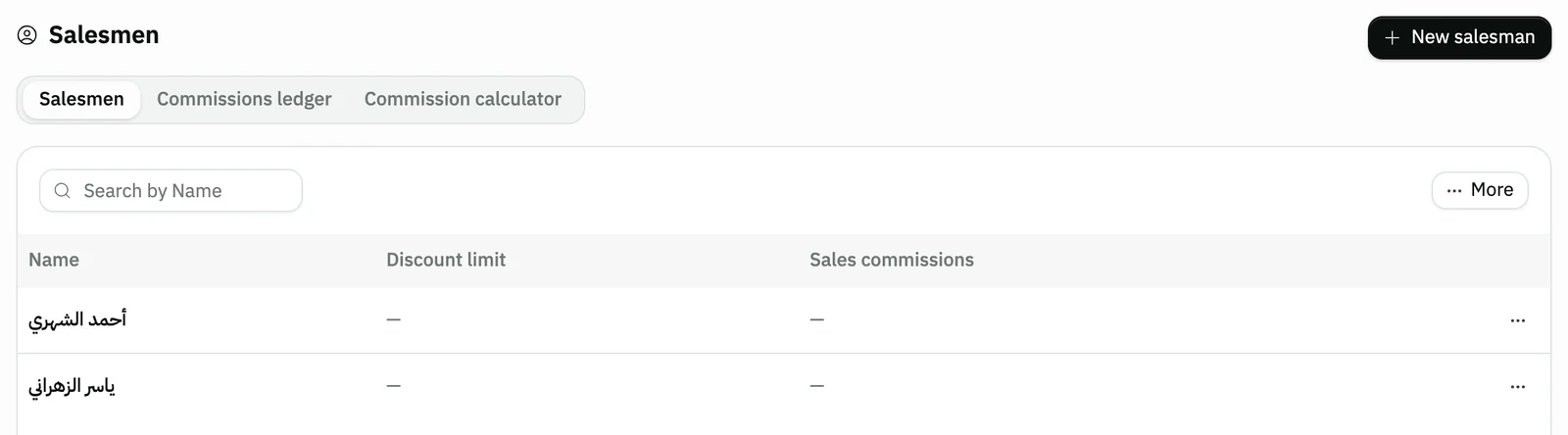
Image key - The New salesman button
- Page tabs: salesmen, commissions ledger, commission calculator
Step 2: Enter the name and discount limit
Enter the Name, which is required and needs at least 3 characters. In Discount limit, enter the highest discount this salesman may give on an invoice, from 0 to 100. Details

Image key - Name (required)
- Discount limit as a percentage
Step 3: Link a user account
Under User account, press Select a user and pick the salesman's login. The link is made after you save, and the step is optional (add a user). Details
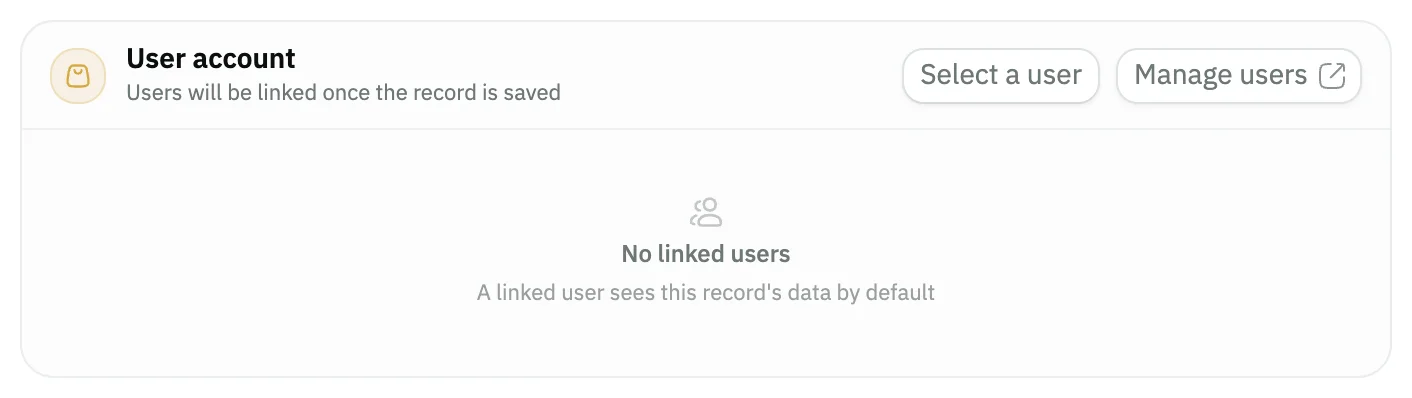
Image key - The Select a user button
- The Manage users link
Step 4: Add a commission rule if you want
For a commission on this salesman, turn on Add a commission rule for this salesman and fill in the rule. If you don't want one, leave the switch off. Details

Image key - The Add a commission rule for this salesman switch
Step 5: Save the salesman
Press Save at the top of the form. You return to the salesmen list, where the new salesman shows (sales goals). Back leaves the form without saving. Details

Image key - The Save button
- The Back button
Messages that block saving
If saving fails, one of these messages shows next to the field. The table gives the cause and the fix.
| Message | Cause | Fix |
|---|---|---|
| «Check the commission rule fields before saving.» | You turned the commission rule on and one of its fields is missing or invalid. | Fix the flagged fields in the Sales commissions section, or turn the switch off to save the salesman without a commission. |
Advanced details
Each section here explains one point from the steps in depth. Every section has a fixed link you can share.
What the discount limit does
The discount limit is the cap on the whole-invoice discount for this salesman. When you pick him on a sales invoice, the discount field won't accept a higher rate.
Left at 0, the salesman has no cap of his own and the invoice allows up to 100%. In the salesmen list the column shows a dash until you set a rate.
Linking the salesman to a user account
A salesman holds one login only. If you pick another user while editing a linked salesman, Snad asks before replacing the first one.
A linked user sees this record's data by default. When this user opens a new sales invoice, the salesman is picked automatically and the Salesman field is hidden from the form.
This section shows only to users allowed to manage users, and a user already linked to another salesman can't be picked. To create a new login, use the users page.
You also pick the salesman when you open a POS session.
A salesman's sales commission
The commission rule is optional. When on, it is saved with the salesman when you press Save, and if its fields are invalid the salesman is not created until you fix them.
The rule has seven collapsible sections. After saving, the commission shows in the Sales commissions column of the list, and the Commissions ledger tab holds its ledger.
Editing or deleting a salesman
Click the salesman's row in the list to open the form, edit, then press Save. The row menu also has edit and delete.
On an existing salesman, a user is linked or unlinked the moment you pick it, without waiting for Save, and a delete button shows below the form.
Edit and delete show only to users who have those permissions. Otherwise the list is read-only.
Common questions
- How do I add a salesman in Snad?
- Open Sales, then Salesmen, and press New salesman. Enter the Name and press Save. The discount limit, user account and commission are optional.
- Does a salesman have to be linked to a user?
- No. Only the name is required. Linking helps when the salesman sells with his own login, because he is picked automatically on his invoices.
- What does a salesman's discount limit mean?
- It is the highest rate the invoice discount field accepts when this salesman is picked. Left at 0, the cap is 100%.
- How do I set a salesman's commission?
- On the salesman form, turn on Add a commission rule for this salesman, fill in the rule and save. Its ledger is in the Commissions ledger tab.
- Why don't I see the New salesman button?
- The button shows only to users allowed to create salesmen. Ask your account admin to grant it in roles and permissions.