
How to count assets in Snad
To count assets in Snad, open Assets, then Asset count, and press New count. A sheet opens with every asset Pending. Type the code of each asset you find and press Scan to mark it Found, then press Complete count so the rest become Missing.
In this guide6
Steps
Step 1: Open the asset count
In the sidebar, choose Assets, then Asset count. The list shows every earlier count, with the New count button above it. Details
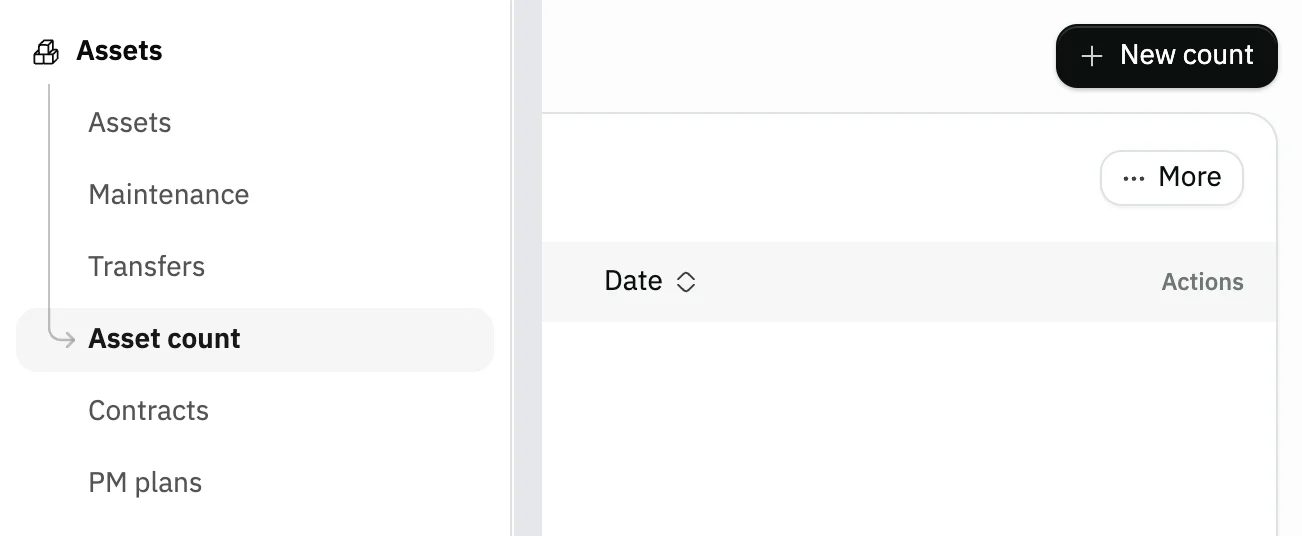
Image key - Asset count in the sidebar
- The New count button
Step 2: Start a new count
Press New count, and pick a Branch to count only its assets, or leave (—) to count them all. Then press New count in the dialog. Details
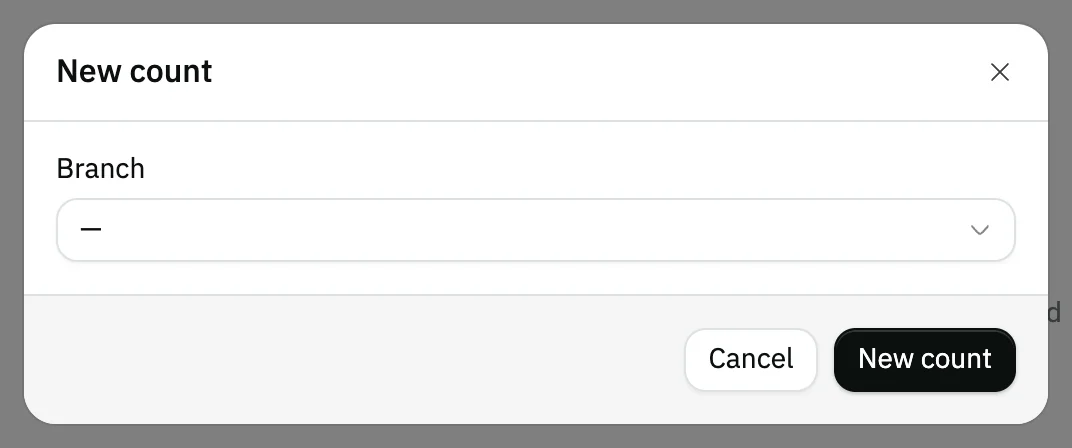
Image key - The Branch list
- The New count button
Step 3: Read the count sheet
The sheet opens with every asset in scope marked Pending. The counter above it shows how many were found out of the total.
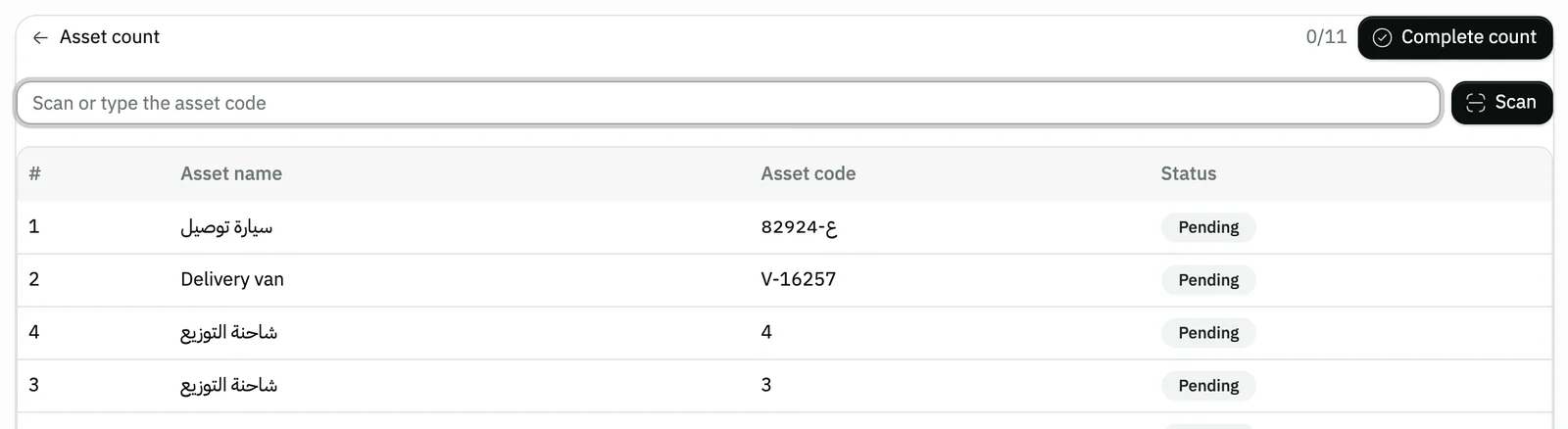
Image key - The found-assets counter
- The Pending status
Step 4: Scan each asset code
Type the asset's code or number in the Scan or type the asset code field, and press Scan. The asset turns Found; repeat for each asset you find. Details
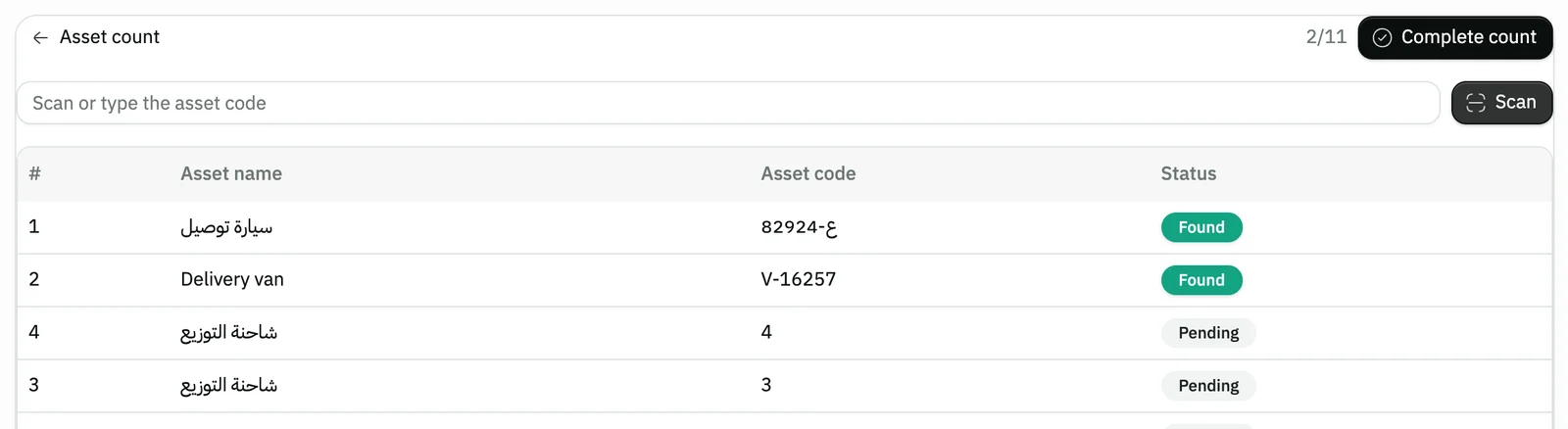
Image key - The Scan or type the asset code field
- The Scan button
- The Found status
Step 5: Complete the count
After scanning everything you found, press Complete count. Each asset you did not scan becomes Missing, and the count closes. Details
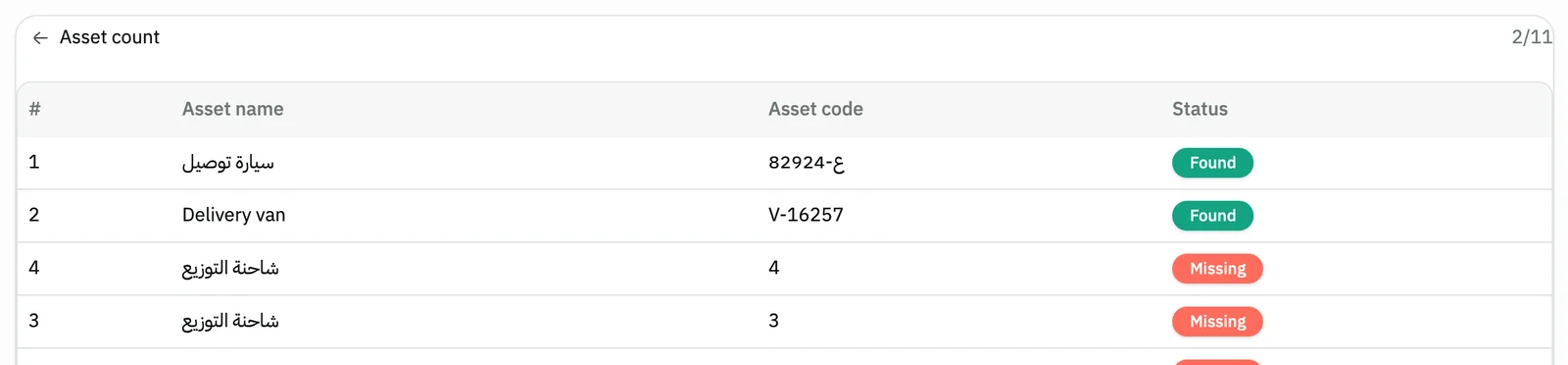
Image key - A Found asset
- A Missing asset
Step 6: Check the result in the list
Press the Asset count arrow to go back to the list. The count shows as Completed, and clicking its row reopens the sheet to review.

Image key - The Completed status
Messages that block saving
If saving fails, one of these messages shows next to the field. The table gives the cause and the fix.
| Message | Cause | Fix |
|---|---|---|
| «No asset matches this code.» | The code or number you typed does not belong to any asset of your business. | Check the code on the asset's page or its QR label, and scan again. |
| «This asset is not part of the count scope.» | The asset is not in this count: it was added after the count opened, belongs to another branch than the chosen one, or is disposed. | Complete this count and open a new one that includes it, or choose the right Branch. |
Advanced details
Each section here explains one point from the steps in depth. Every section has a fixed link you can share.
Which assets does a count include?
When the count opens, Snad takes the list of assets that are not disposed and records each one as Pending. If you pick a Branch, only that branch's assets are included.
An asset you add after the count opens does not join it. It is included in a later count; move assets between branches with asset transfer.
To have branches to choose from, add them first (add a branch).
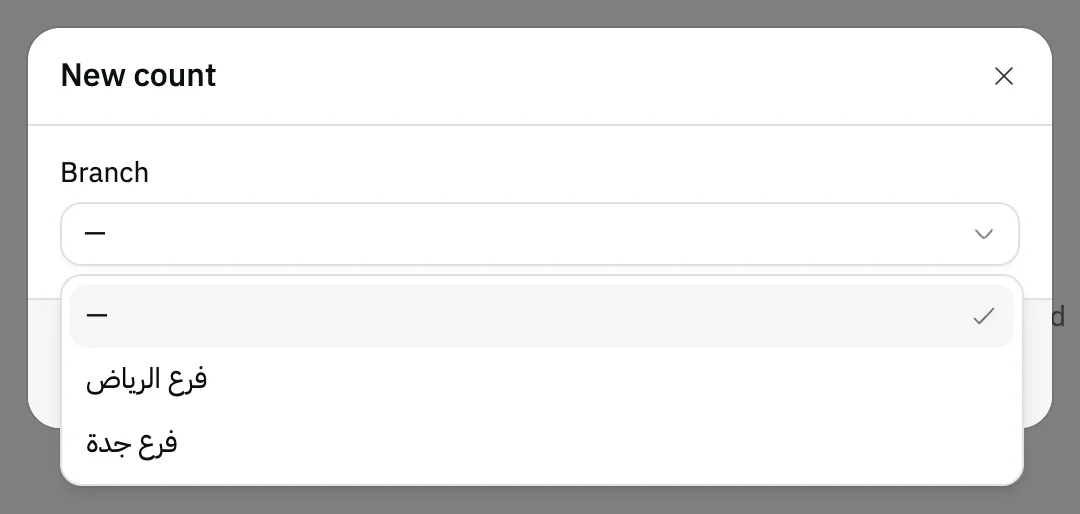
- Branch options
Where do I find an asset's code?
The field accepts the Asset code you entered when adding the asset, or the asset number shown in the # column of the count sheet.
The asset's page has a QR label tab. It holds a QR code of that same code, and a button to print it for sticking on the asset.
What does Missing mean, and what does completing change?
Missing means the asset was not scanned before the count was completed. It is a result of the count only.
Completing does not change the assets themselves, their status or their value: it closes the sheet and fixes its result. The scan field and the Complete count button then disappear, so the sheet is read-only.
Open or delete an earlier count
Click the count's row in the list, or Scan in the row's actions menu, to open its sheet. Completed counts stay available for review.
Users with delete permission get a Delete action in the row's actions menu, which asks for confirmation before it removes the count.
Common questions
- How do I count fixed assets in Snad?
- Open Assets, then Asset count, and press New count. Scan the code of each asset you find with Scan, then press Complete count.
- Can I count just one branch?
- Yes. Choose the Branch in the New count dialog and only its assets are included. Left on (—), the assets of all branches are included.
- Do I type the asset number or its code when scanning?
- Either. The field accepts the asset's code or its number. The code itself is on the QR label of the asset's page.
- Does completing a count change my assets' value?
- No. Completing closes the count sheet and turns unscanned assets into Missing; it does not change the assets or their entries.
- Why does the count reject an asset I scanned?
- Most often the asset was added after the count opened, or belongs to another branch. Complete the count and open a new one that includes it.