
How to manage customer reviews in Snad
To manage customer reviews in Snad, open Loyalty, then Reviews. Choose External link or Your own form, copy the card link or print its QR on the invoice, add your Google link or your questions, then turn on the automatic request after the visit.
In this guide7
Steps
Step 1: Open the Reviews page
In the sidebar, choose Loyalty, then Reviews. One page holds everything about your customer reviews, from choosing the method to reading the answers. Details
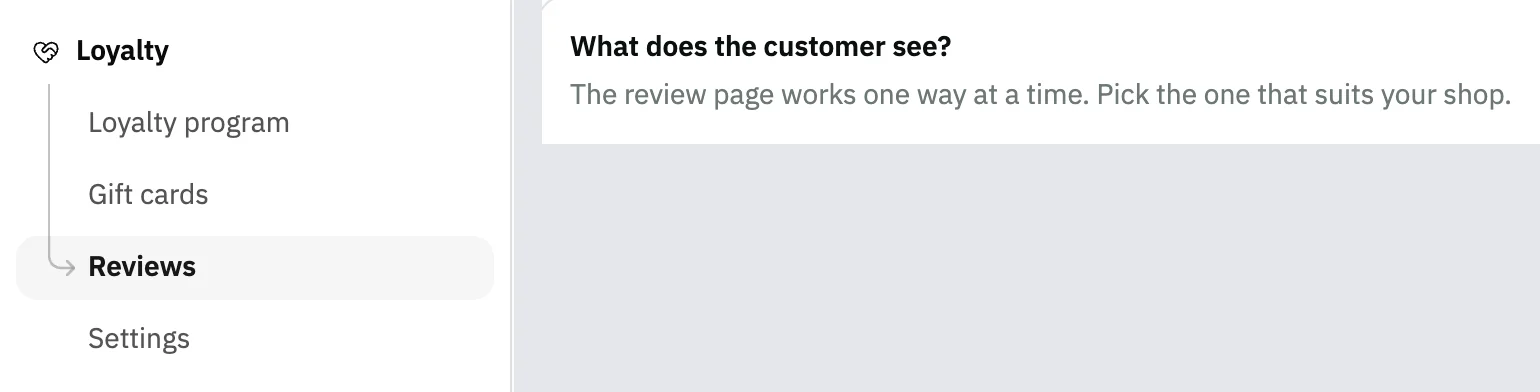
Image key - Reviews in the sidebar
- What does the customer see?
Step 2: Choose what the customer sees
Under What does the customer see?, choose External link to send the customer to your Google review, or Your own form for your own questions. The choice saves as soon as you press it. Details
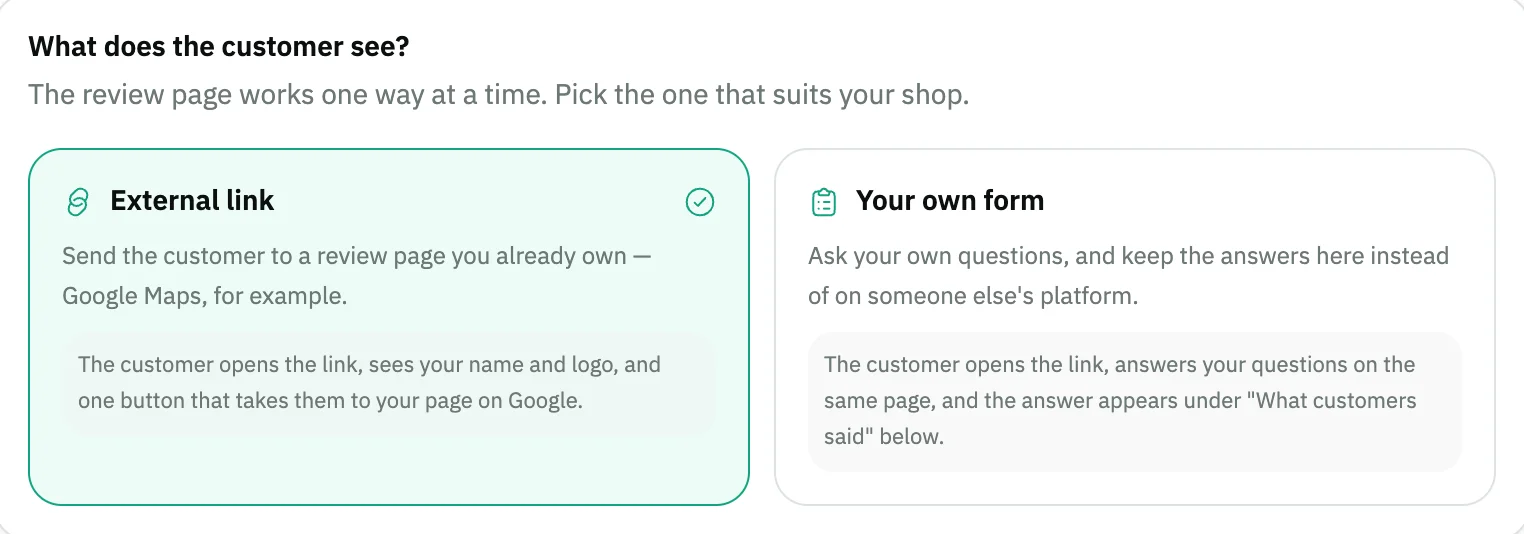
Image key - External link
- Your own form
Step 3: Copy the card link
In Your review card, press Copy to share the link, or Open to see what the customer sees. Turn on Print the review QR to show its code on invoices. Details
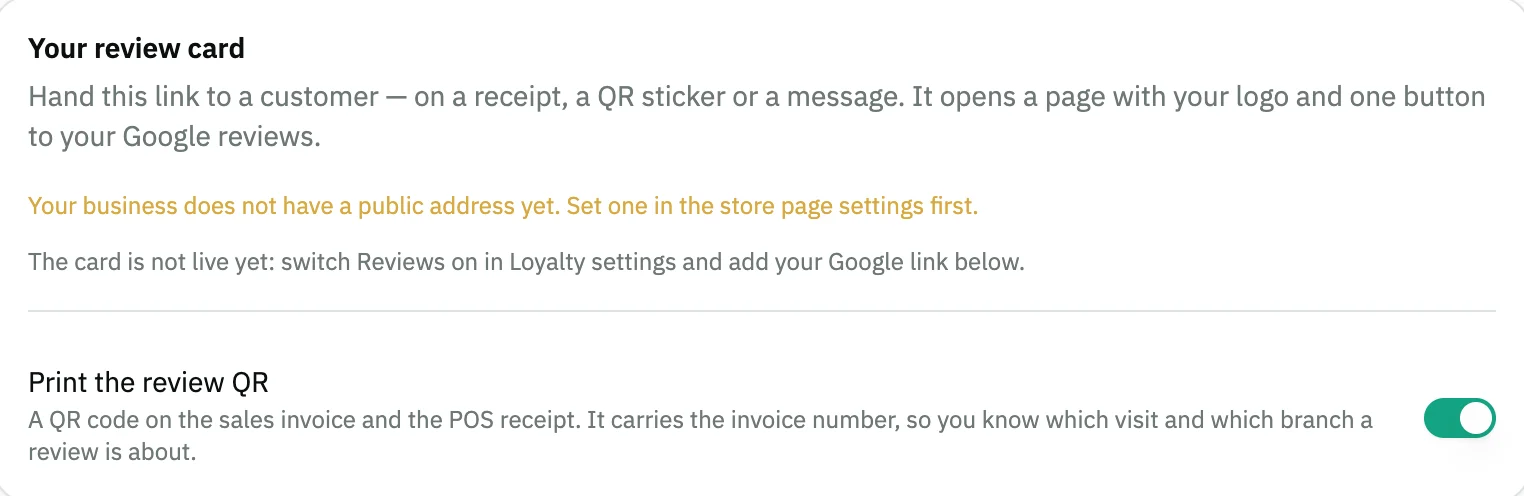
Image key - The notice that the card is not published
- Print the review QR
Step 4: Add your Google link and page text
In Review page text, paste your Google review link and edit the headline and subtitle in Arabic and English. Then press Save at the top of the page. Details
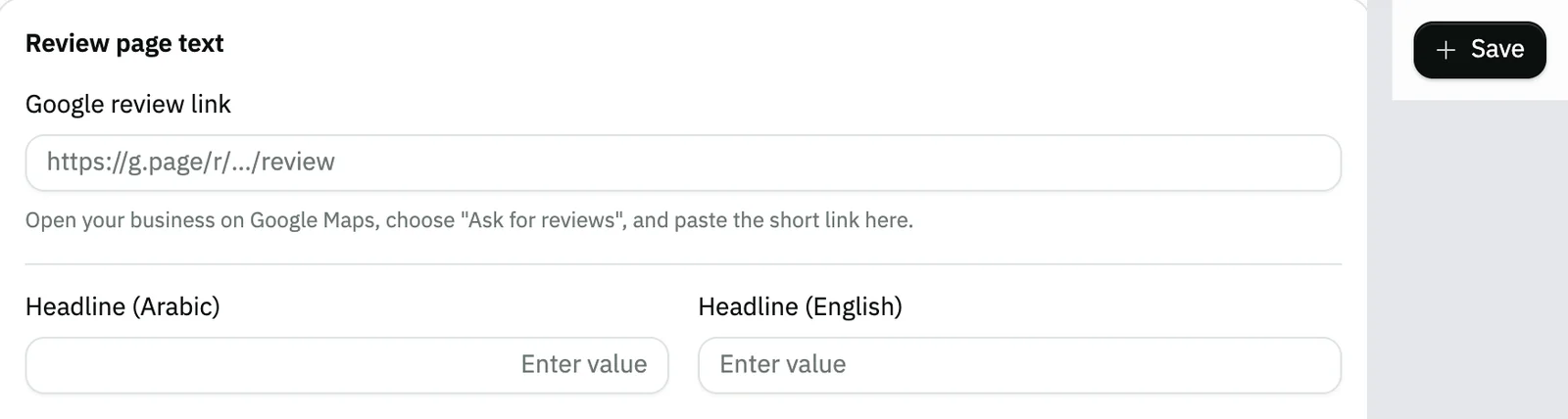
Image key - Google review link
- Headline (Arabic)
- The Save button
Step 5: Build the form questions
In Your own form mode, Form questions shows. Start from one of the Templates, such as Restaurant, or press New question and choose the Question type. Details
Step 6: Ask for reviews automatically
Switch on Ask for reviews automatically so the link reaches the customer after the visit. Set When is it sent? and choose the channel, WhatsApp or Email. Details

Image key - The Ask for reviews automatically switch
Step 7: Read what customers said
In form mode, What customers said appears at the bottom of the page. It shows the Average, the Recommendation score, the Distribution and a table with each customer's answers. Details
Messages that block saving
If saving fails, one of these messages shows next to the field. The table gives the cause and the fix.
| Message | Cause | Fix |
|---|---|---|
| «The card is not live yet: switch Reviews on in Loyalty settings and add your Google link below.» | External link mode does not work until the business has a public address, a saved Google link and Loyalty switched on. | Complete all three, then save the Google review link with Save. The QR code appears beside the link once the card is live. |
| «Add at least one question, or the link is an empty page.» | Your own form mode with no question shown on the form. | Add a ready template or New question, and make sure Shown on the form is on for it. |
| «Your business does not have a public address yet. Set one in the store page settings first.» | Your business has no public address, so there is no link for the review card. | Set the public address in the store page settings, then come back here. |
| «This question needs at least two choices.» | A pick-one or pick-several question has one choice or none. | Press Add a choice until the question has at least two. |
| «Write the question in Arabic.» | The Question (Arabic) field is empty. | Write the question in Arabic, then save. |
| «invalid_url» | The Google review link does not start with http:// or https://. The interface shows the message in exactly this wording. | Paste the full link as you copy it from Google Maps, including https://. |
Advanced details
Each section here explains one point from the steps in depth. Every section has a fixed link you can share.
Can't see the page, or can't edit?
If you lack permission to view reviews, a permission page shows instead of the reviews.
With view permission alone, the buttons and switches are disabled. Ask your account admin for the update permission (roles and permissions).
Reviews are part of the Loyalty app. If it is not in your plan, see manage your subscription and the loyalty program.
The difference between the two modes
The review page works one way at a time, so your customers' feedback stays in one place.
- External link: the customer opens the link, sees your name and logo, and one button that takes them to your page on Google.
- Your own form: the customer answers your questions on the same page, and the answer appears for you under What customers said.
- Switching the mode only changes which page the customer gets; it does not delete your questions or answers.
When is the card live?
The link looks like /rate/your-business-address. Your business needs a public address and the Loyalty app must be on.
After that, External link needs a saved Google link, and Your own form needs at least one visible question.
The QR code appears beside the link only once the card is live. It is the same code printed on the sales invoice and the POS receipt (create a sales invoice, sell at the POS).
The code carries the invoice number, so you know which visit and which branch each review is about.
The page text
Leave a language empty and the card falls back to the other one, so a customer never sees a blank card.
In form mode you also get Thank-you message (Arabic) and Thank-you message (English), what the customer sees after sending an answer. Leave them empty for a ready-made line.
The text fields need Save. The mode, the QR switch and the automatic request save as soon as you press them.
Questions and their types
Keep the questions short, since every extra question is another reason the customer closes the page. Templates add their questions to your current form and delete nothing.
In the question window you write Question (Arabic), Question (English) and a hint under it, and choose Required and Shown on the form. The question types are:
- Stars (1–5), Recommendation scale (0–10) and Yes / no.
- Pick one and Pick several, which take Choices, at least two.
- Short text, Long text, Name and Phone number.
- Once a question has been answered, its type is fixed, since changing it would reinterpret every past answer. Deleting it hides it instead, so past answers stay.
- The Move up and Move down arrows order the questions as the customer sees them.
The automatic request in detail
Instead of waiting for the customer to scan the receipt, the link reaches them a set time after the visit. The time counts from when the invoice is created; pick one or type your own minutes.
WhatsApp is tried first; email is sent only if that fails, so a visit gets one message. WhatsApp needs a mobile number on the customer record, and each message costs money.
A customer is asked at most once every 30 days, however often they buy. If both channels are off, nothing is sent.
If it says the reminder is on but the page is not ready, finish setting up the chosen mode first. See “When is the card live?” above.
Bookings have a similar review request after the appointment in booking settings.
Reading the results
What customers said shows in form mode only, since the external link collects nothing here. The Average covers every review, not just the ones listed on the page.
The Recommendation score is the share who recommend you minus the share who do not. The Distribution shows how many gave each rating.
The table lists the Customer, the Branch, the invoice a review came from, the Answers and the Date.
Common questions
- How do I give my customers my Google review link?
- Choose External link, paste your Google review link in Review page text and press Save. Then copy the card link with Copy and share it.
- How do I put a review QR code on the invoice?
- In Your review card, turn on Print the review QR. The code prints on the sales invoice and the POS receipt once the card is live.
- Can I use the external link and the form together?
- No. The review page works one way at a time, External link or Your own form, and you can switch between them at any time.
- Do I lose customers' answers if I change the questions?
- No. A question that has been answered is hidden rather than deleted, and its type stays fixed, so past answers stay as customers wrote them.
- Why isn't the customer getting the review request?
- Check that the review page is live, that the WhatsApp or Email channel is on, and that the customer record has a phone or email.