
How to record a supplier payment in Snad
To record a supplier payment in Snad ERP, open Purchases, then Payments, and press Create purchase payment. Pick Paid by account and the Supplier, and its credit invoices appear. Enter the Paid amount on each invoice or press Pay in full, choose the Payment method, then press Save.
In this guide6
Steps
Step 1: Open purchase payments
In the sidebar, choose Purchases, then Payments, and press Create purchase payment above the list.
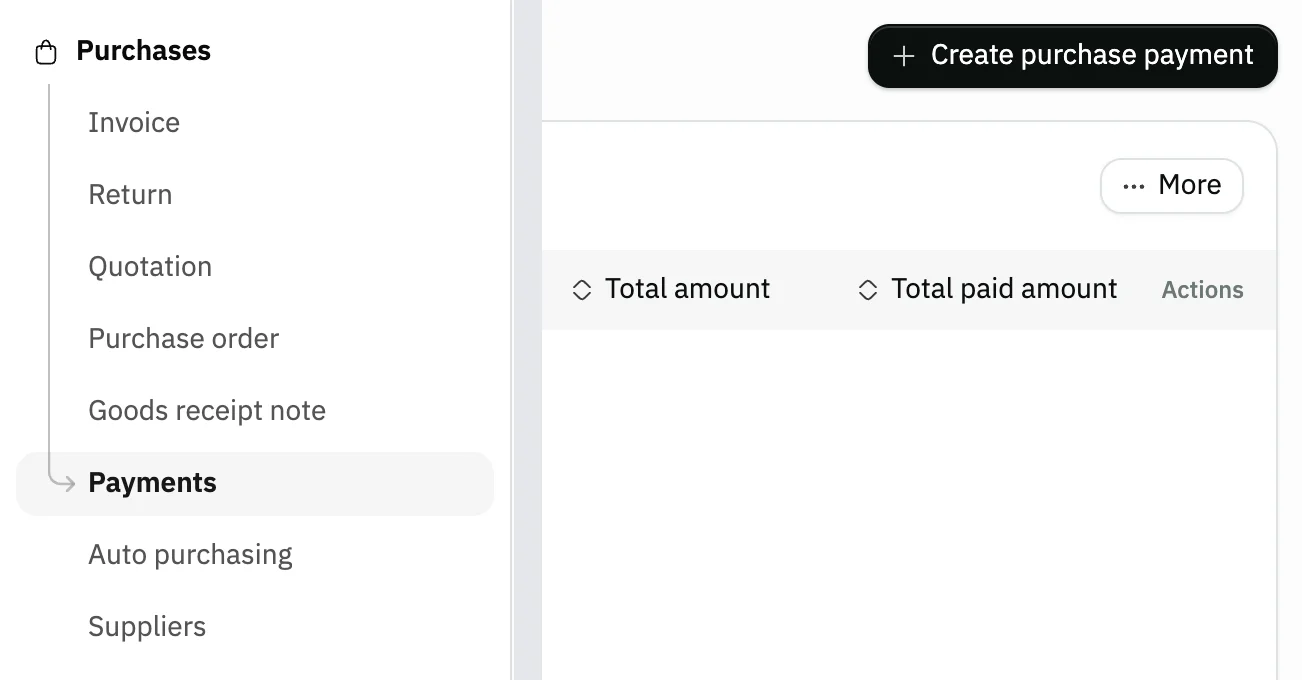
Image key - Payments in the sidebar
- The Create purchase payment button
Step 2: Choose the paying account
Click Paid by account and choose the account the money came out of, such as the cash box or the bank account (chart of accounts).
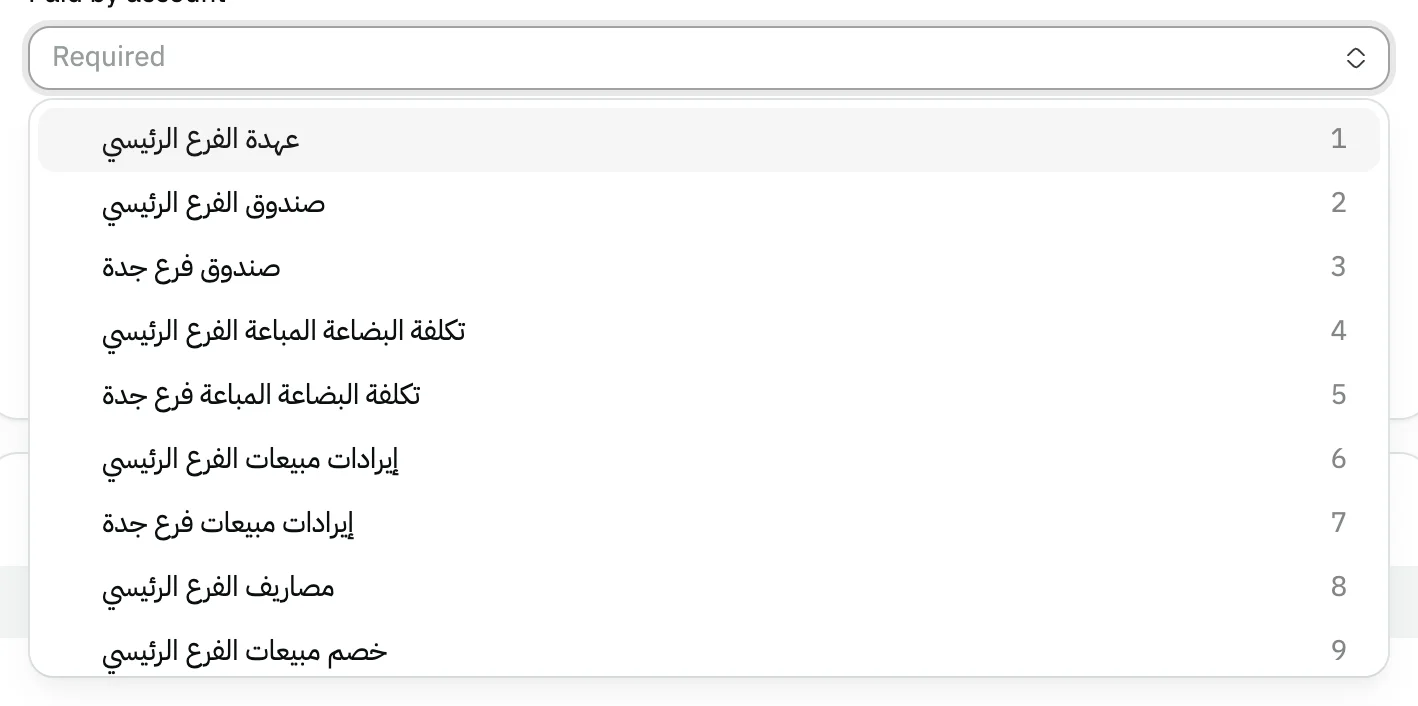
Image key - The Paid by account field
- An account from the list
Step 3: Pick the supplier
Click Supplier, type part of the name and pick it, or use Filter to search by phone or email. Its credit invoices appear under Due invoices. Details
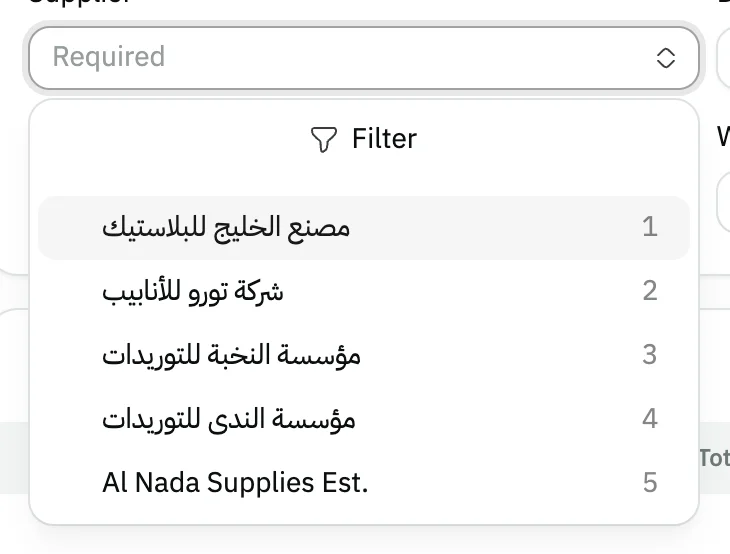
Image key - Search by supplier name
- The matching supplier
- The Filter button
Step 4: Set the amount on the invoice
In Paid amount, enter what you paid on each invoice, or press Pay in full to settle it all. The invoice's Remaining shows below. Details
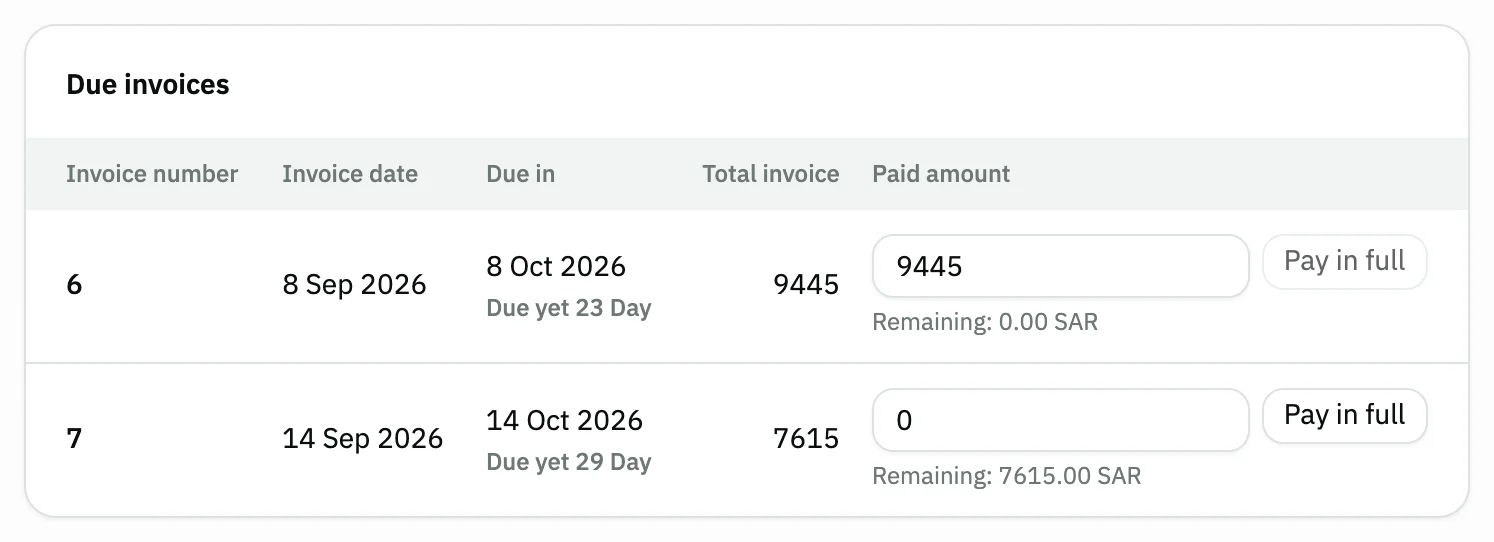
Image key - Invoice number
- Paid amount
- The Pay in full button
- The invoice Remaining
Step 5: Choose the payment method
Under Payment method, choose Cash, Card or Transfer, and check the Total paid amount in the Summary. Details
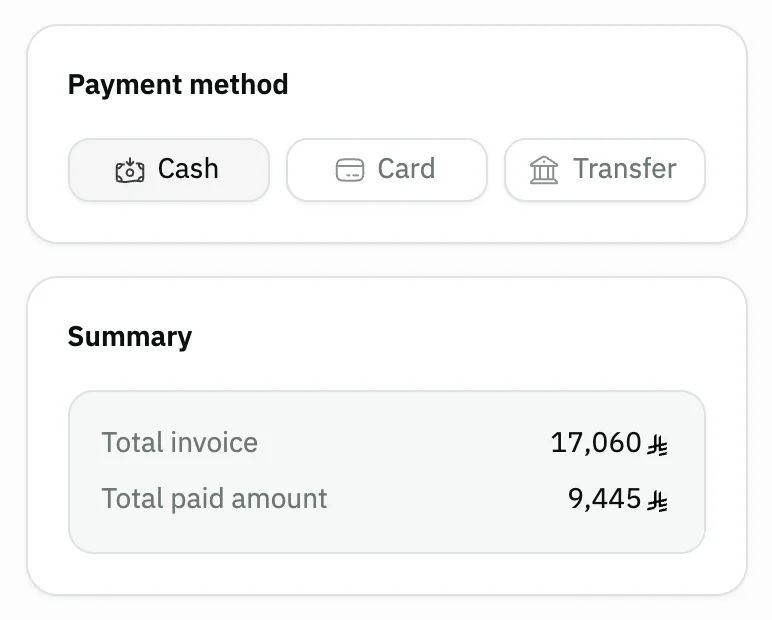
Image key - Payment methods
- Summary: total invoice and total paid amount
Step 6: Save the payment
Press Save at the top of the form. The saved payment page opens next, and the amount is recorded on the supplier's account and on the paying account. Details

Image key - The Save button
- The Back button
Messages that block saving
If saving fails, one of these messages shows next to the field. The table gives the cause and the fix.
| Message | Cause | Fix |
|---|
Advanced details
Each section here explains one point from the steps in depth. Every section has a fixed link you can share.
Due invoices and part payments
The Due invoices table lists only the chosen supplier's credit purchase invoices, with the number, date, Due in and each invoice's total.
Snad reads only the chosen supplier's invoices from the server when you pick the supplier, with a loading indicator in the table until they arrive. If loading fails, “Something went wrong. Try again” appears with Retry under it.
The Paid by account list shows the first 20 accounts as soon as it opens, and the rest load as you scroll. Searching it is optional and covers all the organization's accounts.
To pay part of an invoice, enter a smaller amount in Paid amount. The field won't accept more than the invoice total and cuts the value back to it.
If you see “Supplier has no credit invoices”, this supplier has no purchase invoice with On credit as the payment method. Create one first from a purchase invoice. You can also pay a supplier with a payment voucher.
Date, branch and warehouse
The Date field starts on today's date. Branch and Warehouse are optional and tie the payment to a branch or warehouse in reports.
Changing the date is locked unless your business turns on Allow date changes for purchases in the general settings.
Reference, notes and attachments
Open Notes and attachments to write the payment's Reference, such as a transfer or receipt number, and Notes. Both fields are optional.
You can attach up to 10 files to the payment. To analyse your purchases from suppliers, see purchase reports.
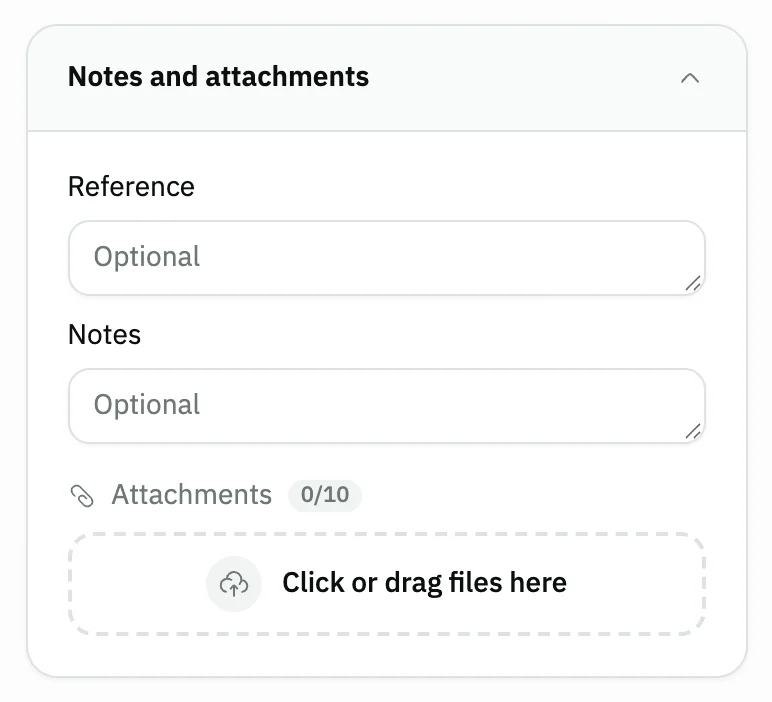
- Reference
- Notes
Start the payment from the supplier page
On the supplier's page, open Quick actions and choose Supplier payment. The payment form opens with the supplier already picked and its invoices showing.
To see what you owe the supplier before paying, open the supplier statement. Goods you returned lower what is owed (purchase return).
After saving: print and edit
After saving, the payment page opens. From there you can print, edit or delete it, if you hold the matching permission for each action.
No Create purchase payment button?
The button shows only to users allowed to create purchase payments. Ask your Snad account admin to grant it.
Common questions
- How do I pay a supplier invoice in Snad?
- Open Purchases, then Payments, and press Create purchase payment. Pick Paid by account and the Supplier, press Pay in full on the invoice and save.
- Can I pay only part of an invoice?
- Yes. Enter a smaller amount in Paid amount on the invoice row, and the Remaining shows below it. The field won't accept more than the invoice total.
- Why don't the supplier's invoices show on the payment?
- The table shows credit purchase invoices only. Check that the supplier's invoice has On credit as its payment method, and that you picked the right Supplier.
- How do I start a payment from the supplier page?
- On the supplier's page, open Quick actions and choose Supplier payment. The form opens with the supplier already picked.
- Why can't I change the payment date?
- The date is locked unless your business turns on Allow date changes for purchases in the general settings.