
How to add an account to the chart of accounts in Snad
To add an account in Snad ERP, open Accounting, then Accounts, and press Create main account. Enter the Name, choose the Account type and Budget group, add sub-account names if you like, then press Save.
In this guide6
Steps
Step 1: Open the accounts list
In the sidebar, choose Accounting, then Accounts. The main accounts show folded, with the Create main account button above them. Details
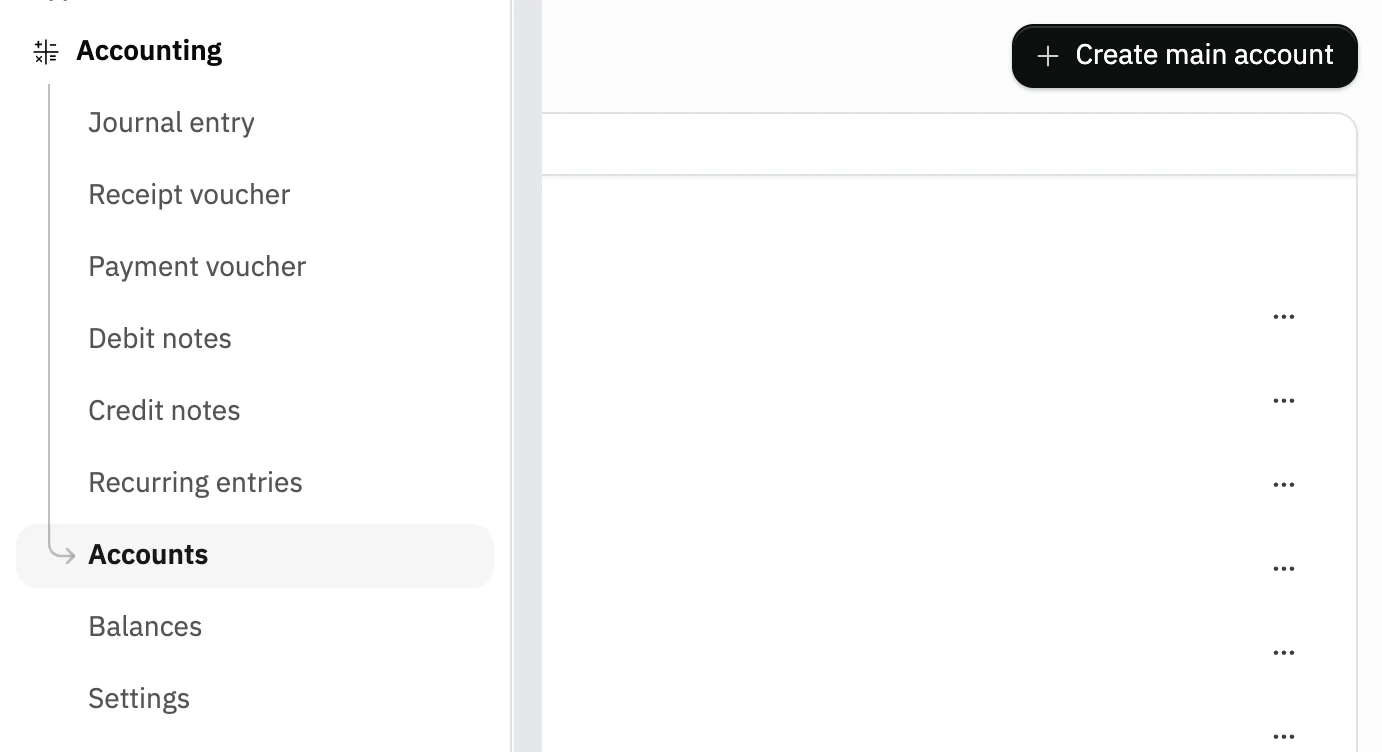
Image key - Accounts in the sidebar
- The Create main account button
Step 2: Name the account
Press Create main account and enter the Name, which is required, with at least 3 characters.
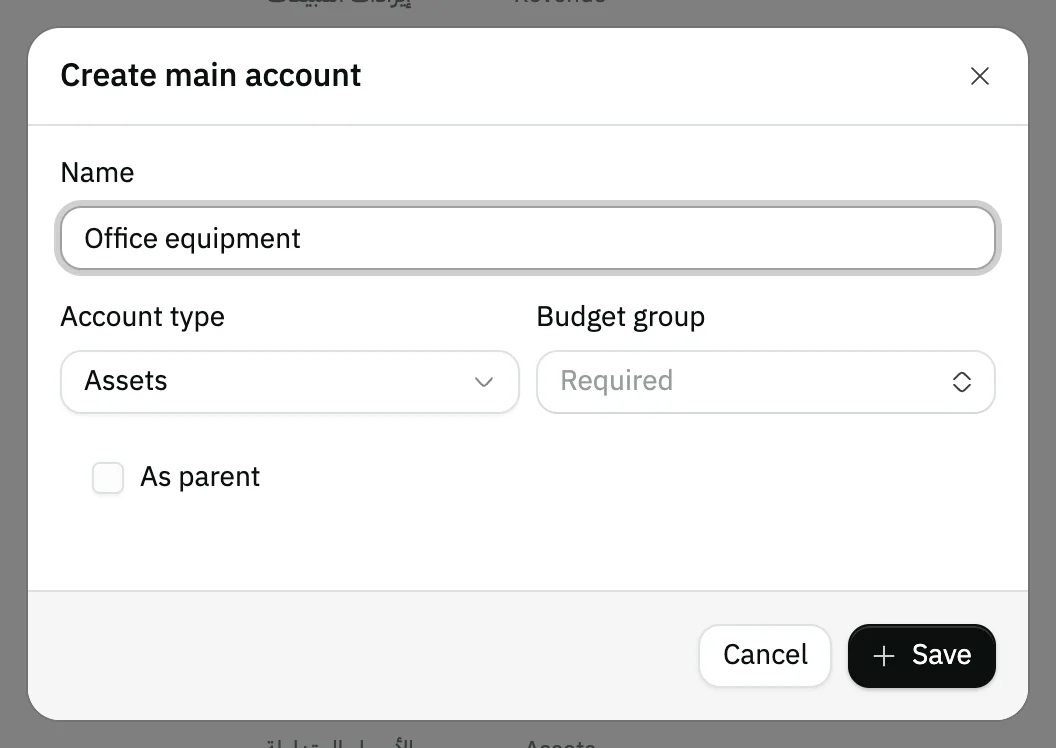
Image key - Name (required)
Step 3: Choose type and budget group
Choose the Account type from Assets, Capital, Liabilities, Revenue, Expenses or Stock, then the Budget group it belongs to. Details
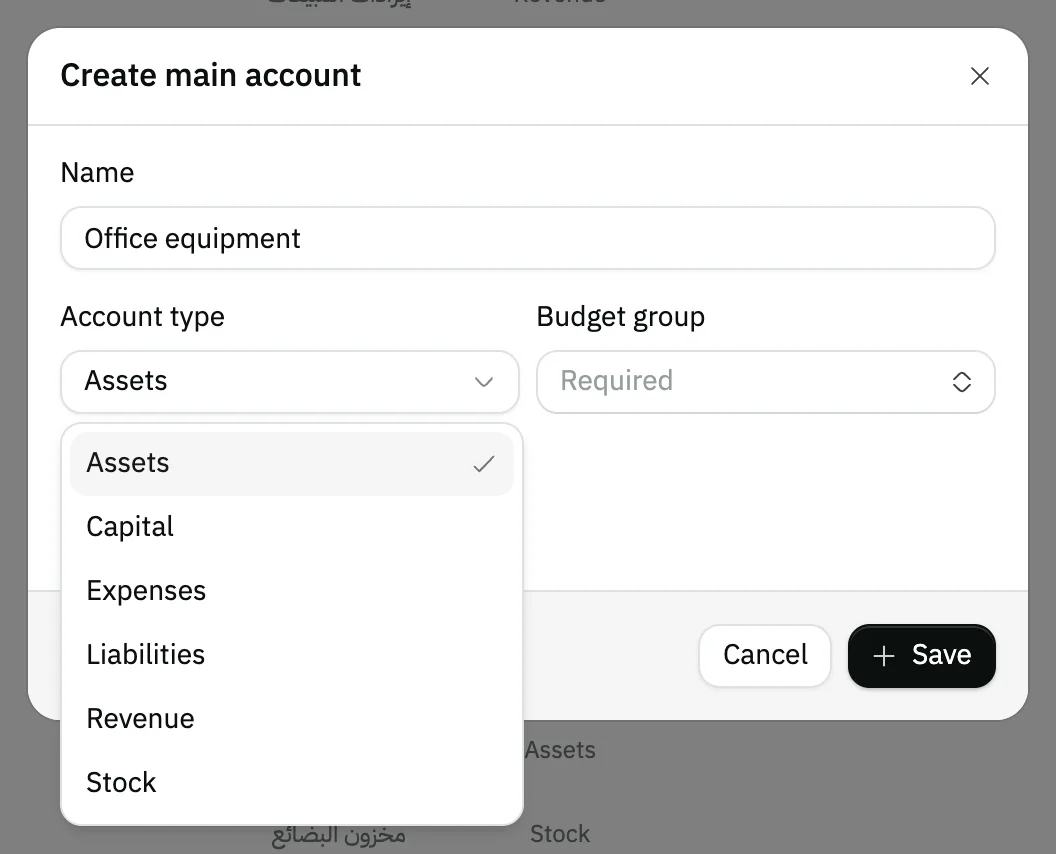
Image key - Account type
- Budget group
Step 4: Add the sub-accounts
To create sub-accounts with it, tick As parent, press Add for each one, and type its name. Details
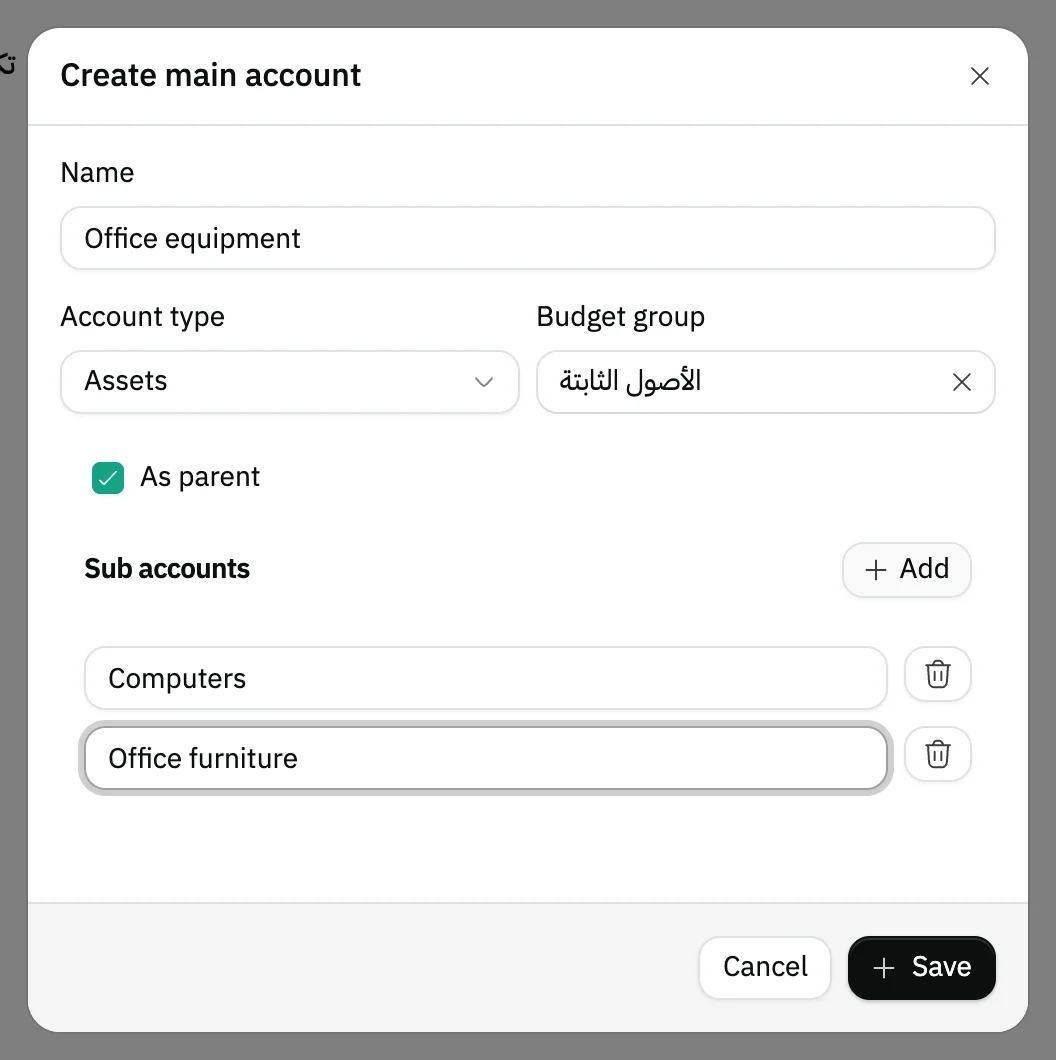
Image key - As parent
- The Add button
- A sub-account name
Step 5: Save the account
Press Save. The window closes, and the new account shows in the tree. Click its arrow to open its sub-accounts.

Image key - The new account with its type and budget group
- Its sub-accounts
Step 6: Add a sub-account to an existing account
Open the ⋯ menu on the account row and choose Create sub account. Add the names with Add, then press Save. Details
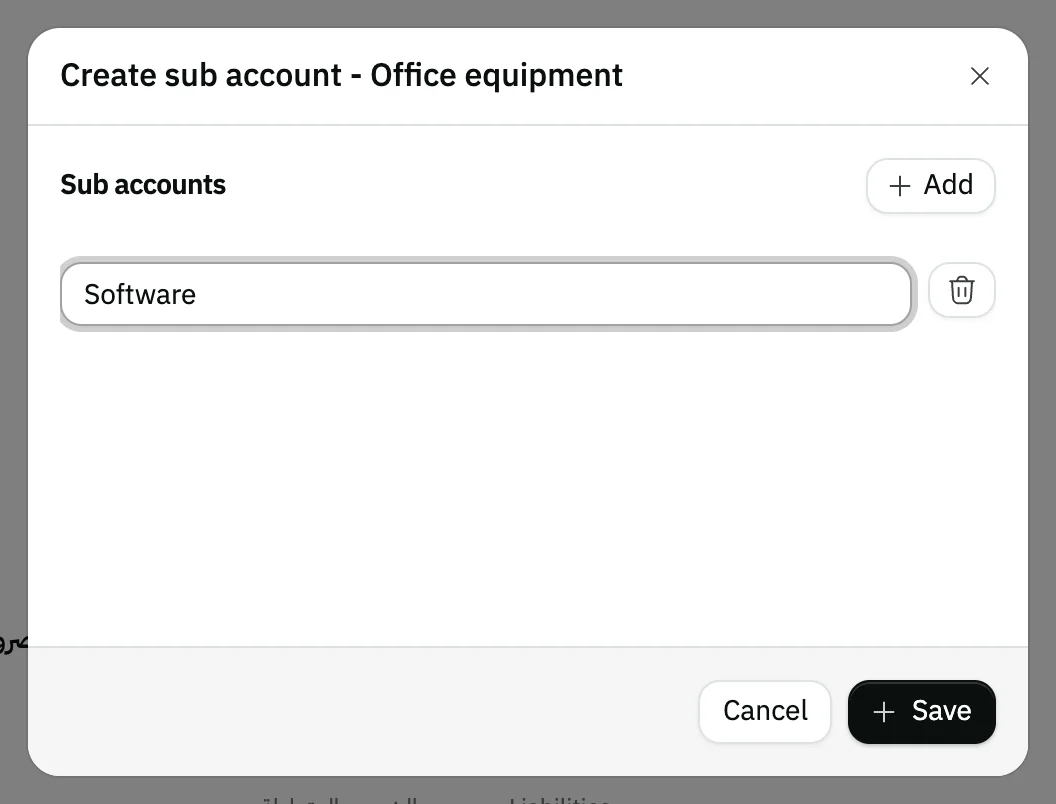
Image key - The sub-account name
- The Add button
Messages that block saving
If saving fails, one of these messages shows next to the field. The table gives the cause and the fix.
| Message | Cause | Fix |
|---|
Advanced details
Each section here explains one point from the steps in depth. Every section has a fixed link you can share.
Account type and budget group
Reports read the account by its type and budget group, so choose with care. You can change both later from the update window.
Sub-accounts inherit the parent's type and budget group, so you aren't asked for them when adding.
The reports that read these accounts: the trial balance, the income statement and the balance sheet.
A main account is a group
A main account created from this screen is always a group that holds sub-accounts. The account pickers in entries and vouchers list the sub-accounts, not the groups.
So add at least one sub-account under each main account, then use it in a journal entry or a receipt voucher.
You enter starting balances next: opening balances.
Edit and move an account
Click an account row that has nothing under it, or choose Update from the ⋯ menu, to open a window where you edit the Name, Account type, Budget group and Parent account.
Choosing a new Parent account moves the account and its sub-accounts under it, and they take its type and budget group. If the type differs from the new parent's, Snad shows a warning before you save.
The six accounts the organization settings point at, and their direct sub-accounts, stay in place, so no ⋯ menu shows on their rows.
You change an account's position by dragging: press and hold the row, then drag it, or drag it sideways to change its level. This needs permission to edit accounts, and an empty search box.
Customer and supplier accounts
Each customer and supplier has an account in the tree. Renaming the account here renames the customer or supplier too, and no sub-account can be added under it.
Create these from the party's own page: create a customer and create a supplier.
Deleting an account
Choose Delete from the ⋯ menu on the row, then confirm. Deleting a main account deletes all its sub-accounts with it.
An account with recorded transactions (entries, vouchers, invoices or a balance) can't be deleted, nor one linked to an employee, warehouse, branch or the organization settings. A message names the account that blocks it.
Deleting a customer's or supplier's account also deletes that customer or supplier, and it is refused if they have documents or a balance.
If an account in the tree is tied to system settings, see accounting settings.
Searching the tree
The tree opens folded, so click an account's arrow to open or fold its sub-accounts. If an account has many branches, the first batch shows, and the rest load as you scroll down or with the Load more button.
The Search field above the tree searches the names of all the organization's accounts, not only the ones you opened, and shows each match under its parents, opened. If loading fails, a Couldn't load the list line appears with Retry beside it.
No Create main account button?
The button shows only to users allowed to create accounts. Ask your Snad account admin to grant it: roles and permissions.
Common questions
- How do I add a new account to the chart of accounts?
- Open Accounting, then Accounts, and press Create main account. Enter the Name, choose the Account type and Budget group, then press Save.
- How do I create a sub-account under an existing account?
- Open the ⋯ menu on the account row, choose Create sub account, type the name after Add, then press Save.
- Can I add several sub-accounts at once?
- Yes. Press Add for each name in the same window, then Save once.
- Why doesn't my main account show when I record an entry?
- Because a main account is a group, and the account pickers list sub-accounts. Add a sub-account under it and use that.
- Can I change an account's type after creating it?
- Yes, from Update in the ⋯ menu. Its sub-accounts take the same type and budget group.