
How to view the balance sheet in Snad
To view the balance sheet in Snad ERP, open Reports and press Balance sheet in the Accounting card. Pick the As of date, add a Compare to date if you like, then press Search. Confirm it shows Balanced, then print it.
In this guide7
Steps
Step 1: Open the report
In the sidebar, choose Reports, then press Balance sheet inside the Accounting card.
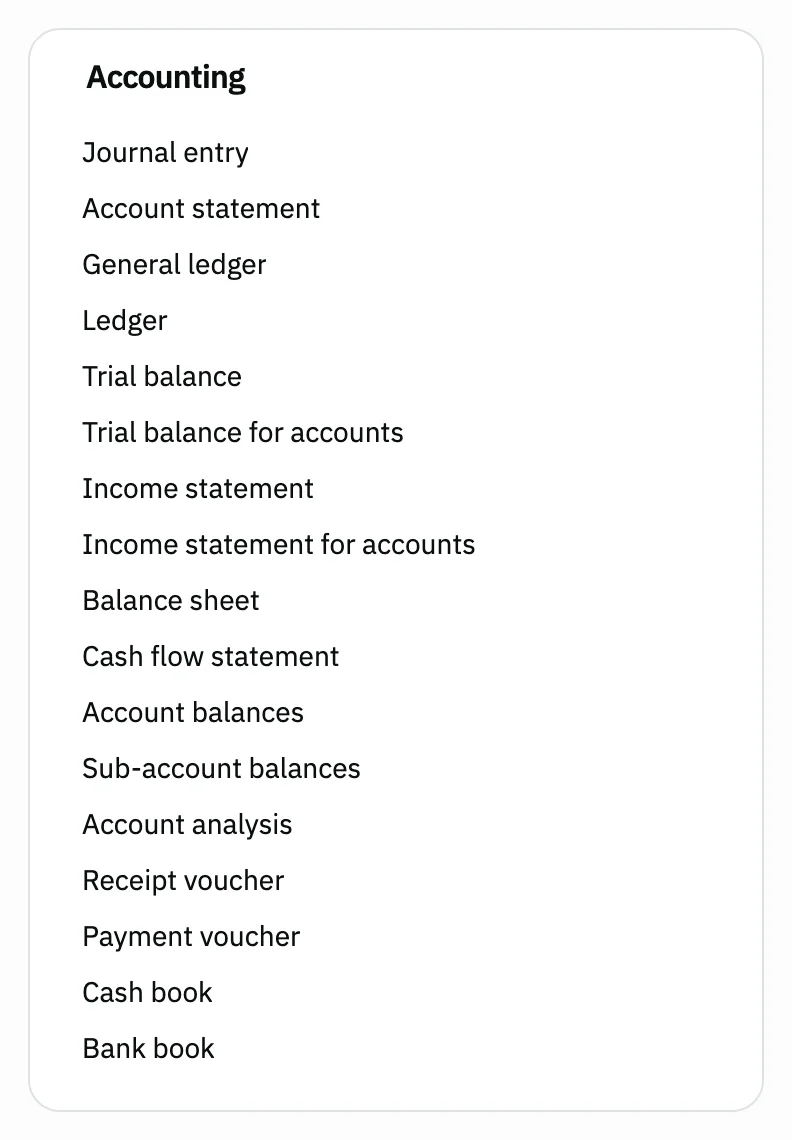
Image key - The Accounting card
- The Balance sheet link
Step 2: Read the statement
The table shows Account and Amount, grouped into assets, then liabilities, then equity. The rows are split into pages below the table. Details
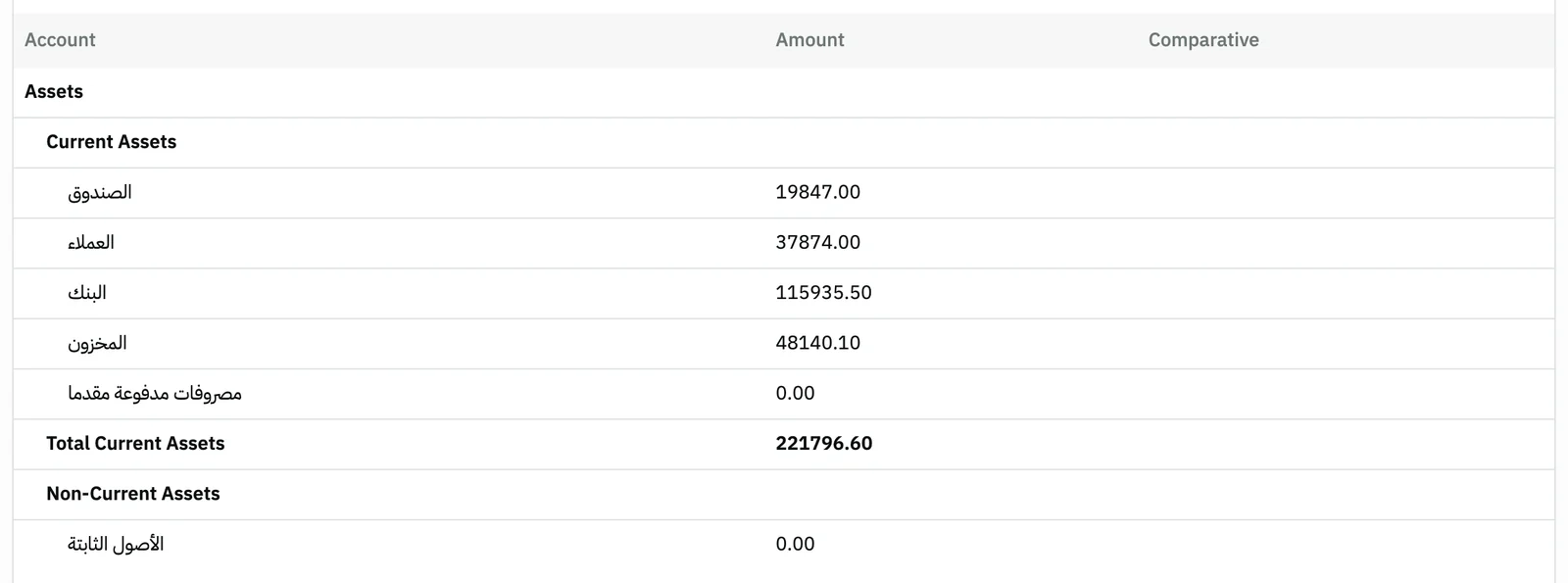
Image key - The section heading: Assets
- An account with its balance under Amount
- The Amount column
Step 3: Pick the date
Open As of and pick the day you want a picture of your balances for. A date after today is not accepted. Details
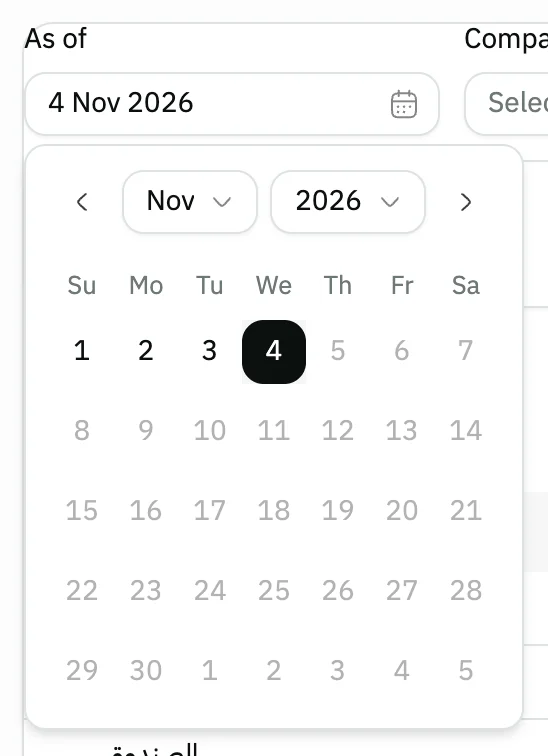
Image key - The As of field
- The day-picking calendar
Step 4: Add a comparison date
Optional: open Compare to and pick a day earlier than the statement date, to read the balances of that day beside today's.
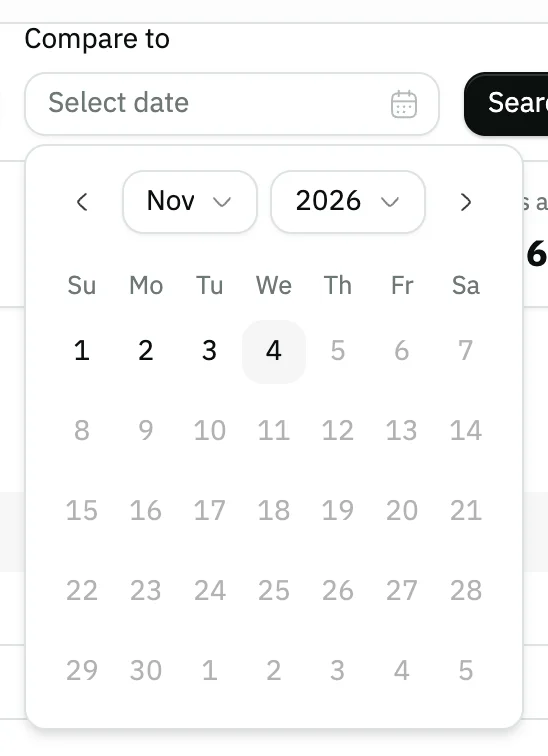
Image key - The Compare to field
- The day-picking calendar
Step 5: Press Search and compare
Press Search and the statement refreshes for both dates. A Comparative column shows the earlier date's balances next to Amount.
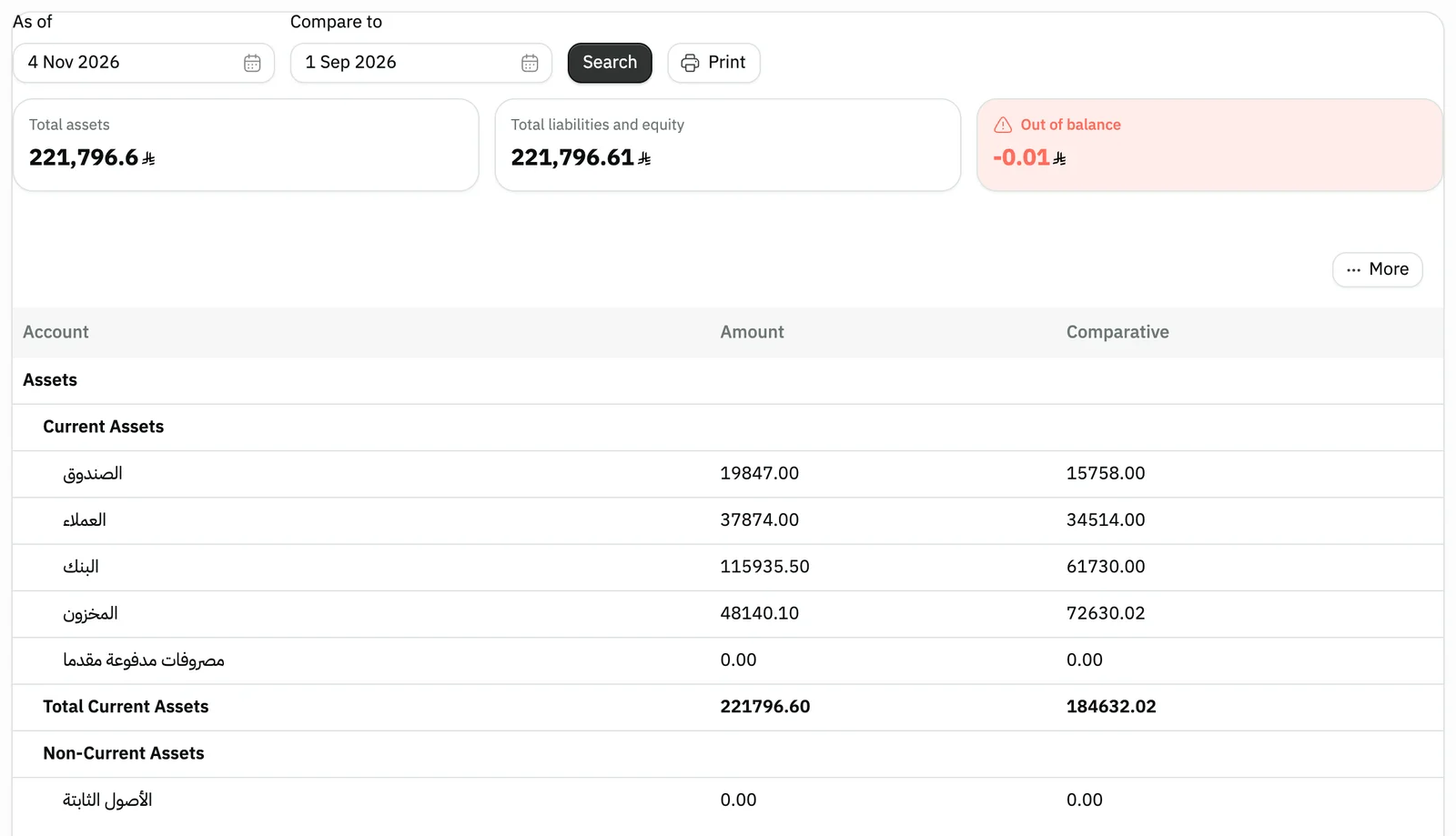
Image key - The chosen Compare to date
- The Search button
- The Comparative column
Step 6: Check that it balances
Compare Total assets with Total liabilities and equity. Balanced shows in green with a difference of zero; otherwise it shows Out of balance. Details

Image key - The Total assets card
- The Total liabilities and equity card
- The balance status card with the difference between the totals
Step 7: Print or export it
Press Print to print the statement with its dates. To export, open More and choose Export as Excel or CSV.

Image key - The Print button
Messages that block saving
If saving fails, one of these messages shows next to the field. The table gives the cause and the fix.
| Message | Cause | Fix |
|---|
Advanced details
Each section here explains one point from the steps in depth. Every section has a fixed link you can share.
How the statement is built
Three blocks: assets, liabilities and equity. Assets and liabilities split into current and non-current, and each section has its total.
Revenue and expenses get no rows here: Snad turns them into retained earnings inside equity.
The balances come from your accounts in the chart of accounts. This statement has no search box on purpose, so its lines are never shown incomplete.
The default date and its limits
If you pick no date, the statement is as of the end of the current financial period, or as of today if it has not ended yet.
As of does not accept a day after today, and Compare to does not accept a day equal to it or later.
The statement has one date, not a range: it is a picture of the balances on a given day. For movement between two dates, see the income statement.
If it shows “Out of balance”
In sound accounting, total assets equal total liabilities plus equity, so the difference is zero. A non-zero difference means an entry recorded on one side only.
Trace the suspect account in its account statement, and review the trial balance and accounting settings.
Common questions
- Where is the balance sheet in Snad?
- Under Reports, in the Accounting card, named Balance sheet.
- How do I compare the balance sheet with an earlier date?
- Pick a Compare to day earlier than the As of day and press Search. The Comparative column appears.
- Why can't I pick a future date?
- The statement is a picture of balances already recorded, so As of takes no day after today. Today's balances are never printed under tomorrow's date.
- What does “Out of balance” mean?
- Total assets do not equal total liabilities and equity, so your books hold an entry on one side only. Check the account statement of the account involved.
- Can I search for an account inside the statement?
- No, this statement has no search or filter. For one account's balance and movements, open the account statement.