
How to import products from an Excel file in Snad
To import products in Snad ERP, open Products, press More, then Import. Press Download Excel template, fill it in, and upload it as an xlsx file. Review the products in the preview, then press Save and keep the page open until the import finishes.
In this guide7
Steps
Step 1: Open the import screen
On the Products list, press More above the table, then choose Import. The Import data page opens.
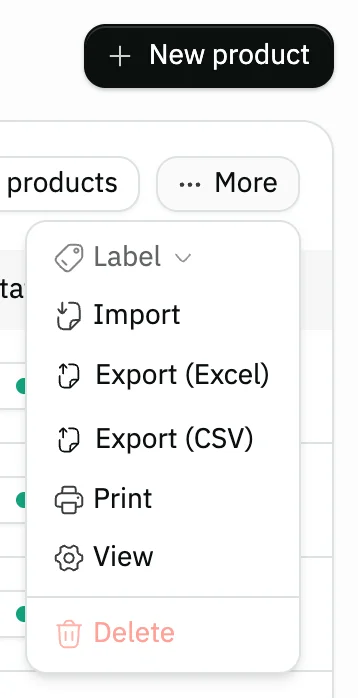
Image key - The More button
- Import
Step 2: Download the Excel template
Press Download Excel template at the bottom of the page. A file downloads with a column for each detail and a column named after each of your warehouses. Details
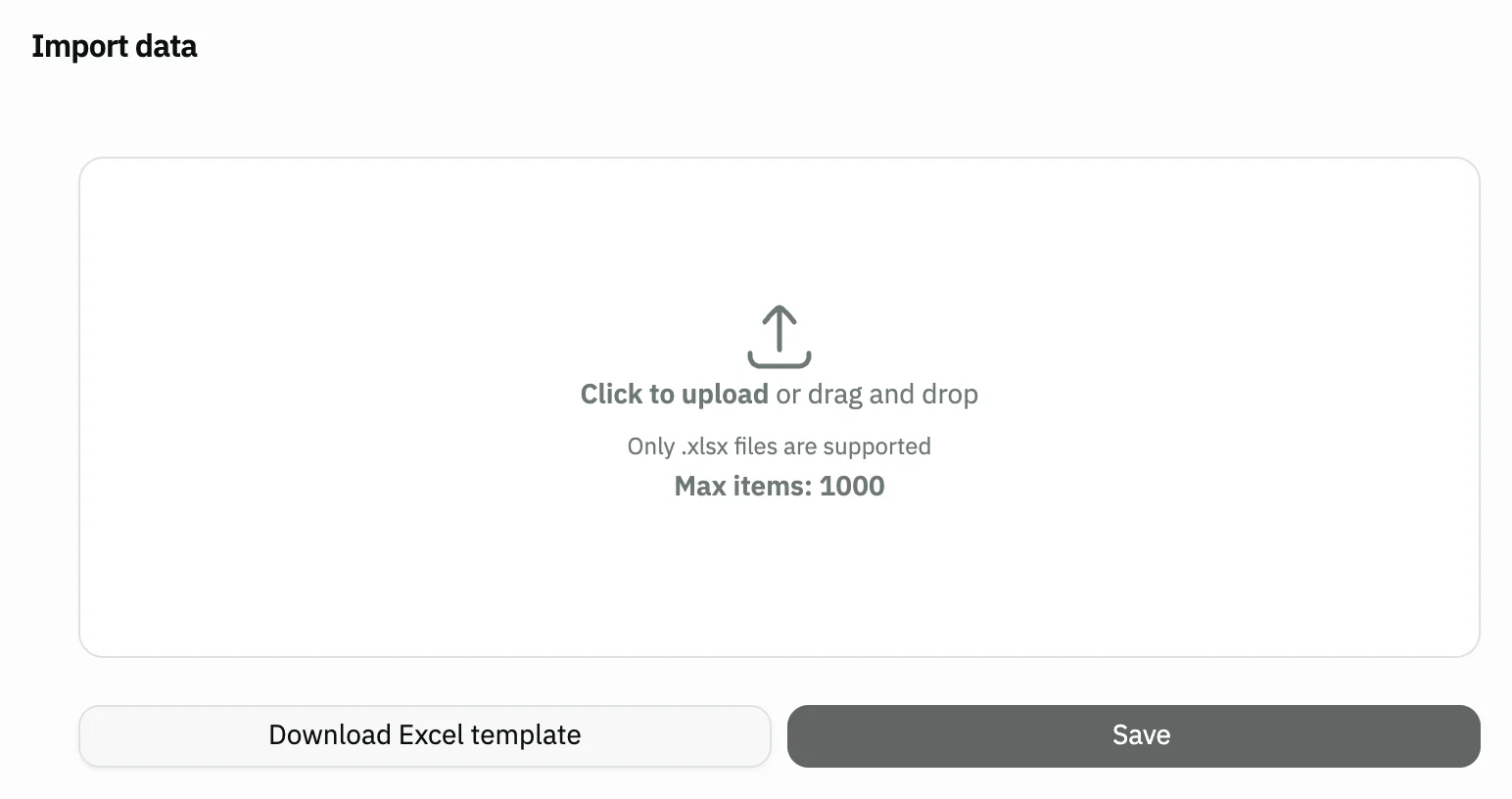
Image key - The file drop area
- The Download Excel template button
- The Save button, disabled before a file is uploaded
Step 3: Fill the template
Write each product on its own row, and replace the first example row. The name column is required, with at least three characters; the rest is optional. Details
Step 4: Enter stock under the warehouse name
Enter each product's quantity under the column named after its warehouse. The column title must match the warehouse name exactly.
Step 5: Upload the file and review
Click the drop area or drag the file onto it. The products appear as rows; open any row to edit its Price, Cost, Category (categories), Brand and Supplier. Details
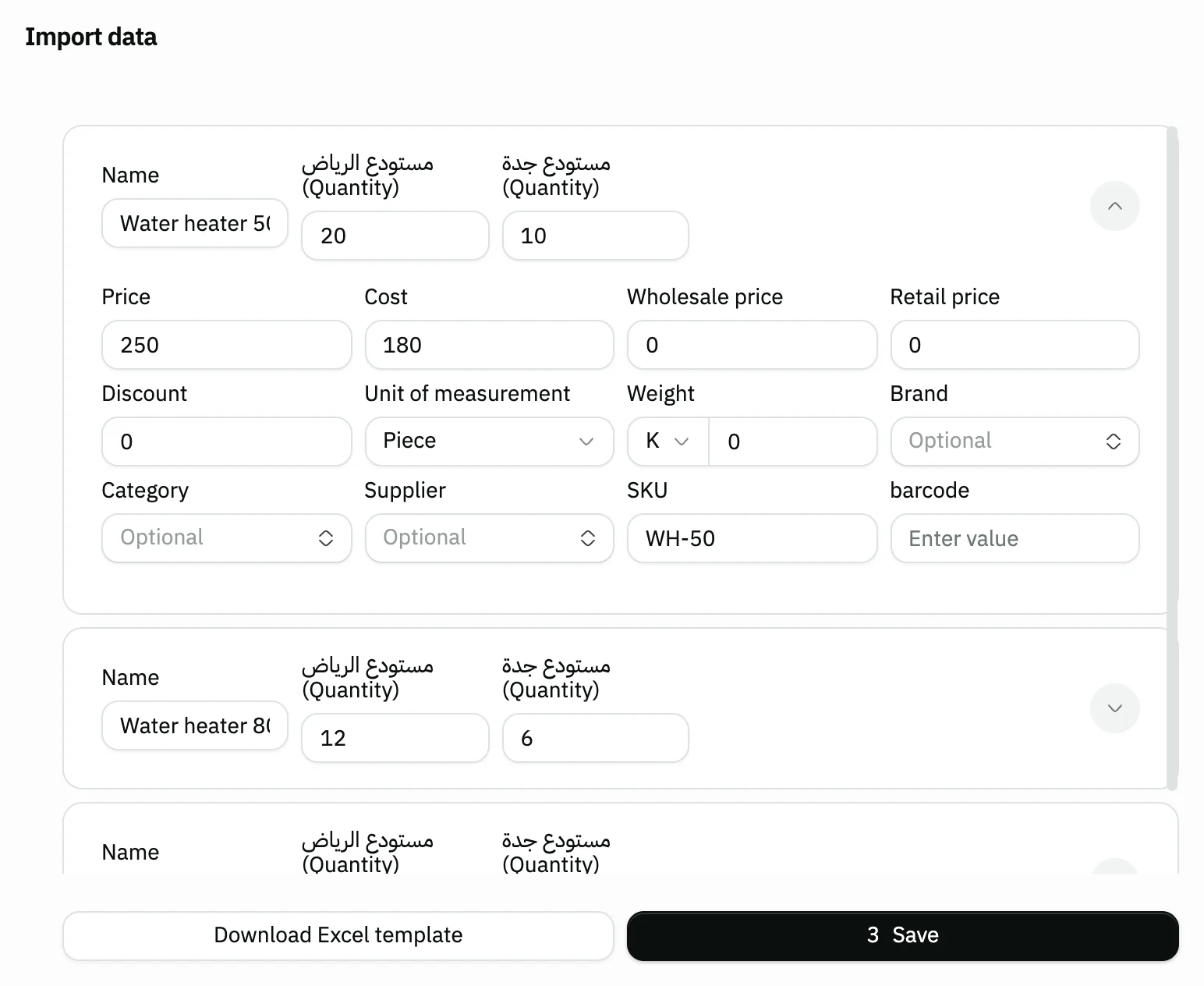
Image key - The product row: Name and each warehouse's quantity
- The Quantity in a warehouse
- The open row's details
Step 6: Save and wait
Press Save, which shows the number of products. One product is created about every second, so keep the page open until the progress ring finishes.
Step 7: Read the import result
The top of the page shows Completed with the number created and Not completed with the number that failed. The names of those that failed are listed below. Details
Messages that block saving
If saving fails, one of these messages shows next to the field. The table gives the cause and the fix.
| Message | Cause | Fix |
|---|
Advanced details
Each section here explains one point from the steps in depth. Every section has a fixed link you can share.
The template columns
The template holds one example row and these columns, with the English titles you see in the file:
- name (required) and description (optional).
- price, cost, wholesalePrice, distributionPrice, discount and weight: numbers, and anything left empty counts as zero.
- barcode and sku: both optional.
- brandName and supplierName: each is matched by exact name against your brands and suppliers, and the field stays empty if there is no match.
- One column per warehouse, named after it: the product's quantity in that warehouse.
Limits and what happens during the import
Snad reads the first sheet of the file, up to 1000 rows. Beyond that, the message “Max limit reached (1000)” appears and the file is not loaded.
A row whose name is shorter than three characters is skipped and counted under Not completed.
The category is set in the preview only, not in the file. The import creates ordinary, active standard products without variants; for variants and the other types use add a product.
Each warehouse quantity is recorded for the new product in that warehouse. For quantities alone, use import stock quantities.
The template has no photo column, so add the product photos after the import (how to add product photos).
The import leaves product custom fields empty, so fill them in afterwards from the product form (how to add custom fields).
To adjust the imported products' prices in one go, use bulk price editing.
Common questions
- Which file format can I use to import products?
- Only an Excel file in xlsx format, and Snad reads its first sheet. Download the template with Download Excel template to start from the right columns. For a CSV file, see import a file with AI Mode.
- How many products can I import at once?
- Up to 1000 rows per file. If you have more, split them across two or more files.
- Why didn't the product's quantity show after the import?
- The quantity column's title must match the warehouse name exactly. Check the Quantity for each warehouse in the preview before you press Save.
- Can I import products with variants or composite products?
- No. The import creates ordinary standard products without variants. Add the others from the Add product screen.
- What do I do if some products fail to import?
- Snad shows Not completed and the names that failed. Fix their data in a new file and upload it, leaving out the rows that completed.