
How to close a POS session in Snad
On the register open Session settings and choose End the session. Check the Cash at end of session and Bank/card, edit the two amounts if the till differs, then press Save. The session shows as Closed in the Sessions record.
In this guide4
Steps
Step 1: Choose End the session
On the register press Session settings at the top of the cart, then choose End the session from the menu. A window with the amounts opens. Details
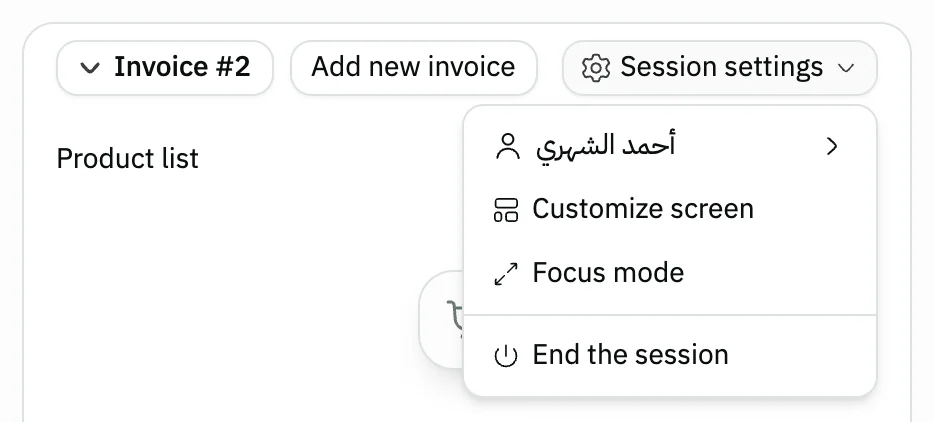
Image key - The Session settings button
Step 2: Check the cash and card
The program works out the Cash at end of session and Bank/card from the session's invoices, less its refunds. Edit them if what you counted differs. Details
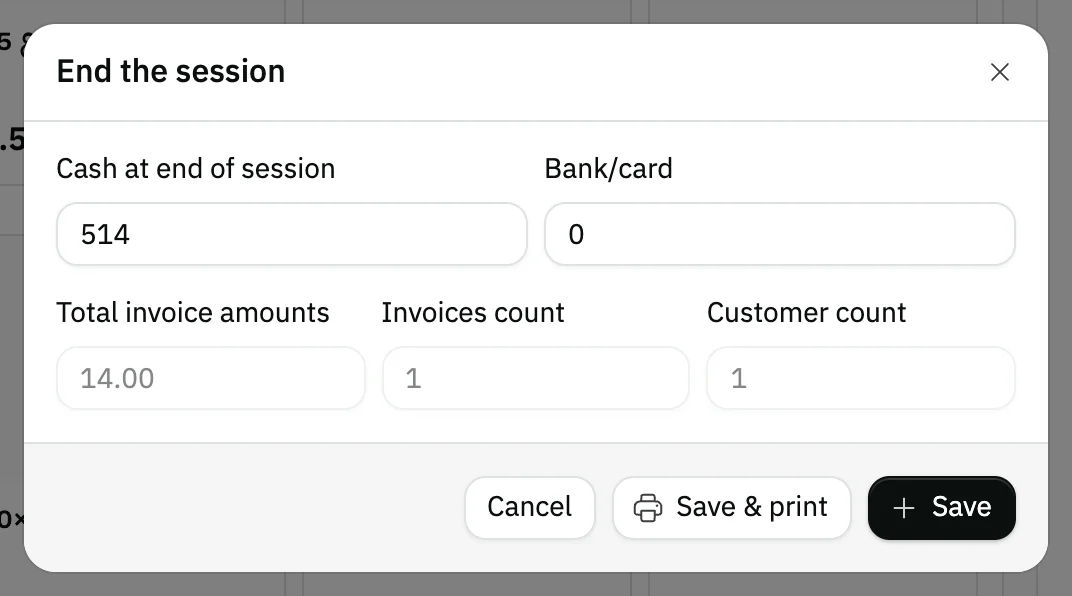
Image key - Cash at end of session
- Bank/card
- The Save button
Step 3: Save and open the Sessions record
Press Save and the session ends, and the till is Available again for the next person. Open the Sessions record under POS to see your session as Closed with its total sales. Details

Image key - The session name
- The Closed status
- The row's Actions menu
Step 4: Read the session information
From the row's actions menu choose Session information to see the cash at start and end and the total sales (POS orders, sales reports).
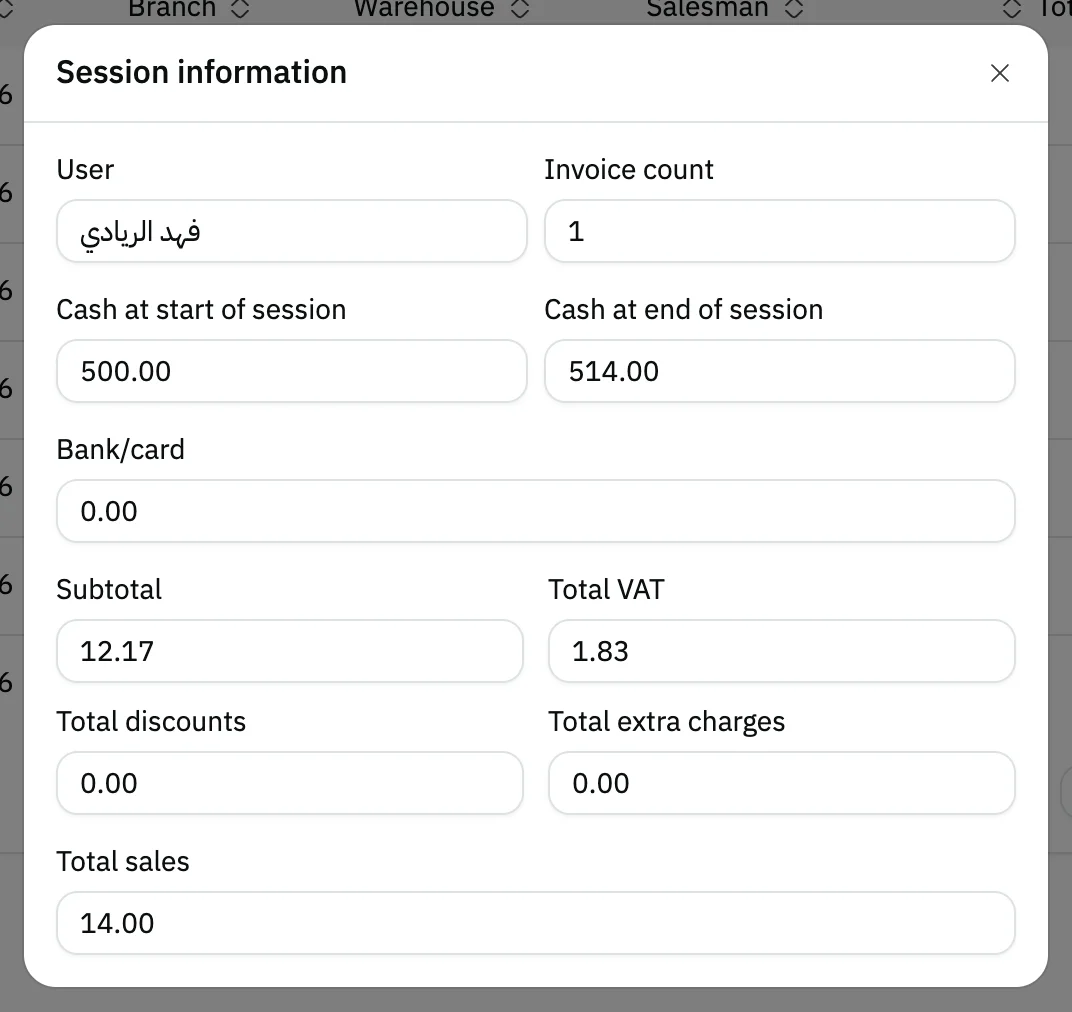
Image key - Cash at start of session
- Cash at end of session
- Total sales
Messages that block saving
If saving fails, one of these messages shows next to the field. The table gives the cause and the fix.
| Message | Cause | Fix |
|---|---|---|
| «You can't start a new session if you have an active session» | Your previous session is not closed yet, so Start session is disabled on every card. | Press Continue session on its card, then choose End the session from Session settings and save. |
| «The shift cannot be closed while 2 payments await the customer. Wait or cancel them first.» | The session has Tabby or Tamara payments still waiting for the customer after the cashier chose Continue selling, and an invoice may still be created from them. The message shows when you press Save or Save & print. | Open the Tabby and Tamara payments in progress list from the “Payments awaiting the customer” indicator in the top bar, wait for the customer to pay or press Cancel the payment, then end the session again. |
Advanced details
Each section here explains one point from the steps in depth. Every section has a fixed link you can share.
How the amounts are worked out
Cash at end of session starts as the Cash at start of session plus the total of the session's cash invoices, plus the cash part of Split payment invoices, minus what the session's returns gave back in cash. Bank/card starts as the total of the invoices paid by card, plus the card part and the transfer part of Split payment invoices, minus what was returned to the card.
When the session has a return, the window shows Refunds with their total, and under it what was taken off the cash and the card. A return by Transfer alone or On account changes neither amount, as no cash leaves the till or the card.
The session's returns load when the window opens. If they fail to load, a message shows with Retry, and Save and Save & print stay disabled until it works, so the session is never closed on incomplete figures.
If more than one seller sold in the session, a Sales by seller block shows each seller's invoice count and sales total. It prints with the session report, together with the returns lines.
If you count the till and find another figure, type it in Cash at end of session. If it is below the expected cash, the gap shows in the Cash shortage column of the Sessions record. The payment methods come from POS settings.
If the session has invoices paid by a method that carries a fee borne by the customer, a Total payment method fees line shows in the window and on the printed session report. It adds up those fees only and does not change the expected Cash at end of session. The line is not shown when no fee was collected in the session.
The window also shows the Total invoice amounts and the Invoices count, for completed invoices only.
Unfinished invoices
An invoice marked Not complete is left out of every amount and of the count. Save it first so it becomes Complete if it is a real sale, then choose End the session from Session settings.
The Sessions record and who sees it
The Sessions record lists each session with its name, user, branch, warehouse, salesman, Total sales and status: Active, Closed or Not completed.
Just before the status, the Cash shortage column shows for a closed session either a No shortage badge or a Short badge with the missing amount. An unclosed session shows a dash (—). It is worked out from the cash at the start plus the session's cash sales, minus the cash refunded on those sales before closing, minus the cash you entered at the close. A gap of 0.50 or less is not counted as a shortage.
You see it if you are an admin or have permission to view the sessions record (roles and permissions), and you can filter the table by status, user, salesman (add a salesman), warehouse and branch (add a branch).
Reviewing and ending a session from the record
If the record shows a session marked Not completed, its actions menu has End the session. Its window works nothing out for you, so type the Cash at end of session and Bank/card yourself.
From the same menu View session opens the register screen of that session. If it is closed or awaiting close, the screen is no longer a till: a Shift summary takes the place of the product grid, and the session's invoices are listed in the cart column.
The Shift summary opens with a header: the status (closed or awaiting close), the opening and closing times, the register, user, seller, branch, warehouse and invoice count. Then Alerts (cash short or over, unpaid credit invoices, products out of stock in the warehouse, invoices with a discount), and tiles for net sales, invoice count, average invoice and refunds, each with its change against the previous shift on the same register. After them come Cash reconciliation, Payment methods, Sales by hour with the peak hour, Best sellers (switch between By amount and By quantity), Sales by seller, Order types, Compared with the previous shift, Amount breakdown and Stock alerts.
These figures are for a user with the sales reports permission or an admin account (roles and permissions); anyone else sees a card saying “The shift's statistics need the sales reports permission” with the invoice count. The summary's header has a Print button for the session report (closed sessions, for a user with that permission), a Shift records button if you may open it, and an Open a new shift button if you may open a session.
In the cart column the list “Shift invoices (count)” has a search by invoice number, customer name or phone, and filters All, Credit and Refunded. No invoice is selected at first. Pick one to expand its lines and totals; the completed-invoice cards (Print invoice, Create a return…) then replace the summary, with Shift summary to go back to it. A closed session shows no “New invoice” or “Repeat order” cards, and no Invoice list button at the top.
A user with the refund permission can return an invoice of a closed session from the invoice's card. The return is booked on your open session on the invoice's branch (create a sales refund), and the closed session's own figures do not change. If you have no open session on that branch, the sheet shows “You have no open shift on this invoice's branch. The return will be saved without a shift.”
Common questions
- How do I close a POS session?
- From Session settings on the register choose End the session, check the amounts, then Save. The session shows as Closed in the Sessions record.
- What does the cash shortage in the Sessions record mean?
- It is the cash expected in the till minus the cash you entered at the close. A closed session shows a Short badge with the missing amount, or a No shortage badge.
- Can I edit the amounts before saving?
- Yes, the Cash at end of session and Bank/card can be edited.
- Can I print the session report?
- Yes. Choose Save & print in the closing window and the report prints after saving (set up printing).
- What do I see when I open a closed session on the register?
- A Shift summary shows in place of the product grid, and the session's invoices in the cart column. Pick an invoice to print it or Create a return from it, and come back with Shift summary. The figures are for a user with the sales reports permission.
- When can I open a new session?
- Once your current session is closed, as each user has one active session (open a POS session).