
How to reorder low-stock products in Snad
To reorder low-stock products in Snad ERP, open Auto purchasing, then Products & suppliers, set each item's supplier and levels, and press Save. Try Preview from the Run log, then switch on Enable auto purchasing in Settings.
In this guide7
Steps
Step 1: Open Auto purchasing
In the sidebar, open Purchases, then choose Auto purchasing. Its six tabs take you from item levels to orders. Details
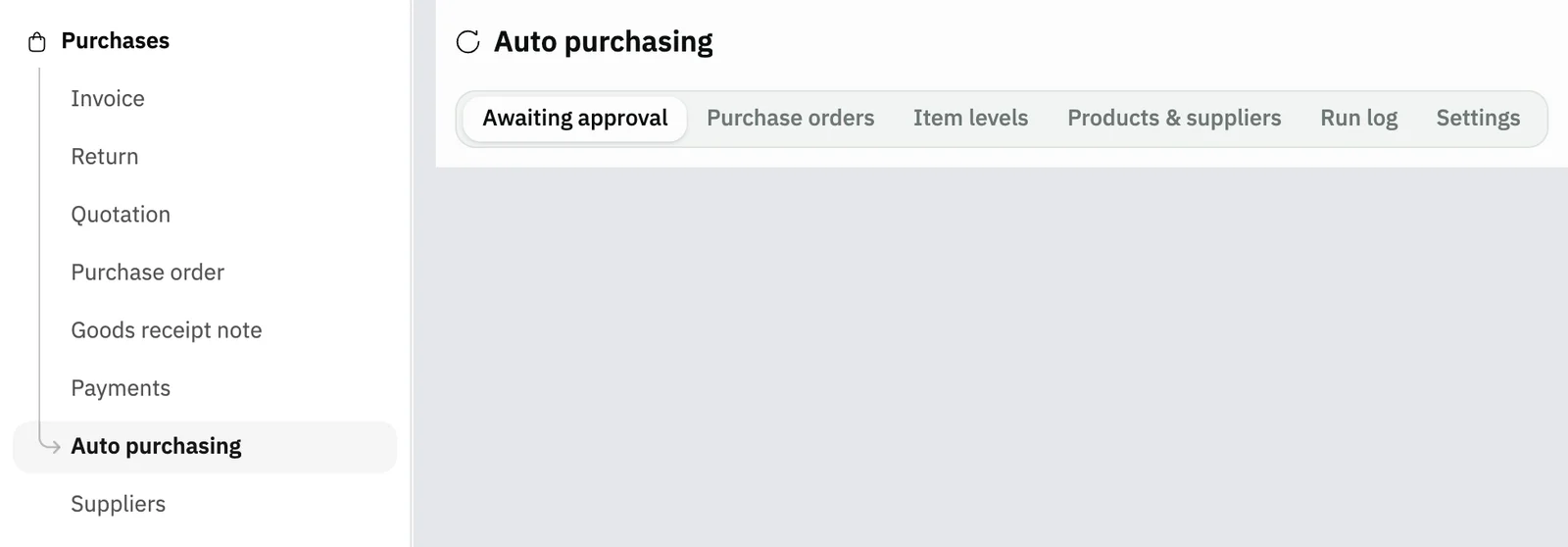
Image key - Auto purchasing in the sidebar
- The six tabs
Step 2: Pick the item's supplier
In the Products & suppliers tab, press Pick a supplier in the item's row, and choose its supplier. The purchase order is prepared for that supplier. Details
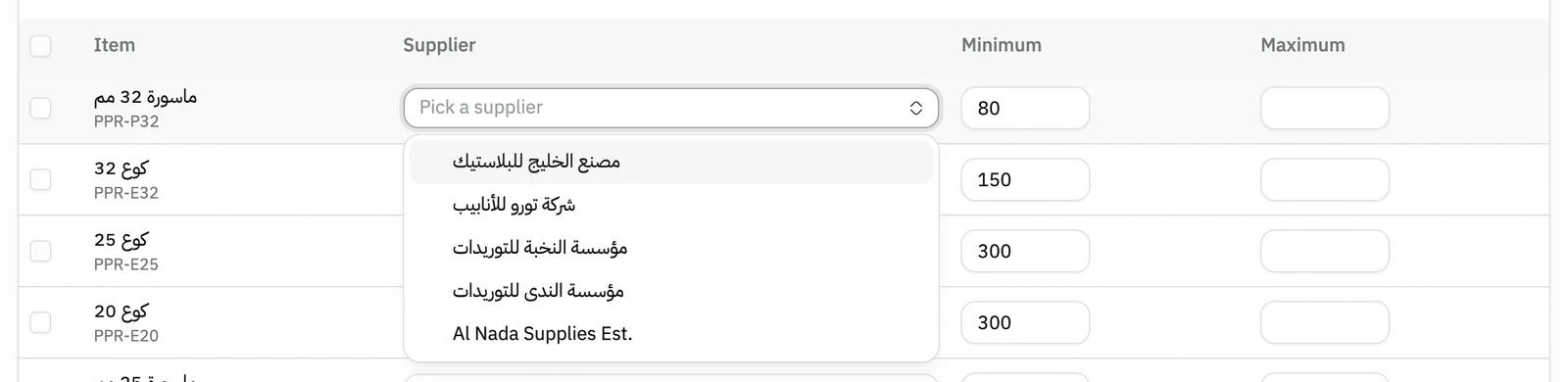
Image key - The item's supplier field
- A supplier from the list
Step 3: Set the minimum and maximum
Type the item's Minimum and Maximum, with the maximum above the minimum. Without both, the item is left out of ordering. Details

Image key - The item's supplier
- Minimum
- Maximum
Step 4: Save your changes
Edits stay unsaved, with their count above the table. Press Save at the top of the page to commit them, or Discard to drop them.

Image key - The Save button
- The unsaved changes count
- The Discard button
Step 5: Try the preview
In the Run log tab, press Preview. The window answers What would be ordered now? without creating an order or sending anything. Details
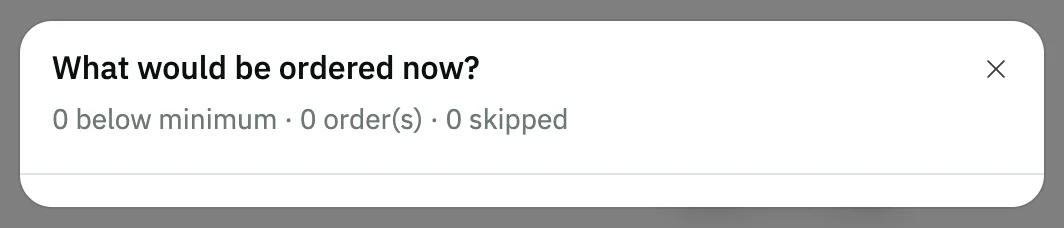
Image key - The preview summary
Step 6: Switch auto purchasing on
In the Settings tab, switch on Enable auto purchasing, and pick the Mode: Suggest and wait for approval or Send automatically. Details
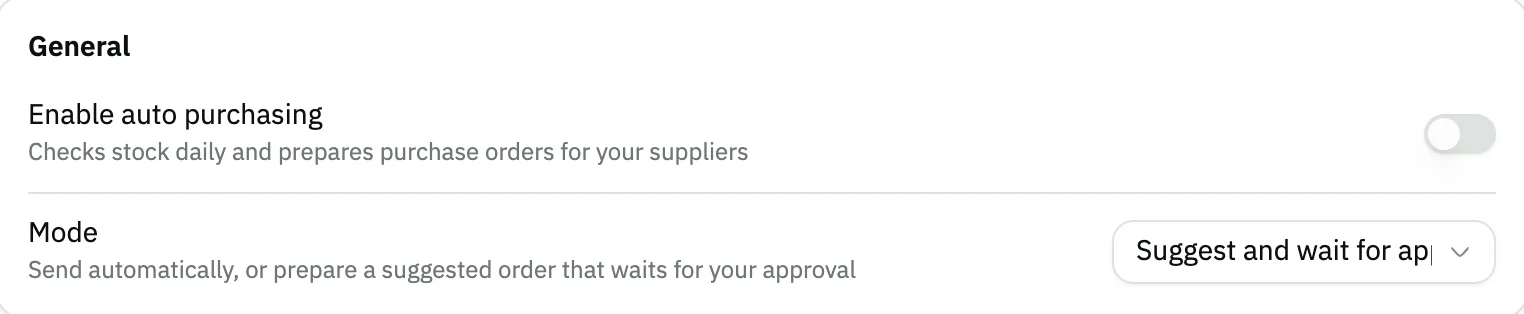
Image key - The Enable auto purchasing switch
- The Mode list
Messages that block saving
If saving fails, one of these messages shows next to the field. The table gives the cause and the fix.
| Message | Cause | Fix |
|---|
Advanced details
Each section here explains one point from the steps in depth. Every section has a fixed link you can share.
What each tab holds
Awaiting approval holds the suggested orders, and Purchase orders holds every order and the supplier replies.
Item levels and Products & suppliers set the levels and suppliers, the Run log lists every check and its result, and Settings sets how it works.
In Item levels you can narrow the list with the Category and Brand filters.
Setting a supplier or levels for many items
Tick the items with the checkboxes, then pick the supplier under Assign supplier or type both levels under Set levels, and press Apply.
With nothing ticked, the change applies to every item the filters show. Apply only stages the edits, so press Save to commit them.
On an account with many products, Snad loads the items in batches: a line “Loaded N of M products” and a Stop loading button show, and Retry shows if the load fails. Until the load finishes, Apply with nothing ticked and Suggest levels stay disabled, because they touch every item, and hovering them shows “Available after all products have loaded”. Apply on items you ticked works at once.
To find what still needs setting up, turn on the No levels set filter, or Below minimum to find items that fell under their level.

- The Assign supplier list
- The Set levels fields
- The Apply button
- The count of selected items
How much is ordered per item
In each check, an item enters ordering when its stock reaches its minimum or less, and the quantity needed to reach its maximum is ordered.
Quantity already on an open purchase order is subtracted, so the item is not ordered again every day until the goods arrive. What is short from each supplier goes on one order.
What the preview tells you
The window shows how many items are below their level, how many orders and how many were skipped, then each supplier's order with its items and quantities.
The reason each item was skipped is listed, such as no supplier or an open order. The Run now button really runs the check and creates the orders, so do not press it to try things out.
Settings and safety limits
The Settings tab saves every change as you make it, so it has no Save button. It sets the check's hour and days in your organization's time zone.
Under Safety limits you set the Approval threshold and the Daily spend cap, and an order above either waits for approval even in automatic mode.
Skip items with an open order stops an item being ordered again before its goods arrive. Under the sending channels you choose WhatsApp or email.
After you approve an order
You follow the order in the Purchase orders tab by its stage: sent, confirmed by the supplier or declined. Once the supplier confirms, press Convert to purchase invoice (purchase invoice).
The Convert to a purchase invoice on confirmation option raises stock and posts the entry as soon as the supplier confirms, before the goods arrive (goods receipt note). Leaving it off is recommended.
Turning ordering off for one supplier
Open the supplier's page, and under Auto purchasing turn off Allow automatic orders to this supplier.
The supplier's items then appear among the skipped ones in the preview and the run log.
I can't edit suppliers or settings
The page needs permission to view auto purchasing, and changing the settings and levels needs permission to edit it.
Assigning an item's supplier needs permission to edit products, otherwise you see “You do not have permission to edit product data (supplier assignment)”. Ask your account admin.
Common questions
- How does Snad order missing stock automatically?
- You set a supplier and a minimum and maximum for each item, then switch on Enable auto purchasing. The program checks stock at your set hour and prepares one purchase order per supplier.
- Can I see what would be ordered before switching it on?
- Yes. Press Preview in the Run log tab. It shows what would be ordered without creating an order or sending anything.
- Is the order sent to the supplier without my approval?
- It depends on the Mode: Suggest and wait for approval holds the order for you to approve, and Send automatically sends it straight away. An order above the safety limits waits for your approval in both.
- Why doesn't an item show in the preview?
- An item enters ordering once it reaches its minimum and has both levels, with the maximum above the minimum. If it has no supplier or an open order, the preview skips it and gives the reason.
- How do I stop automatic ordering altogether?
- In the Settings tab, switch off Enable auto purchasing. The change is saved as soon as you make it.