
How to adjust stock levels in Snad
To adjust stock in Snad ERP, open Inventory, then Stock, click a product's quantity in the warehouse column and type the correct quantity. To change several products, use Update all products. Press Preview to check the Difference, then Save.
In this guide7
Steps
Step 1: Open the stock screen
In the sidebar, choose Inventory, then Stock. A table opens with each product's quantity in every warehouse.
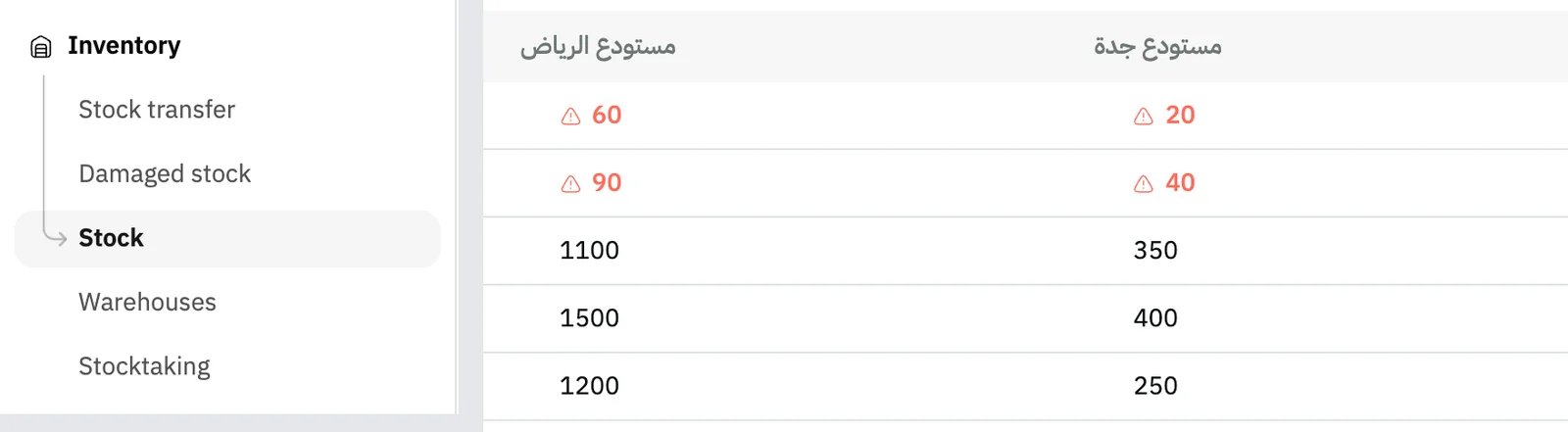
Image key - Stock in the sidebar
- One column per warehouse
Step 2: Find the product
Type part of the product's name or number in the filter field, and Snad searches every product, not only the page on screen, or narrow the table with the Category and Brand filters. Low stock only keeps the products that reached their reorder level in at least one warehouse. Details
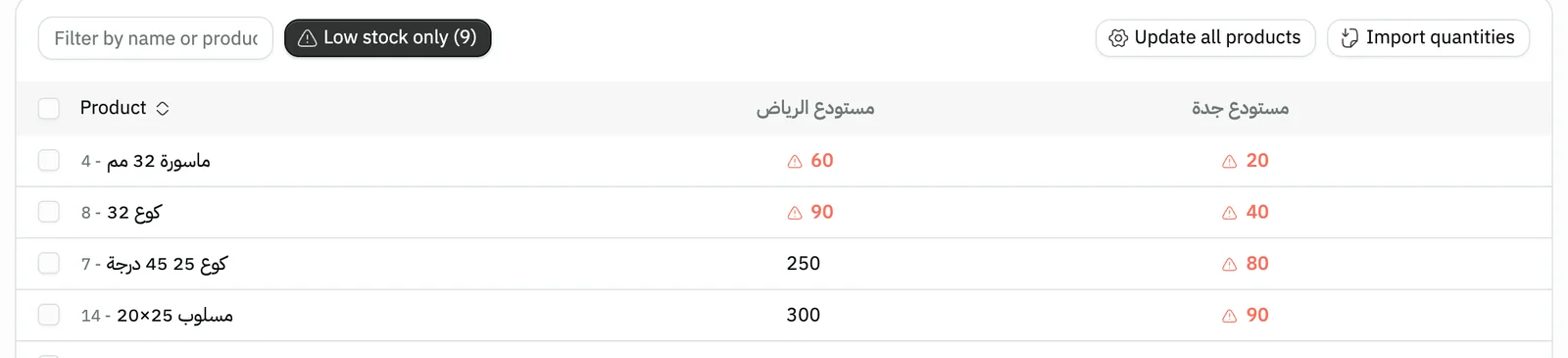
Image key - Filter by name or number
- The Low stock only button
Step 3: Open a product with variants
A product with two or more variants shows as one row with its name and variant count. Click its name to open its variants, then edit each variant's quantity in its own row. Details
Step 4: Type the correct quantity
Click the quantity in the warehouse column and type the new actual quantity, not the difference. The edited cell is highlighted, and the ↩ next to it restores the old value. Details

Image key - The new quantity being typed
- An edited, highlighted cell
Step 5: Change several products at once
Tick the products, then press Update all products. Choose the Warehouse, Operation and Type, enter the Value, then press Apply. Details
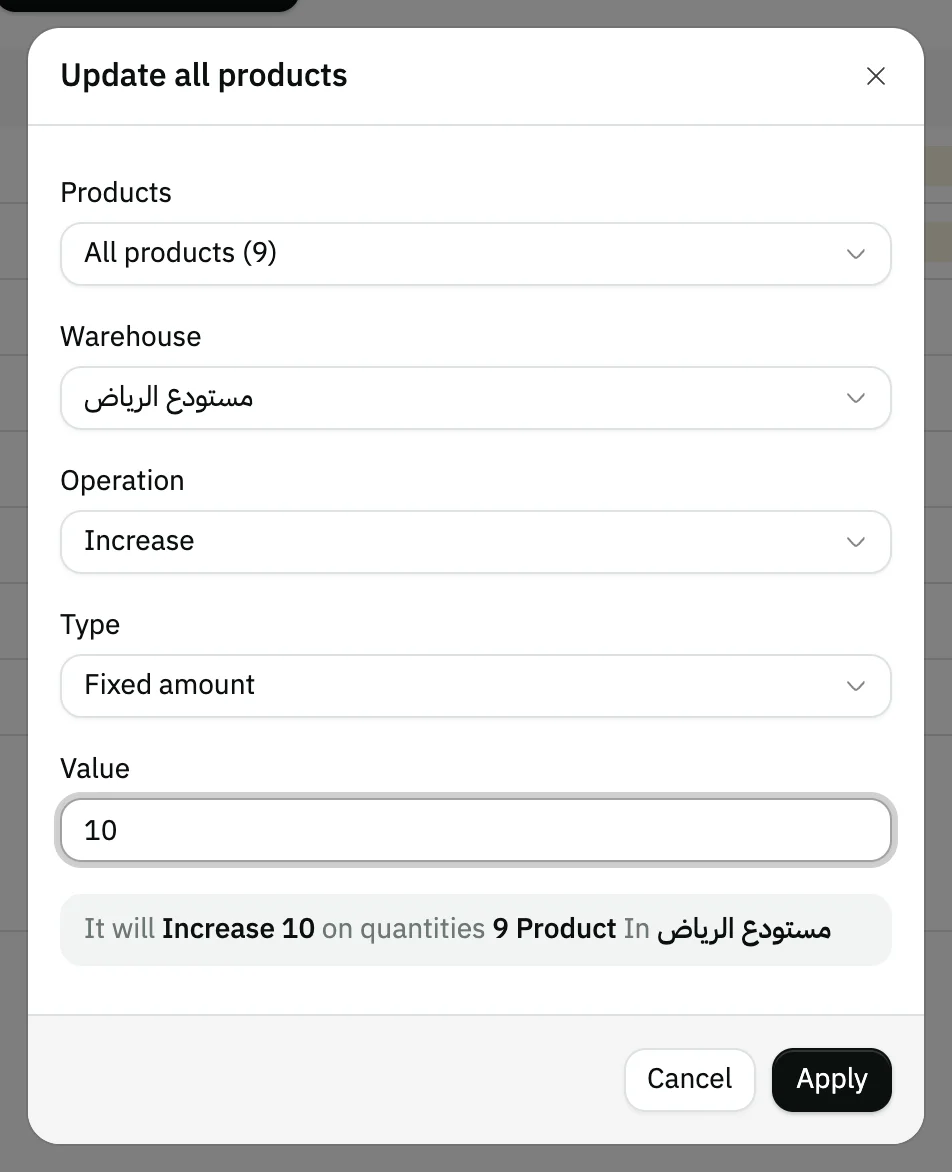
Image key - Warehouse
- Value
- The Apply button
Step 6: Review the changes
Press Preview in the bar at the bottom. The table shows the Original quantity, the New quantity and the Difference for each product in each warehouse.
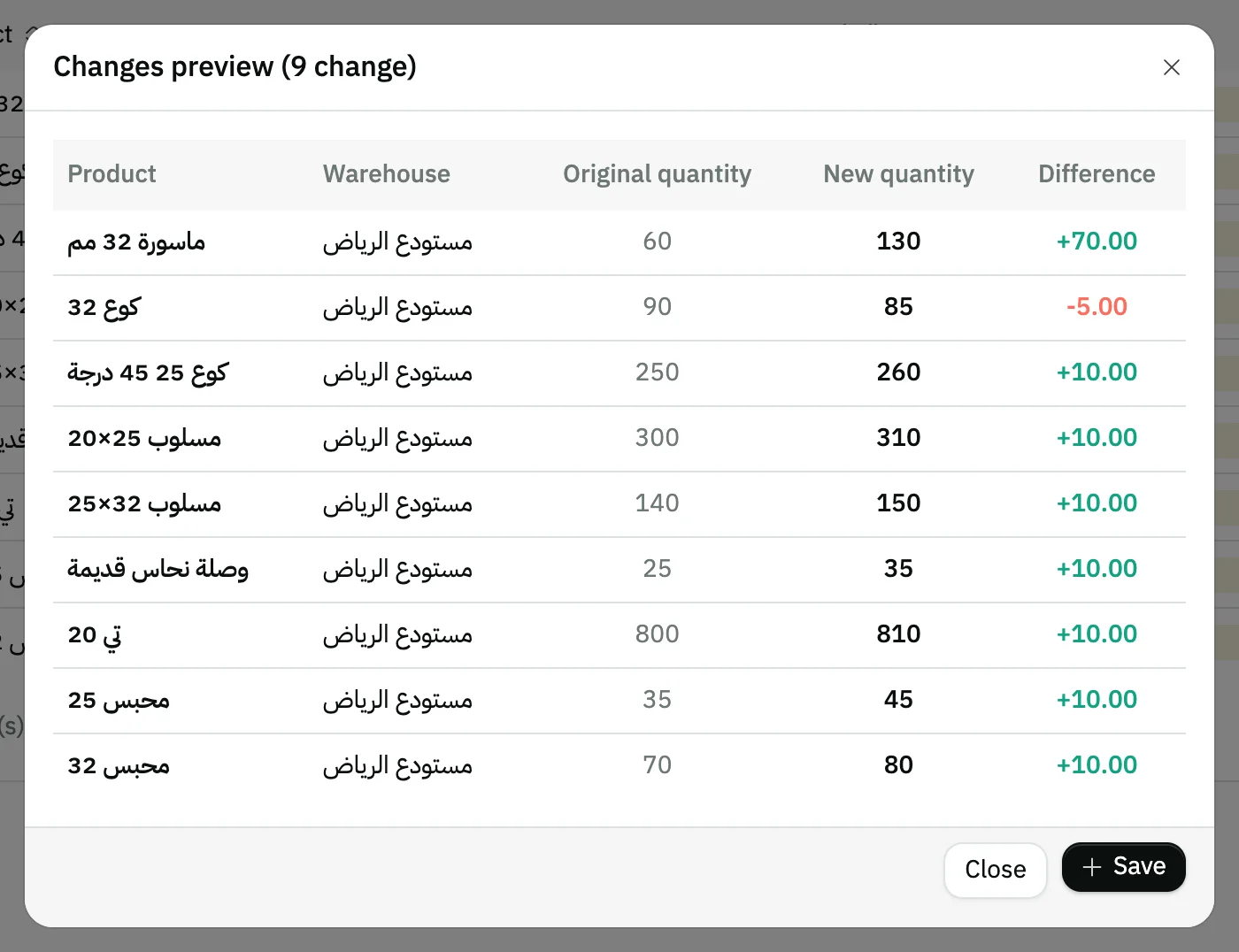
Image key - Original quantity
- New quantity
- Difference
Step 7: Save the quantities
Press Save in the bottom bar or in the preview window. A progress bar shows, then a success message. Cancel drops all the edits. Details
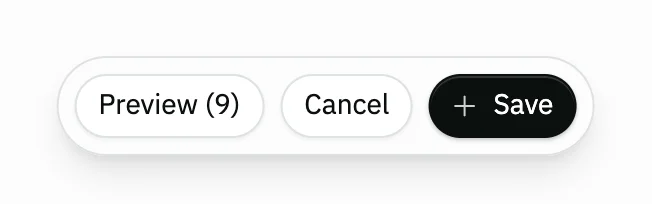
Image key - The Preview button and the number of edits
- The Cancel button
- The Save button
Messages that block saving
If saving fails, one of these messages shows next to the field. The table gives the cause and the fix.
| Message | Cause | Fix |
|---|
Advanced details
Each section here explains one point from the steps in depth. Every section has a fixed link you can share.
Low-stock products
A quantity equal to or below the product's reorder level shows in red with a warning mark, and once you turn on the Low stock only button, the number of such products appears in brackets on it.
To order these products from their suppliers, use auto purchasing.
Serial-number products
The quantity of a product tracked by serial numbers is the count of its units, so it can't be typed here. Its stock is changed from the product page itself (products page).
The table also leaves out composite and derived items, and services, because their stock follows other products or they hold none. A parent product with variants has no quantity of its own to edit: you edit its variants (step 3).
Products with variants
A parent product with two or more variants shows as one grouped row: its name, its variant count, and in each warehouse the total of its variants' quantities. A parent with a single variant shows that variant as a normal row with its full name, such as “Fabric - Cotton”.
The grouped row's quantities are read-only. When you edit a variant, the matching cell in the parent's total is highlighted and the row shows how many changes it holds, even while it is closed, so no edit hides inside a closed row.
A warning mark shows on the row, and the quantity turns red in a warehouse where at least one variant has reached its reorder level.
When you type in the filter field or narrow with a filter, the parent stays visible and says how many of its variants match, such as “1 of 3 match”. While the field holds text, every grouped row opens by itself, and clearing it closes them again. You can still open or close any row yourself.
The tick box on a grouped row ticks or unticks all its loaded variants, and shows a partial tick if you ticked only some. Clicking the parent's name opens the row and does not tick it.
The pager counts the rows shown, and a grouped row counts as one; under the table you also see the real number of products. If a parent has more than 250 matching variants, the first 250 show, with a button to list all of them in pages.
Bulk changes by amount or percentage
Under Products, choose Selected products, or Products on this page with its count beside it: the products shown on the current page after filtering, not every page of the table. It includes the variants inside closed grouped rows, and the count beside it is products, not rows. Under Warehouse, pick one warehouse or All warehouses.
The Operation is Increase or Decrease, and the Type is a Fixed amount added to or taken from each quantity, or a Percentage of it.
Apply stays disabled until you enter a value above zero. Applying only changes the table, so nothing is saved until you press Save.
The table accepts negative quantities, so check the Difference in the preview before you save.
What happens when you save
Snad replaces the quantity of each edited cell with the number you typed. It sends the cells in batches of 30, so keep the page open until the progress bar finishes.
It then re-posts the product's stock value, quantity times cost, to the stock account linked to the warehouse in the chart of accounts.
The other side of the stock value difference is an expense account called “Inventory count differences”, which Snad creates on first use, so the difference shows in profit and loss, not in equity. If the warehouse has an inventory-adjustment account set, that account is used instead. The first quantity entered for a product with no stock is posted to the opening stock equity account.
If you have a connected store, Snad sends it the new quantities.
Which tool changes stock?
This screen sets a new quantity directly. For a regular count use stocktaking, for broken goods damaged stock, and to move goods between warehouses stock transfer.
If the quantities are in an Excel file, upload them in one go: import stock quantities. To review quantities without changing them, open the stock reports.
Can't edit the quantities?
The Update all products and Import quantities buttons, and editing by clicking a cell, show only to users allowed to edit stock balances. Ask your Snad account admin to grant it (roles and permissions).
The table doesn't open for users without permission to view stock balances.
Common questions
- How do I change a product's quantity in stock?
- Open Inventory, then Stock, click the product's quantity in the warehouse column, type the correct quantity, then press Save in the bottom bar.
- How do I raise every product's quantity by a percentage?
- Press Update all products, choose Increase and Percentage, enter the rate in Value, then Apply and Save.
- Can I undo before saving?
- Yes. The ↩ next to an edited cell restores its value, and Cancel in the bottom bar restores every cell. After Save, the new quantities are written.
- Why can't I edit a product's quantity?
- Either you lack permission to edit stock balances, or the product is tracked by serial numbers, so its quantity is its unit count and can't be typed here.
- Why can't I type a quantity on a parent product's row?
- A grouped row's quantities are read-only totals. Click the product's name to open its variants, and edit each variant's quantity in its own row.
- Does adjusting stock affect the accounts?
- Yes. When you save, Snad re-posts the product's stock value, quantity times cost, to the stock account linked to the warehouse.