
How to import stock quantities from an Excel file in Snad
To import stock quantities in Snad ERP, open Inventory, then Stock, and press Import quantities. Press Download Excel template, edit the quantities in each warehouse column, and upload it as an xlsx file. Review the changed quantities, then press Save.
In this guide5
Steps
Step 1: Open the import screen
In the sidebar, choose Inventory, then Stock, and press Import quantities above the table. Details

Image key - The Import quantities button
Step 2: Download the template
Press Download Excel template. A file downloads with all your products and their current quantity in one column per warehouse. Details
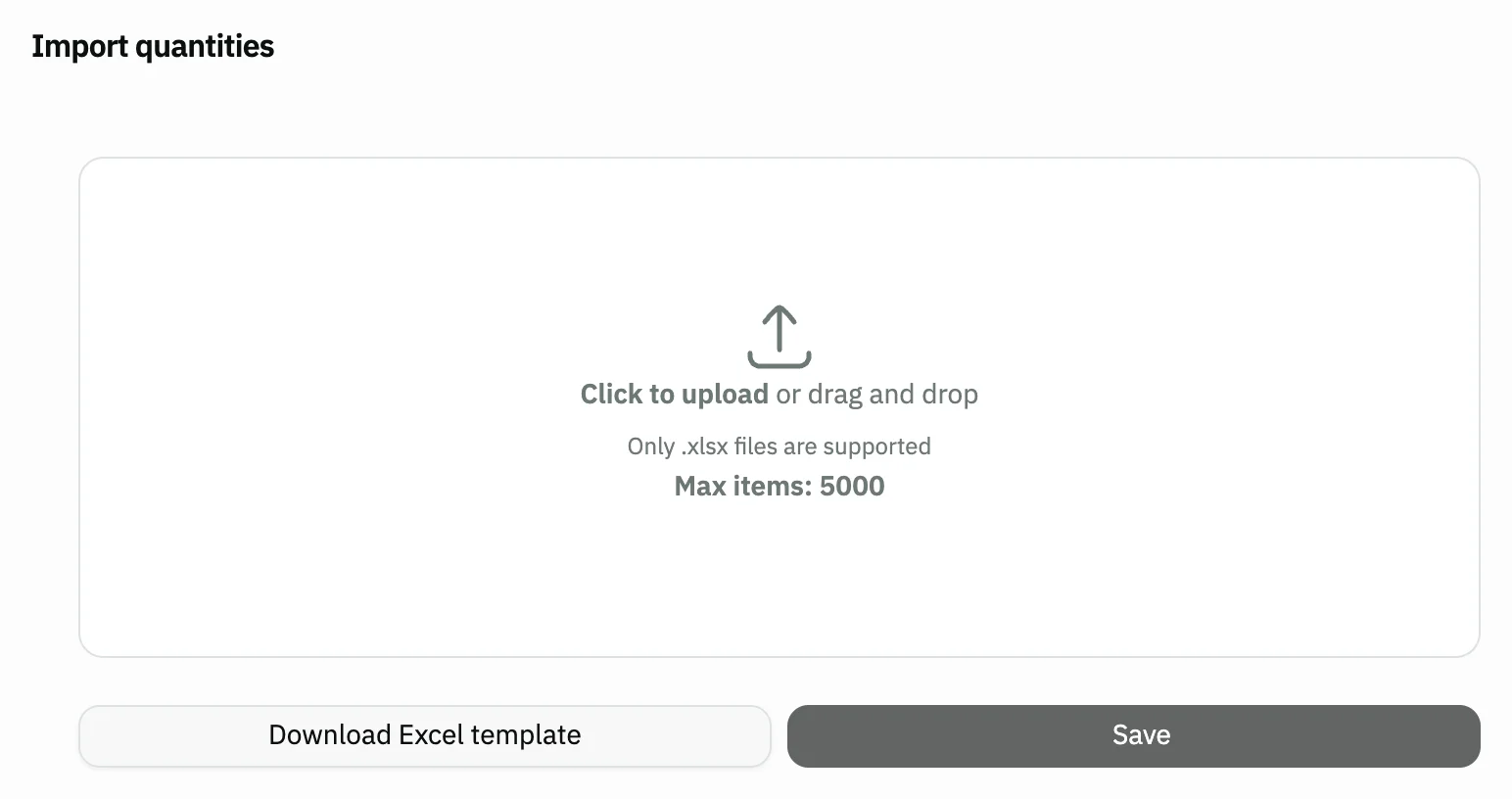
Image key - The Download Excel template button
- The file upload area
- The Save button (disabled until data is uploaded)
Step 3: Edit the quantities in the file
Open the file in Excel and change the quantities you want in the warehouse columns. Don't change the product number, the name or the column names. Details
Step 4: Upload the file and review the changes
Click the upload area and choose the xlsx file. Snad lists only the quantities that changed, by Name, Warehouse and Quantity, and you can correct any quantity here. Details
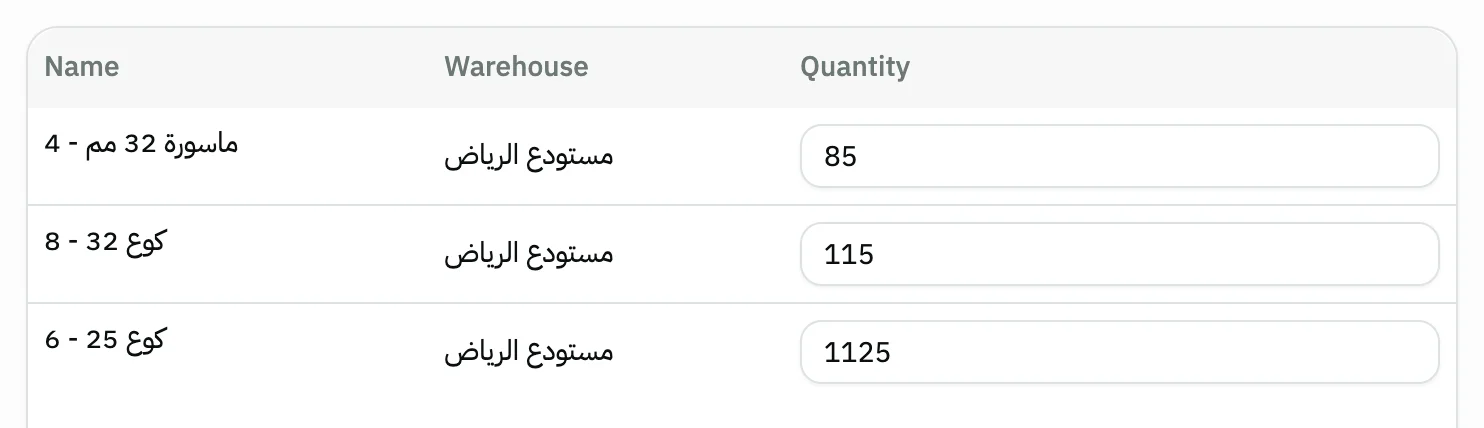
Image key - A product whose quantity changed
- The new Quantity, editable
Step 5: Save the import
Press Save, which shows the number of changes. Keep the page open until the progress finishes, then Completed shows how many were saved. Details

Image key - The Save button with the number of changes
Messages that block saving
If saving fails, one of these messages shows next to the field. The table gives the cause and the fix.
| Message | Cause | Fix |
|---|---|---|
| «Max limit reached (5000)» | The file has more than 5000 rows. | Split the file into two or more files and upload each one separately. |
| «Operation didn't complete — likely a data or server error» | A batch failed to save, so a Not completed count shows. | Reload the page and upload the file again: Snad lists only the quantities that differ from what is saved. |
Advanced details
Each section here explains one point from the steps in depth. Every section has a fixed link you can share.
What the template holds
The file is named stock_template.xlsx. It has two fixed columns, “serial” with the product number and “productName” with its name, then one column named after each warehouse that holds the product, with its current quantity.
A variant's name in the “productName” column reads “Parent - Variant”, so it stands apart from the other variants. If you have a very large number of products, the template lists the first 50000 only, and a note “The template lists the first N products only.” shows.
The template leaves out parent products with variants, composite and derived items, and services, because they hold no stock of their own.
How Snad reads the file
Snad reads the first sheet only, and ignores any row missing the product number or name.
It matches the product by its number and the warehouse by the column name, letter for letter. A column that doesn't match a warehouse name is ignored.
It lists only the quantities that differ from the saved quantity. Delete the rows you don't want to change, or leave them as they are and they won't show.
Keep a number in every quantity cell, and don't delete the cell.
The limit is 5000 rows per file, and xlsx is the only format accepted.
What happens when you save
Snad replaces each quantity with the number in the table, in batches of 30 with a progress bar.
Then two badges show: Completed with the number saved, and Not completed with the number that wasn't, if any.
Saving here is the same save as the stock adjustment screen, so Snad re-posts the stock value in accounting. The server doesn't accept changing the quantity of a serial-tracked product this way. Check the result in the stock reports.
Instead of a file: edit on screen
If there are only a few edits, type them straight into the stock table or change by percentage: adjust stock levels. To bring in the products themselves from a file, use import products. If you are counting goods on the shelf, record the count in stocktaking.
Common questions
- How do I upload stock quantities from an Excel file?
- Open Stock and press Import quantities, then Download Excel template. Edit the quantities, upload the file as xlsx, review the table and press Save.
- How many rows can I import?
- Up to 5000 rows per file. If there are more, the max limit message shows and Save is disabled, so split the file.
- Why don't some products show in the table after uploading?
- Because the table lists only quantities that differ from what is saved. Products whose number matches no product in Snad, or warehouses whose column name matches no warehouse, don't show either.
- Can I correct a quantity after uploading and before saving?
- Yes. The Quantity cell in each table row is editable, so change it and press Save.
- Should I import the quantities or edit them on screen?
- For many edits prepared in Excel, import the file. For a few edits, type them straight into the stock screen.