
How to record an employee vacation in Snad
To record an employee vacation in Snad, open HR, then Vacations, and press Create vacation. Pick the Employee and Vacation type, set the start and end dates, write the reason, and press Save. The request stays Pending until you press Approve or Reject.
In this guide6
Steps
Step 1: Open the vacations screen
In the sidebar, choose HR, then Vacations, and press Create vacation at the top of the screen. Details
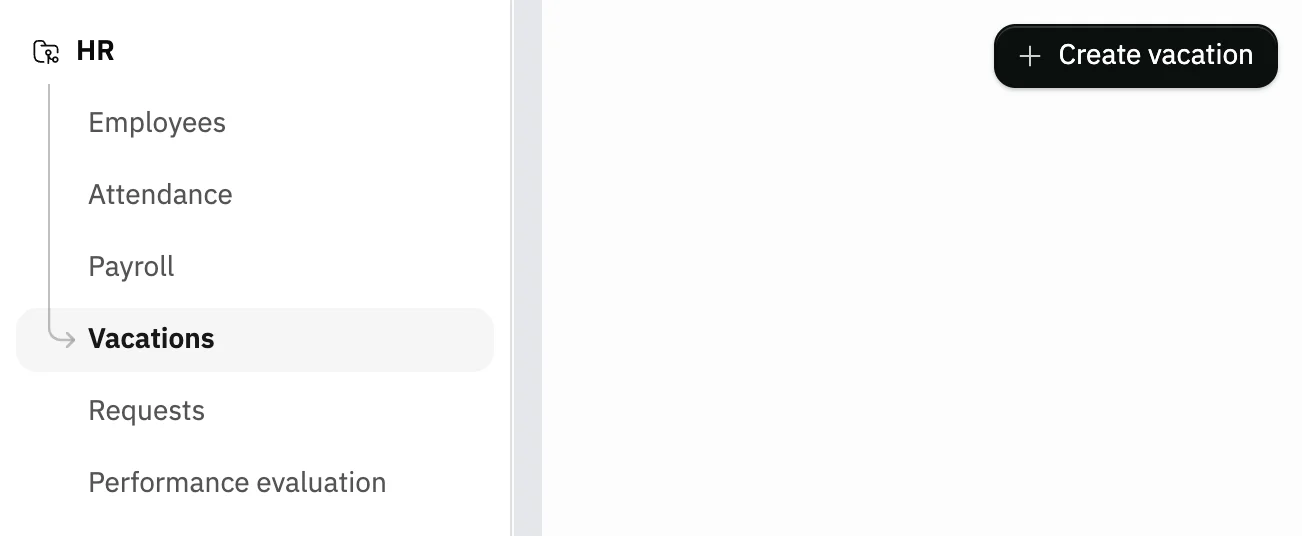
Image key - Vacations in the sidebar
- The Create vacation button
Step 2: Pick the employee and type
In the Add new vacation window, pick the Employee, then the Vacation type. Available balance shows the employee's balance for that type. Details
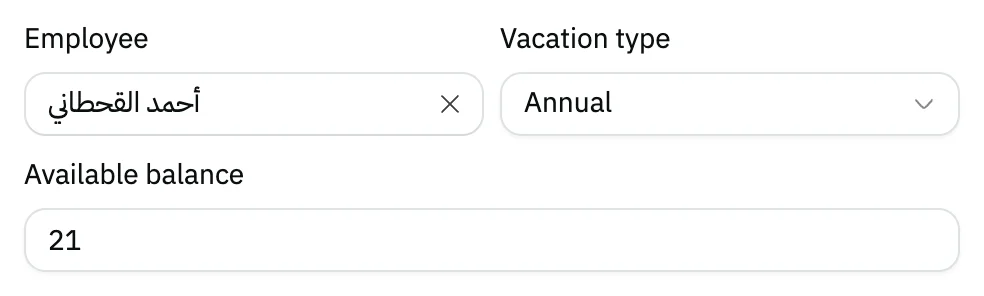
Image key - The Employee field
- Vacation type
- Available balance
Step 3: Set the start and end dates
Pick the Vacation end date, then the Vacation start date, from the calendar; it does not accept a start after the end. Snad works out Total days itself, counting both the first and last day.
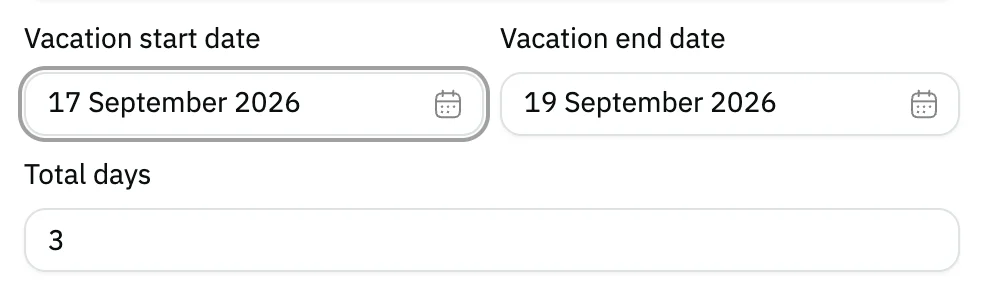
Image key - Vacation end date
- Total days
Step 4: Write the reason, attach a file
Write the reason for the vacation in the text box; it is required. To attach a report or document, press Click or drag files here.
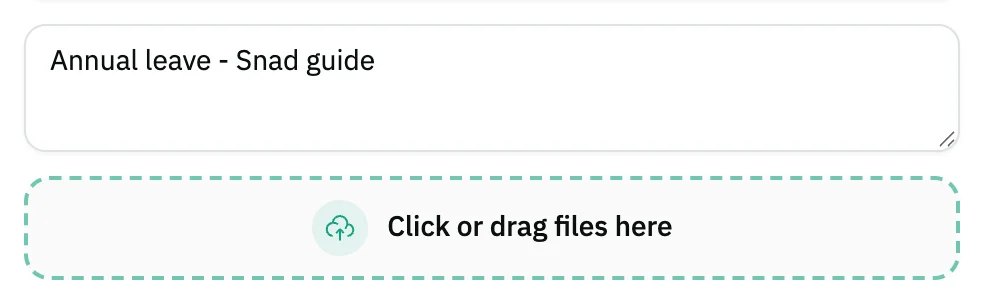
Image key - The reason box
- Click or drag files here
Step 5: Save the request
Press Save. The window closes, and the vacation shows as a card in the list with the status Pending. Details
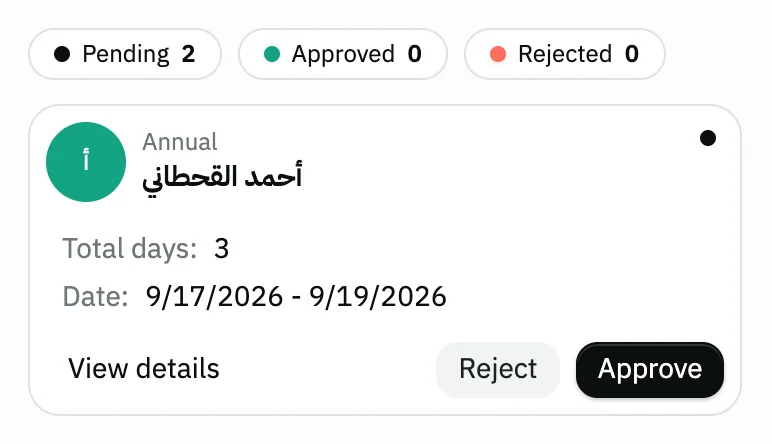
Image key - The vacation card
- The Pending counter
Step 6: Approve or reject it
Press View details to review the request, then Approve or Reject. The same two buttons are on the card itself. Details
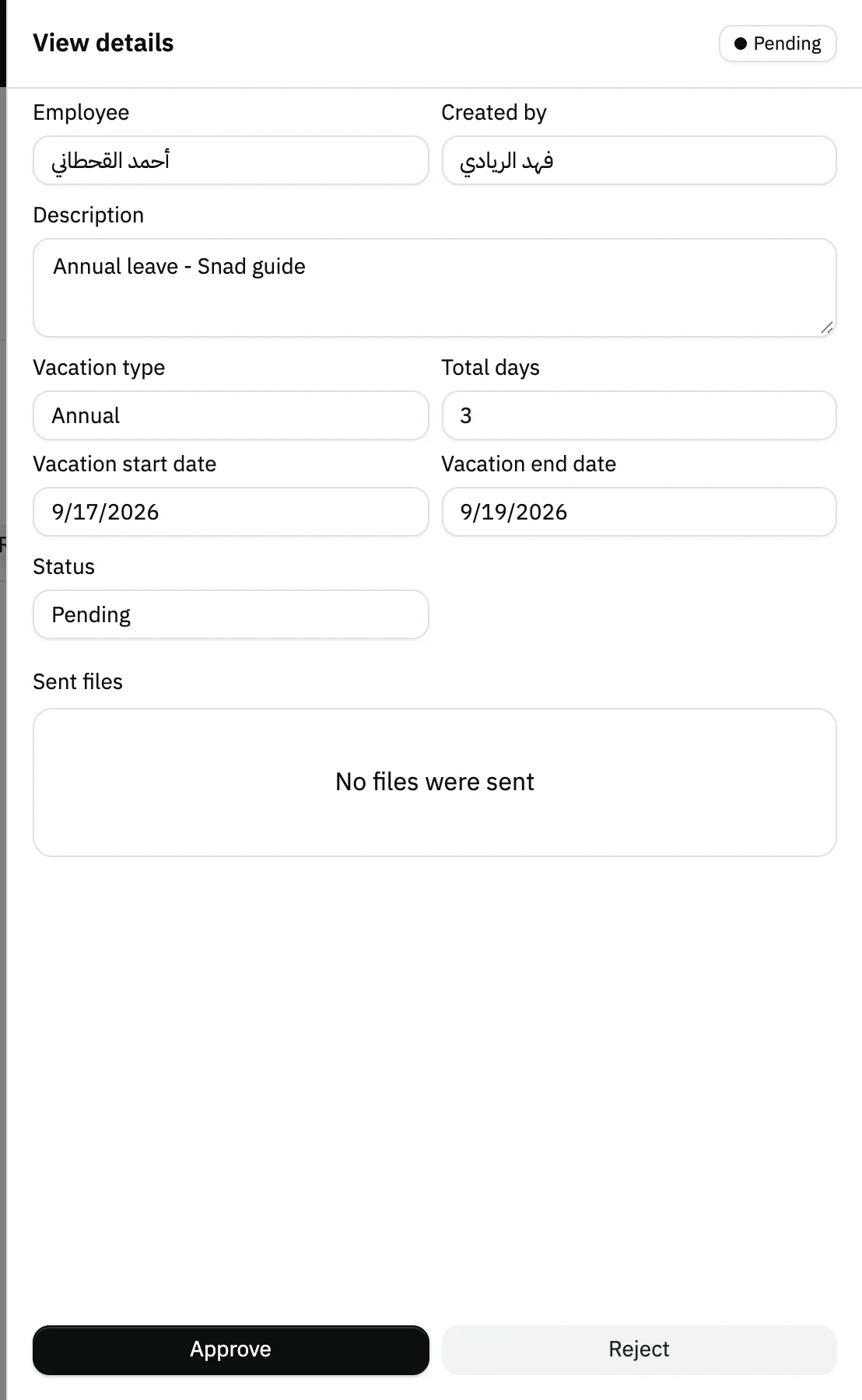
Image key - The Approve button
- The Reject button
Messages that block saving
If saving fails, one of these messages shows next to the field. The table gives the cause and the fix.
| Message | Cause | Fix |
|---|---|---|
| «Employee is required (shown in English)» | No employee is picked. | Pick the employee in the Employee field. |
| «Reason is required (shown in English)» | The reason box is empty. | Write the reason for the vacation, then save. |
| «You don't have permission for this action» | Your user is not linked to an employee and lacks both view and edit permission on vacations, so it cannot pick one. | Ask your account admin for the permission (roles and permissions). |
Advanced details
Each section here explains one point from the steps in depth. Every section has a fixed link you can share.
Search and filter the list
Type part of a name in the search box, or narrow the list with Status and Vacation type.
Below the filters are three counters: Pending, Approved and Rejected. Press one to show only those vacations.
Pending requests are listed first. For each employee's totals, open the vacation report.
Vacation types and the balance
Each employee has a separate balance per type, and Available balance shows the balance of the chosen type. Balances are set in the employee form (add an employee).
A new employee's balances come from the vacation settings in HR settings.
The screen does not compare the days with the balance when you save, so check the balance yourself before approving.
- Annual
- Sick leave
- Unpaid leave
- Maternity leave
- Paternity leave
- Hajj leave
Who sees the request after saving
Every new request is saved as Pending, even when an HR manager records it. A vacation is not final until someone approves it.
A Snad notification reaches everyone who can view vacations (set notification preferences).
An employee linked to a user account files their own vacation from the employee account. The Employee field is locked to their name unless they can both view and edit vacations.
What Snad does on approve or reject
Approving changes the status to Approved and subtracts the days from the employee's balance for that type.
It also marks the vacation days that fall on the employee's working days as vacation in the attendance record; days off in their schedule are skipped.
Rejecting changes the status to Rejected and records who rejected. If you reject a vacation you approved earlier, the days already subtracted are not given back.
Approve and Reject show only on Pending requests, and only to users who can edit vacations.
Common questions
- How do I record a vacation for an employee in Snad?
- Open HR, then Vacations, and press Create vacation. Pick the Employee, Vacation type and dates, write the reason, then press Save.
- Is the vacation taken off the balance when I save?
- No. The balance is reduced when you press Approve, not Save. Until then the vacation stays Pending.
- Can I edit a vacation after saving it?
- The screen has no edit button. All you can do with a request is Approve or Reject, so if a date is wrong, record a new request.
- How do I see an employee's remaining vacation balance?
- Pick the employee and the vacation type in the Create vacation window, and Available balance shows right away. Edit balances in the employee form.
- Who can approve vacations?
- Users with permission to edit vacations. Users without it see only their own requests, with no Approve or Reject buttons (roles and permissions).