
How to give the support team access in Snad
To give the support team access in Snad, open Settings, then Support access requests. When the team sends a request, read its reason, then press Approve or Reject. Access has full permissions and ends by itself after 72 hours; end it at once with Cancel access.
In this guide5
Steps
Step 1: Open Support access requests
Press Settings at the bottom of the sidebar, then choose Support access requests in the settings menu. Details
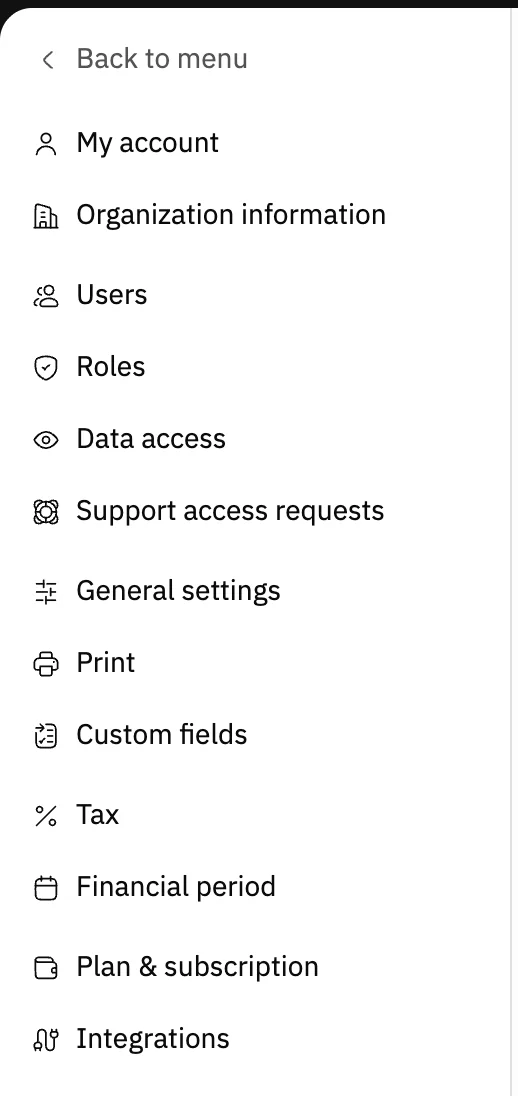
Image key - Support access requests
Step 2: Read what the page shows
The banner at the top explains that access has full permissions and ends by itself after 72 hours. If the team has asked for nothing, the message “No support access requests right now.” shows.
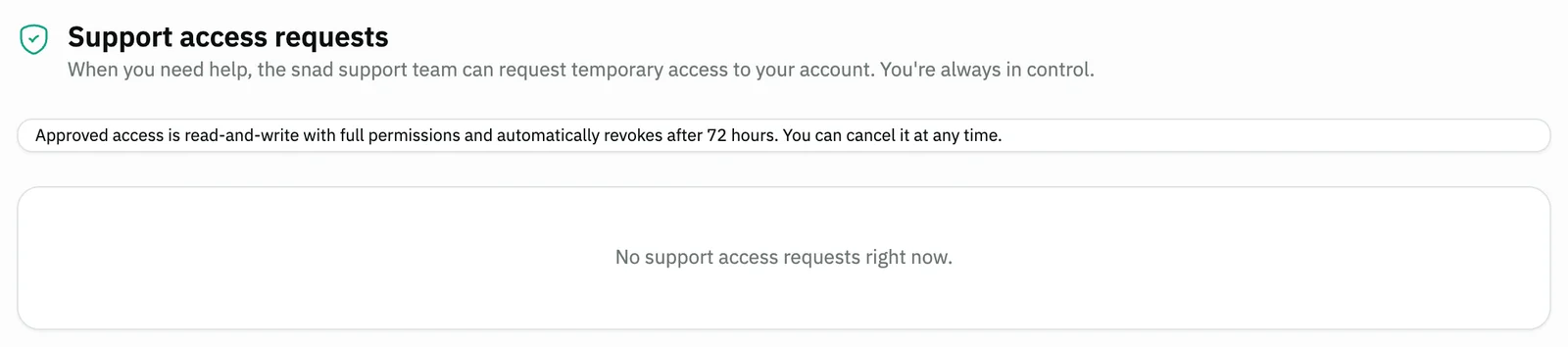
Image key - Info banner: full permissions and 72 hours
- The no-requests message
Step 3: Review the request
When a request arrives, an Access request card shows with the Pending status. Read who asked for access, then the Reason they wrote. Details
Step 4: Approve or reject
Press Approve to let the team in, or Reject to close the request. After approval, the card becomes Active support access. Details
Step 5: Follow the access or cancel it
The active card shows the time left until the automatic end. To end it sooner, press Cancel access and the team is signed out at once.
Messages that block saving
If saving fails, one of these messages shows next to the field. The table gives the cause and the fix.
| Message | Cause | Fix |
|---|---|---|
| «Action failed, please try again» | The Approve, Reject or Cancel access action could not run, for example because the team withdrew the request so it is no longer pending, or the connection dropped. | Reload the page and check the request's status, then try again if it still shows. |
Advanced details
Each section here explains one point from the steps in depth. Every section has a fixed link you can share.
Page missing from the settings menu?
The menu shows Support access requests to the account admin only. Without that role the item is hidden, and opening the page address directly shows a no-permission message.
Ask your account admin to give you the admin role, or to approve the request. For new users, see how to add a user.
What does granting access mean?
Approving lets the support team sign in to your account with full permissions, read and write, for up to 72 hours.
The 72 hours start when you approve, not when the request arrives. The team can't enter your account before you approve.
Before approving, check that you know why the team asked. If the reason isn't clear, press Reject.
After you approve or reject
After you press, a message, “Access approved” or “Request rejected”, shows and the pending card disappears.
An account can have one live request: either pending or active access. Once access ends or is cancelled, the page doesn't keep an old record.
When the team actually signs in, account admins get a notification titled “Support team entered your account”.
Common questions
- How long does the support team's access last?
- Up to 72 hours from the moment you approve, then it ends by itself. End it earlier with Cancel access.
- Can the support team enter my account without my approval?
- No. The team only sends a request, and it enters only after the account admin approves.
- What do I do if I approved by mistake?
- Press Cancel access on the Active support access card. The team's access ends at once and they are signed out.
- Why can't I see the Support access requests page?
- The page is for the account admin only. Ask the admin to open it or to give you that role; see roles and permissions.
- Do I create the access request myself?
- No. The Snad support team sends the request, and you only approve or reject it on this page.