
How to run payroll in Snad
To run payroll in Snad, open HR, then Payroll, and press Create payroll. Set the Payroll period and the employees, press Start payroll, and review the figures. Then press Close payroll, and after it Mark paid.
In this guide6
Steps
Step 1: Open the payroll screen
In the sidebar, choose HR, then Payroll, and press Create payroll at the top of the screen.
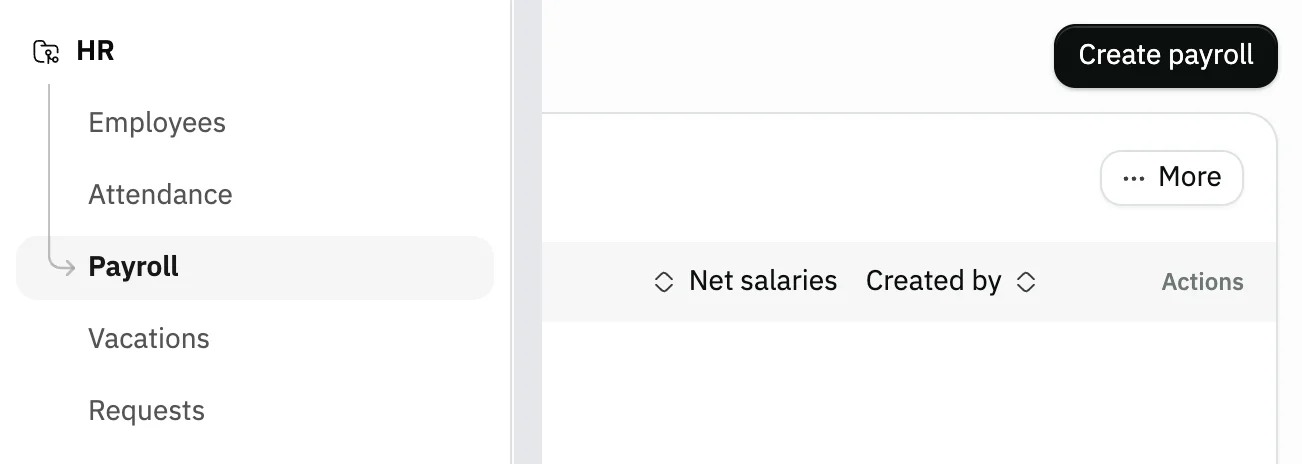
Image key - Payroll in the sidebar
- The Create payroll button
Step 2: Set the period and employees
In the Create payroll window the Payroll period starts as the current month; change Start date and End date if you need to. Snad works out Total days itself. All Employees are selected already, so remove anyone who is not in this run.
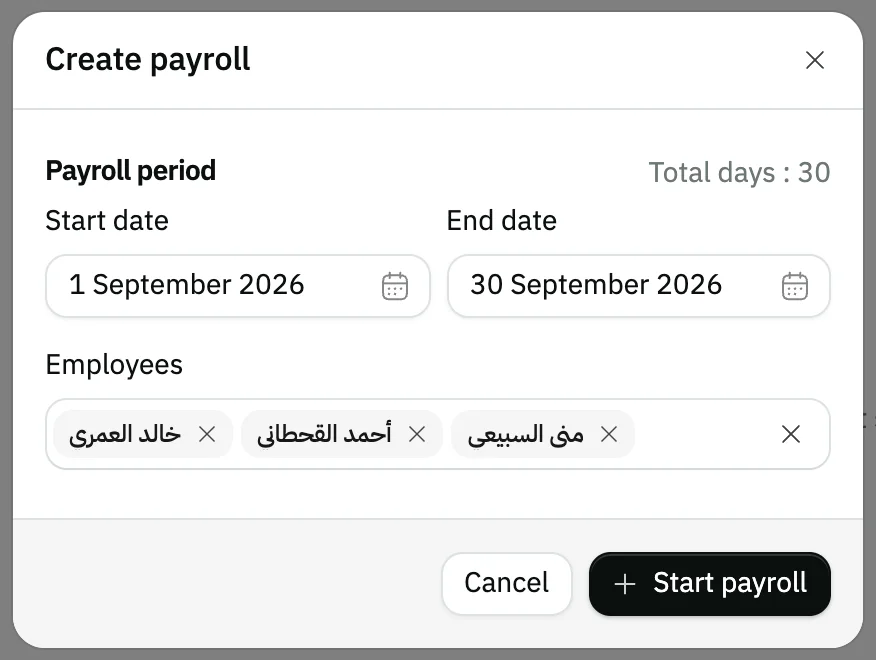
Image key - The Payroll period and its two dates
- The Employees field
Step 3: Start the run and read the cards
Press Start payroll. The run page opens with Net salaries, Included employees and Excluded employees. Details

Image key - The Net salaries card
- The Included employees card
- The Excluded employees card
Step 4: Adjust the figures if needed
Press Update to edit each employee's Salary, Allowances, Deductions and Compensation, then press Save. To work the deductions out from attendance again, press Recompute. Details
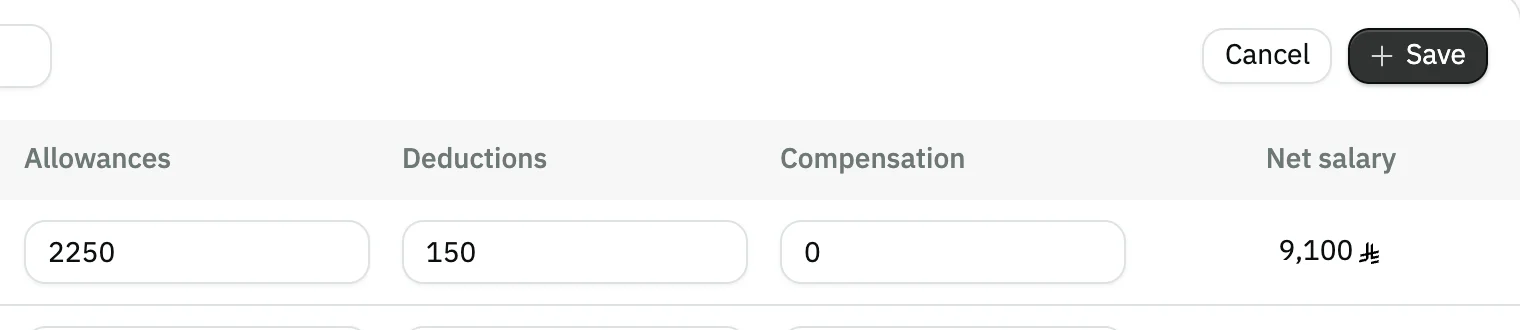
Image key - The Deductions field after editing
- The Save button
Step 5: Close the run
Press Close payroll, then Continue in the confirmation window. Once closed, you cannot edit the run's data or add data to it. Details
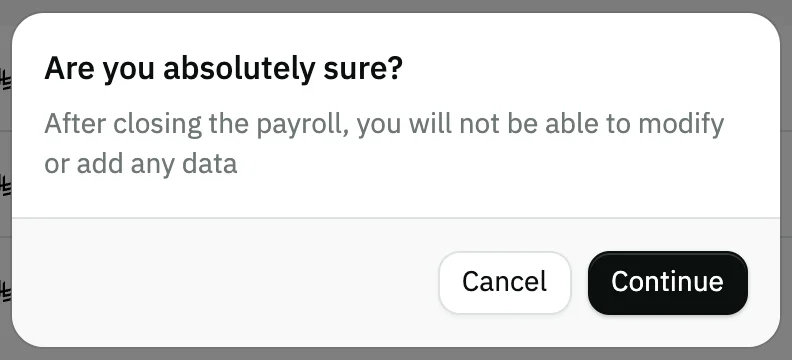
Image key - The closing warning text
- The Continue button
Step 6: Mark the salaries paid
After closing, the Mark paid button appears. Press it, then Continue, and Snad records the full Net salaries as paid by transfer and posts it to the accounts. Details
Messages that block saving
If saving fails, one of these messages shows next to the field. The table gives the cause and the fix.
| Message | Cause | Fix |
|---|---|---|
| «Please select employees (shown in English)» | No employee is left selected in the create window. | Pick at least one employee in the Employees field. |
| «Payroll accounting accounts are not configured. Set them in Accounting settings → Payroll Accounting. (shown in English)» | The salary expense or employees payable account is not linked, so Snad cannot post the entry when you close. | Link both accounts in the Payroll accounting tab, then close again (accounting settings). |
| «Cash/Bank account for payroll payment is not configured. (shown in English)» | Payment by transfer needs a linked bank account, and there is none. | Link the Bank account in the Payroll accounting tab, then press Mark paid again. |
| «Cannot cancel a payroll that already has paid payments. Reverse the payments first. (shown in English)» | A payment is recorded on this run, so it cannot be cancelled before the payment is reversed. | Press Reverse payment first, then Cancel payroll. |
Advanced details
Each section here explains one point from the steps in depth. Every section has a fixed link you can share.
Excluded employees
The Excluded employees card counts the employees who are not in this run. View all shows in it while anyone is excluded.
In the window that opens, an add button sits beside each employee until you close the run, and the employee joins with the salary and allowances from their card, and zero deductions and compensation.
In the Net salaries card, View all opens Financial details with the totals for salaries, allowances, compensation and deductions.
How Snad works out the figures
When you press Start payroll, Snad takes each employee's salary and allowances from their card, then works out Deductions and Compensation from their attendance and vacations under the Deduction policy (HR settings).
Net salary = Salary + Allowances − Deductions + Compensation. You see it as you edit, before saving.
Recompute redoes the lines Snad calculated and keeps what you edited by hand. It works while the run is not closed.
Above the table, a box filters employees by name.
Accounts and entries on close and pay
Closing posts the salary accrual entry: debit salary expense, credit employees payable. A Snad notification reaches everyone who can view payroll.
Payment posts a second entry: debit employees payable, credit the bank. It needs the Bank account linked. To review the balance of any of these accounts, open the account statement.
The four accounts are the Salary expense account, Employees payable account, Cash account and Bank account (accounting settings).
Reversing a payment and cancelling
After payment, Mark paid disappears and Reverse payment appears. It un-posts the payment (debit bank, credit employees payable) so the run can be cancelled afterwards.
Cancel payroll reverses the accounting entry and restores loan balances, and does not work while a payment is paid. Both buttons ask you to confirm with Continue.
Cancel payroll shows only after closing, and the run's status becomes Canceled.
Common questions
- How do I run the monthly payroll in Snad?
- Open HR, then Payroll, and press Create payroll. Set the period and the employees, press Start payroll, review the figures, then close the run and mark it paid. Closed runs show in the payroll report.
- Can I edit a payroll run after closing it?
- No. After Close payroll you cannot edit its data or add an employee. If you need a change, reverse the payment if there is one, then Cancel payroll.
- Where do the deductions in a payroll run come from?
- Snad works them out from the employee's attendance and vacations under the Deduction policy when you press Start payroll. You can edit them with Update or redo them with Recompute.
- Can I pay only part of the salaries?
- The Mark paid button pays the whole Net salaries at once, by transfer. The screen has no amount field to change.
- Why is the Create payroll button missing?
- The button shows only to users who can create payroll. Ask your account admin for the permission (roles and permissions).