
How to set delivery app prices in Snad
To set delivery prices in Snad ERP: in POS settings switch the apps on under Enabled apps and press Selling prices. Type a product's price under each app, or press Apply a percentage to raise a whole column, then save the changes.
In this guide6
Steps
Step 1: Open the POS settings
Press POS in the sidebar, then Settings under it. The Enabled apps card appears below the settings whenever Order type (dine in / takeaway / delivery) is switched on.
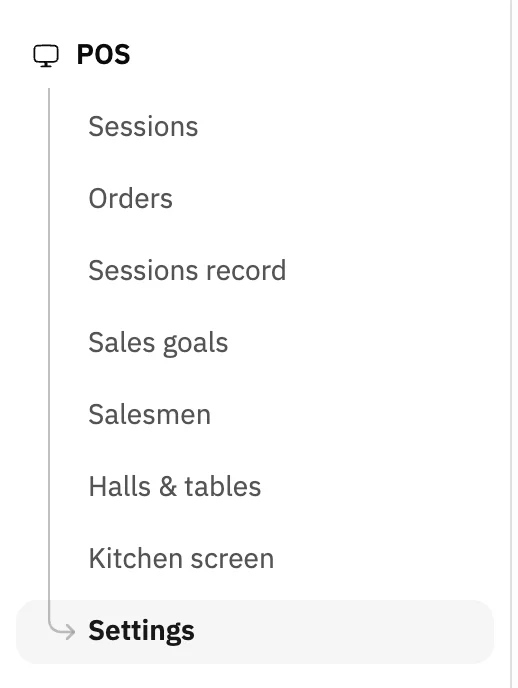
Image key - Settings under POS in the sidebar
Step 2: Switch your delivery apps on
Switch on every app you sell through, or press Custom app to add one under your own name. Then press Selling prices to open the price table. Details
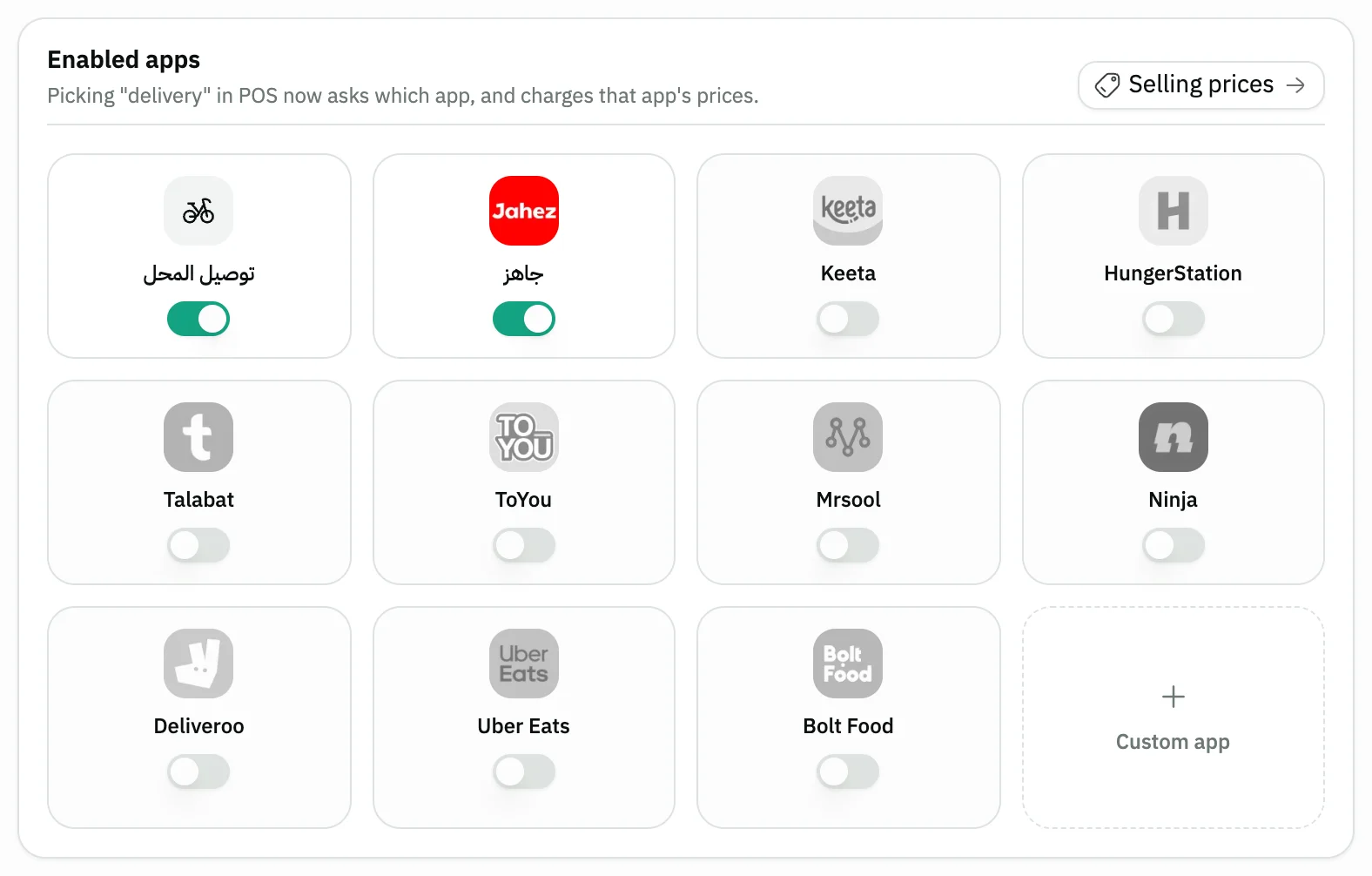
Image key - An app's on/off switch
- The Custom app button
- The Selling prices button
Step 3: Read the delivery price table
On Delivery prices each product has a row: the Default price column is the product's own price, then a Unified column, then one column per app you switched on. A greyed number is inherited. Details
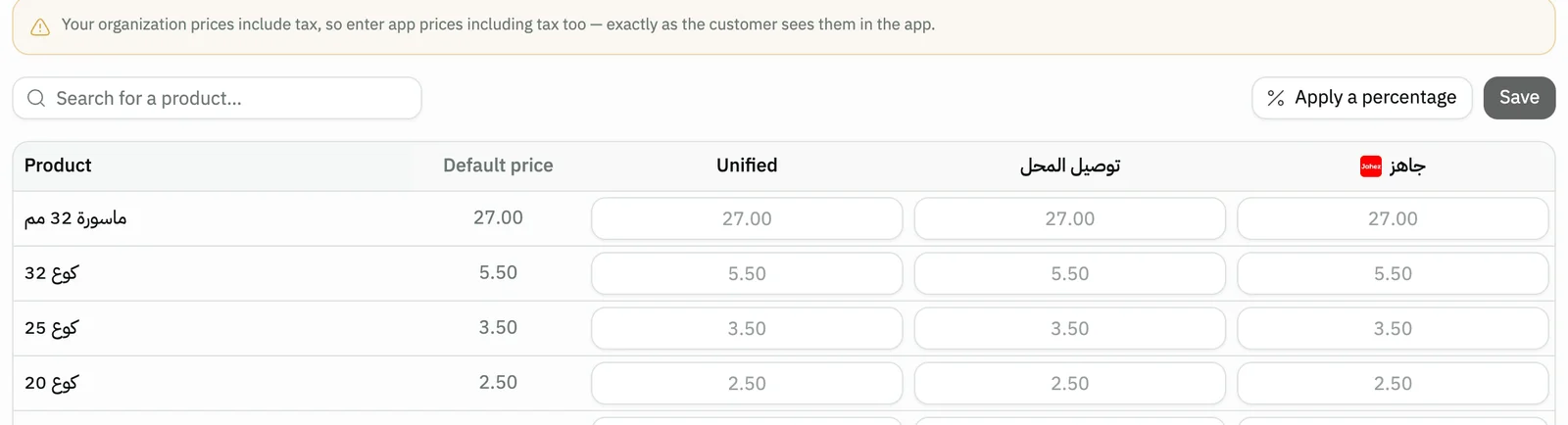
Image key - The Default price column
- The Unified column
- The first enabled app's column
- The tax notice
Step 4: Type a price for an app
Find the product by its name, number, SKU or barcode in Search by name, number, SKU or barcode or narrow the table with the Category and Brand filters, then type its price in the app's cell. The edited cell is highlighted and nothing is saved yet. Clear the cell to inherit again.

Image key - The product search field
- The app cell after the edit
- A cell that inherits its price (grey)
Step 5: Apply a percentage to a whole column
Press Apply a percentage, pick the column under Which column?, enter the rate in Markup (%) (default 25), then press Apply. It is worked out from the Default price, so it never compounds. Details
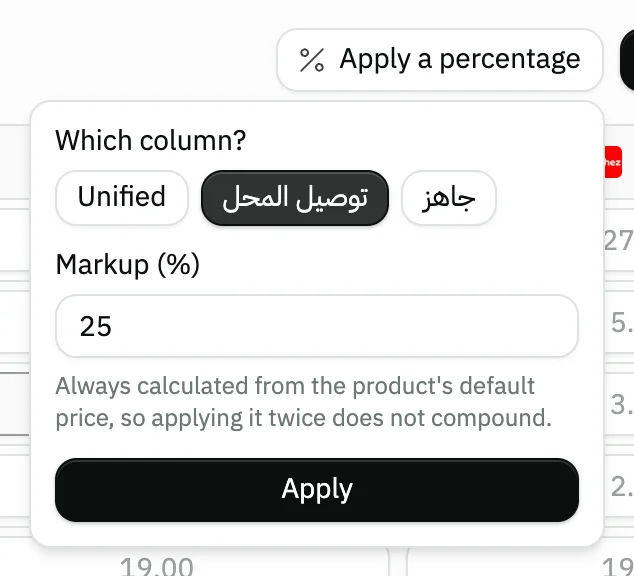
Image key - The column choice, Which column?
- The Markup (%) field
- The Apply button
Step 6: Save the changes
Press the save button, which shows your number of changes (like “Save 12 change(s)”). Saved successfully appears and the prices are used for delivery sales at the POS.

Image key - The save button with the change count
Messages that block saving
If saving fails, one of these messages shows next to the field. The table gives the cause and the fix.
| Message | Cause | Fix |
|---|---|---|
| «Something went wrong. Try again» | The save failed: the connection dropped or the server refused the change. | Check your connection and press the save button again; your pending changes are still in the table. |
Advanced details
Each section here explains one point from the steps in depth. Every section has a fixed link you can share.
How an empty cell gets its price
The POS charges the first price it finds in this order: the app's cell, then the Unified column, then the product's Default price. So type one price in Unified for every app, and override it for a single app.
Zero is a real price (free), while an empty cell means “inherit”. Clearing a cell and saving removes the stored override.
What the percentage changes exactly
The percentage covers only the products the current search and the Category and Brand filters match, including variants under collapsed products, and skips services and anything not sold. The result is rounded to two decimals.
On an account with many products, Snad loads the list in batches: a line “Loaded N of M products” and a Stop loading button show, and Retry shows if the load fails. The Apply a percentage button stays disabled until the load finishes, because it touches every row, and hovering it shows “Available after all products have loaded”.
A product priced Per warehouse has no single default, so the percentage skips it and tells you how many; type its price by hand. A product with Variants is a heading row: click it to show and price its variants.
Tax in delivery prices
A notice above the table follows your organization's setting: if your prices include tax, enter app prices including tax, as the customer sees them in the app. If they exclude tax, enter them without it, or every delivery invoice comes up short by the tax. See set up tax.
What the cashier sees at the POS
When the cashier picks Delivery on the sales screen, the Delivery app window asks which app, and the cart is repriced with its prices. No app sells at branch prices. With no app switched on, “delivery” is only recorded on the invoice. More in sell at the point of sale.
You review the orders after the sale in POS orders; for restaurants see also the kitchen display.
For quick access to the table, search the command palette (Ctrl + K) for Delivery app prices.
Common questions
- Why are some prices greyed in the delivery table?
- A greyed number is an inherited price with nothing stored in that cell: it comes from the Unified column, then from the Default price. Type to override it; clear the cell to inherit again.
- How do I raise one delivery app's prices by 25%?
- On Delivery prices press Apply a percentage, pick the app's column, enter 25 under Markup (%), press Apply, then save. It is worked out from the default price, so applying it twice does not compound.
- Do I lose an app's prices if I switch it off?
- No. Switching it off keeps the app and its prices; only its column and the cashier's choice disappear. Deleting is a separate action from the app's menu in the Enabled apps card.
- Does the app's commission affect prices or profit?
- No. App commission (%) is for display and reporting only; it is never deducted from net profit or counted in cost of goods, and it changes no price. You type the prices in the table.
- Who can open the delivery price table?
- Anyone with permission to edit products, because the table changes what customers are charged. The app switches need permission to edit POS settings, otherwise they show read-only.