
How to create an account in Snad
To create an account in Snad ERP, enter your Email, Phone and Password, and press Create an account. Type the verification code, choose your plan and apps, then press Start 7-day trial. On the free Starter plan, Create your business shows instead.
In this guide6
Steps
Step 1: Enter your sign-in details
Enter your Email, Phone and Password, 8 to 30 characters, then press Create an account. Details
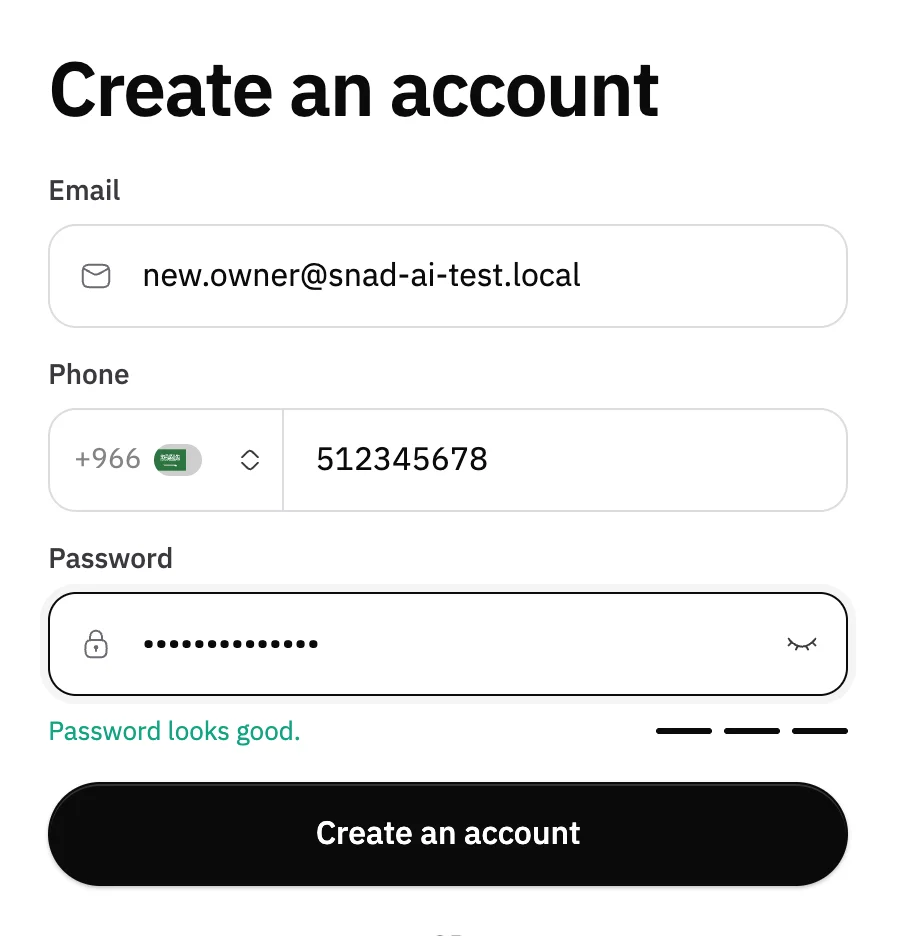
Image key - Phone
- Password (8 to 30 characters)
- The Create an account button
Step 2: Enter the verification code
A six-digit code arrives in your inbox. Type it into the boxes, then press Continue. Details
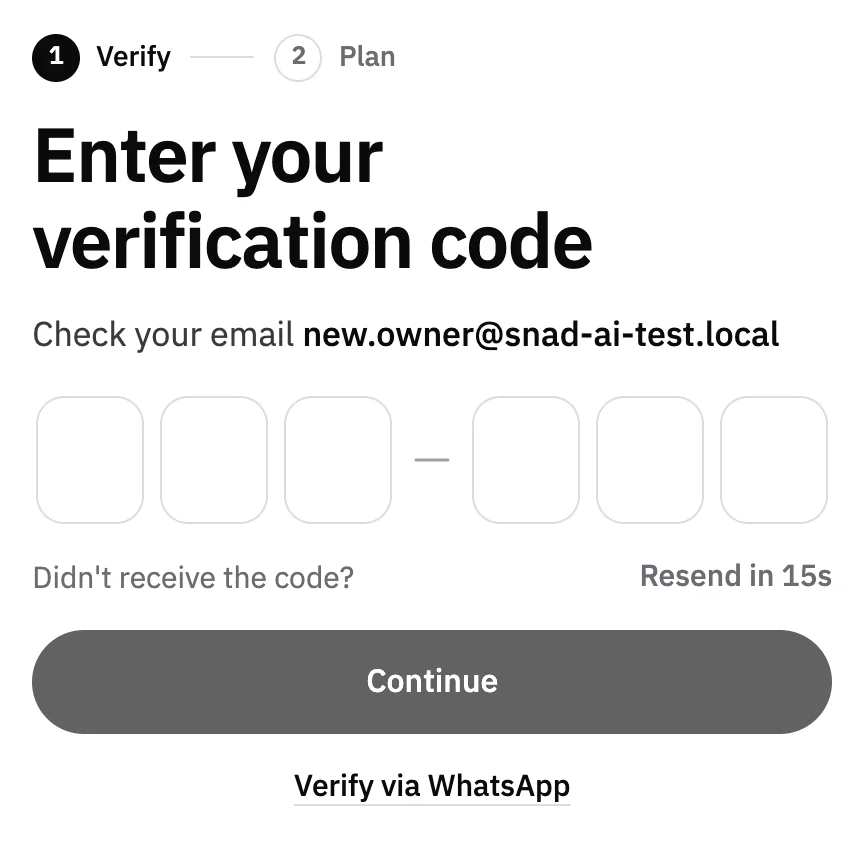
Image key - The six code boxes
- The Continue button
- Verify via WhatsApp
Step 3: Choose your plan
Under Choose your plan, pick the Monthly or Yearly billing cycle, then choose Starter, Basic or Grow. Details
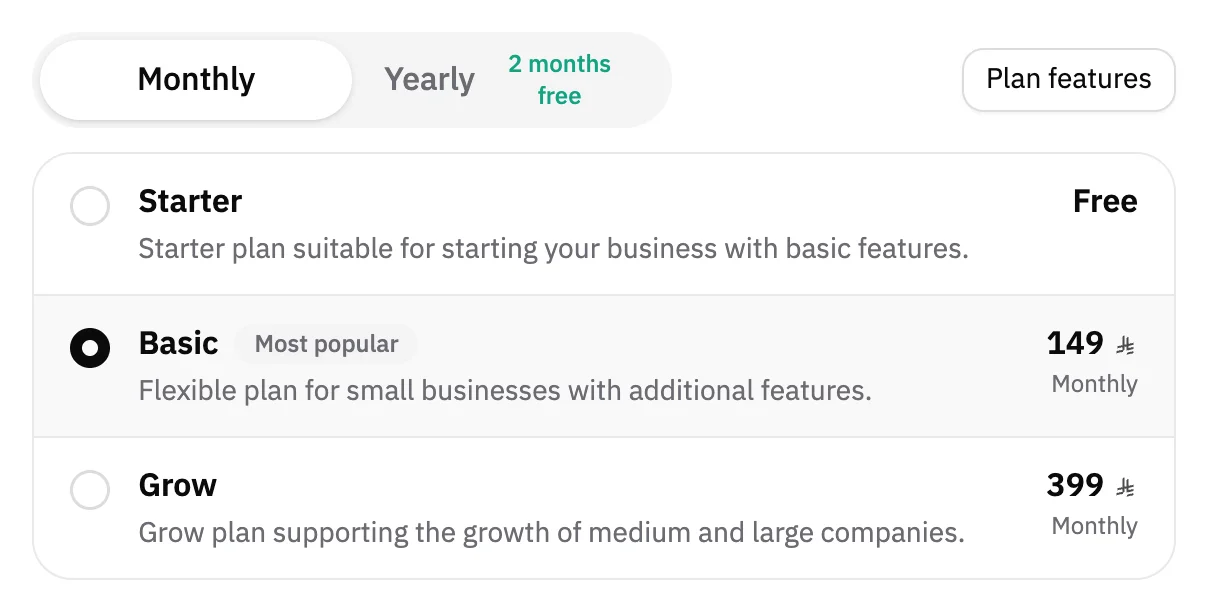
Image key - Billing cycle: Monthly or Yearly
- The plans: Starter, Basic and Grow
Step 4: Pick your apps
Under Apps, press the apps you need. Each plan has a cap, and once you reach it you can't pick a new app until you clear another. Details
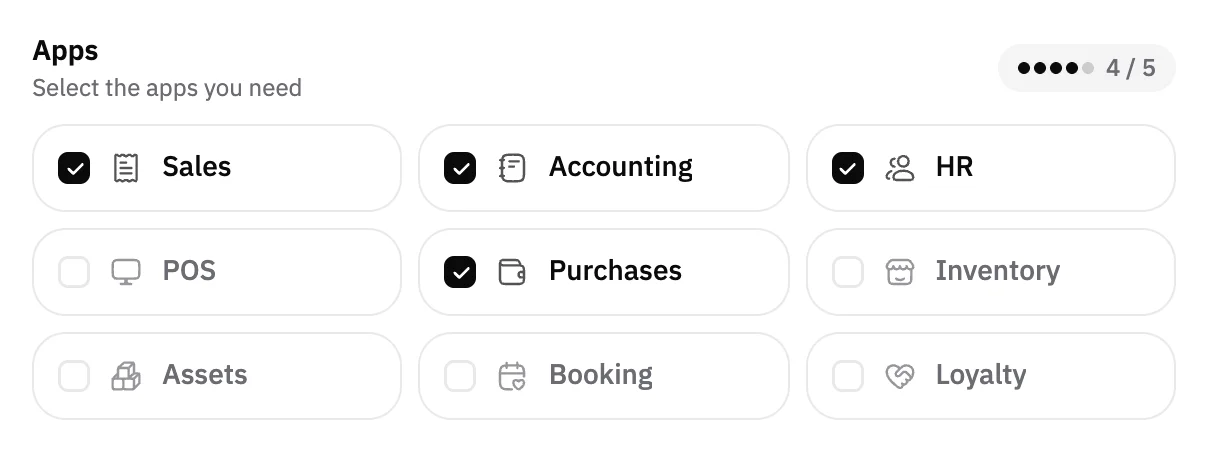
Image key - Counter of selected apps
- The apps
Step 5: Add users if you need them
In Additional users, raise the number of people you'll add on top of those your plan includes. Check the Invoice below it. Details
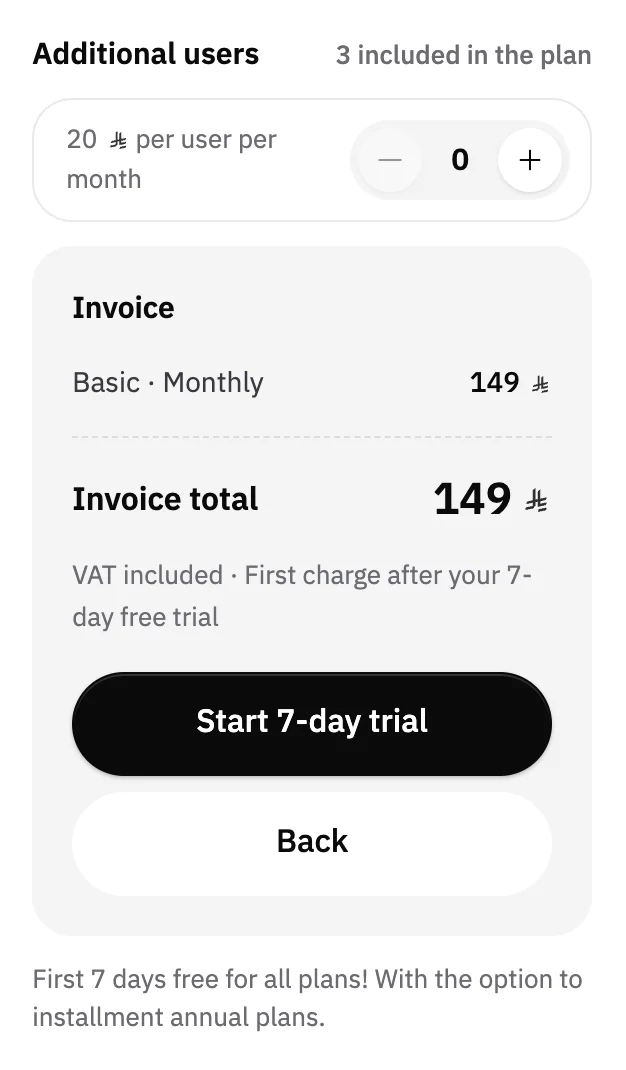
Image key - Additional users
- The Invoice
- The Start 7-day trial button
Step 6: Start your trial
Press Start 7-day trial, or Create your business if you chose Starter. Your account is created and you are signed in automatically. Details
Messages that block saving
If saving fails, one of these messages shows next to the field. The table gives the cause and the fix.
| Message | Cause | Fix |
|---|---|---|
| «ايميل غير صحيح (the app shows this message in Arabic)» | The email address is not in a valid format. | Type a full address in Email, such as name@company.com. |
| «كلمة المرور يجب ان تكون بين 8 و 30 احرف/رقم (the app shows this message in Arabic)» | The password is shorter than 8 characters or longer than 30. | Type 8 to 30 characters or digits in Password. |
| «Email already exists» | This email already has a Snad account. | Press Sign in and use your account, or sign up with another email. |
| «Invalid code!» | The code you typed doesn't match the one we sent. | Check the code in your inbox and type it again, or press Resend. |
| «Code has expired!» | Too much time has passed since the code was sent. | Press Resend and type the new code. |
| «Pick at least one app» | You cleared every app under Apps. | Pick at least one app, then press the button again. |
Advanced details
Each section here explains one point from the steps in depth. Every section has a fixed link you can share.
Rules for email, phone and password
The password is 8 to 30 characters, and a meter under it shows how strong it is. Phone is an international number that starts with your country code.
If your email already has an account, “Email already exists” shows and you stay on the same screen. Press Sign in below the form.
Getting the code on WhatsApp
No code in your inbox? Press Verify via WhatsApp and it goes to your phone. If WhatsApp isn't available, Snad sends it by SMS.
To go back to email, press Use email instead. Resend turns on after a short countdown.
Plans and the app cap
The Starter plan is free with no end date, and every plan has a 7-day trial with no card.
Each plan has an app cap: two on Starter, five on Basic, and all apps on Grow.
After sign-up, you change your plan and apps from the manage subscription guide.
Included and additional users
Starter includes one user, Basic three and Grow five. Additional users shows only with Basic and Grow.
With Basic and Grow, the Invoice has a Have a discount coupon? link: type the coupon name in Discount coupon and press Apply to see the discount line and the total after it. The discount applies to the first payment after the trial and every renewal.
You add users and set their permissions after sign-up, in the add a user guide.
After the account is created
Your business is created and you go straight in. The first thing to do is review your business details in the edit business details guide.
If you have branches, add them with the add a branch guide.
Common questions
- How do I create an account in Snad?
- Open the sign-up page, enter your Email, Phone and Password, press Create an account, type the code and choose your plan.
- Do I need a card to start the trial?
- No. Every plan has a 7-day trial with no card, and the Starter plan is free with no end date.
- The verification code didn't arrive. What now?
- Press Resend when the countdown ends, or Verify via WhatsApp to get the code on your phone.
- Can I change the plan after signing up?
- Yes, from the plan and subscription settings once you're in. The details are in the manage subscription guide.
- How many apps can I pick?
- Two on Starter, five on Basic, and all apps on Grow.