
How to view purchase reports in Snad
To view purchase reports in Snad ERP, open Reports, then Purchase invoices in the Purchases card. Set the period with Pick a date, narrow the report by Supplier or Warehouse, and read Total and Grand total. Click any row to see the invoice items, and use More to export or print.
In this guide7
Steps
Step 1: Open the purchase invoices report
In the sidebar choose Reports, then press Purchase invoices in the Purchases card. To find a report faster, type its name in Search reports.... Details
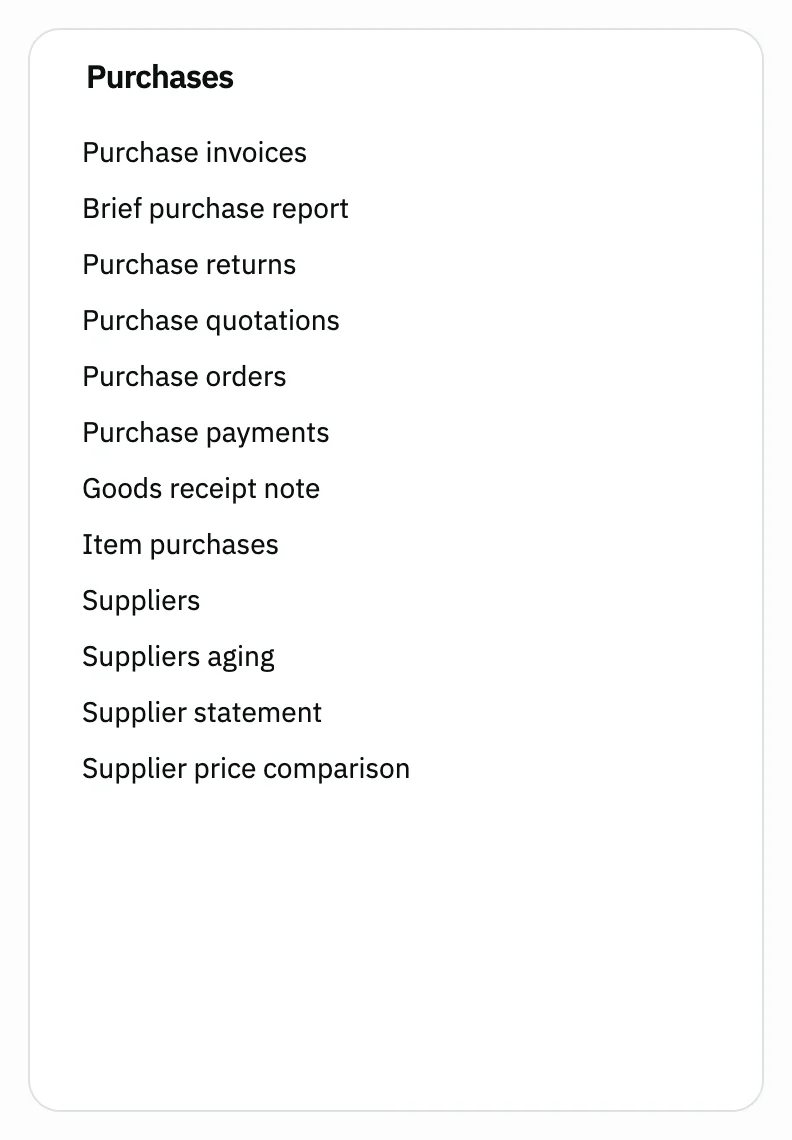
Image key - The Purchases card
- Purchase invoices
Step 2: Set the period
Press Pick a date, then choose a ready period such as This year, or pick the first and last day on the calendar.
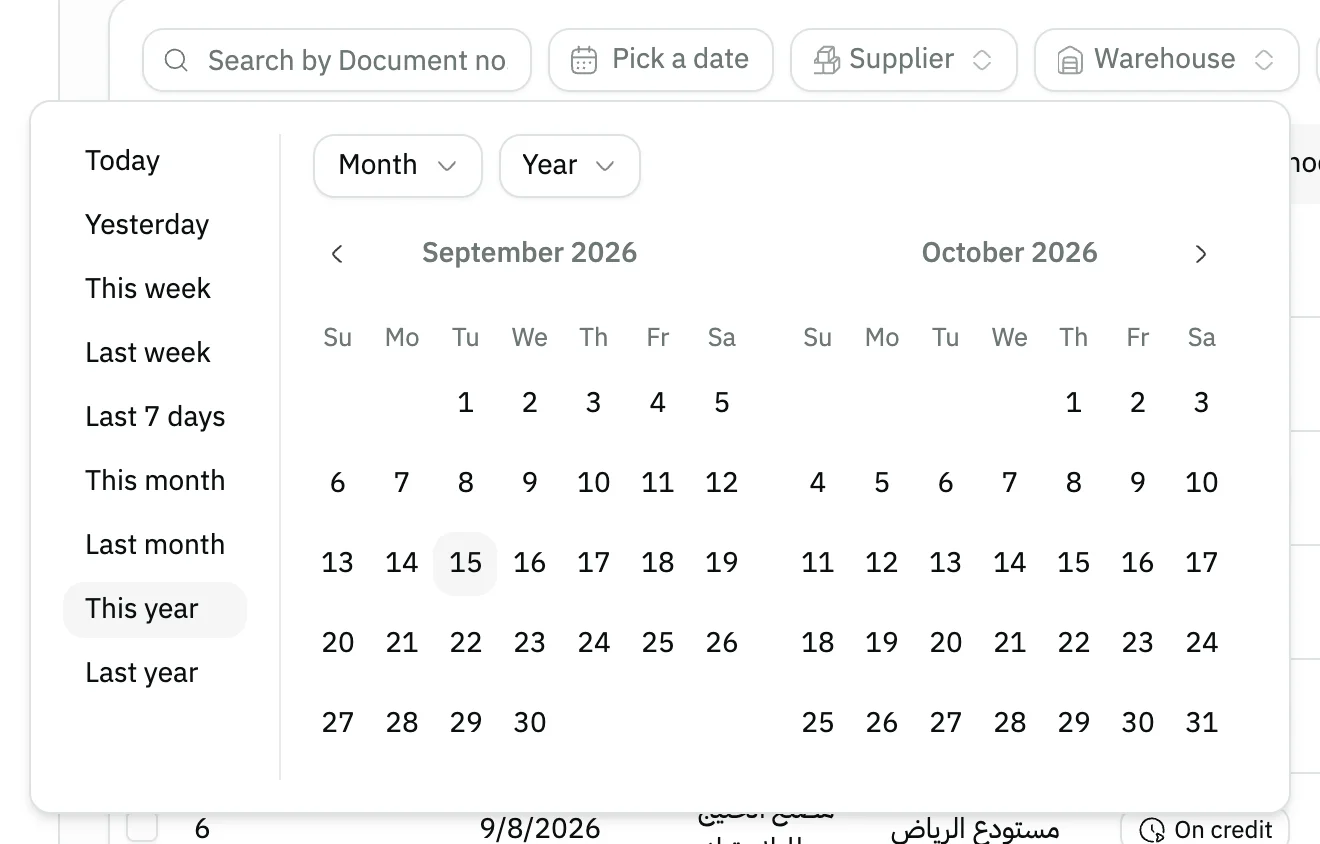
Image key - The Pick a date button
- A ready period, such as This year
Step 3: Narrow the report by supplier
Press Supplier, search by name, tick one or more suppliers, then press Apply. Warehouse works the same way. Details
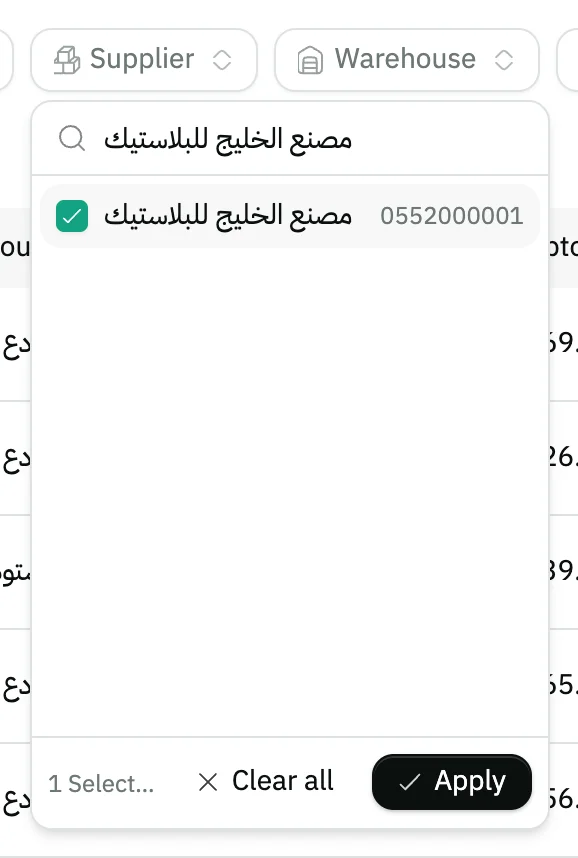
Image key - Search by supplier name
- A ticked supplier
- The Apply button
Step 4: Read the invoice table
Each row is one invoice: Invoice number, Created at, Supplier, Warehouse and Payment method, then the amounts in the next columns. Details
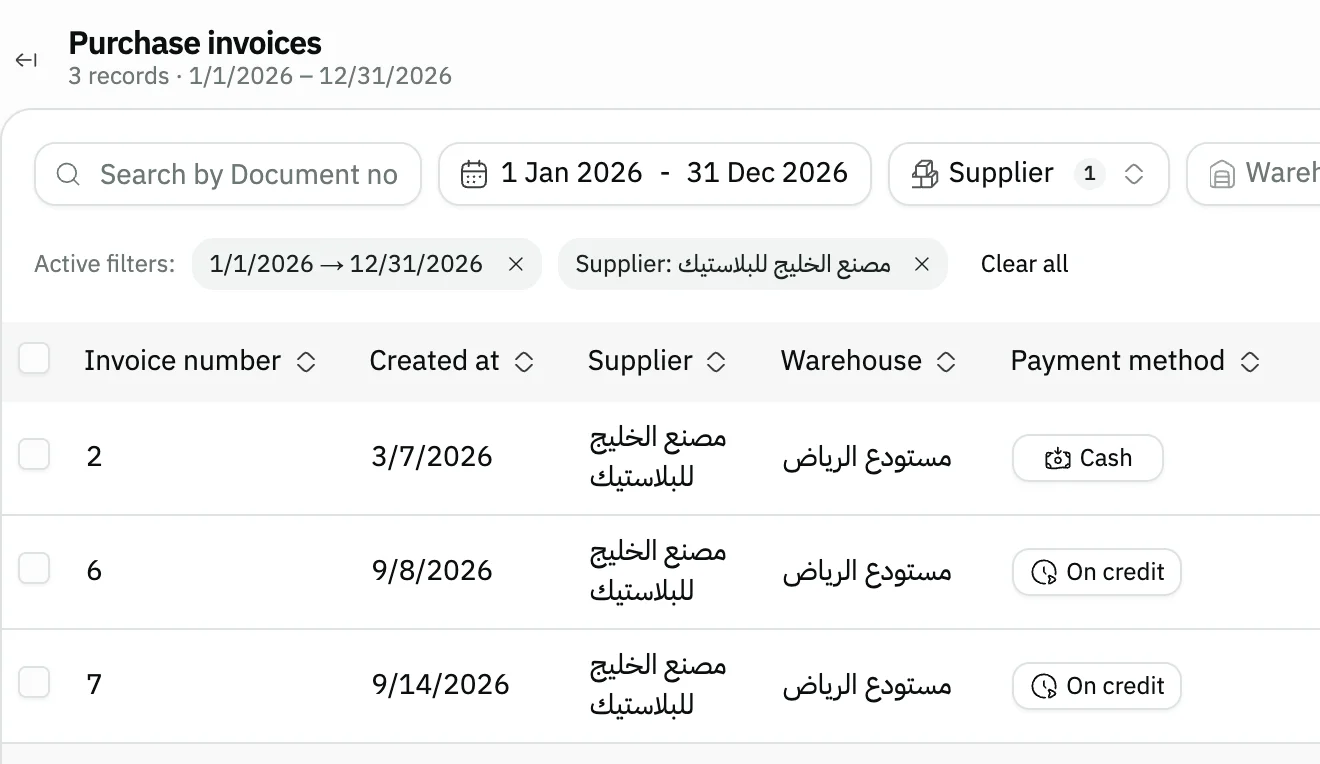
Image key - Record count
- Invoice number
- Supplier
- Payment method
Step 5: Check the totals
Two rows sit under the table: Total for the records on the page you see, and Grand total for every record in the report with your filters.
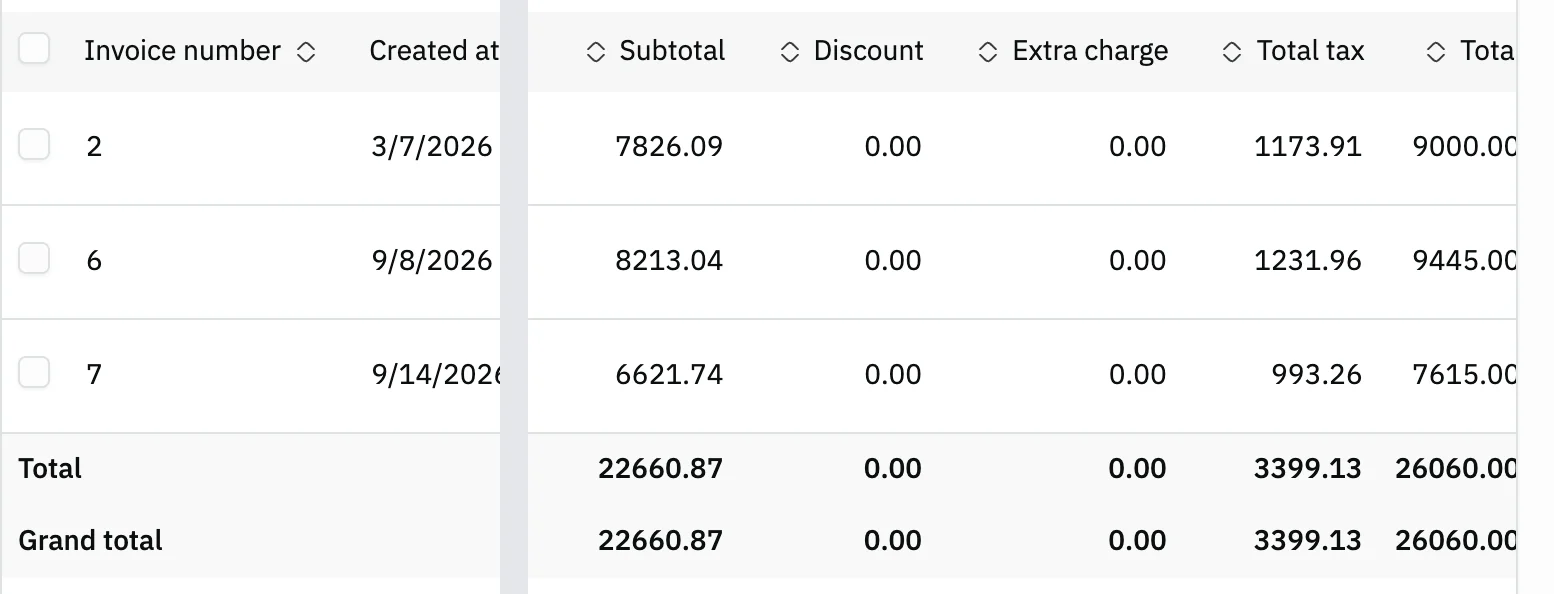
Image key - Total: the rows of this page
- Grand total: every record in the report
Step 6: Open an invoice's details
Click any row in the table and a window opens with its Items, quantities and prices. Move between invoices with the two arrows at the bottom of the window, and press Open full record to open the invoice itself.
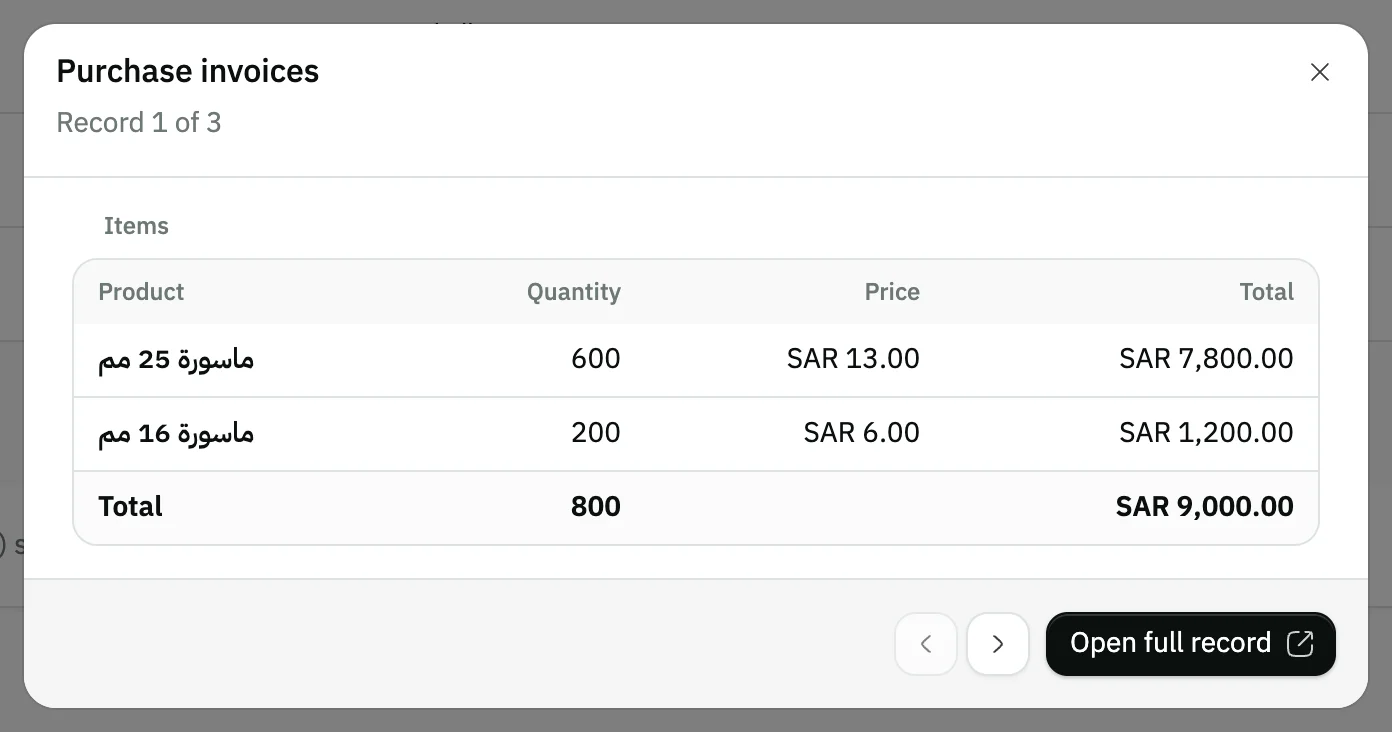
Image key - The record's place among the page's records
- Items: product, quantity and price
Step 7: Export or print the report
Press More, then Export as Excel or CSV to download the table, or Print to print it. Details
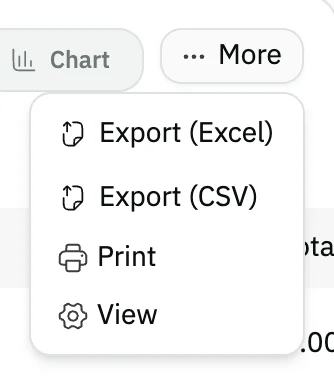
Image key - The More button
- Export (Excel)
Messages that block saving
If saving fails, one of these messages shows next to the field. The table gives the cause and the fix.
| Message | Cause | Fix |
|---|
Advanced details
Each section here explains one point from the steps in depth. Every section has a fixed link you can share.
Other purchase reports
The Purchases card holds other reports on almost the same screen: the filters, the table and the export work in them as in this guide.
To group purchases by a custom field of your own, press Purchases by custom field and pick your field in Field. The report shows one row for each value, and the page opens on the current month. The fields offered are list, text, yes/no, linked record and date fields that are not archived and not hidden from you by a permission, so Multiple choice and Rating do not show. Supplier fields are added in how to add custom fields.
In Read the value from, choose The invoice to read the value from the invoice itself (the default), or The supplier to read it from a field on the supplier's record, so each supplier's purchases group under that supplier's value. A date field also shows Group dates by with two options: Day (the default) and Month, and with Month a Hijri date field is grouped by Hijri month.
The columns are Value, Total invoice count, Total purchase invoices, Total purchase returns, Net and Total tax, and under the table are the totals of the same columns for all rows. Rows are ordered from the largest Net, a date field from the oldest, and the “Not set” row comes last. It holds the invoices with no value in the field. Press the value of any row to open the purchase invoices with that value, for the same period and warehouse; the “Not set” row opens the invoices with no value, and the filters applied show above the invoice list, where you remove them like any other filter. No link opens when you read the value from The supplier, or for a Hijri date field grouped by Month. The invoice list shows canceled invoices and the report leaves them out, so the number of rows can be higher than the invoice count of the row.
A purchase return is counted in the row of its original invoice's value, and it falls in the period by the return's own date, not the invoice's date. Every invoice except canceled ones is counted, and a Supplier gifts invoice enters like any purchase invoice with its saved total and tax (a supplier gift invoice).
When you read the value from The supplier, that supplier's returns follow the value the field has now, not the value on the invoice date, so if you change the field on the supplier's record all of that supplier's earlier invoices move to the new value in this report. A text field is grouped exactly as typed: a capital and a small letter are two different values.
The report needs the permission to view purchase reports, and you narrow it with Pick a date and Warehouse; your user sees only the warehouses the data access scope allows (set data access). If the field has too many values for one report, is not available to you, or grouping by Hijri month is not available, a message gives the reason: narrow the period, choose another field or group by day.
For sales and stock: sales reports and inventory reports.
- Brief purchase report and Purchase returns: invoices with fewer columns, and purchase returns (how to create a purchase return).
- Purchase quotations, Purchase orders and Goods receipt note: the documents that come before the invoice (how to create a purchase order and goods receipt note).
- In Goods receipt note there is a Custom fields button: press Add condition then Apply to narrow the report by the value of a field on the note, and a column shows for each field on the note that you ticked Show in list (custom fields).
- Purchase payments, Item purchases, Suppliers and Supplier price comparison: purchases grouped by payment, item or supplier. In Item purchases and Supplier price comparison you can also narrow the result with the Category and Brand filters.
- Suppliers aging and Supplier statement: what you owe each supplier (how to view a supplier statement). They need the accounting reports permission.
Payment method and the invoice number
Press More filters to find Payment method, and pick from it as you pick a supplier.
The payment methods you can pick are Cash, Card, Transfer and On credit. To reach one invoice, type its number in Document no..
The chart instead of the table
Press Chart above the table to see bars sized by value for the records on the page you see; Table takes you back.
Choose what is drawn from Metric. The shortcut Alt + V flips between the two views.
What export and print include
Export and print take only the records on the page you see. Raise Rows per page (up to 250) to include more, or move between pages.
If you tick one or more rows, the export takes only those. The Excel file carries the applied filters by name and the totals.
To print the documents themselves in their official layout, set up print settings.
Common questions
- How do I get a monthly purchase report in Snad?
- Open Reports, then Purchase invoices, press Pick a date and choose This month or Last month. Read the Grand total under the table.
- How do I see what I bought from one supplier?
- In Purchase invoices press Supplier, tick it and press Apply. The report shows that supplier's invoices only, and Grand total adds them up.
- What is the difference between Total and Grand total?
- Total adds up only the records on the page you see. Grand total adds up every record that matches your filters, across all pages, so they match when one page holds every record.
- How do I export the purchase report to Excel?
- Press More, then Export (Excel). The file holds the records on the page you see, so raise Rows per page if you want more.
- Why can't I see the purchase reports?
- The Purchases card shows to users allowed to view purchase reports (roles and permissions). Suppliers aging and the supplier statement also need the accounting reports permission.
- How do I see my purchases by a custom field, such as a project or a buying branch?
- Open Reports, then Purchases by custom field in the Purchases card, and pick the field in Field. The report shows one row for each value, with its invoice count, Net and Total tax.