
How to issue a gift card in Snad
To issue a gift card in Snad, open Loyalty, then Gift cards, and press New gift card. Type the Card code and the Amount, then press Create card. At the sale, type the code in Gift card code and press Use.
In this guide6
Steps
Step 1: Open the gift cards
In the sidebar, choose Loyalty, then Gift cards. The page lists your cards, with the New gift card button above it. Details
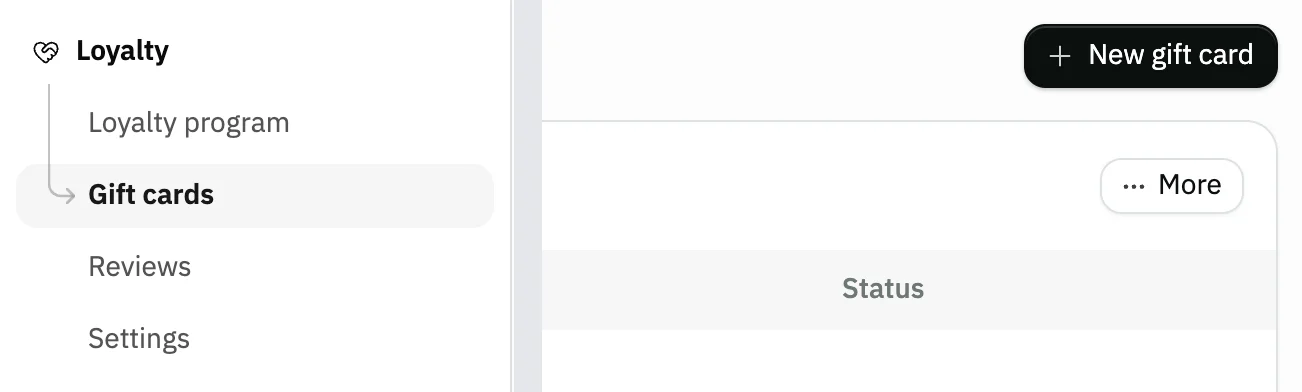
Image key - Gift cards in the sidebar
- The New gift card button
Step 2: Type the code and the amount
Press New gift card. Type the Card code the customer will enter when paying, and the Amount, which is what the card is worth. Details

Image key - The Card code field
- The Amount field
Step 3: Reserve the card and set its expiry
Pick a customer in Customer (optional) to reserve the card for them, or leave it empty for a card anyone can use. In Expires on, choose the last day it can be used. Details

Image key - The Customer (optional) field
- The Expires on field
Step 4: Create the card
Add a Note if you like, then press Create card. Snad goes back to the list and the new card appears in it.
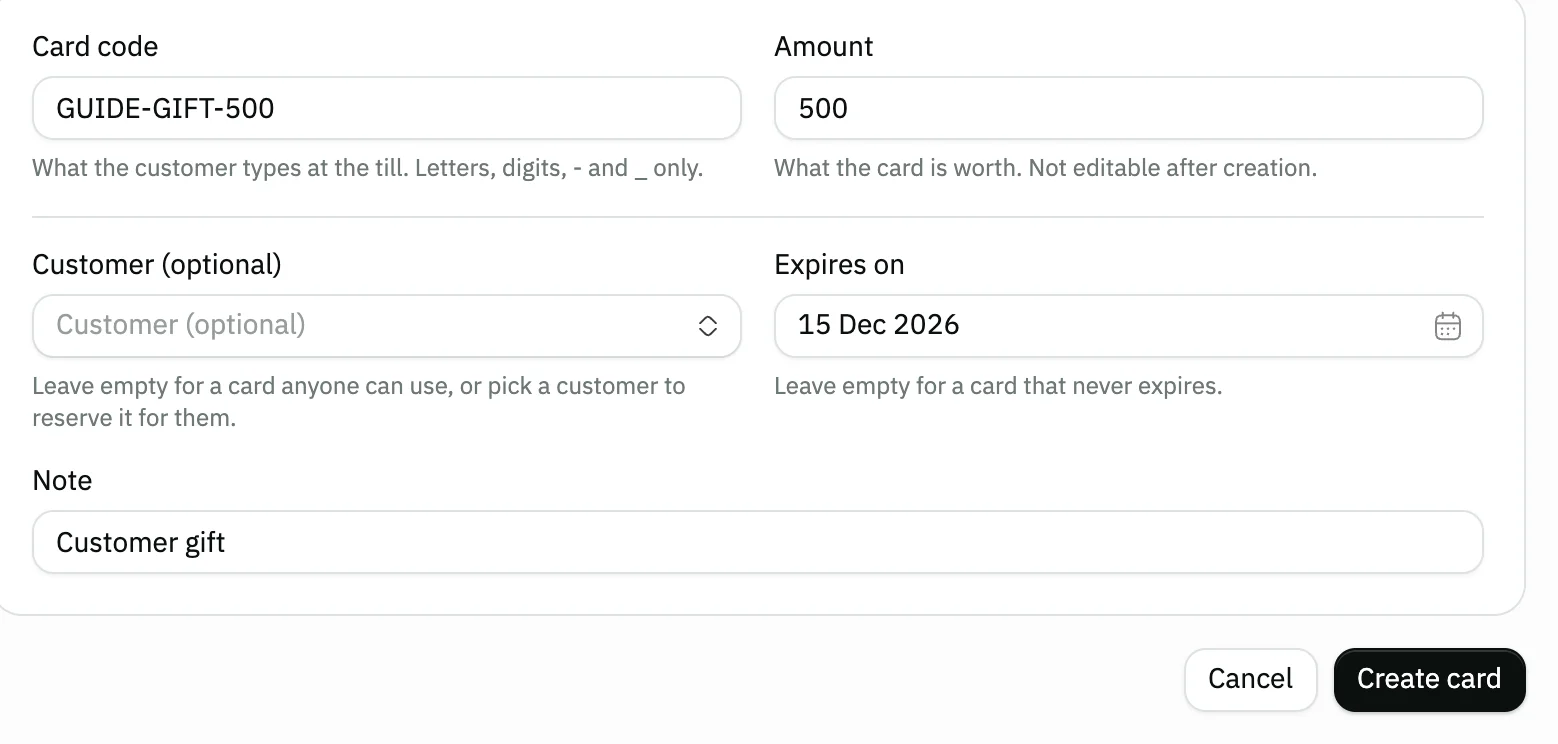
Image key - The Note field
- The Create card button
Step 5: Check the card in the list
Find the code in the list. It shows the balance Remaining from the original amount, and the card's status On so it can be used. Details

Image key - The Remaining column
- The status On
Step 6: Take the card off an invoice
On a sales invoice, press Use loyalty balance, type the code in Gift card code, then press Use. The amount comes off the invoice and the card's remainder is shown. Details
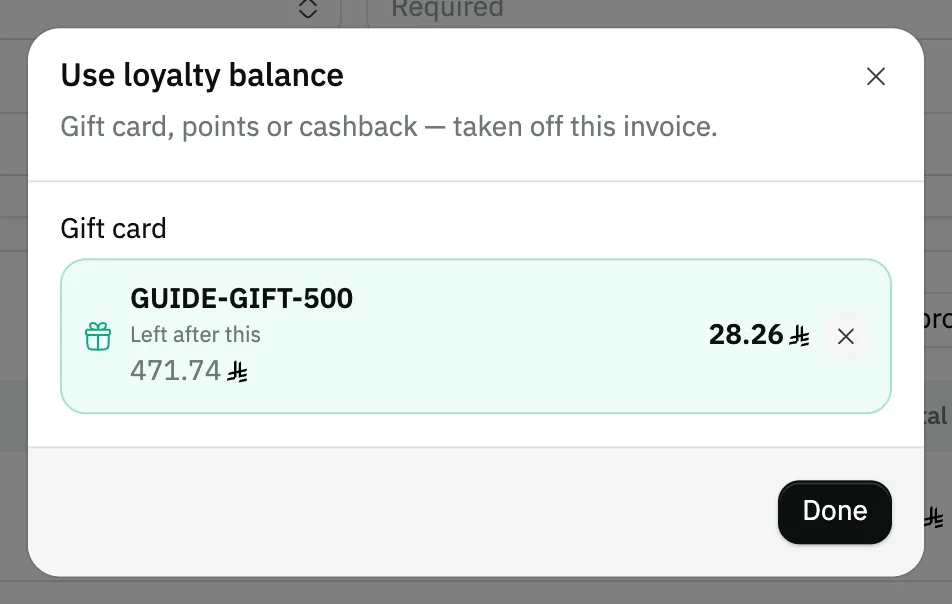
Image key - The applied card and what is Left after this
Messages that block saving
If saving fails, one of these messages shows next to the field. The table gives the cause and the fix.
| Message | Cause | Fix |
|---|---|---|
| «A gift card with this code already exists.» | The card code belongs to another card; every card has its own code. | Change the Card code, then press Create card again. |
| «Enter a card code of at least 3 characters.» | The code is shorter than three characters. | Type a longer code, such as GIFT-500, using letters, digits, - and _ only. |
| «No card with this code.» | The code on the invoice is not the one you issued. | Match the code with the Card code column in the gift cards list and try again. |
| «This card is reserved for another customer.» | The card is reserved for one customer, and the invoice is for a different one. | Choose the card's customer on the invoice, or issue a card without a customer. |
Advanced details
Each section here explains one point from the steps in depth. Every section has a fixed link you can share.
How do I choose the code and the amount?
The code uses letters, digits, - and _ only, and at least three characters. Pick one that is easy to say, such as GIFT-500, because it is what the customer types when paying.
The Amount is what the card is worth, and it cannot be edited after creation. If it is wrong, deactivate or delete the card before it is used and issue another.
A bearer card or a card for one customer?
If you leave Customer (optional) empty the card is a bearer card, shown in the list under its code as Bearer card. Any customer who knows the code can use it.
If you pick a customer the card is reserved for them, and Snad refuses it on another customer's invoice. If you leave Expires on empty, the card never expires.
Deactivate or delete a card
The Deactivate button on the card's row stops it being used and its status becomes Off; Activate brings it back. This needs the update permission.
The Delete button asks for confirmation and only removes a card that has never been spent. Once it was used on an invoice, deactivate it instead.
Does a gift card post an accounting entry?
No. The screen itself states that creating a card posts nothing, and that when used it is applied as a pre-tax discount on the invoice.
So this does not record what you received from the customer for the card. Record that the way you usually do, for example with a receipt voucher.
The same field appears on the payment screen of the point of sale (sell at the point of sale).
Common questions
- How do I issue a gift card for a customer?
- Open Loyalty, then Gift cards, and press New gift card. Type the code and the amount, pick the customer in Customer (optional), then create it.
- Can I change a card's amount after creating it?
- No. The amount cannot be edited after creation. Deactivate or delete the card if it was not used, and issue one with the right amount.
- Can I delete a gift card that was used?
- No. Only a card that has never been spent can be deleted. Switch a used one off with the Deactivate button.
- Where does the customer enter the gift card code?
- On a sales invoice, under Use loyalty balance, in Gift card code; the same field appears when paying at the point of sale.
- Does a gift card expire?
- If you set Expires on it ends on that date; otherwise it never expires. An expired card shows in the list as Expired.