
How to create a product bundle in Snad
To create a product bundle in Snad ERP, open Product bundles from the sidebar and press New bundle. Enter the Bundle name, pick at least two products and their quantities, then enter a Bundle price below Sold separately and press Save.
In this guide8
Steps
Step 1: Open the product bundles
In the sidebar open General then Product bundles, and press New bundle above the table.
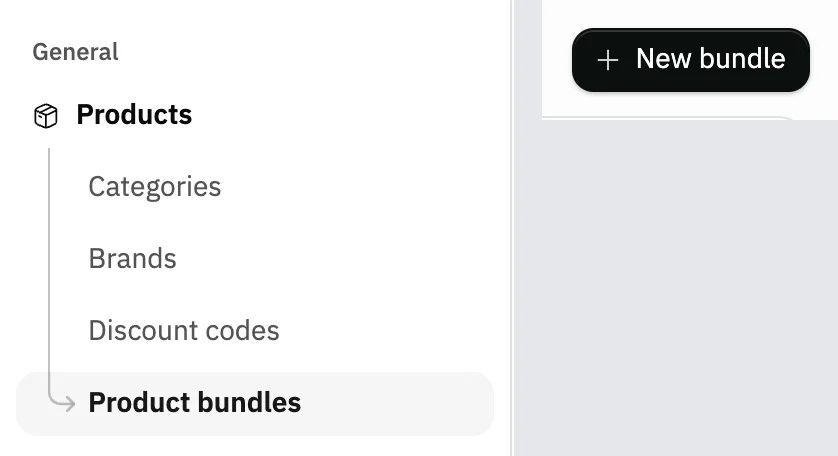
Image key - Product bundles in the sidebar
- The New bundle button
Step 2: Name the bundle
Enter the Bundle name the cashier and your staff will see at the sale. The name is required, up to 120 characters.

Image key - The Bundle name field
Step 3: Pick the bundle's products
In Products press Select beside each product; a bundle needs at least two. You find your picks under In this bundle. Details
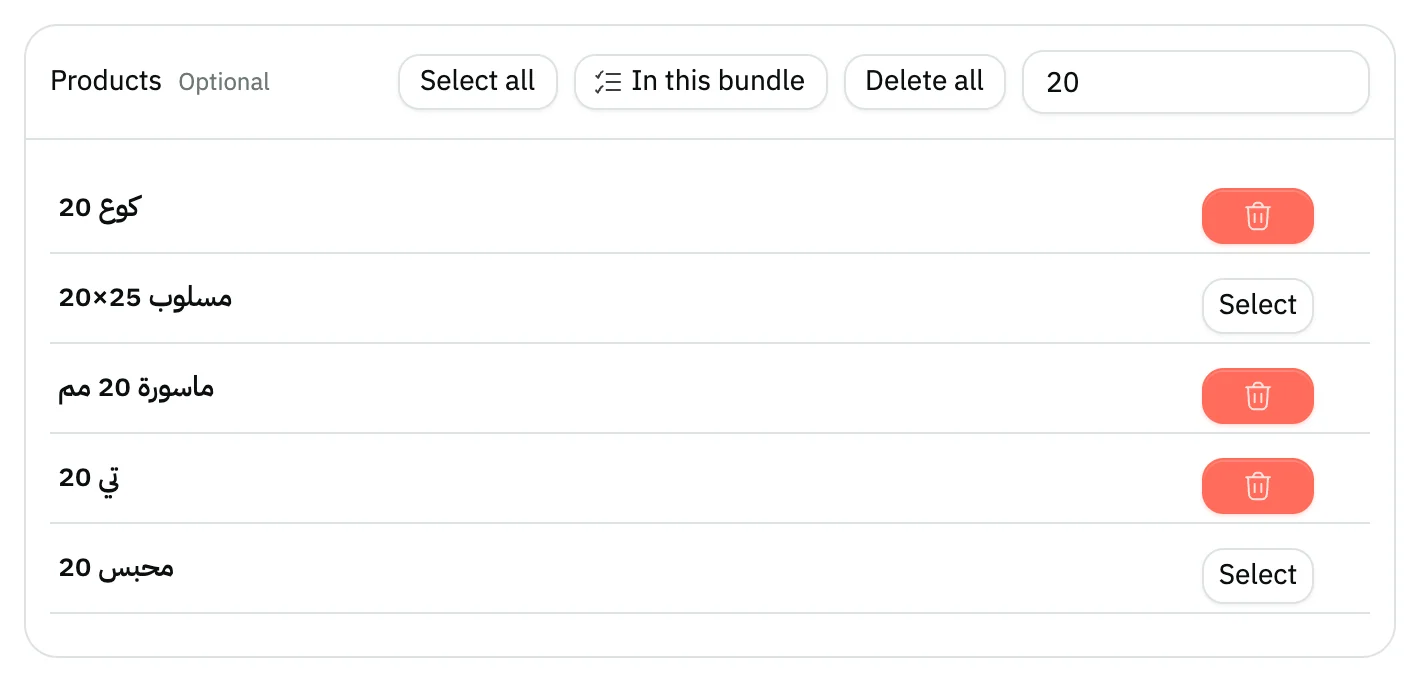
Image key - The product search field
- A product row in the list
- In this bundle
Step 4: Set each product's quantity
Under Quantities each chosen product gets a line with its usual price. Enter a whole quantity from 1, and remove a product with the delete button on its line.
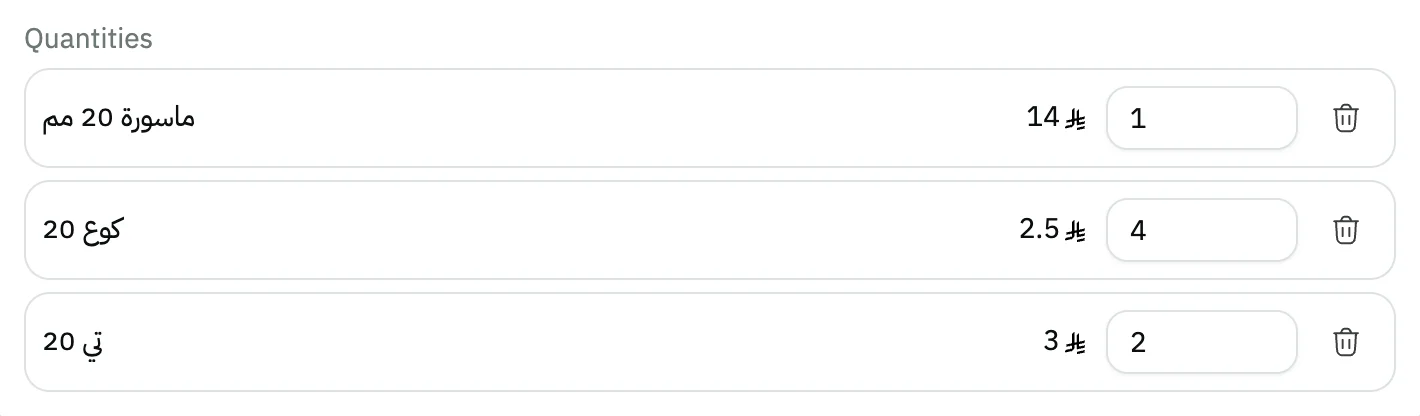
Image key - The quantity field
- The button that removes a product from the bundle
Step 5: Enter the bundle price
Enter the Bundle price. Snad shows Sold separately and Saving beside it, and the price must be below Sold separately. Details

Image key - The Bundle price field
- Sold separately
- Saving
Step 6: Switch it on and save
Leave Bundle is on switched on so it shows at the sale, then press Save at the top. You return to the list with the message Saved. Details

Image key - The Save button
- The Bundle is on switch
Step 7: Check the bundle in the list
The table shows the Bundle name, Bundle price, Saving and Status. To edit or delete it, open the Actions menu on its row. Details

Image key - The bundle row
- Status
Step 8: Sell the bundle on an invoice
On a sales invoice press Add product, then the bundles button beside the search (Add a bundle), and pick the bundle. Its products enter the invoice at the bundle price. Details
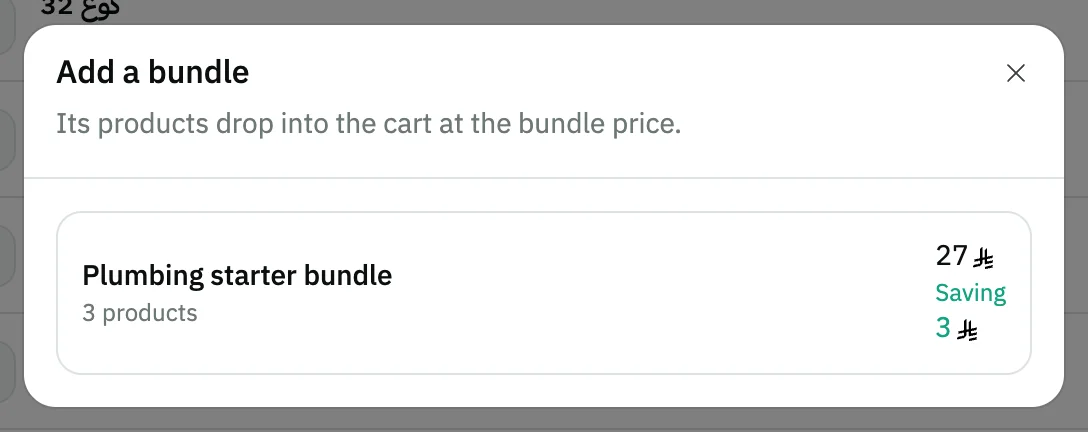
Image key - The bundle with its price and saving
Messages that block saving
If saving fails, one of these messages shows next to the field. The table gives the cause and the fix.
| Message | Cause | Fix |
|---|---|---|
| «Give the bundle a name.» | The bundle name field is empty. | Enter the Bundle name, then save. |
| «A bundle needs at least two products.» | You picked one product, or none. | Press Select beside at least one more product. |
| «A bundle must cost less than …, what its products cost separately.» | The Bundle price equals or exceeds Sold separately. | Enter a price below the figure in the message. |
| «This price cannot be split evenly across these quantities. The nearest that works is ….» | The price cannot be spread over invoice lines at these quantities without a fraction of a halala. | Enter the price the message suggests, or change the quantities. |
Advanced details
Each section here explains one point from the steps in depth. Every section has a fixed link you can share.
Which products appear in the list
Products of the Manufactured product and Component kinds are not in the bundle's list, because they are never sold as an invoice line, and neither are products of the Service kind, which a bundle does not accept. The other sellable products are.
On an account with many products, Snad loads the list in batches: a line “Loaded N of M products” and a Stop loading button show, and Retry shows if the load fails. If you press Select all before the load finishes, a message says “Available after all products have loaded”, so wait and press it again.
Each product in a bundle keeps its own stock and cost: a bundle is a price, not a new product. Snad accepts up to 50 products in a bundle, and a quantity up to 999 for each.
How Snad accepts the bundle price
At the sale, Snad spreads the bundle price over its products, so they enter the invoice at reduced prices that add up exactly to the bundle price.
A unit price on the invoice has two decimals, so Snad may refuse a price whose halalas cannot be divided across the quantities. The message then shows the nearest price that works.
Saving updates by itself when a product's price changes, so no stale figure stays in the table.
Pause a bundle without deleting it
Turn off Bundle is on to keep the bundle without offering it on a sale. Its Status in the table reads Off instead of On.
Switch it back on whenever you want, and the bundle returns to the sale list.
Edit or delete a bundle
Open a bundle by clicking its row or through Actions, then Edit. Change the name, products or price, then press Save.
To delete, choose Delete from Actions, then Confirm. The message asks “Delete this bundle?” and explains that past invoices keep the prices they were sold at.
Edit shows to users allowed to update bundles, and delete to users allowed to delete them.
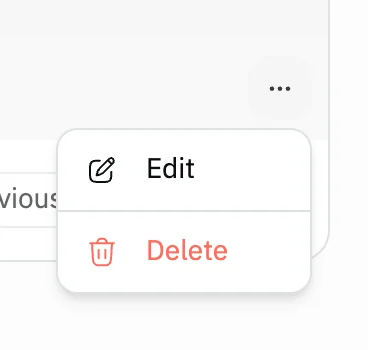
- Edit
- Delete
Selling a bundle from an invoice or the till
The bundle's products drop into the cart at the bundle price, and the message “Bundle added to the invoice.” shows.
A bundle is not a line of its own: its ordinary products enter the invoice, so stock is deducted and cost is counted as if you sold them apart.
The Add a bundle button shows in the sales invoice and at the till (selling at the point of sale) as long as you have at least one active bundle.
Common questions
- How do I sell several products for one price in Snad?
- Create a product bundle: open Product bundles, press New bundle, pick the products and quantities, enter a Bundle price below Sold separately, then Save.
- Is a bundle a new product with its own stock?
- No. A bundle is only a price, and each product in it keeps its own stock and cost. At the sale, stock is deducted from the products themselves, and you follow it in the stock reports.
- Why won't Snad accept my bundle price?
- Either the price equals or exceeds Sold separately, or it cannot be split across the quantities. The message shows the figure to stay under, or the nearest price that works.
- Why is there no Add a bundle button on my invoice?
- The button shows only when you have an active bundle that is in date. If all your bundles are off, or you have none, it is hidden.
- Are past sales affected if I edit or delete a bundle?
- No. Past invoices keep the prices they were sold at, and the bundle leaves no trace on them.