
How to enter opening balances in Snad
To enter opening balances in Snad, open Accounting, then Balances, and press Update. Type each figure in the Opening balance column next to its account, check the Balance column, then press Save.
In this guide4
Steps
Step 1: Open the Balances screen
In the sidebar, choose Accounting, then Balances. A table of your sub-accounts and their balances opens. Details
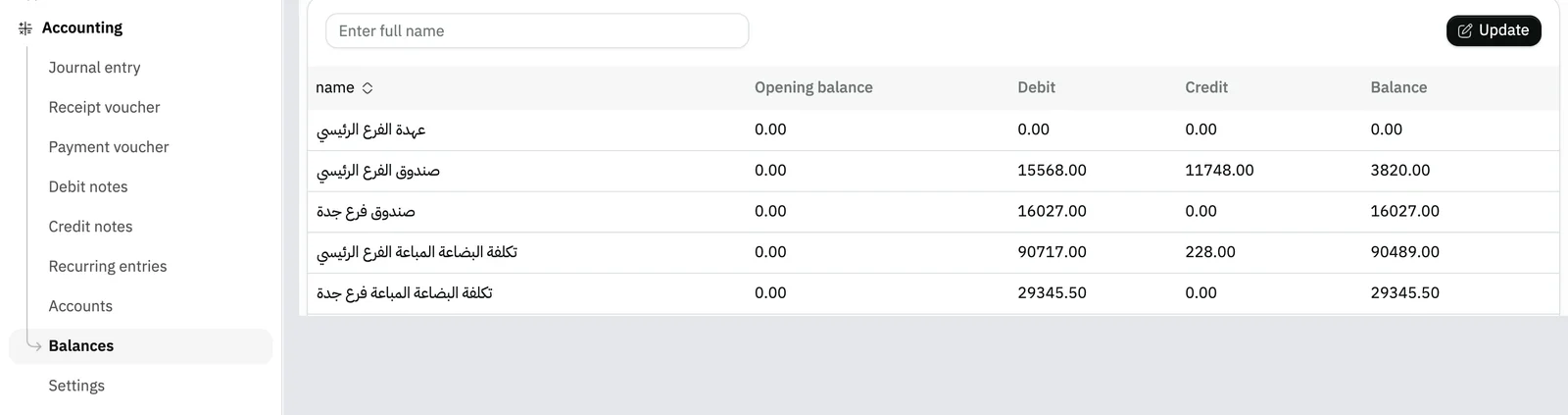
Image key - Balances in the sidebar
- The Opening balance column
Step 2: Press Update
Press Update above the table and the figures turn into fields you can type in. To reach one account, type part of its name in the filter field. Details

Image key - The filter-by-name field
- The Update button
Step 3: Type the opening balance
Type the figure in the account's Opening balance field. The Balance column updates at once: opening + debit − credit. Details

Image key - The Opening balance field
- The Balance column after the update
Step 4: Save the balances
Press Save in the bar at the bottom of the page; it turns on after your first edit. To drop your edits, press Cancel. Details

Image key - The Save button
- The Cancel button
Messages that block saving
If saving fails, one of these messages shows next to the field. The table gives the cause and the fix.
| Message | Cause | Fix |
|---|
Advanced details
Each section here explains one point from the steps in depth. Every section has a fixed link you can share.
Debit or credit balance
Balance = Opening balance + Debit − Credit. So a debit balance is typed as a positive number and a credit balance as a negative one.
The fields accept negative numbers, so put a minus sign before the figure for credit-side accounts, such as liabilities and capital.
Moving between the table's pages
The table shows 10 accounts per page, and Snad fetches each page from the server. Change the number with Rows per page below the table, and move with Next and Previous.
The name filter searches all the organization's accounts, not only the page on screen. Your typed figures stay in the draft while you change pages or filter, and Save saves them all together.
Which accounts the table lists
The table lists sub-accounts only, the ones entries are posted to. A parent account does not appear in it.
Add a missing account first in the chart of accounts (how to add an account), then come back to this screen.
Saving many accounts at once
Snad saves the edited accounts in batches of 30 and shows a progress ring while it works.
It comes with the message “Don't close this page while we process your data”. Wait for the ring to finish before you leave.
The Debit and Credit columns
In Update mode the Debit and Credit columns become editable too, and saving them changes the account's totals.
To enter an opening balance, use the Opening balance column only and leave the other two as they are. Later movements on the accounts are recorded with a journal entry.
Common questions
- How do I change an opening balance I entered earlier?
- Open Balances, press Update, change the figure in Opening balance, then press Save. The steps are the same as the first time.
- Does Snad check that the opening balances balance?
- This screen does not check the balance when you save. Review the trial balance or an account statement afterwards to see your account totals.
- Why can't I see a certain account in the balances table?
- The table lists sub-accounts only. If your account is a parent, enter the balance on one of its sub-accounts.
- I don't see the Update button. What now?
- The button shows only to users allowed to update balances. Ask your account admin to grant it in roles and permissions.
- Can I use a journal entry instead of this screen?
- This screen is for the opening balance. Movements on the accounts after you start are recorded with a journal entry.