
How to add custom fields in Snad
To add a custom field in Snad, open Settings, then Customizer, choose Customer, Supplier, Booking or a document under Purchases from the forms list, press the custom fields area, then Add field. Type the label, pick the Type, tick Where does this field appear?, then press Add field and Save.
In this guide5
Steps
Step 1: Open the Customizer
Press Settings at the bottom of the sidebar and it turns into the settings menu. Then choose Customizer and the form editor opens. Details
Step 2: Choose the form
Under Customers and suppliers in the forms list, choose Customer or Supplier (customers or suppliers). The Custom fields card is selected by itself because it is the only area, so press Add field. The Booking form is under Bookings, the document forms are under Purchases (purchase documents), and the receipt and payment vouchers are under Accounting (vouchers). Details
Step 3: Name the field
Type the Label (Arabic) and Label (English); one of them is enough and is copied to the other. You do not type an identifier: Snad creates it when you add the field. Details
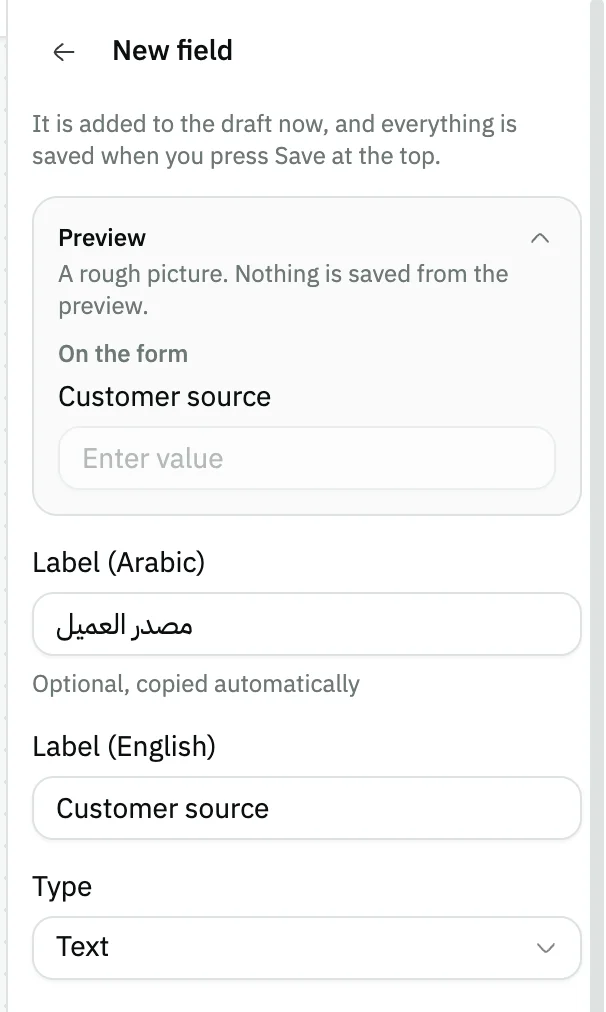
Image key - Label (Arabic)
- Label (English)
Step 4: Pick the field type
From Type, pick what fits the value; the types are grouped under Text and numbers, Dates, Choices, Files and links and Automatic. For a list choose Dropdown, then add the Options with Add option. Details
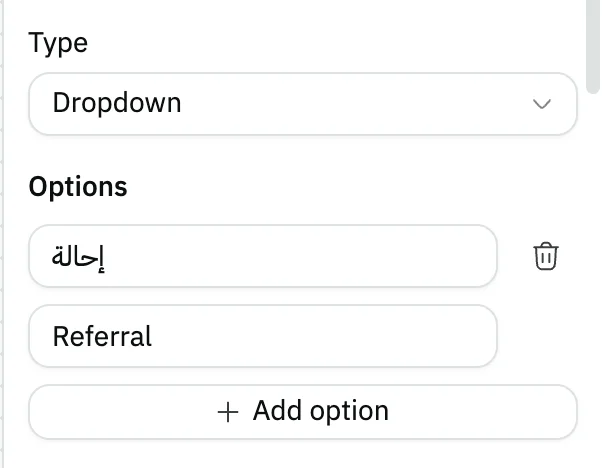
Image key - Type
- Options
- The Add option button
Step 5: Choose where it shows, then save
Under Where does this field appear? tick what you want: Required, Show in list or Print on documents (print templates). Press Add field, whose button stays fixed at the bottom of the panel, then Save at the top of the screen. Details
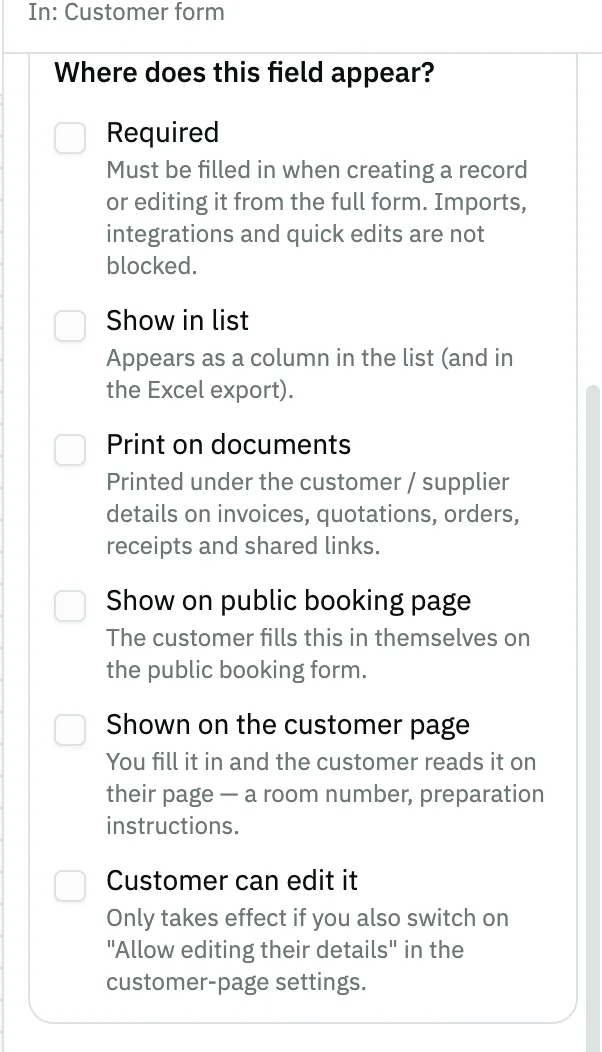
Image key - Where does this field appear?
Messages that block saving
If saving fails, one of these messages shows next to the field. The table gives the cause and the fix.
| Message | Cause | Fix |
|---|---|---|
| «Enter a label in at least one language» | Both Label (Arabic) and Label (English) are empty. | Type the label in one of the two languages. |
| «Dropdown requires at least one option» | You chose Dropdown without adding any option. | Press Add option and type its label. |
Advanced details
Each section here explains one point from the steps in depth. Every section has a fixed link you can share.
Snad creates the field identifier
Every field has an internal identifier. Snad creates it from the label when you add the field, and it does not change later, even if you change the label. The form does not show it.
A field with Print on documents ticked appears in the field list when you build a print template (how to build a print template).
Field types
The Type list of a Customer or Supplier field has twenty-one types: the first nine below, then the next six, then four types (Linked record, Location (map), File and Image), then two last types (Automatic number and Calculated value, explained here). A Booking field offers only the first nine, and the last twelve do not show for it (how to create a booking).
Under each type name in the list there is a short example. When you type a label such as “Warranty end date” and the type is still Text and you have not changed it, Snad suggests the fitting type with a Use this type button, and does not change it by itself. If the form already has a field with a similar name, it warns you and offers Restore the archived field or Edit it instead of adding.
The type is locked once values are stored under it, and the server refuses a change even if the request comes from outside the form.
- Text and Long text.
- Number, Date and Checkbox.
- Phone, Email and URL.
- Dropdown, with options you define; each has an Arabic and English label.
- Multiple choice: options you define, as with the dropdown, and the user picks more than one.
- Date and time: shown in your business's time zone. Time: hour and minute as typed, with no time zone conversion.
- A Date in the Hijri calendar: once you pick Date, the Calendar option appears, so choose Hijri (Umm al-Qura) instead of Gregorian. The user types the Day, picks the Month and types the Year, and a line starting "Gregorian:" below shows the Gregorian date. The date is always saved as a Gregorian date and follows the Umm al-Qura calendar, so only how it is typed and shown changes, and you can switch the Calendar at any time, even after values are stored. This option does not show for a Booking field.
- Amount: a number with at most two decimals, shown in your business's currency with no conversion. If a supplier trades in another currency, the field is still just a number.
- Percentage: a number from 0 to 100. Rating: a whole number from 1 to 5.
- Linked record: the user picks a customer, supplier, branch, warehouse or user from your own business only. Choose the kind of record under Linked record when you add the field; once the field is saved that kind cannot change.
- Location (map): the user marks a place on a map. If the map is not available in your account, the user types the Latitude and the Longitude.
- File and Image: one file per field, up to 10 MB. File accepts PDF, an image, Word, Excel, CSV or text, and Image accepts JPG, PNG, WebP or GIF.
- A Hijri date is for your team only as well: it has none of the options for public pages and the customer portal, but Print on documents stays, it prints in Hijri only, and in lists it shows in Hijri and sorts by the date itself, not the month name.
- These four types are for your team only: they never show on public pages, so the three booking options under Where does this field appear? are not offered for them. A File or an Image is never printed, so Print on documents is not offered for them.
What each option means
The field always appears on the customer or supplier form under the Custom fields section (how to add a customer, how to add a supplier).
- Required: it must be filled in when you create the record or edit it from the full form. Imports, integrations and quick edits are not blocked.
- Show in list: for a customer or supplier field it appears as a column in the list and in the Excel export. For a purchase quotation, purchase order, purchase invoice or purchase refund field it appears as a column in that document's list.
- Print on documents: it prints under the customer or supplier details on invoices, quotations, orders, receipts and shared links. A booking field does not get this option.
- If the Bookings app is on in your account, customer fields get three more options: Show on public booking page, Shown on the customer page and Customer can edit it. Supplier fields do not get them (set up bookings).
Booking fields
When the Bookings app is on in your account, the Booking form shows under Bookings in the forms list. Press Custom fields, inside Advanced options: it is where booking fields appear in the new booking form, under Advanced options (how to create a booking).
A booking field gets two of the options: Show on public booking page, which the customer fills in themselves, and Shown on the customer page, which you fill in and the customer reads. It does not get Print on documents.
A booking field does not offer Multiple choice, Date and time, Time, Amount, Percentage, Rating, Linked record, Location (map), File, Image, Automatic number or Calculated value; those types are for Customer and Supplier fields (and for documents), and the other types work on a booking.
A Required field blocks saving a new booking until it is filled in. Fields of the customer record stay in the Customer form.
Purchase document fields
When the Purchases app is on in your account, four forms show under Purchases in the forms list: Purchase quotation (how to create a purchase quotation), Purchase order (how to create a purchase order), Purchase invoice (how to create a purchase invoice) and Purchase refund (how to create a purchase refund).
The form opens as it really looks, so press the place where you want the field, such as Bottom of the document details or Under the totals summary, then Add field. A field with Print on documents ticked shows on the printed document.
When you create a Purchase invoice from a purchase order or a quotation, or a Purchase refund from an invoice, the values of the fields the new form also has are copied. If an order and a quotation are both picked, the order's value is the one copied. A Purchase order made from a quotation copies the same way.
Custom fields are data saved with the document only. They do not change amounts, tax, stock or journal entries.
Receipt and payment voucher fields
When the Accounting app is on in your account, two forms show under Accounting in the forms list: Receipt voucher (how to create a receipt voucher) and Payment voucher (how to create a payment voucher).
The form opens as it really looks, so press the place for the field, then Add field. A field with Print on documents ticked shows on the printed voucher, and one with Show in list ticked shows as a column in the voucher list.
Custom fields are data saved with the voucher only. They do not change the amount or the accounting entry.
Delivery and receipt note fields
Goods delivery note shows under Sales when the Sales app is on (how to create a goods delivery note), and Goods receipt note shows under Purchases when the Purchases app is on (how to create a goods receipt note).
The form opens as it really looks, so press the place for the field, then Add field. A field with Print on documents ticked shows on the printed note, and one with Show in list ticked shows as a column in the notes list.
The invoice's field values are not copied to the note. Fields are data saved with the note only and do not change stock.
Branch, warehouse, product, employee and entry fields
Seven more forms show in the forms list: Branch and Warehouse under Organization, Product, Stock transfer and Damaged stock under Inventory, Employee under Employees, and Journal entry under Accounting. Each works like the customer and supplier forms: the form opens as it really looks, so you press the place for the field, then Add field.
Journal entry shows when the Accounting app is on in your account, Warehouse, Stock transfer and Damaged stock when the Warehouses app is on, and Employee when the HR app is on. Branch and Product need no particular app.
Branch, Warehouse and Employee have one area, the Custom fields card at the end of the form. In Product it is named Custom fields card, on the main product only: the field belongs to the main product, and a child item of the product (a variant) does not carry it.
Journal entry, Stock transfer and Damaged stock have two areas: the bottom of the document details, and the end of the document.
Journal entry does not accept the Automatic number and Calculated value types; every other type works in it. The six other forms accept both (automatic number and calculated value).
Custom fields are data saved with the record only. They do not change journal entries, stock or what is sent to the ZATCA authority. Each form has its own guide: branch, warehouse, product, employee, stock transfer, damaged stock and journal entry.
Fixed asset fields
The Fixed asset form shows in the forms list under Fixed assets when the Assets app is on in your account. It works like the Employee form: one area, the custom fields card at the end of the form, so you press the place for the field, then Add field. It accepts every type except Automatic number and Calculated value.
In the Assets app the fields show in three places: the Custom fields card in the form to add or edit an asset, a read-only card with the same values on the asset page, and columns in the asset list with a Custom fields button to filter. No card shows if you have not added a field. A field is data saved with the asset only and does not change the capitalization entry or depreciation. The form has its own guide: add a fixed asset.
Document line fields
When the Sales app is on in your account, the Sales lines form shows under Sales in the forms list. Press On every sales line, then Add field, and the field becomes a column in the lines table of the sales invoice, and a field inside the line card on a phone.
When the Purchases app is on, the Purchase lines form shows under Purchases: press On every purchase line, then Add field. Line fields are shared across documents: a Sales lines field shows on five sales documents, the sales invoice, quotation, sale order, sales refund and goods delivery note, and a Purchase lines field shows on five purchase documents, the purchase invoice, purchase quotation, purchase order, purchase refund and goods receipt note.
A line field has five types only: Text, Number, Dropdown, Date and Checkbox. The date is always Gregorian.
The line field editor offers Required and Print on documents, and does not offer Show in list or Field options. Required is enforced when you create the invoice from the invoice form, and invoices that arrive from elsewhere are saved without it. Print on documents prints the field as a line under the product name, as “field name: value”, in the default print template, and a field left empty on a line is not printed.
The value is data saved with the line only: it does not change the amount, tax or stock, and it is not part of the invoice file sent to the Zakat, Tax and Customs Authority. Line fields have a smaller limit than other fields, and Snad refuses to save when the data of one line goes over it.
On a sales refund and a purchase refund, line values are copied from the original line and shown read-only, so you do not edit them there. When you make a document from another one, such as turning a quotation into a sale order, the line values go with it, but a value that no longer fits the field after you changed it, such as a stopped option or a number outside the range, is left behind. Line fields do not show in the point of sale or on vouchers.
Automatic number and calculated value
Automatic number and Calculated value are filled in by Snad when the record is saved, so nobody types them. They are for Customer and Supplier fields and for document forms, they never show on the public booking page, and Required is not offered for them. When a new document is made from another document their values are not copied: the new document gets its own number and value.
If you choose Print on documents they print and also show on the document's shared link. If the Bookings app is on, a Customer field of these types gets one option, Shown on the customer page: the customer reads the value on their page and cannot change it.
For Automatic number, under Numbering you set the Prefix (letters, digits and - _ / . only, up to 12 characters; leave it empty for a bare number), the Number of digits (0 to 12, filled with zeros) and the First number (1 to 999999999). The form shows an example such as INV-0001. On the record form the field is read-only and says “Assigned when you save” until the record is saved. Once saved, its number stays as it is.
Numbers are never reused, and gaps can happen in the sequence, for example when a save fails after the number was taken. The First number cannot change once numbers have been issued.
For Calculated value you build the Formula from fields of the same form, numbers and calculations: Add, Subtract, Multiply, Divide, Round, Add days to a date, Days between two dates and Join texts. You pick the Result type: number, date or text, and for a number the Decimals (0 to 6). A formula has up to 20 parts and 6 levels, and if one of its fields is empty the result stays empty.
While you type in the form the field shows a preview labelled “Preview”, and the saved value is calculated when you save. Snad refuses a formula whose parts mix types, that reads an archived field, that reads itself or whose fields read each other in a loop, and it tells you why. If a formula reads a field that some people cannot see, hide the calculated field behind the same permission.
Of the Field options, these two types offer only Hide unless the viewer has permission.
Zoom, navigation and discarding changes
The form opens at 75%, or less on a narrow screen, so its width always fits the screen; if the form is long, a vertical scrollbar appears. Under the form there is a zoom bar with zoom in and out, its percentage returns to 100%, and Fit shows as much of the form as it can, never shrinking the height below 45%. The browser remembers the last zoom for each form. Zoom also works with the +, - and 0 keys, and with the mouse wheel while holding Ctrl.
When a form has more than one area and none is selected, the panel shows Where do you want to add the field? with a button for each area; press one and the area is selected on the form. If the form has one area, such as Customer, Supplier and Booking, it is selected by itself.
On the sales invoice form a dashed frame surrounds the payment card, tagged Payment methods. Press it and the panel shows your custom payment methods so you can add or edit one without leaving the studio (custom payment methods).
Press a custom field on the form itself and its editor opens in the panel. This works on document forms, on Customer, Supplier and Booking, and on the sales and purchase lines card. You can also pick the field from the panel list. The editor has a Preview card that shows the field on the form, on print and in the list; it is a rough picture and nothing is saved from it.
The More button at the top of the screen holds Export, Import and the keyboard shortcuts. Export and Import are disabled while you have unsaved changes, so save them first.
The bar shows how many changes are unsaved, and an edited or moved field carries an “Edited” or “Moved” mark. Discard changes happens at once with no question, and a message with Undo stays for 8 seconds to bring them back. Ctrl with Z also undoes the last change.
On a screen narrower than 1024 pixels the forms list folds behind a Forms button. On a phone a message says the screen is too small, with Copy link so you can open the page on a computer.
Field options and filtering by custom fields
The field editor has an Advanced options section, collapsed at first, with Help text (Arabic), Help text (English), a Field options section and the conditions for when the field shows and is required. All of it is optional, and you leave it empty for a plain field. The section opens by itself if the field already has a value from it or an error shows inside.
Default value fills the field on a new form only. In Placeholder (Arabic) and Placeholder (English) you write a hint that shows inside the empty field.
Read-only after save locks the field once a value is saved. An empty field can still be filled in.
Unique value is checked when the value is saved from a form. It is not guaranteed for imports and integrations.
Hide unless the viewer has permission hides the field and its value from everyone without the permission you pick from the list, in the screens and in the filters.
In the lists of sales invoices, quotations, sale orders, refunds, purchase documents, journal entries, stock transfers, damaged stock, employees, products and assets a Custom fields button filters the list. Press Add condition, then Apply. You can add up to 5 conditions.
For totals by the value of a field: Sales by custom field in sales reports and Purchases by custom field in purchase reports. The goods delivery note and goods receipt note reports have the same Custom fields button.
Limit, editing and archiving a field
Custom fields have a limit. Once you reach it the Add field button is disabled and a “You have reached the limit of custom fields” message shows.
To edit a field, press it on the form itself or press its row in the panel. The Edit field editor opens; then press Apply changes. The type stays fixed once values are stored under it.
Nothing is saved in Snad until you press Save at the top of the screen. Archiving a field only hides it from the form, and the stored values stay on the records. An archived field shows in the “Archived” list, and Restore brings it back.
Before you archive a saved field Snad asks, and the dialog shows where the field is used. Print templates that print it are listed by name as a warning only, and you can still press Archive field. If a show or required condition of another field reads it, that field is listed by name and the archive waits until you change its condition.
If calculated fields read the field, the dialog lists them too, as a warning only: you can still archive the field, but those formulas will then read an archived field, so change them the next time you edit those fields.
Do not store health or sensitive data in custom fields.
Customizer will not open? No Supplier form?
The Customizer needs a system-settings permission. Without it the screen does not open, so ask your account admin to grant it (how to grant permissions).
The Supplier form and the purchase document forms show in the list when the Purchases app is on in your account, and the Booking form when the Bookings app is on.
Common questions
- How do I add a custom field to a customer in Snad?
- From Settings choose Customizer, then Customer under Customers and suppliers, press Add field, fill in the label and type, then press Add field and Save.
- How many custom fields can I add?
- Custom fields have a limit. Once you reach it the Add field button is disabled, so archive a field you no longer need to add another.
- Do I need to type an identifier for the field?
- No. Snad creates the identifier from the label when you add the field, and it does not change later. The type locks once values are stored under it.
- What happens to the values if I archive a field?
- Archiving only hides the field from the form. The values stay on the records, and Restore brings the field back.
- Where did the Custom fields page in Settings go?
- Customer and supplier fields are now added from the Customizer: open Settings, then Customizer, and choose Customer or Supplier.
- Can I add a rating, amount or percentage field to a customer or supplier?
- Yes. In Type for a Customer or Supplier field choose Multiple choice, Date and time, Time, Amount, Percentage or Rating. These types do not show for a Booking field.
- Can I attach a file, an image or a location to a custom field?
- Yes, for a Customer or Supplier field. In Type choose File, Image, Location (map) or Linked record. These types are for your team only and never show on public pages, and a File or an Image is never printed.
- Can I add a Hijri date field, such as a residence permit expiry?
- Yes. Choose Date in Type, then Hijri (Umm al-Qura) in Calendar. The user types the Day, Month and Year, the date is saved as a Gregorian date, and you can go back to Gregorian at any time. It is not available for a Booking field.
- How do I make Snad number records automatically, such as INV-0001?
- In Type for a Customer, Supplier or document field choose Automatic number, then set the Prefix, the Number of digits and the First number under Numbering. Snad assigns the number when the record is saved, numbers are never reused, and gaps can happen.
- Can a field calculate its value from other fields?
- Yes. Choose Calculated value in Type, then build the Formula from fields of the form, numbers and calculations such as Multiply and Add, and pick the Result type. The value is calculated when you save, and the field shows a preview before that.
- Can I add a column such as batch number or warranty to the invoice lines?
- Yes. From the Customizer choose Sales lines under Sales, press On every sales line, then Add field. The field shows as a column in the lines table of the sales invoice, and prints under the product name if you tick Print on documents.
- Where do I add a custom field to the booking form?
- From the Customizer, choose Booking under Bookings, then Add field. The field shows in the new booking form under Advanced options.
- Can I add a custom field to a purchase order or a purchase refund?
- Yes. From the Customizer choose Purchase order, Purchase refund, Purchase quotation or Purchase invoice under Purchases, press where the field goes, then Add field.
- Can I lock a custom field or hide it from some staff?
- Yes. Open Advanced options, then in Field options turn on Read-only after save to lock the field once a value is saved. Or pick a permission in Hide unless the viewer has permission, and people without it do not see the field or its value.
- I discarded my changes by mistake. Can I get them back?
- Yes, within 8 seconds. After Discard changes a message with Undo shows; press it and the changes come back.
- How do I see where a custom field is used before archiving it?
- Press archive on the field in the panel. The dialog lists the print templates that print it and the fields whose conditions read it, then you press Archive field and Save.