
How to connect a payment gateway in Snad
To connect a payment gateway in Snad ERP, open the Accept payments page, enter your National ID / Iqama number, IBAN, business and owner details, then press Set up payments. You then move to the payment provider's page to upload your documents.
In this guide6
Steps
Step 1: Check your account status
Open the Accept payments page. It carries a Beta badge, and your status before you start is Not set up. Details
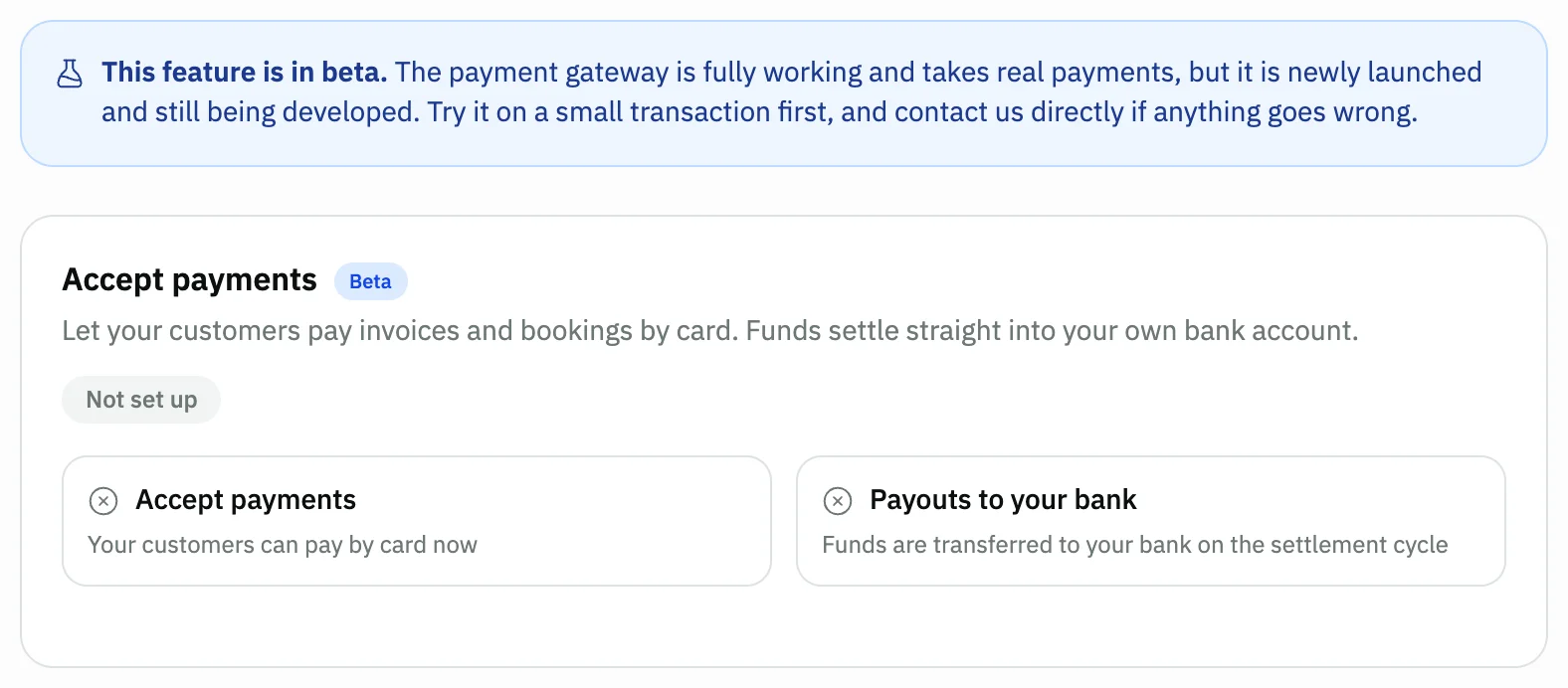
Image key - The Beta badge and its notice
- Your status: Not set up
- Accept payments and Payouts to your bank
Step 2: Enter the ID and IBAN
Under Business details, enter the National ID / Iqama number and the IBAN. Then review the Trading name (English) and Legal name (English). Details
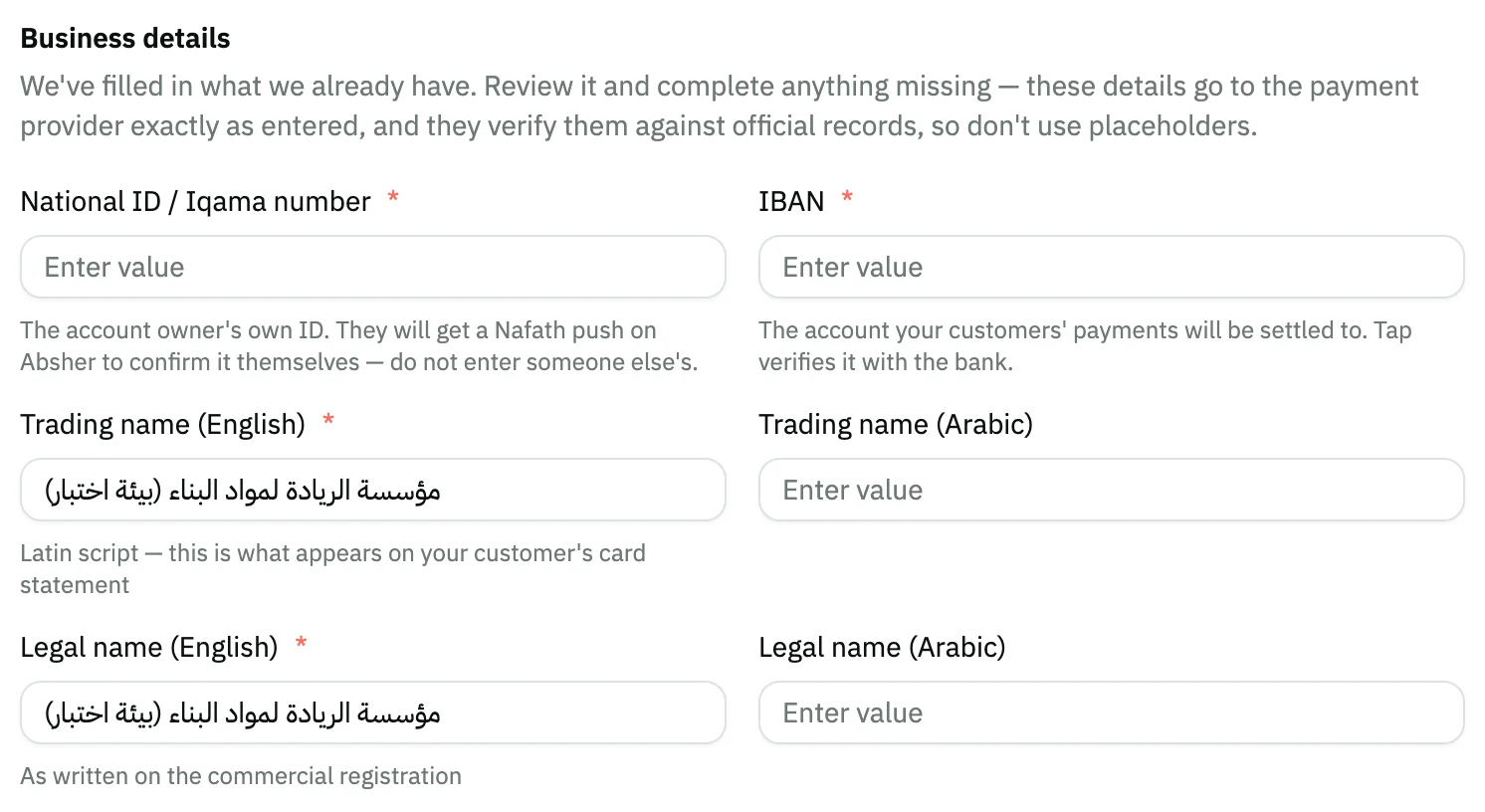
Image key - National ID / Iqama number (required)
- IBAN (required)
- Trading name (English), filled from your organization
- Legal name (English), filled from your organization
Step 3: Complete the entity details
Review the Commercial registration number and VAT / unified number, and pick the Entity type. These fields are optional.
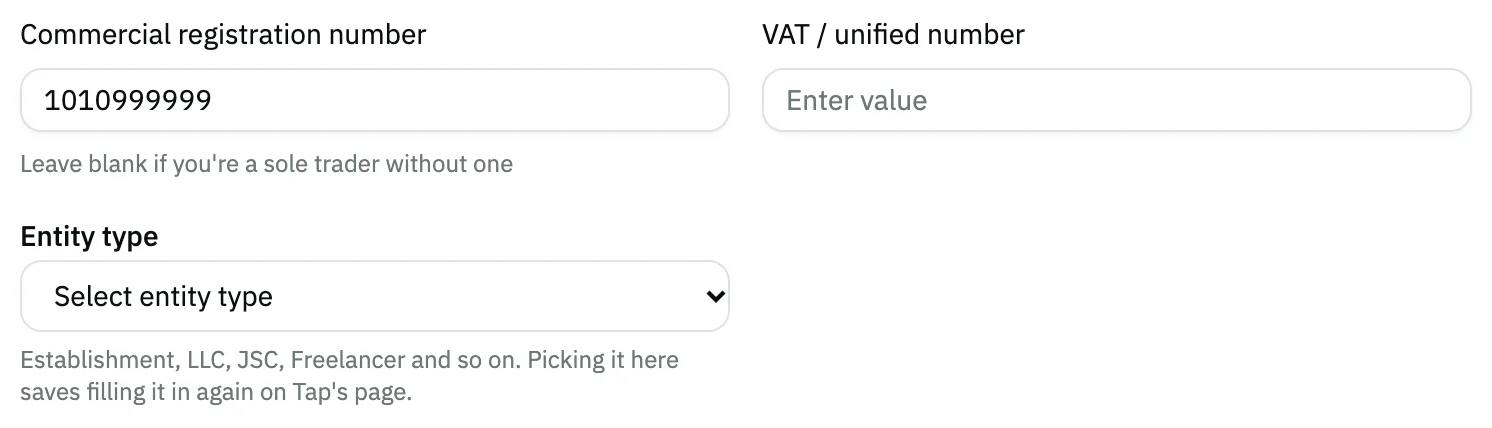
Image key - Commercial registration number
- VAT / unified number
- Entity type
Step 4: Enter the owner's details
Under Owner / authorized person, enter the owner's own First name, Last name, Email and Mobile number. Details
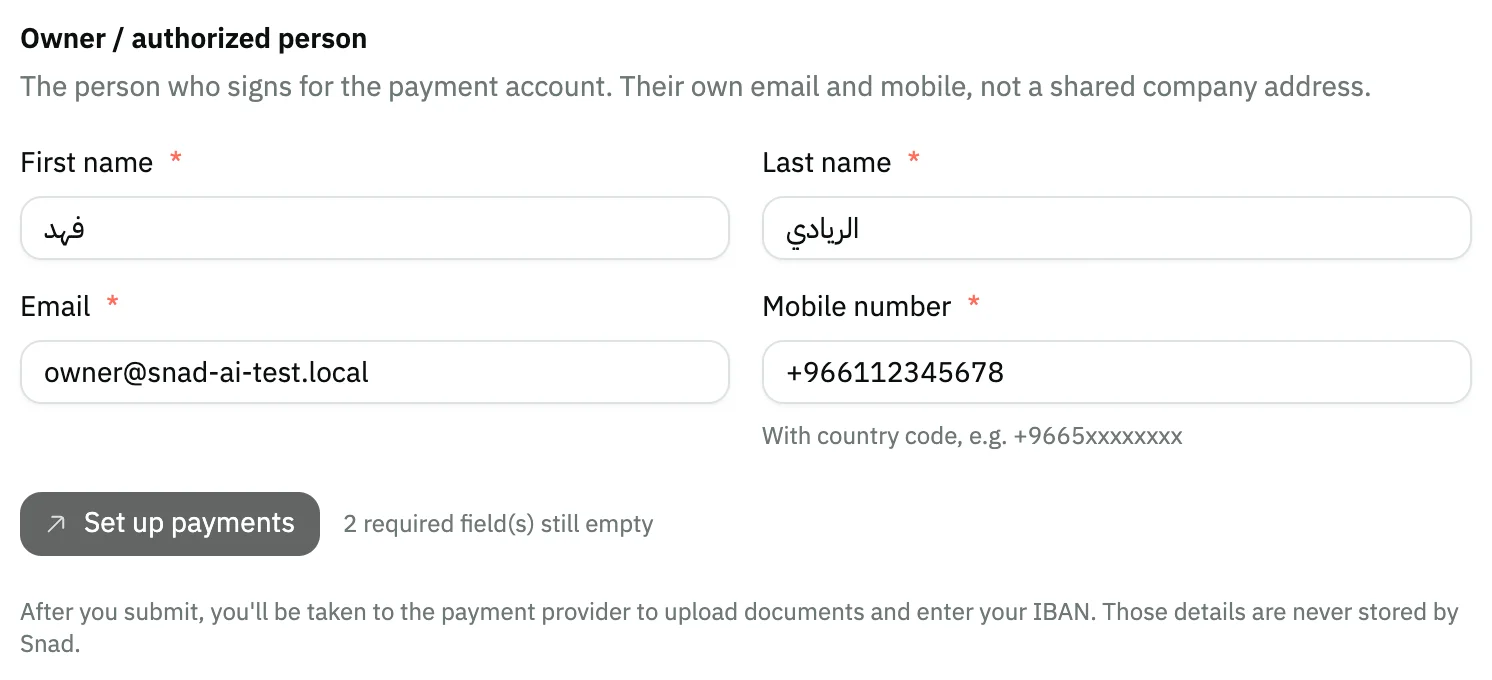
Image key - Owner / authorized person
- Mobile number with the country code
- The Set up payments button
Step 5: Submit and finish at Tap
Press Set up payments. You move to the payment provider, Tap, to upload your documents and enter your IBAN. Details
Step 6: Follow your application
Come back to the page and press Refresh status. The status changes to Documents under review, then to Accepting payments. Details
Messages that block saving
If saving fails, one of these messages shows next to the field. The table gives the cause and the fix.
| Message | Cause | Fix |
|---|---|---|
| «2 required field(s) still empty» | The Set up payments button stays disabled while required fields are empty. The number changes with how many are empty. | Fill the fields marked *: the ID, IBAN, the two English names and the four owner fields. |
Advanced details
Each section here explains one point from the steps in depth. Every section has a fixed link you can share.
Where do I find the page?
The Accept payments page is not in the settings menu. You open it by its address after your Snad account address: /dashboard/settings/payments.
The page opens for users with the system settings permission. Everyone else sees an access-denied message.
What goes to the payment provider
Snad fills in what it already holds about your organization. The details go to the provider exactly as entered, so don't use placeholders: it checks them against official records.
Use the account owner's own ID, email and mobile, not a shared company address or someone else's ID. The ID holder gets a Nafath push on Absher to confirm it themselves.
The page states that the documents and IBAN you enter at the provider are never stored by Snad.
What the account statuses mean
Not set up: you haven't submitted yet. After you submit it shows Awaiting your details until you finish at Tap, then Documents under review.
Accepting payments: your customers can pay by card, but transfers to your bank wait until the document review finishes. Fully active means transfers are on too.
Rejected and Suspended are reported by the payment provider, and Snad shows any error it sends on the page. After you submit, details can't be edited here: corrections are made on Tap's page.
If the Tap link has expired, press Get a new link. Otherwise press Continue at Tap.
After activation: payments, refunds and payouts
When the status is Accepting payments, Fully active or Suspended, the page shows the Payments received and Gateway payouts sections.
Refund returns the money to the customer's card and the invoice goes back to unpaid, but it does not issue a credit note. If you cancel the sale itself, raise the credit note from sales (how to refund a sale).
Record a bank deposit matches what the gateway deposited in your bank with the payments it collected. The difference is the gateway's fee, posted as an expense.
Fees and currency
The page shows Free while in beta: Snad takes no percentage of your payments during the beta, and only the provider's own fees are deducted. A per-transaction fee will apply once the beta ends.
If your documents are in a currency other than the riyal, the page shows a red warning and you can't take card payments until you change the organization currency.
Common questions
- How do I turn on card payments in Snad?
- Open the Accept payments page, fill the required fields, then press Set up payments. You then finish your application with the payment provider, Tap.
- Where do I find the Accept payments page?
- It isn't in the settings menu. Open it at /dashboard/settings/payments after your account address. You need the system settings permission.
- Does the gateway accept currencies other than the riyal?
- No. The gateway accepts Saudi riyals only. If your documents use another currency, change the organization currency first.
- Can I edit my details after I submit?
- Not from this page. After you submit, corrections are made on Tap's own page, because Tap is the one reviewing the documents.
- Are there fees for taking payments?
- During the beta Snad takes no percentage of your payments, and the provider's fees are deducted. Snad will tell you the fees before they start.