
How to open a POS session in Snad
To open a session in Snad, choose POS, then Sessions, and press Start session on an available session card. Check Branch, Salesman and Warehouse, check the Cash (start of shift), then press Save. The register opens.
In this guide4
Steps
Step 1: Open the Sessions screen
In the sidebar, choose POS, then Sessions. You see one card per session, each one a till ready for sales. Details
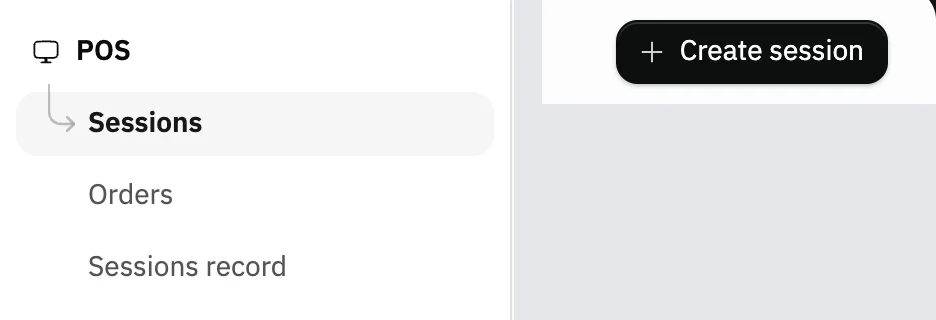
Image key - Sessions in the sidebar
- The Create session button
Step 2: Pick an available session
Pick a card with the Available badge and press Start session on it. The Session information window opens. Details
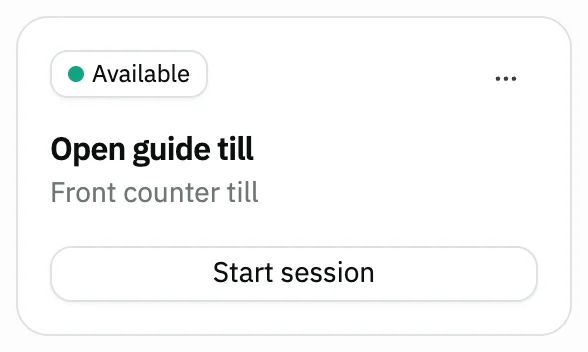
Image key - The Available badge
- The Start session button
- Session menu: update and delete
Step 3: Check details and enter the cash
Pick the Branch, Salesman and Warehouse if their fields show, and check the Cash (start of shift): it starts on the default from the settings, and you can change it. Details
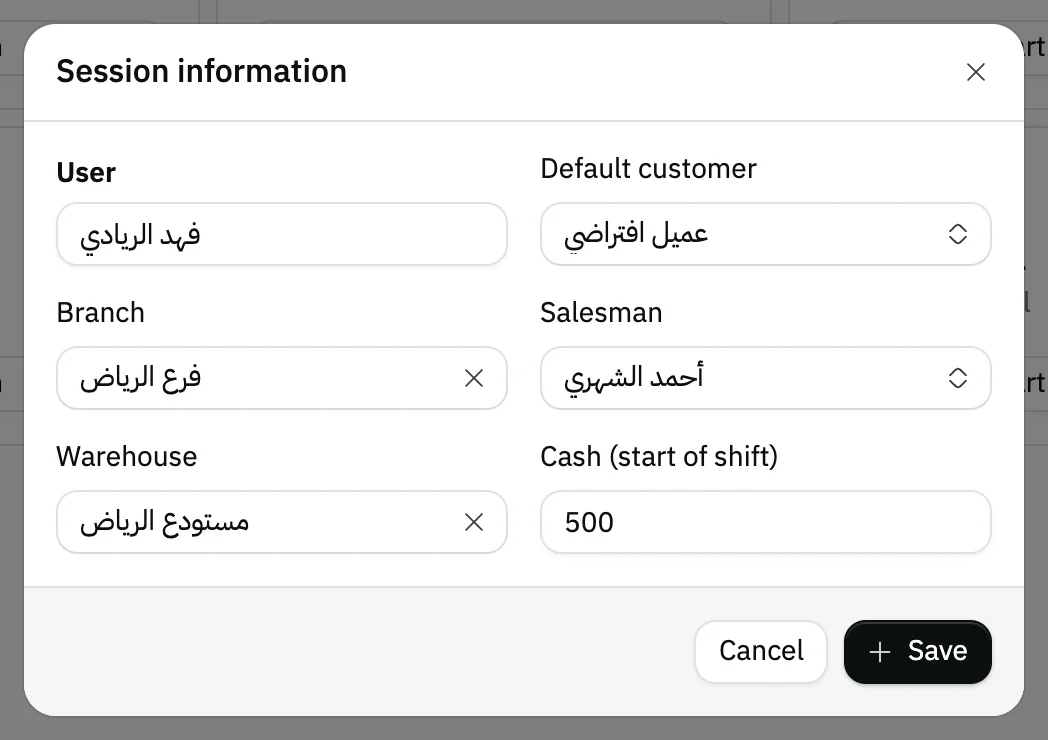
Image key - Branch
- Salesman
- Warehouse
- Cash (start of shift)
Step 4: Save and start selling
Press Save. The register opens (selling at the POS), and the session becomes an Active session under your name until you close it. Details

Image key - The Session settings button, which holds End the session
Messages that block saving
If saving fails, one of these messages shows next to the field. The table gives the cause and the fix.
| Message | Cause | Fix |
|---|---|---|
| «You can't start a new session if you have an active session» | You already have an open session, so Start session is disabled on every card. | Press Continue session on its card, or close it first (how to close a POS session). |
| «Session is not available» | The session is open under another user, so it shows no Start session button. | Pick another session, or ask that user to close theirs. |
Advanced details
Each section here explains one point from the steps in depth. Every section has a fixed link you can share.
Create a new session
No card fits? Press Create session at the top of the screen. Write the Name, at least 3 characters, and a Description if you like.
You can also set a Branch and Warehouse for the session to pin them; left empty, the cashier's own branch and warehouse are used. Add a password asks for a 4-digit code every time it is opened.
In Users, pick who sees the session and can start it. Left on All users, everyone sees it. Admins and users allowed to edit sessions see every session.
Create session shows only to users allowed to create sessions. To edit, press the card or Update in its menu; Delete is there too for a session that is not open.
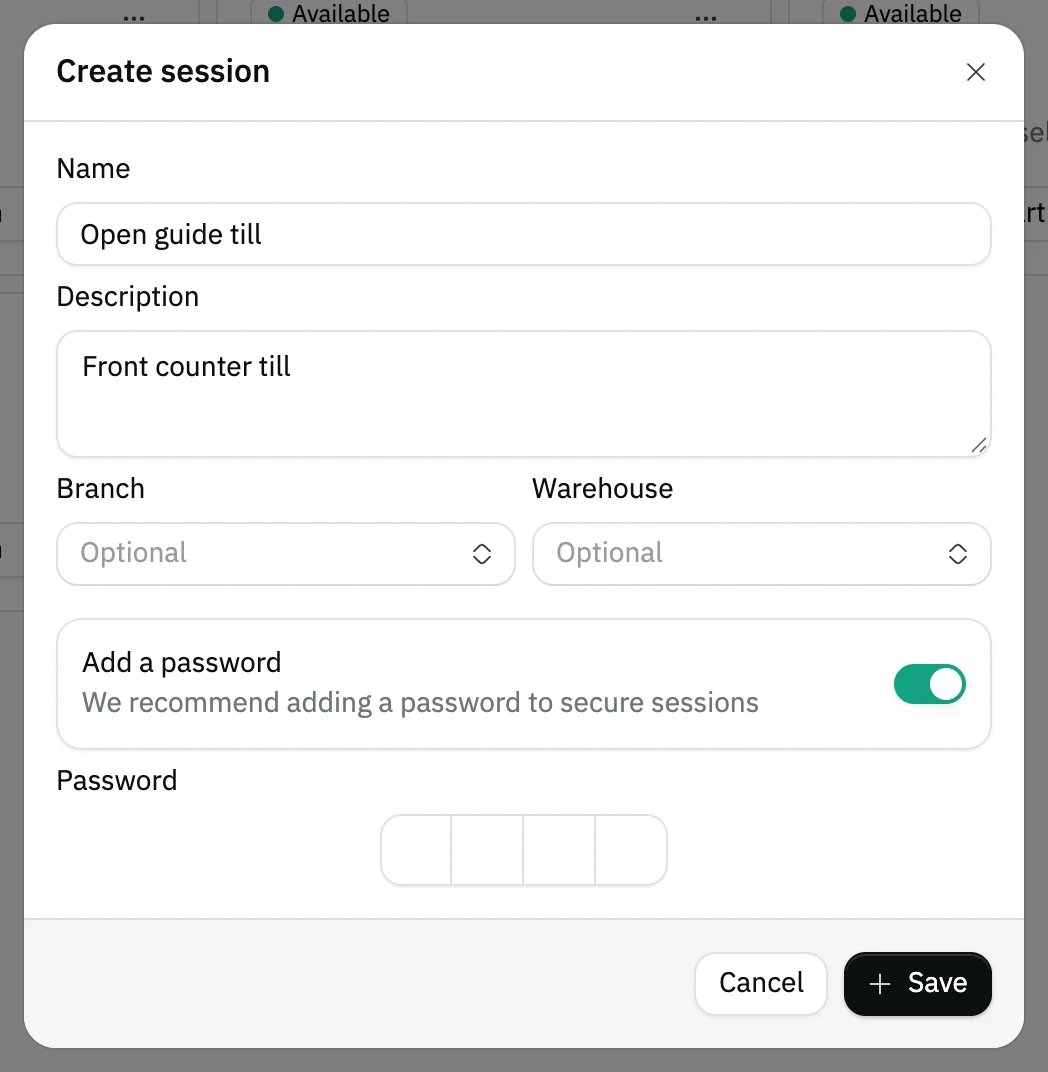
- Name (required)
- The Add a password switch
- The Save button
Opening a session that has a password
If the session has a password, the window shows Continue instead of Save. Press it after choosing Branch, Salesman and Warehouse.
You are asked for the four digits, and Continue stays disabled until they match the code. Back returns you to the fields.
Card states and hidden fields
The badge says Available, or Active session if it is open under your name, with Continue session on it, or Activated on another device if it is open under someone else.
The first 20 session cards show, with a Load more button under the cards when there are more sessions. If loading fails, an error line appears with Retry beside it.
Each user can have only one active session. The Branch, Salesman and Warehouse fields are hidden when the session or the cashier's account already settles them, or when you have just one option, and they are filled with that value.
Default customer in the window is optional: the one you pick (add a customer) starts every invoice in this session.
You review the session's orders after the sale in POS orders.
First time: What kind of business is this?
The first time, before sessions show, the screen asks What kind of business is this? Choose Retail, Restaurants & cafés, Grocery or Other, then press Confirm.
The choice shapes your POS: restaurants add a kitchen screen, halls and tables, and the others get a fast till with no tables. You can change it later in the POS Settings (set up the point of sale).
For restaurants, see the steps for the kitchen display and tables.
This screen shows only to users allowed to change POS settings (roles and permissions).
Common questions
- How do I open a session at the POS?
- Choose POS, then Sessions, and press Start session on an available card. Pick Branch, Salesman and Warehouse, check the Cash (start of shift), then Save.
- Why is the Start session button disabled?
- Because you already have an active session, and a second one can't be opened with it. Press Continue session or close it (close a POS session).
- What do I enter as the cash at the start of the shift?
- The cash in the till when you open. The field starts on the default from the POS settings if one is set, and you can change it. The cash difference at closing is worked out from it.
- How do I protect a session with a password?
- When you create or update the session, turn on Add a password and enter a 4-digit code. After that it opens only with that code.
- Where do I change the business type in the POS?
- In the POS Settings (set up the point of sale). You can change it there at any time.