
How to create a credit note in Snad
To create a credit note in Snad ERP, open Accounting, then Credit notes, and press Create credit note. Pick the Debit account and the Credit account, enter the amount in Total, then press Save. The note shows in the list.
In this guide5
Steps
Step 1: Open the credit notes screen
In the sidebar, choose Accounting, then Credit notes, and press Create credit note above the list. Details
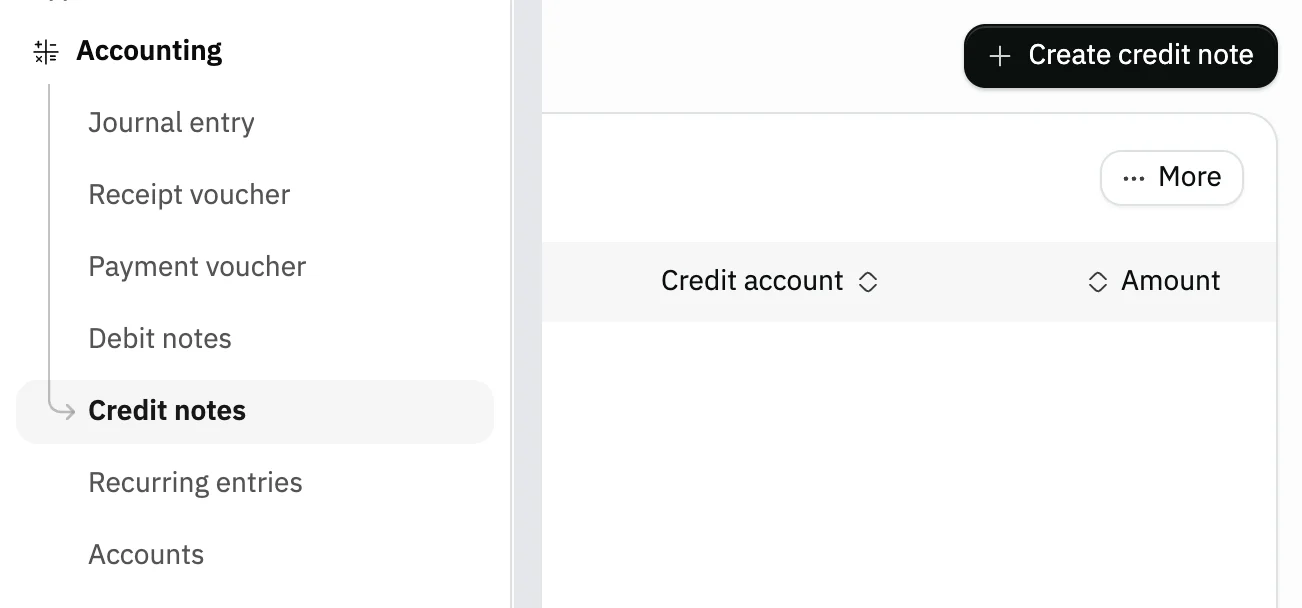
Image key - Credit notes in the sidebar
- The Create credit note button
Step 2: Pick the debit and credit accounts
Open the Debit field and pick the account the amount is debited to, then open Credit and pick the account it is credited to. Details

Image key - The Debit account
- The Credit account
Step 3: Check the date and issuer
Date starts on today. In Issued by (Optional), type who issued the note, and in Branch (Optional), tie it to a branch. Details

Image key - The note Date
- Issued by (optional)
Step 4: Enter the amount
Enter the amount in the Total field. It is one amount, posted to both accounts.

Image key - The Total field
Step 5: Save the note
Press Save, or Save & print to print it right away. You return to the list, where the note now shows. Details
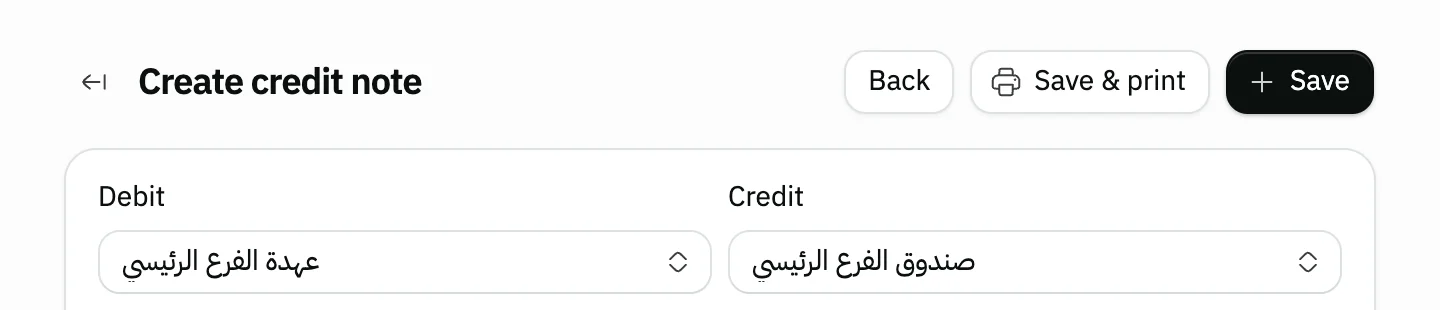
Image key - The Save button
- The Save & print button
Messages that block saving
If saving fails, one of these messages shows next to the field. The table gives the cause and the fix.
| Message | Cause | Fix |
|---|---|---|
| «مطلوب (shown in Arabic)» | The Debit account or the Credit account is not chosen. | Open the empty field and pick its account. |
Advanced details
Each section here explains one point from the steps in depth. Every section has a fixed link you can share.
What a credit note posts
A note is an entry between two accounts only: the amount is debited to the Debit account and credited to the Credit account. It has no lines and no products.
The Debit and Credit lists show the first 20 accounts as soon as you open them, and the rest load as you scroll. Search is optional and covers all the organization's accounts, with a loading indicator while it fetches. If loading fails, an error line appears with Retry beside it.
The form doesn't link the note to an invoice, and doesn't change stock. To return goods from an invoice, use a sales return.
Its counterpart is the debit note, and for entries with more than two accounts use a journal entry.
For money that actually comes in to you, use a receipt voucher.
Description and attachments
Below the fields above is a Description field (Optional) for the reason for the note, and an attachments field for files, such as the correspondence with the customer.
After saving: edit, print and delete
Click the note in the list to open it and edit its date, amount and description. The Debit and Credit accounts are locked after saving.
At the end of the note's row in the list are View, print and delete buttons. Delete shows to users who have that permission.
Keyboard shortcuts
The keyboard cuts two steps:
- Alt + N on the credit notes list: Create credit note.
- Ctrl + S (⌘ + S on Mac): Save.
No Create credit note button?
The button shows only to users allowed to create credit notes. Ask your Snad account admin to grant it in roles and permissions.
If you see “This app is not included in your plan”, Accounting is outside your current plan.
Common questions
- How do I make a credit note in Snad?
- Open Accounting, then Credit notes, and press Create credit note. Pick the Debit and Credit accounts, enter the Total, then press Save.
- What is the difference between a credit note and a debit note?
- Both are an entry between two accounts with one amount, on the same kind of form. Each has its own list (the debit note).
- Can I edit a credit note after saving it?
- Yes, open it from the list and edit the date, amount and description. The debit and credit accounts can't change after saving.
- Where do I find the credit note after saving it?
- Under Accounting, then Credit notes. Credit notes have their own list. The amount shows in the balance of both the debit and the credit account, and you can see it in the account statement or the trial balance.