
How to add a fixed asset in Snad
To add a fixed asset in Snad ERP, open Assets in the sidebar, then the Assets page, and press Add asset. Type the Asset name, pick the Category, and enter the Cost and Useful life (months). Choose the Acquisition source account, then press Save. The asset is recorded and its acquisition entry is posted.
In this guide7
Steps
Step 1: Open the assets page
In the sidebar open Assets, then Assets, and press Add asset above the list.
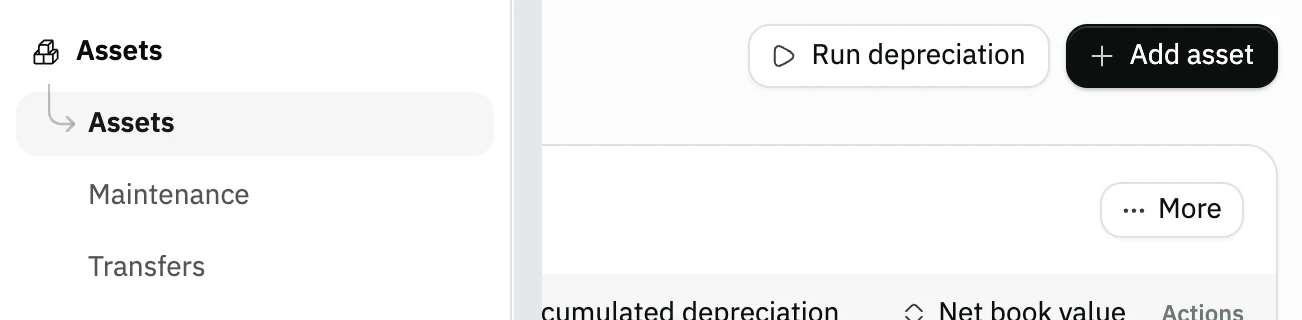
Image key - Assets in the sidebar
- The Add asset button
Step 2: Name it and pick a category
Type the Asset name and pick the Category. The Asset code is optional: left empty, it takes the asset number. Details

Image key - Asset name
- Asset code
- Category
Step 3: Enter cost and useful life
Enter the Cost, the Salvage value (below the cost) and the Useful life (months). The life starts at 60 months. Details

Image key - Cost
- Salvage value
- Useful life (months)
Step 4: Set the acquisition and service dates
Check the Acquisition date (it starts on today). The In-service date is optional: left empty, it takes the acquisition date.

Image key - Acquisition date
- In-service date
Step 5: Choose the branch and custodian
Pick the Branch where the asset sits and the Custodian, the employee responsible for it. Both are optional. Details

Image key - Branch
- Custodian
Step 6: Choose the acquisition source
Choose the Acquisition source account. It is the account credited with the asset's cost, such as your cash or bank account.

Image key - Acquisition source account
Step 7: Save the asset
Press Save at the top of the form. The asset and its acquisition entry are recorded, and you return to the asset list with the new asset in it. Details

Image key - The Save button
Messages that block saving
If saving fails, one of these messages shows next to the field. The table gives the cause and the fix.
| Message | Cause | Fix |
|---|---|---|
| «Salvage value must be less than the asset cost.» | The Salvage value equals the Cost or is higher. | Make the salvage value lower than the cost. |
| «Select the acquisition source account.» | No Acquisition source account is chosen. | Pick the account from the list, then save. |
| «Fixed-asset accounts are not configured for this category. Set them in Asset Management → Settings.» | The chosen category has no asset and depreciation accounts linked. | Open Settings and link the category's accounts (category accounts), then save again. |
| «Posting date is outside the open financial period.» | The Acquisition date is outside the open financial period, and the acquisition entry posts on that date. | Pick a date inside the open period (financial period). |
Advanced details
Each section here explains one point from the steps in depth. Every section has a fixed link you can share.
Category accounts before your first asset
The acquisition entry uses the category's fixed asset account, so an asset can't be saved in a category with no accounts. Open Settings: press Create default accounts to create the accounts and a ready category, or Add category and then set its Account mapping.
In Account mapping you choose the Fixed asset account, the Accumulated depreciation account and the Depreciation expense account, plus the disposal gain and loss accounts when needed (chart of accounts).

- The Create default accounts button
- The Add category button
Check the numbers before saving
When you save the asset, its acquisition entry is posted right away. After that you can't change the Cost, the Salvage value, the Useful life (months), the acquisition date or the Category. The other fields stay editable.
If one is wrong, delete the asset and create it again; deleting reverses the acquisition entry. If depreciation has been posted, reverse it first.
Warranty, description and documents
At the bottom of the form are optional fields: Warranty end, Description, and Documents for the purchase invoice or any file about the asset.
If your business added custom fields for assets, they show in the Custom fields card in the form, and their values later show on the asset page and as columns in the asset list (how to add custom fields). They are data saved with the asset only and do not change the capitalization entry or depreciation. With no field added, the card does not show.
If you pick a Custodian when adding, the asset's custody history records the handover to that employee. To move the asset later between branches or employees, see transfer an asset.
After saving: depreciation and maintenance
Asset depreciation posts automatically on the 1st of each month. The Run depreciation button above the asset list posts it right away for users who have that permission.
Record repairs and service in record asset maintenance, and check your assets in count your assets, and manage their contracts in manage asset contracts.

- The new asset in the list
Common questions
- How do I register a fixed asset in Snad?
- Open Assets, then Assets, and press Add asset. Enter the Asset name, Cost and Useful life (months), pick the Category and Acquisition source account, then Save.
- Why won't the asset save and shows an accounts error?
- The chosen category has no accounts set. Press Create default accounts in Settings, or set the Account mapping of your category, then save again.
- Can I edit an asset's cost after saving it?
- No. Once the acquisition entry is posted, the cost, salvage value, useful life, acquisition date and category are locked. Delete the asset and create it again to fix them.
- What is the difference between salvage value and cost?
- Cost is what you paid for the asset; Salvage value is what you expect it to be worth at the end of its life. Salvage must be lower than cost or the asset won't save.
- Is the asset depreciated automatically?
- Yes, monthly depreciation posts automatically on the 1st of each month. You can post it right away with Run depreciation if you have that permission. The asset balances and accumulated depreciation show on the balance sheet.